Manual
This document aims to give a detailed run-down of key features and usage scenarios provided by the RAVAS Indicator app. It describes version 1.5.3.
Device compatibility
The app is compatible with any android device running at least Android 10 (API level 29, Android Q) or newer
Cummulative distribution (Dec 1 2025, source). Greyed-out versions (API < 29) are unsupported
| Platform Version | API | Distribution |
|---|---|---|
| Android 4.4 (KitKat) | 19 |
|
| Android 5 (Lollipop) | 21 |
|
| Android 5.1 (Lollipop) | 22 |
|
| Android 6 (Marshmallow) | 23 |
|
| Android 7 (Nougat) | 24 |
|
| Android 7.1 (Nougat) | 25 |
|
| Android 8 (Oreo) | 26 |
|
| Android 8.1 (Oreo) | 27 |
|
| Android 9 (Pie) | 28 |
|
| Android 10 (Q) | 29 |
|
| Android 11 (R) | 30 |
|
| Android 12 (S) | 31 |
|
| Android 13 (T) | 33 |
|
| Android 14 (U) | 34 |
|
Supported scales
The app has been tested to work with the following RAVS scale models:
| Model | Connection | Protocol | Notes |
|---|---|---|---|
| RAVAS RedBox | Bluetooth Low-Energy, L2CAP | RedBox | Supports WiFi configuration, firmware updates, audit trail |
| RAVAS 3100 | Bluetooth Low-Energy | ASCII | |
| RAVAS 3200 | Bluetooth Low-Energy | ASCII | |
| RAVAS 5200 | Bluetooth Low-Energy | ASCII | |
| RAVAS 2100 | Bluetooth Classic | ASCII | Has to be paired |
Newer RedBox devices advertise support for the faster L2CAP transport, which the app selects automatically when available. ASCII indicators are supported over the Nordic UART, S2B5232EV2 and LM068 Bluetooth Low-Energy modules; the module in use is detected automatically upon connecting and requires no configuration.
Key features overview
| Feature | Notes | Section |
|---|---|---|
| Language switching | English, Dutch, German, Polish, Italian, Romanian, French and Spanish | in Settings |
| Connect to RAVAS Bluetooth scales | Support for connection through Bluetooth Low-Energy (BLE) and Bluetooth Classic | Section |
| Rename saved devices | Give a scale a recognisable alias | Section |
| Use the app in landscape and portrait modes | Weight screen has special support for this | Section |
| Weight only mode | Hide controls to display largest weight number possible | Section |
| QR/Barcode (and other formats) weight mode | SHow weight as QR/Barcode instead of number | Section |
| Device logs export | Section | |
| App logs export | Diagnostics for RAVAS support | Section |
| Set scale zero, auto and manual tare | Section | |
| Preset tare after save | Determine a tare by weighing the empty load carrier | Section |
| Weight ongoing summation | Section | |
| Save weights | Persisted on device, with sequence and group numbers | Section |
| RDC integration - automatic weight upload | RDC - RAVAS Data Collection server | Section |
| Custom fields for saved weights | Text fields are available without a license | Section |
| Bridge server | Forward the scale protocol to a TCP client on the local network | Section |
| Zebra printer integration (network or BLE) | Section | |
| Configure custom Zebra printing labels | Support for defining labels for weights in singular or tabular format with aggregations | Section |
| License management | Device-bound or Enterprise licenses | Section |
| Light/Dark mode | Includes Material You (Android 12+) dynamic color scheme | in Settings |
| Backup & restore settings to file | Section | |
| Share & retrieve settings from local network | Section | |
| RedBox settings menu | Wi-Fi configuration, live logs and firmware updates | Section |
| Manager mode for settings visibility | Section | |
| Experimental features | Auto-connect to a scale, lock down connection controls, hide the Weight screen | Section |
Base features
Navigating between screens
There are 5 main screens accessible at all times through the sidebar, split into two groups:
- Main
- Home
- Devices (the Bluetooth screen)
- Weight
- Advanced
- Saved Weights
- Settings
Navigating is as simple as clicking on the desired page in the sidebar. The bottom of the sidebar shows the installed app version.
Two sidebar entries can carry a badge:
- Saved Weights shows how many weights are currently being uploaded, when RDC integration is enabled.
- Settings shows a reminder when the license is about to expire.
The Weight entry can be removed from the sidebar entirely - see Experimental features.
| Home screen | Sidebar |
|---|---|
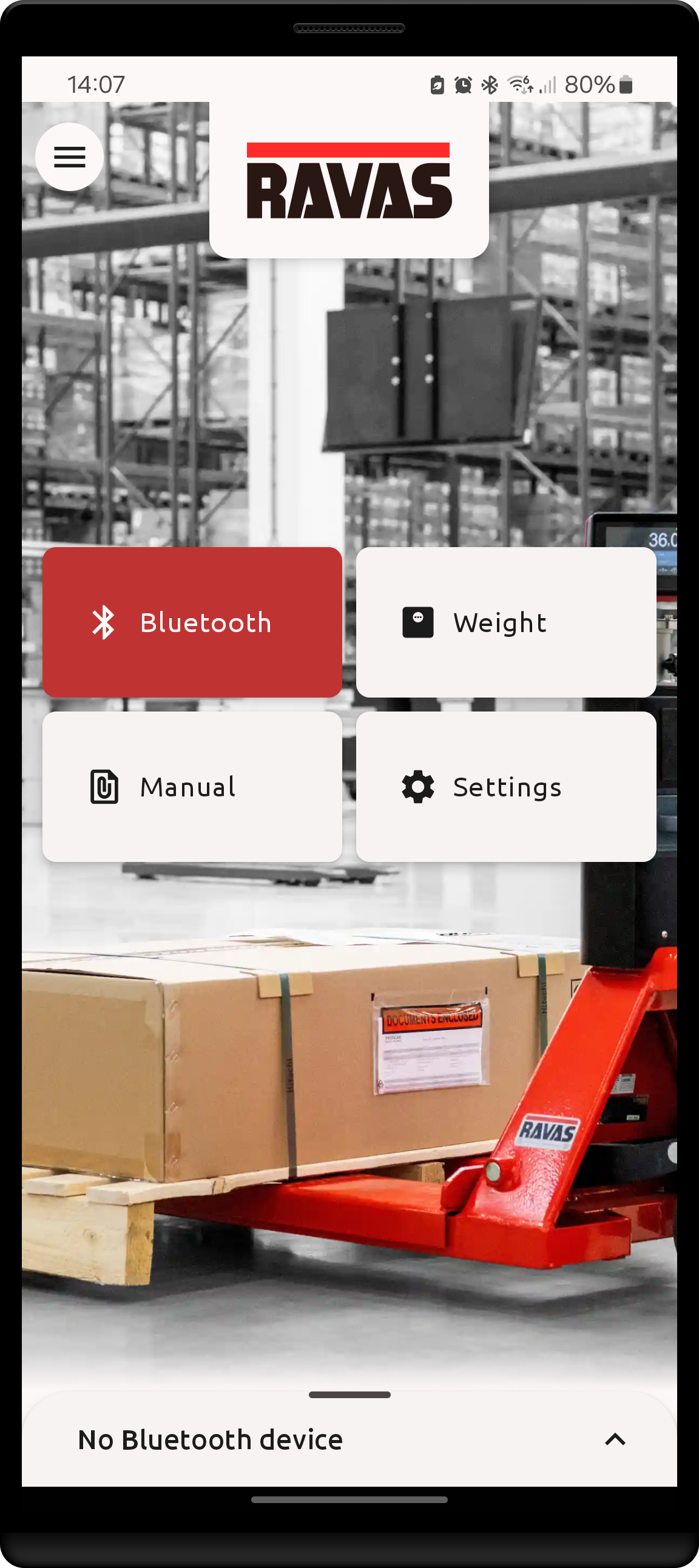 |
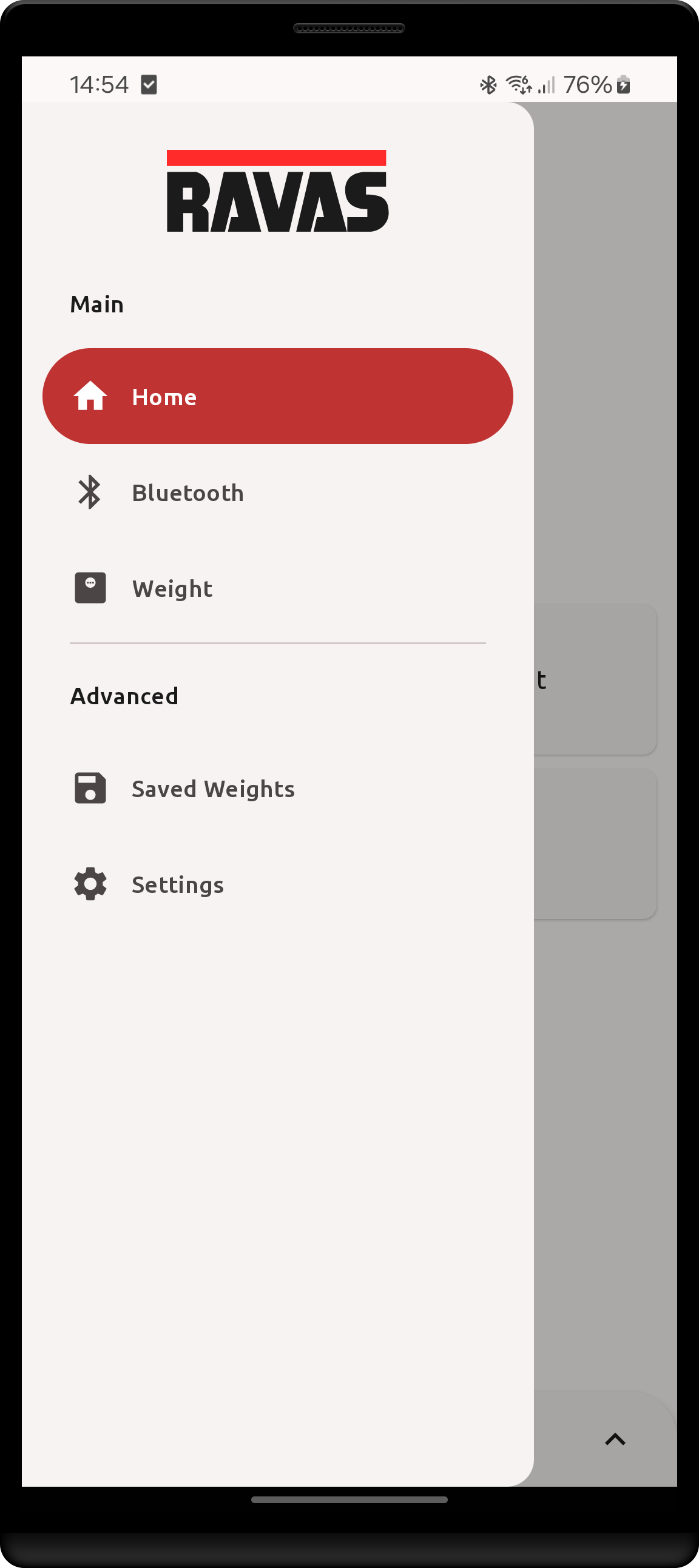 |
| Most screens have a hamburger icon button in the top-left side of the screen. | In order to open the sidebar menu you may either tap this button or swipe left to right anywhere on most screens. |
Connect to a RAVAS Bluetooth device
The app connects to RAVAS devices through BLE (Bluetooth Low-Energy). In order to connect a new scale, you must first navigate to the Devices screen by:
- Click on the
Devicesbutton in the Home screen - Click on the
Devicesbutton in the sidebar - Expand the bottom sheet when no device is connected and click on the
Devicesbutton
Prerequisites
Afterwards, if this is the first time accessing this screen, you must grant access to the Bluetooth permission and, optionally, to the notification permission in order to proceed.
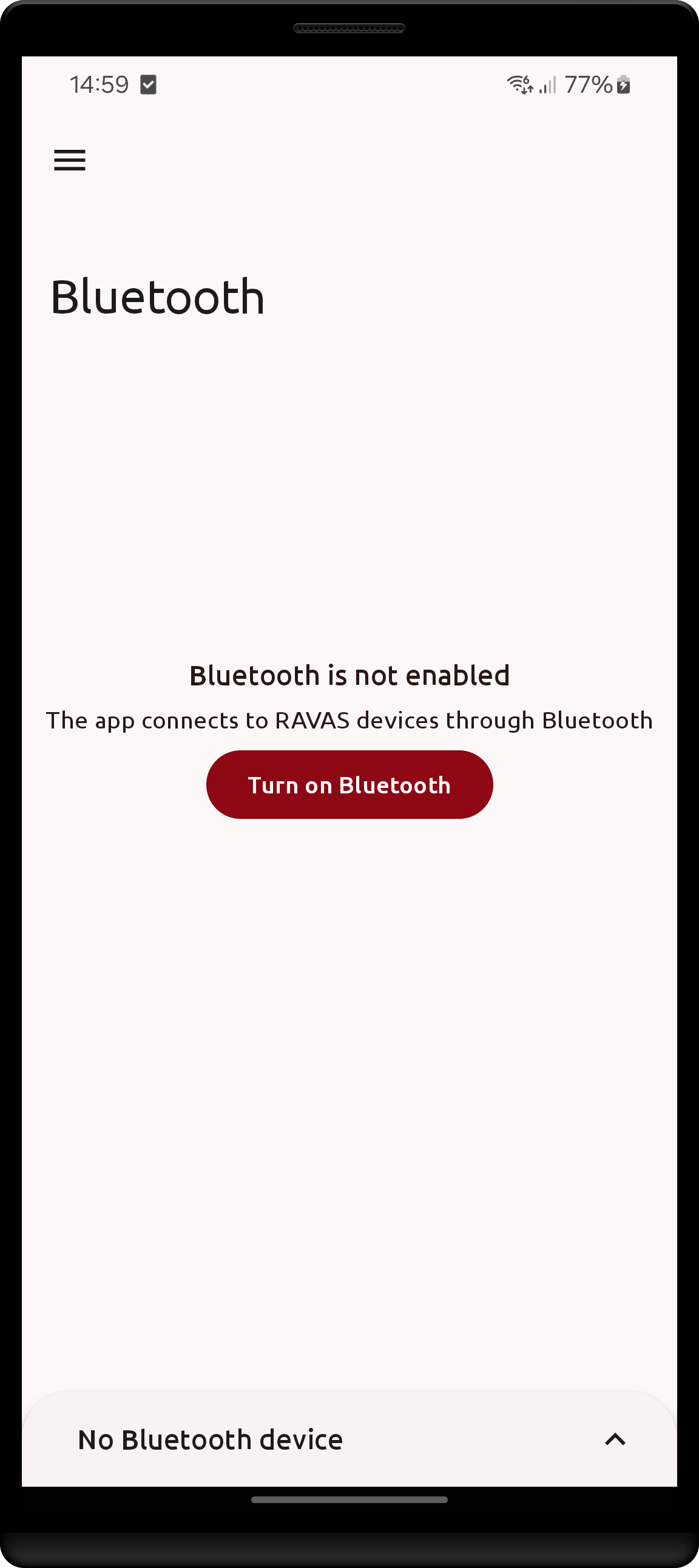
| Connect permission | Notification permission | Bluetooth disabled |
|---|---|---|
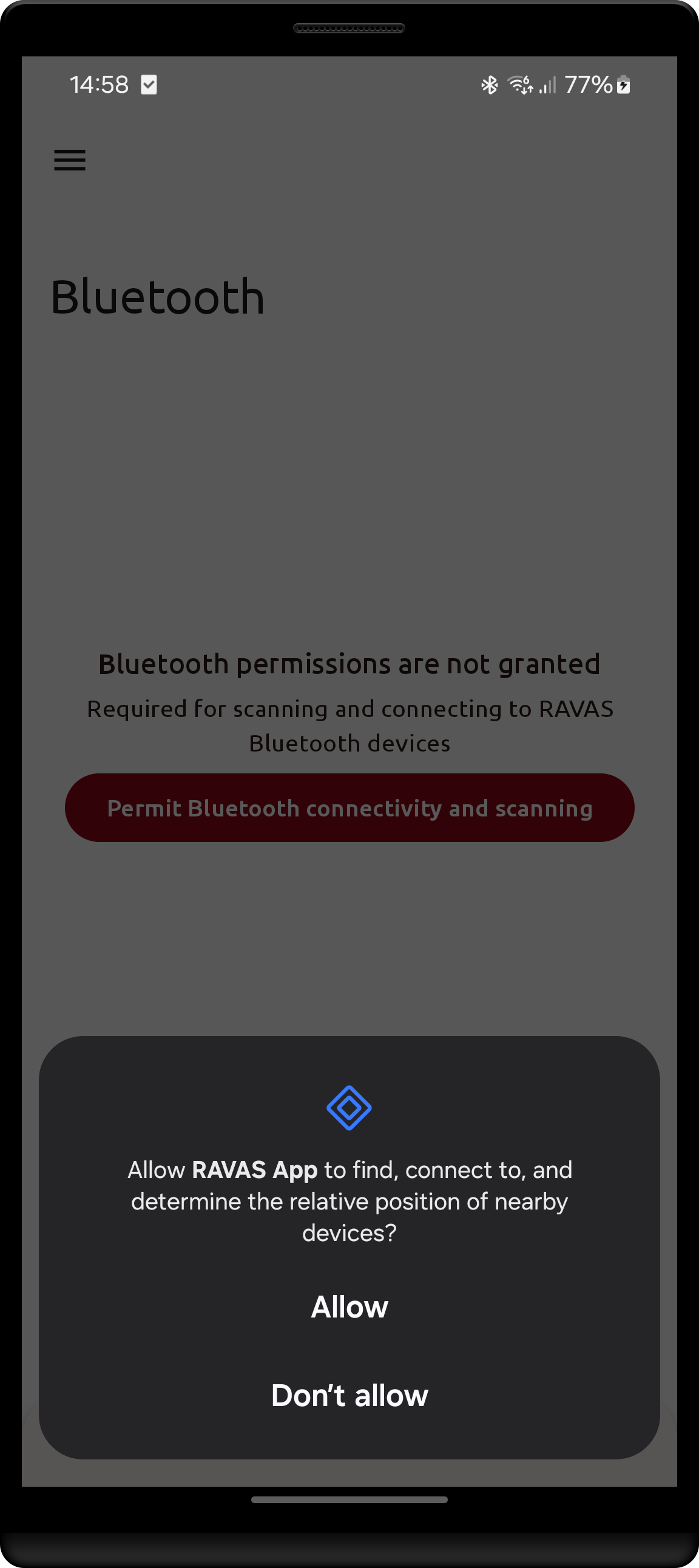 |
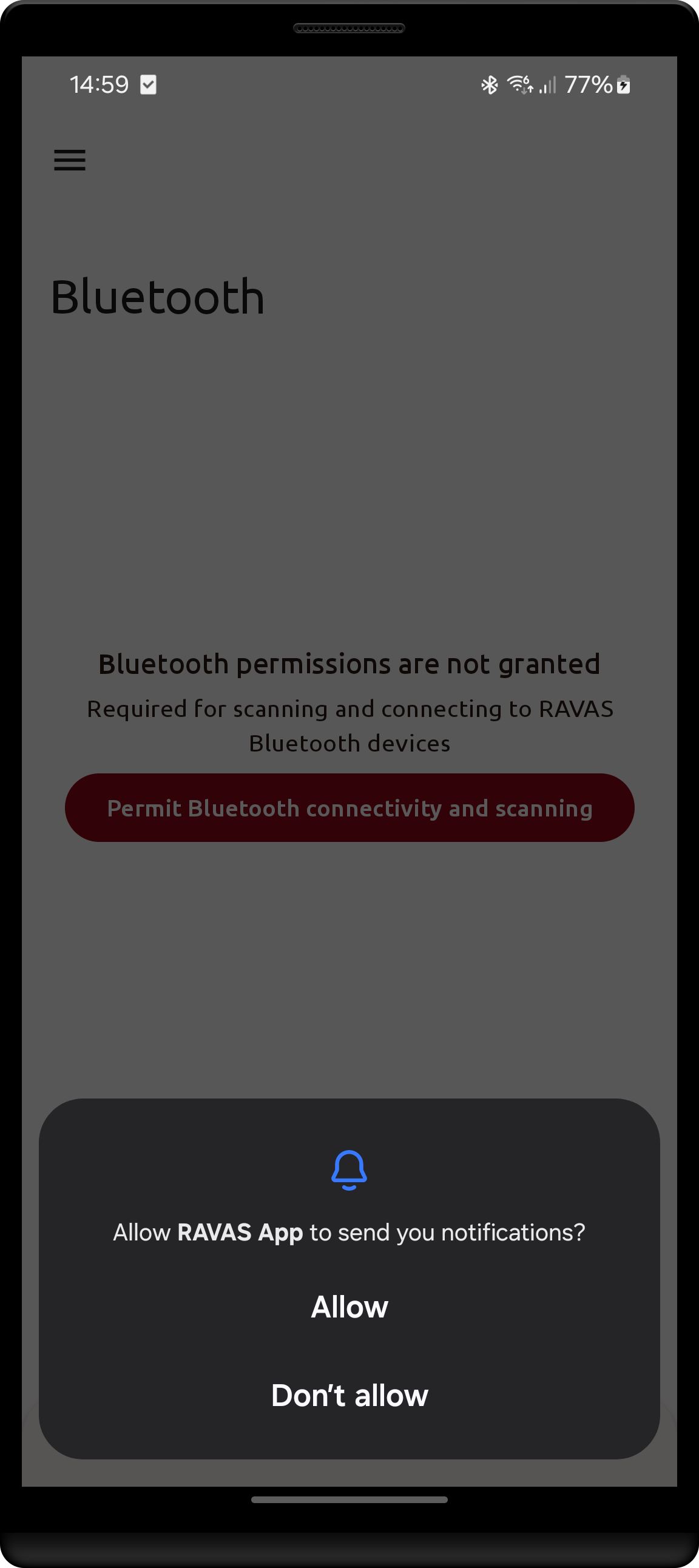 |
 |
- (Required) Until the
Connectpermission is granted, you will not be able to connect to any RAVAS device. The actual permissions requested may very depending on your android version. The above image applies for Android 14. - (Optional, Highly recommended) Granting this permission allows the app to create a sticky notification that appears only when a RAVAS device is connected. It provides quick access to get back into the app and/or disconnect the device. Note that this permission is only requested once for now.
- Bluetooth must be enabled to proceed. if disabled, you may click the
Turn on Bluetoothbutton to trigger a system dialog, or enable Bluetooth in the notification tray. The app monitors the Bluetooth adapter state and will disconnect if disabled.
Scanning
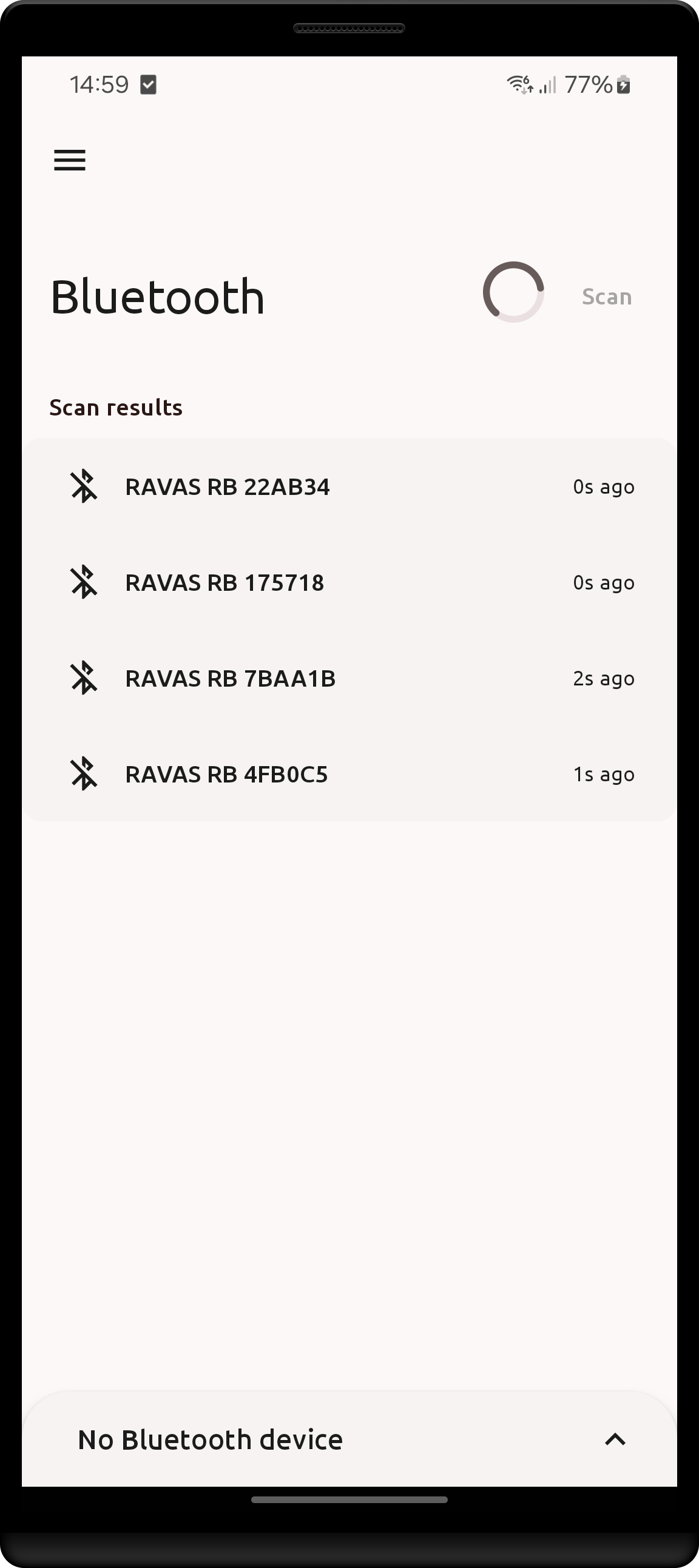
Upon accessing the Devices screen, a BLE scan will be automatically started.
- Each scan lasts 10 seconds.
- Scanning in process is indicated by the loading spinner in the top-right side of the screen.
- When not scanning, you may start the scan again by clicking the
Scantext button in the top-right side of the screen. - If you navigate outside the Devices screen and back, a scan will only be automatically started if the Devices screen has not been visited in the last 5+ seconds. Closing the device's screen (e.g. using the power button) or switching the current app also counts as leaving the Devices screen.
When a device is found, it will appear under Scan results.
- Each entry shows the device's name along with how long ago it was last seen
- Last seen is simply the time span since the last scan found the respective device.
- If the device has not been seen in 1 hour, the time label will show
a long time ago. - The app remembers all scanned devices.
- The order of the devices will not change until the next automatic scan (i.e. leaving this screen for more than 5 seconds).
- New devices will always be placed at the end of the list
- Old devices that have not been scanned since accessing the Devices screen will be greyed out.
- Devices are initially sorted by the time they were last seen, with the most recent at the top.
- Devices are considered unique by their Bluetooth address.
| Scan list | Remove an old device |
|---|---|
 |
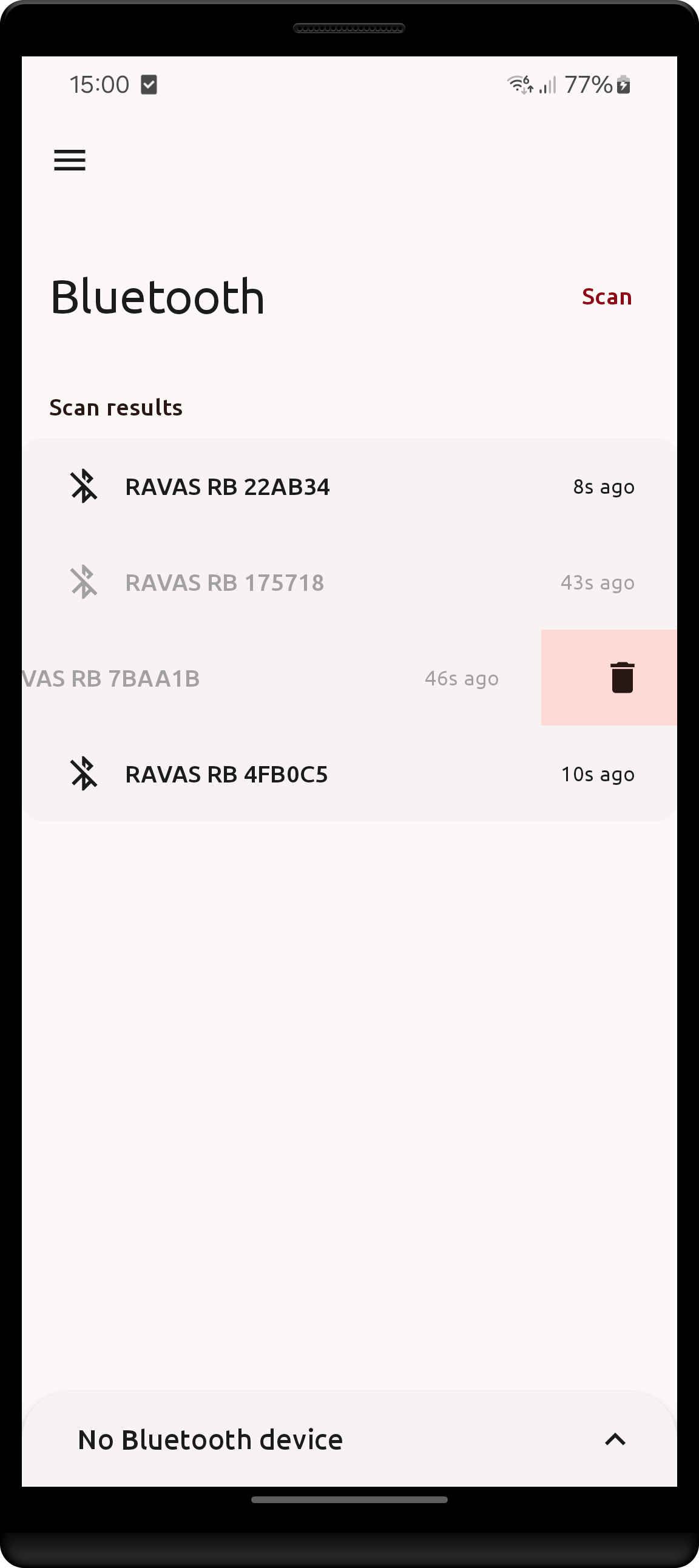 |
In this example, the device RAVAS RB 175718 is greyed out because it was not found in the last scans since freshly accessing the Devices screen, but it was scanned at some point in the past (in this case 1 minute ago) |
Devices are remembered forever, you may clear the list of old devices by swiping right to left on a device. |
The sort icon button in the top-right side of the screen re-sorts the list by the time each device was last seen and scrolls back to the top, without waiting for the next automatic scan.
Managing a device
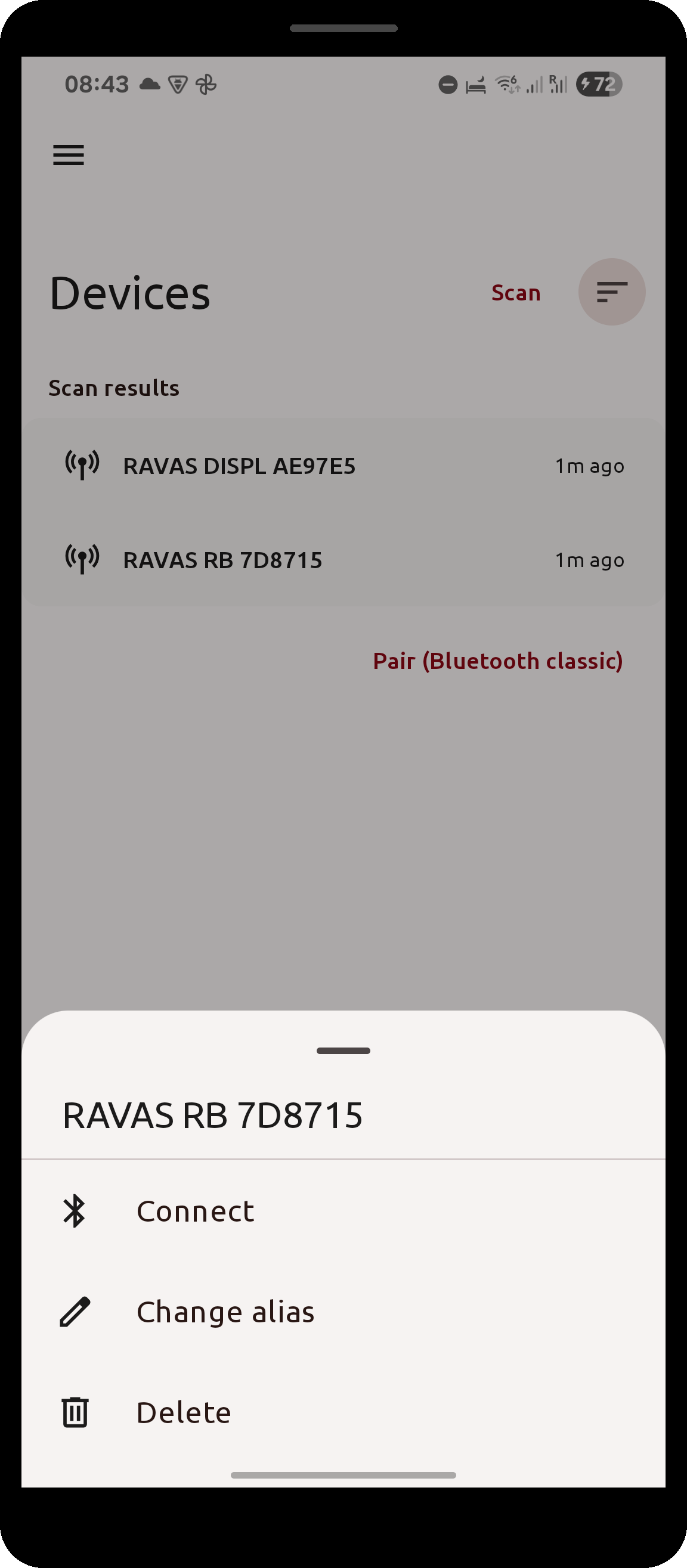
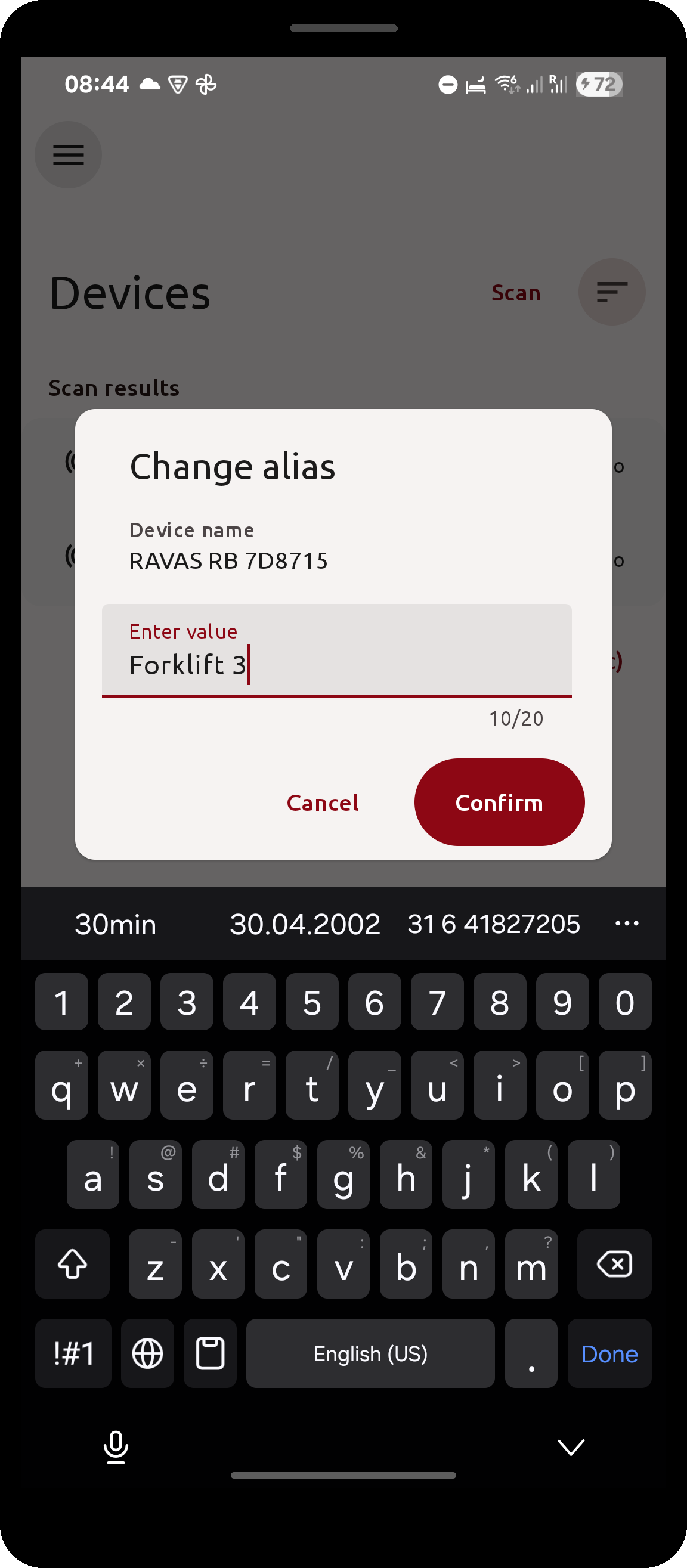
Long-pressing any device in the list opens a menu with the actions available for it:
Connect/DisconnectChange alias: give the device a name of your ownDelete: forget the device
The same two actions are also available as swipe gestures on the device entry:
- swipe left to right (start to end) to open the rename dialog
- swipe right to left (end to start) to delete the device
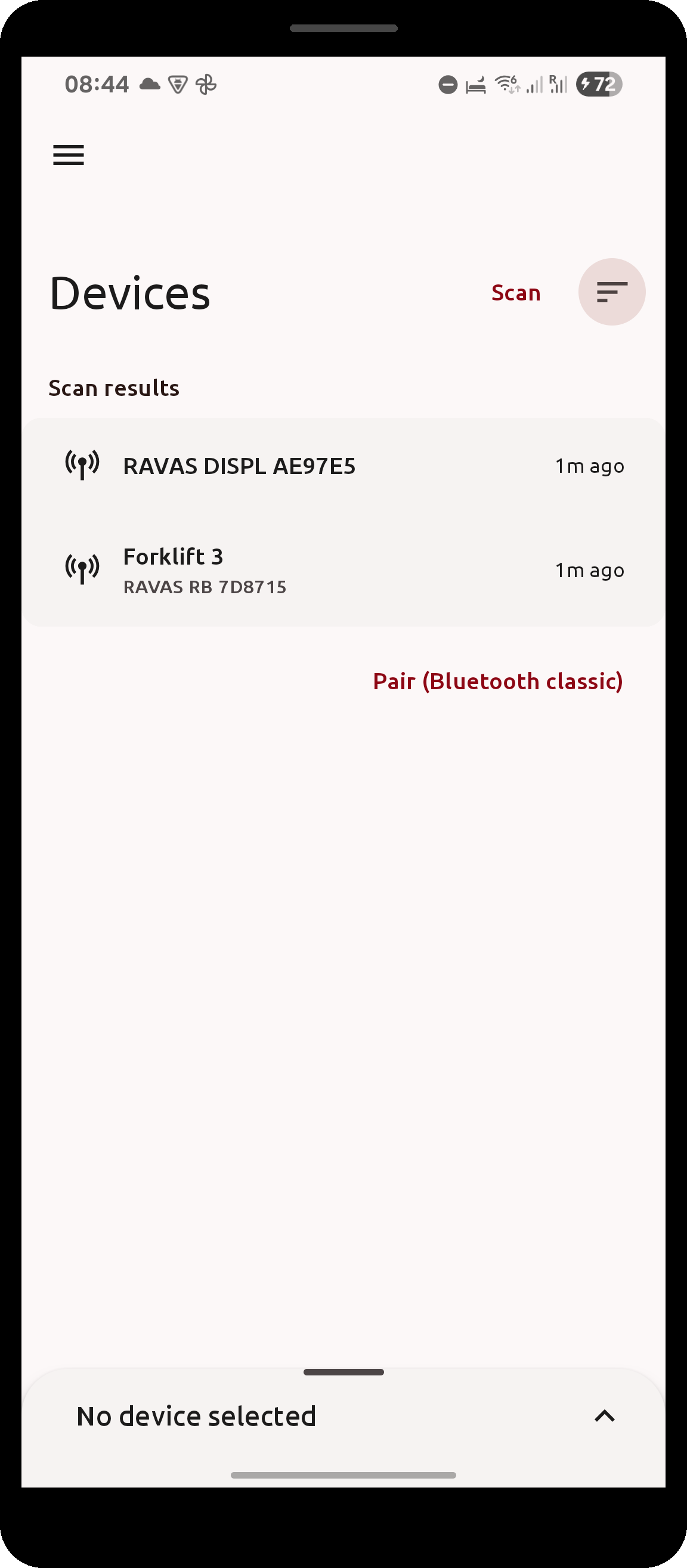
An alias replaces the device's advertised Bluetooth name everywhere it is shown in the app, with the original name kept underneath in smaller text. Aliases are part of the app's settings and are therefore included in backups.
| Device menu | Change alias dialog | Device shown with its alias |
|---|---|---|
 |
 |
 |
Bluetooth Classic devices
Scales that connect over Bluetooth Classic (e.g. the RAVAS 2100) must be paired with the Android device before they
can be used. Click Pair (Bluetooth classic) at the bottom of the Devices screen to start the Android pairing
flow and select the scale.
Once paired, the device appears under Paired devices, above the scan results. Entries in this list behave exactly
like scan results: click to connect, long-press for the menu.
Establishing a connection
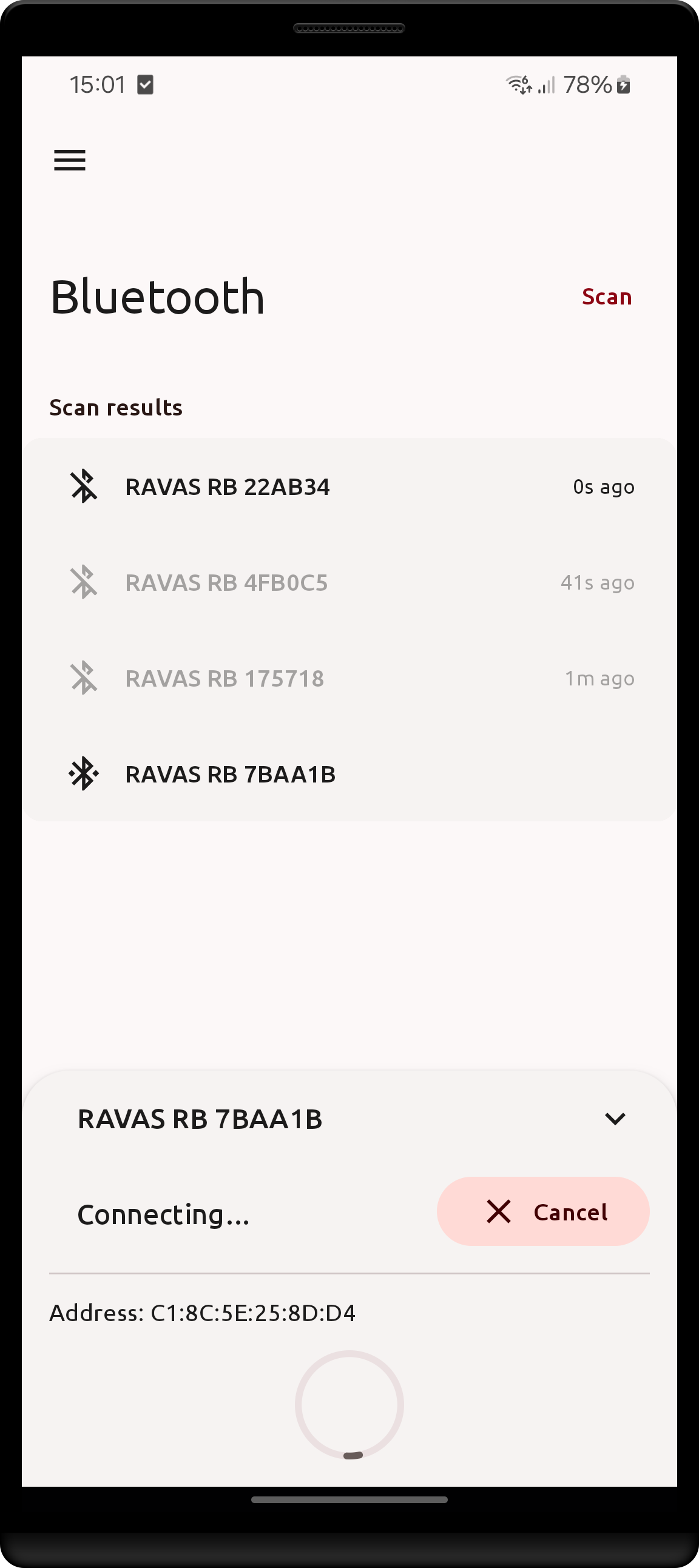
In order to connect to a RAVAS device, simply click on the desired scanned device in the list.
| Connecting to a device | Connection notification |
|---|---|
 |
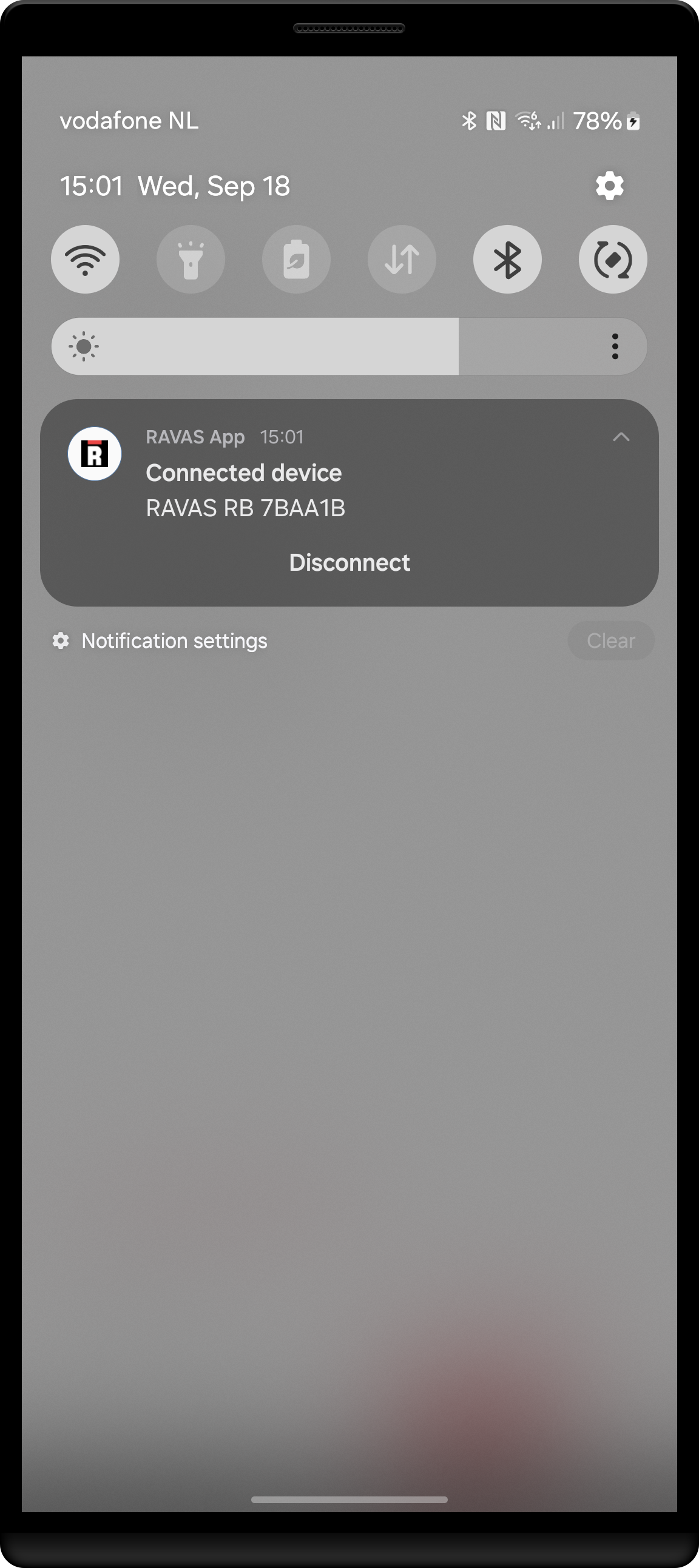 |
| Upon initiating connection, the bottom sheet will expand to show the current connection status. | Swiping this notification away (Possible on Android 14) or clicking Disconnect will disconnect the current device. Clicking on the notification will place the app in the foreground. |
Each connection goes through the following steps:
- (If not already scanned) Scan for device
- Establish Bluetooth LE connection
- Configure device (Retrieve required parameters, set services, etc.)
Once connected, you will be directed to the Weight screen
If connection fails for some reason, you may use the bottom sheet's
Retrybutton to try again. Otherwise you must select another device. If the connection succeeds after a retry, you will not be directed to the Weight screen automatically.
Connecting from the home screen
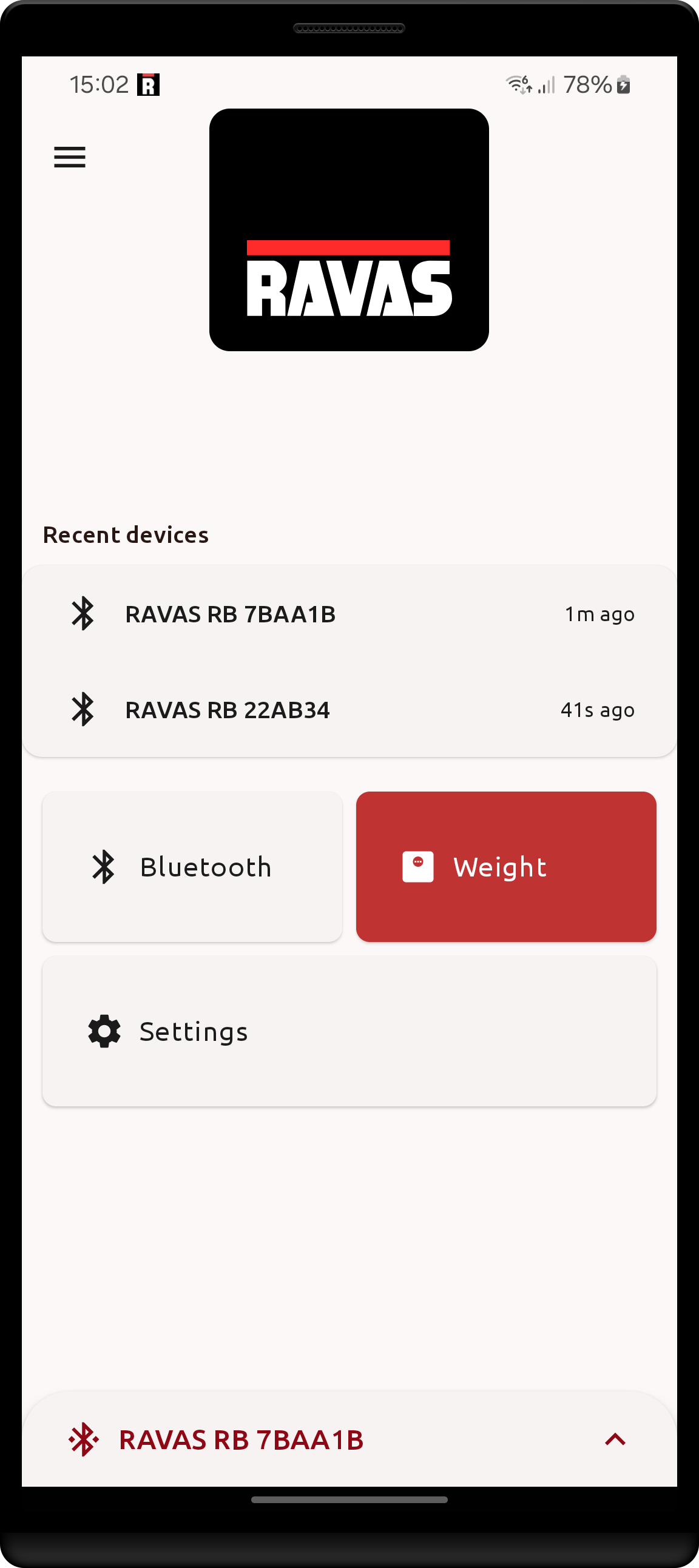
The app remembers all previously scanned and connected devices. Once you have connected to a device it will also appear in the Home screen under Recent devices:
- the (up to) 3 last connected devices are shown, with the most recently connected on top
- similar to viewing scans, the time shown indicates how long ago the device was last seen/scanned
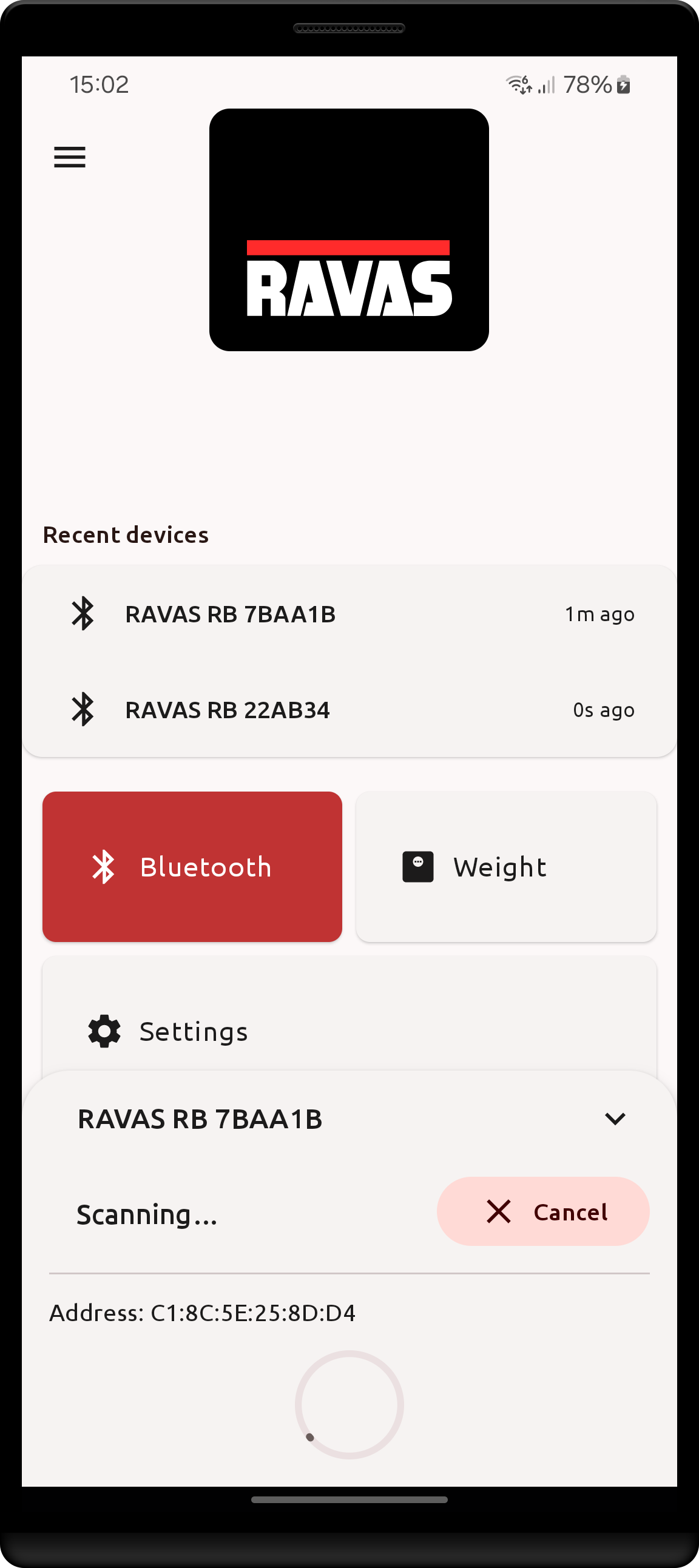
To connect through the Home screen, simply click on the desired device. The only difference to connecting through the Devices screen is that here the device is necessarily confirmed to be scanned. As such an extra step: Scanning takes place before the actual connection.
| Home screen | Extra step: Scanning |
|---|---|
 |
 |
Below the recent devices, the Home screen offers shortcut tiles to the Devices, Weight and Settings screens,
plus a Manual tile that opens this document - it is bundled with the app, so no internet connection is needed.
The
Weighttile is disabled when the Weight screen has been switched off in Experimental features.
Weight viewing
Once connected to a RAVAS Bluetooth device, navigate to the Weight screen by:
- Click on the
Weightbutton in the Home screen. - Click on the
Weightbutton in the sidebar. - Expand the bottom sheet when a device is connected and click on the
Weightbutton.
While on this screen, the app requests weight & status updates from the scale. In order to save on battery and optimize performance, the app will stop receiving weight updates from the scale when:
- You leave the Weight screen for more than 5 seconds.
- The app is in the background / Device screen is closed for more than 5 seconds.
Note that while weights are updated when you actually view this screen, the Bluetooth connection is maintained throughout the app's lifetime until you disconnect manually / connection is lost / app is closed.
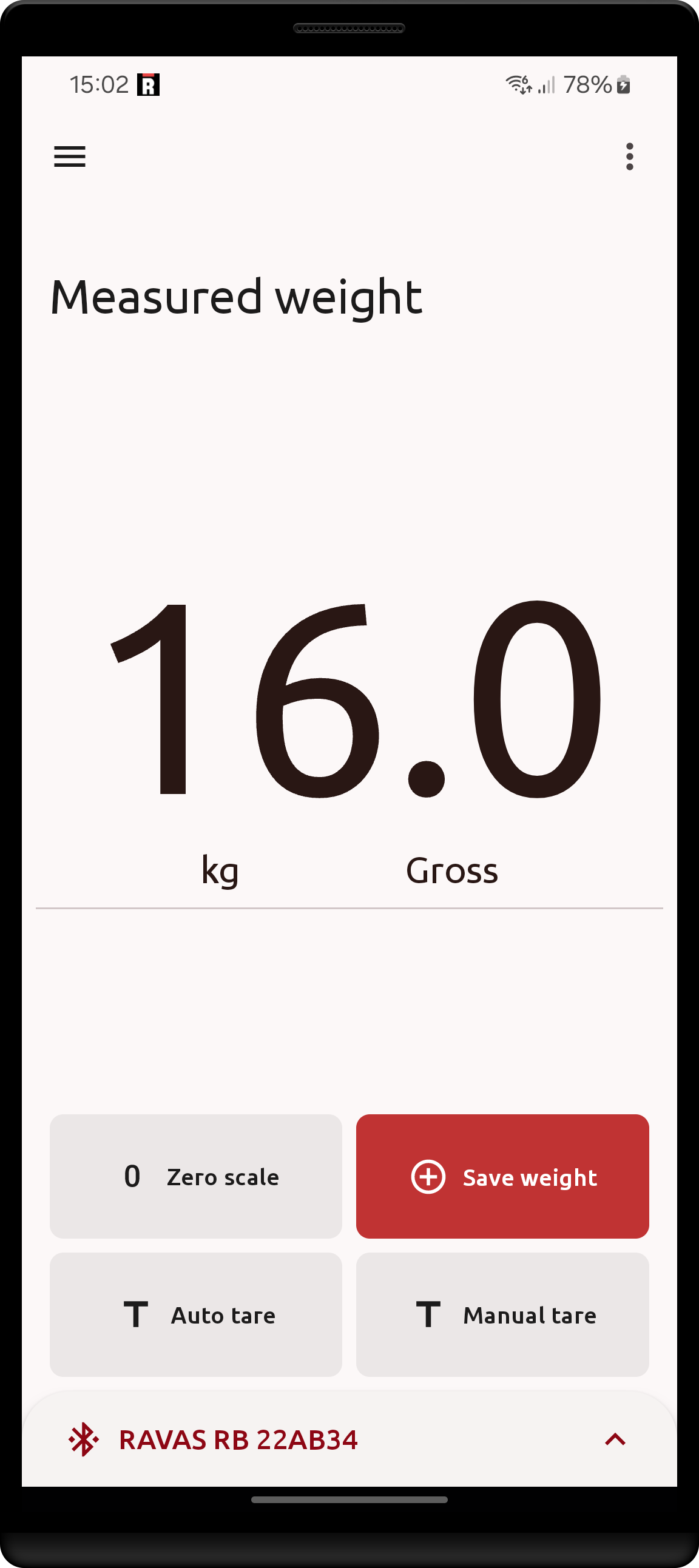
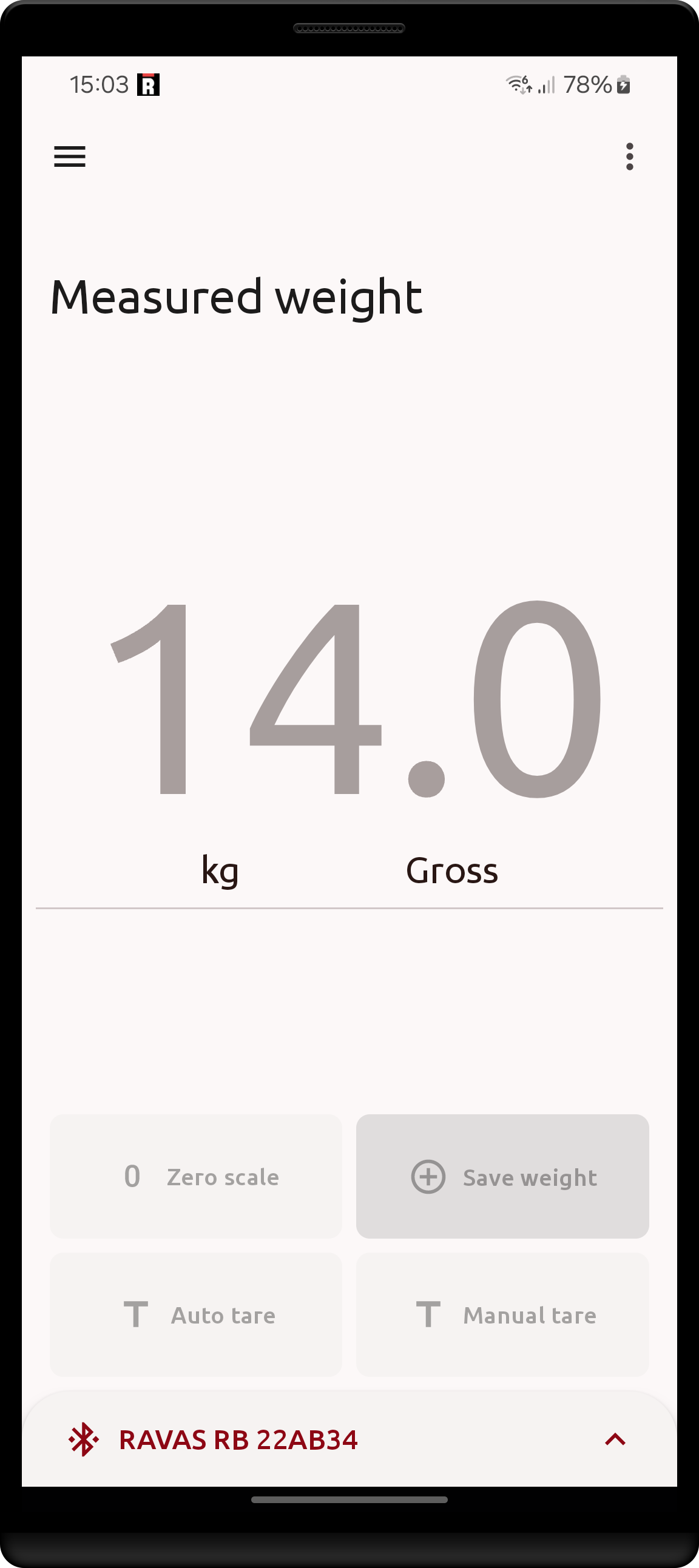
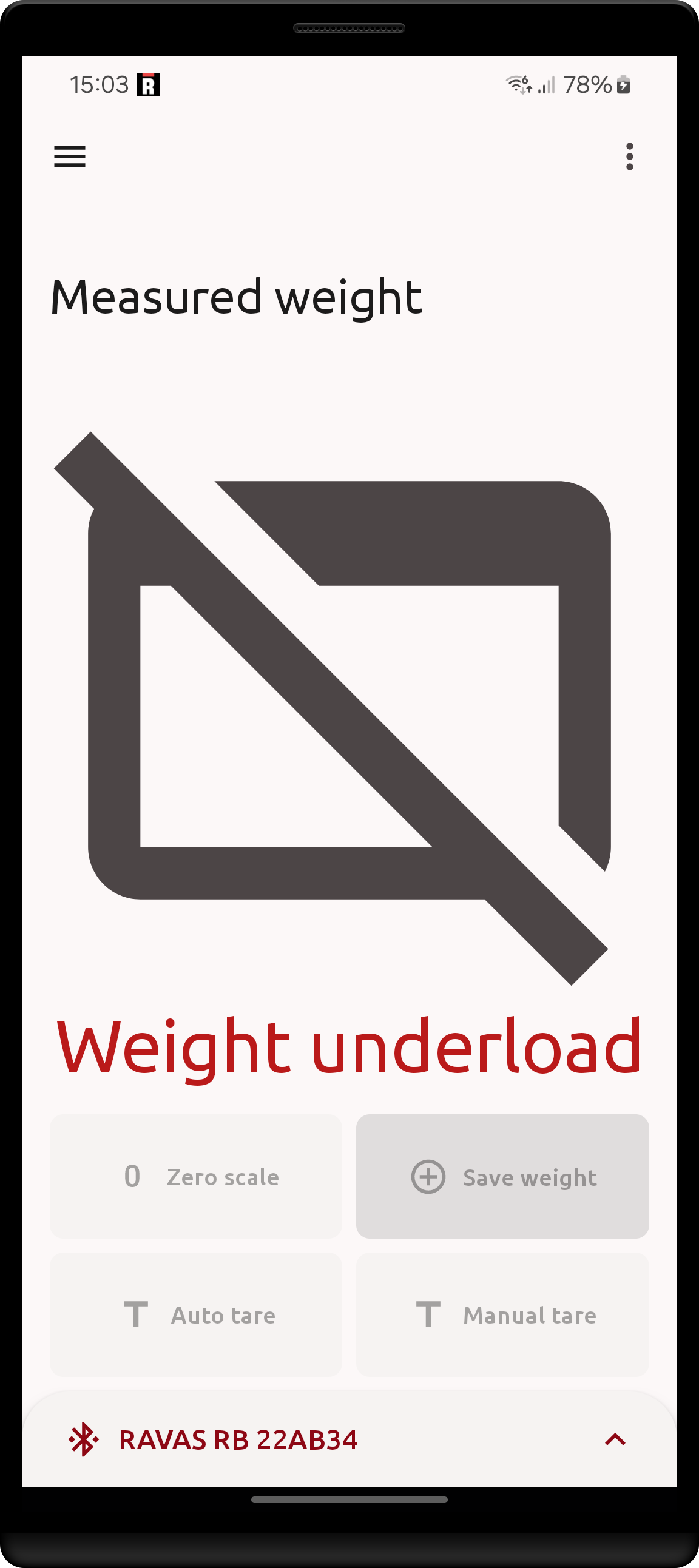
| Weight available | Weight unstable | Weight error |
|---|---|---|
 |
 |
 |
- The app displays the weight as received from the device, in the device's unit of measurement (kg/lb), with its specific number of significant digits (decimals after the separator)
- Weight controls are only available when the reported weight is stable.
- During weighing errors an icon and error message will be displayed in place of the weight.
Note that some errors on some devices (3200, 5200) are not reported to the app due to protocol limitations, it is possible for the message to only be shown on the indicator
Scale range indicators (RedBox)
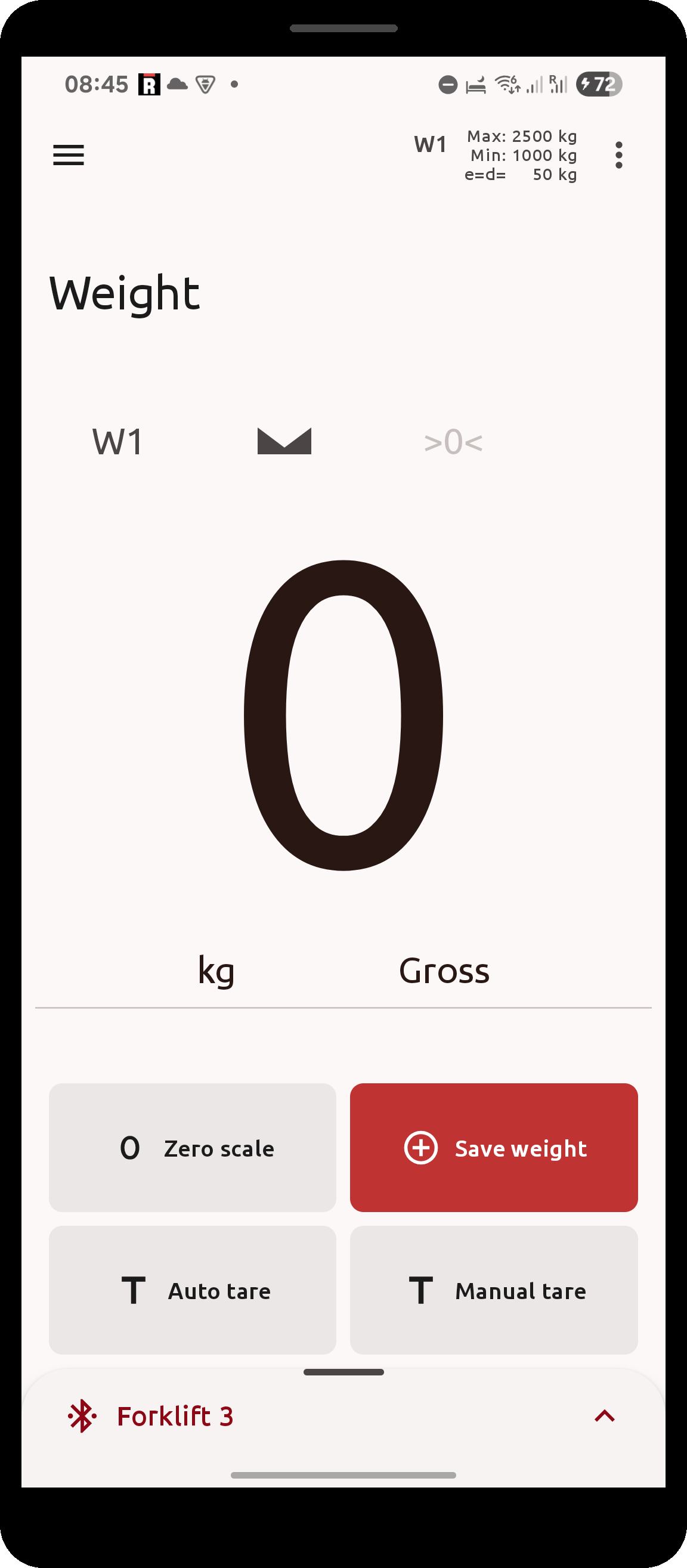
When connected to a RedBox, the top bar of the Weight screen shows the metrological properties of the currently
configured scale: the range label (W1, W2, ...) followed by its Max, Min and e=d= values in the scale's
unit. On a multi-range scale the indicator cycles through the configured ranges every few seconds, with a progress
bar filling the range label.
Weighing in motion
RedBox systems that are configured for weigh-in-motion report their measurement progress rather than a stable/unstable flag. On these systems the Weight screen shows the gross weight together with a progress bar that fills as the measurement is taken. The alibi number is produced by the scale as part of the measurement, so saving such a weight does not need a separate alibi request.
Audit trail (RedBox)
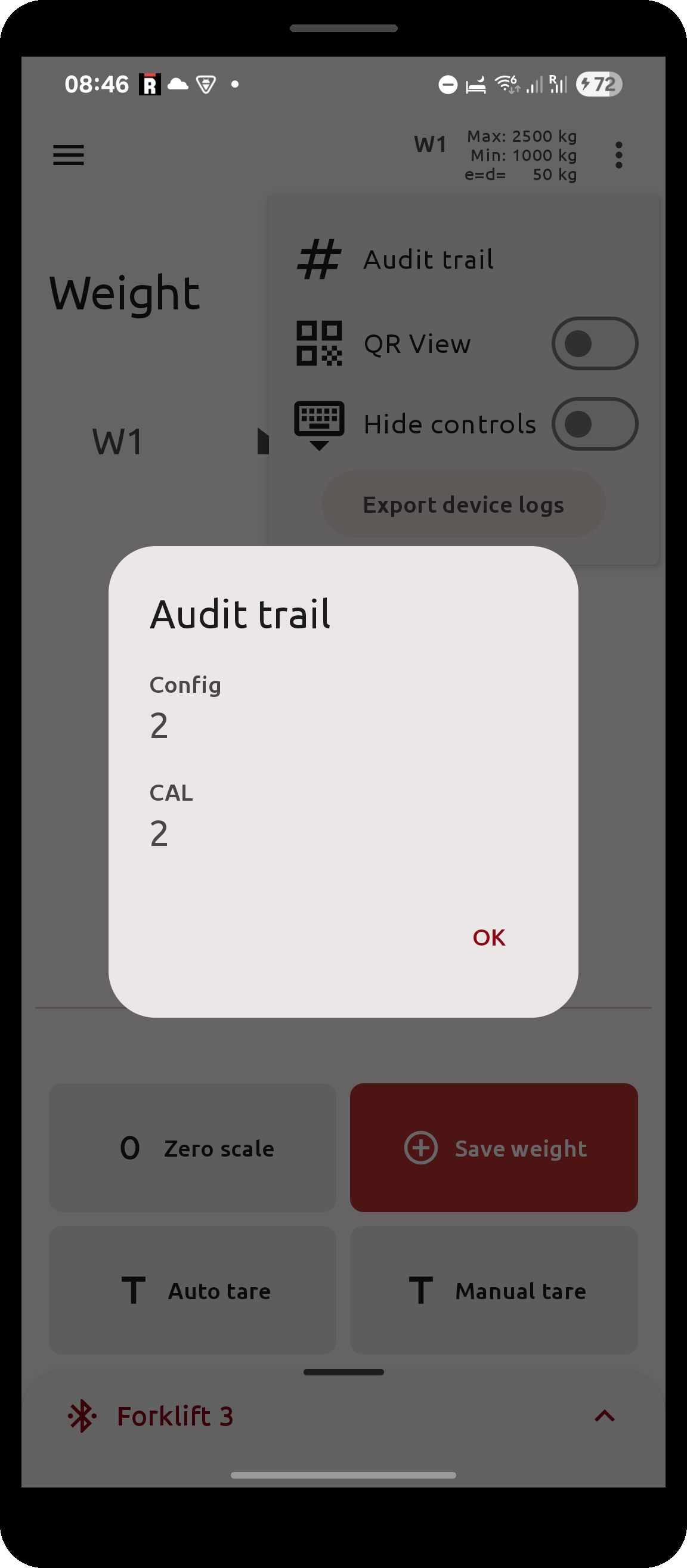
When connected to a RedBox, the three dots menu in the top-right side of the Weight screen contains an Audit trail
entry. It opens a dialog showing the legally relevant counters read from the device:
Config: the TAC counter, incremented whenever a legally relevant configuration parameter is changedCal: the CAL counter, incremented on every calibration
| Range indicators in the top bar | Audit trail dialog |
|---|---|
 |
 |
Weight controls
When on the Weight screen with a connected RAVAS device, the following common device controls are available:
Zero Scale: instruct the scale to zero itselfSave weight: save weight locally with a scale alibi number (if available, otherwise 0)Auto tare: set the current weight as tare valueManual tare: set a tare value in device units (kg/lb)
Only one control action may take place at a time. While in progress, the control buttons become disabled.
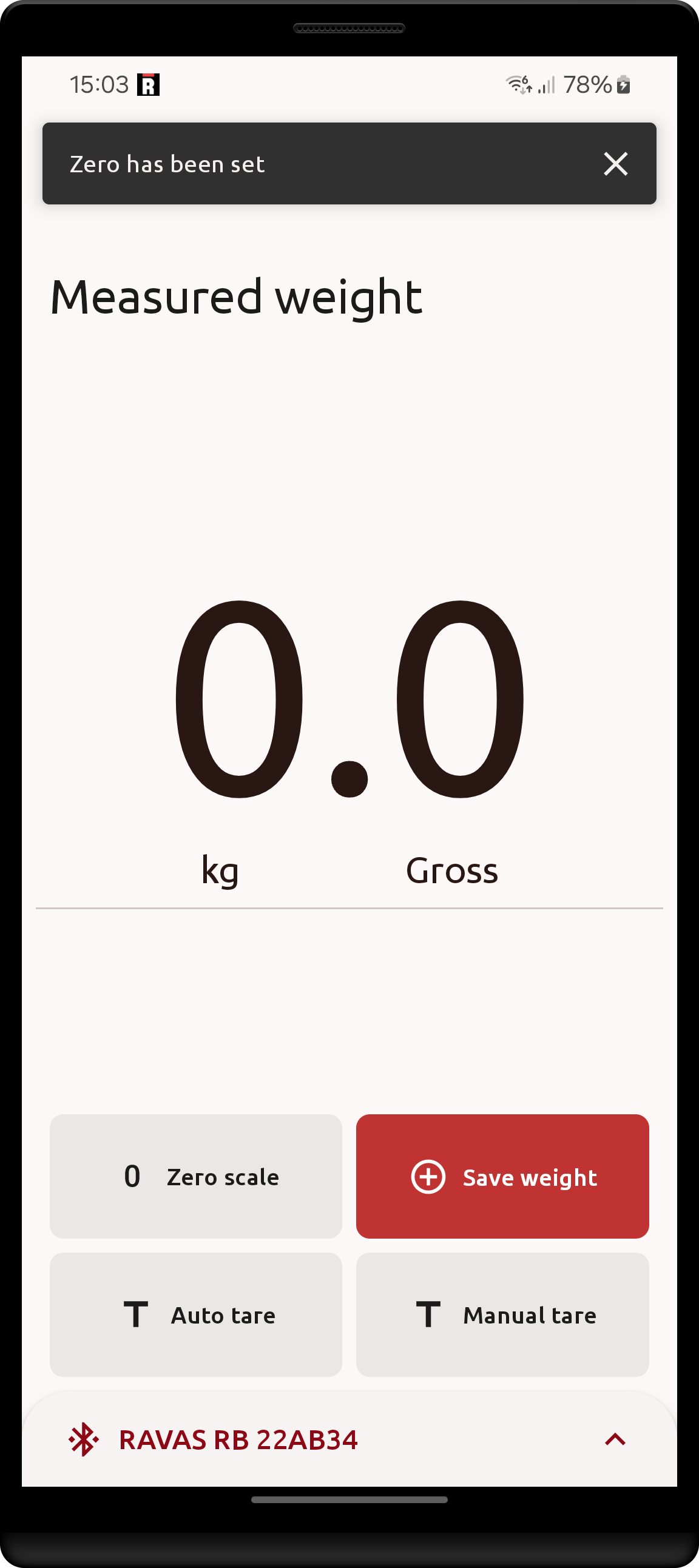
- The result of some actions (
Zero scale,Save weight) is shown with a Snackbar message at the top of the screen. - While other actions
Auto/Manual tareonly show a Snackbar when an error has occurred.
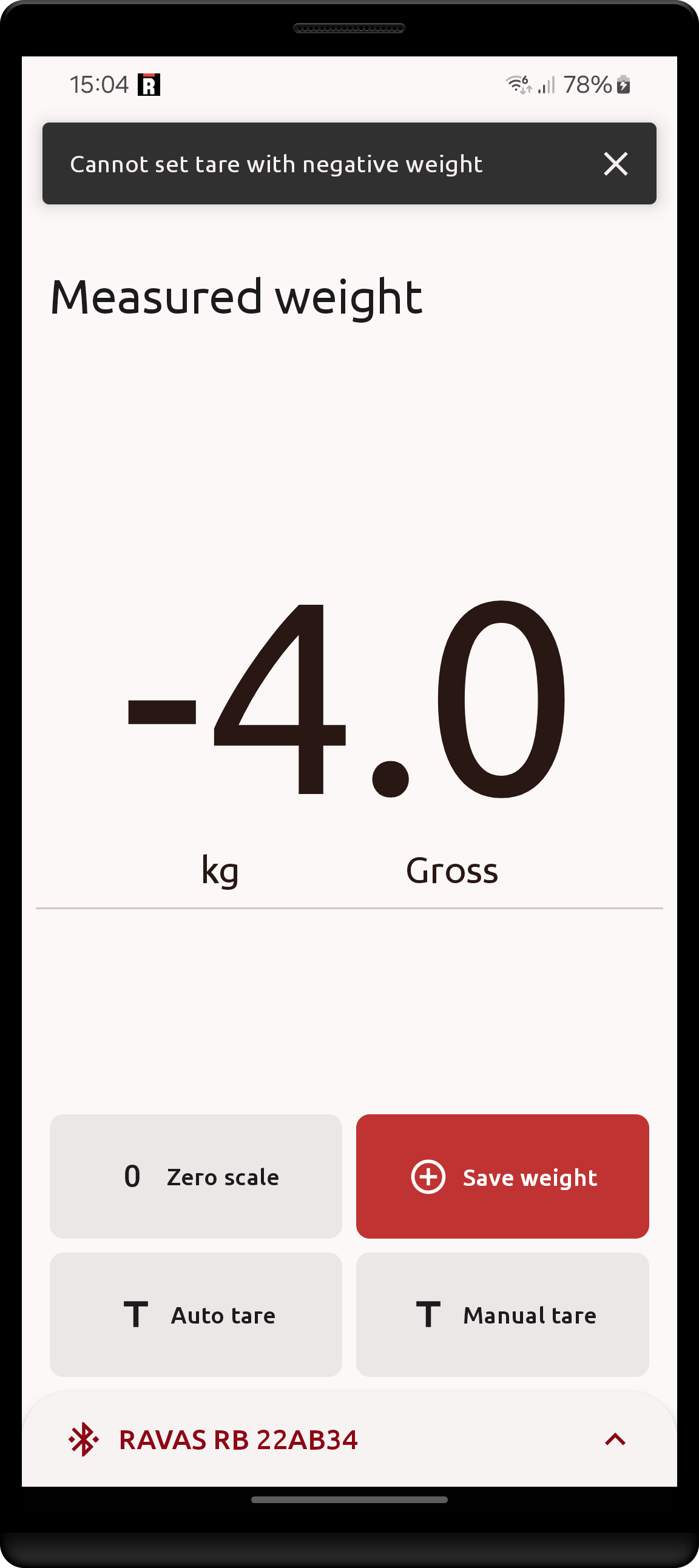
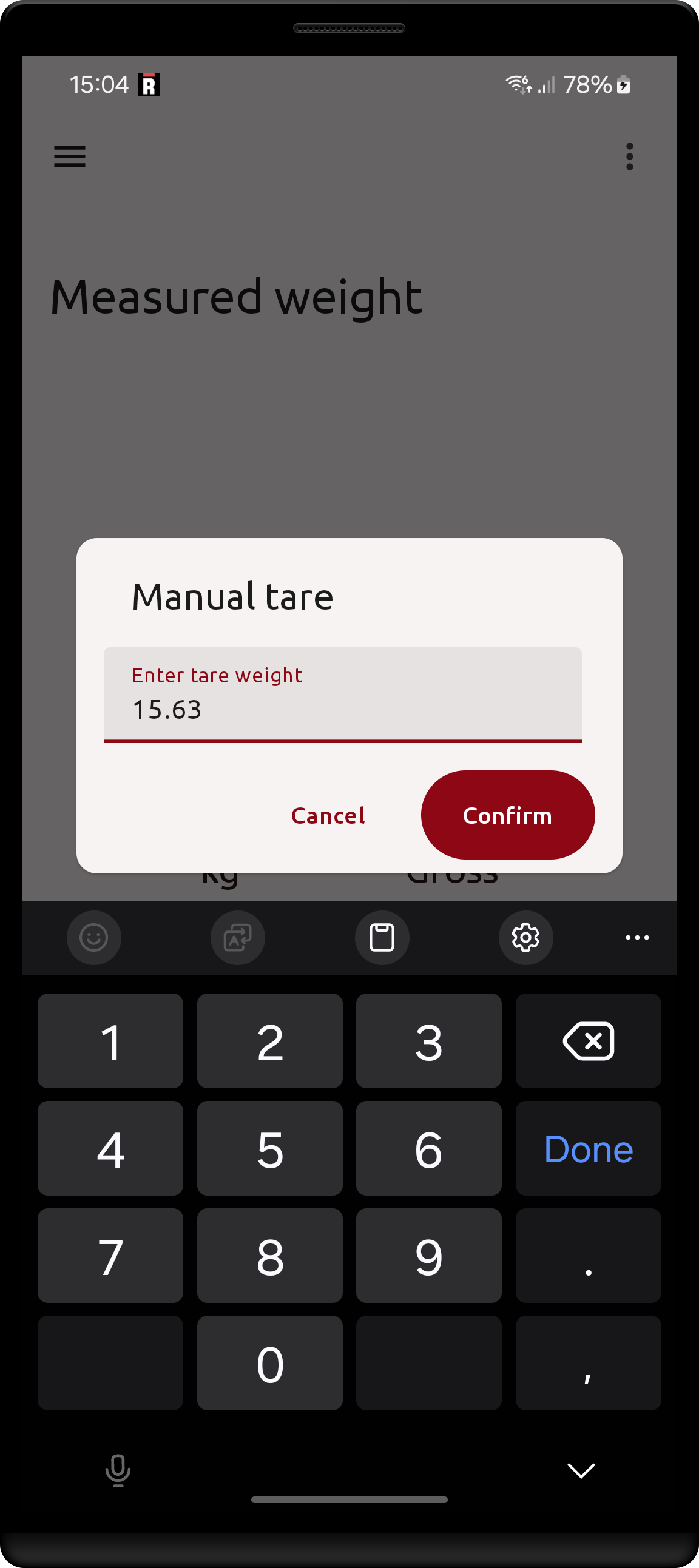
| Successfully setting a zero | Failure to auto tare | Setting manual tare |
|---|---|---|
 |
 |
 |
- Setting automatic tare while weight is null or negative is not allowed
- When setting a manual weight tare, input commas are automatically converted into dots
Save weight action
Saving weights can trigger other processes based on settings & license modules:
- (If RDC enabled) Will schedule the weight to be uploaded to the set RDC settings
- (If Printing enabled) Will begin the weight printing process, based on Print settings
- (If Totalization enabled) Will add the weight to current total & include the total in the saved weight.
- (If Preset tare after save enabled) Will run the two-step tare determination described below.
- Custom fields marked
Clear on saveare reset to their default value (or emptied) - see Custom fields.
Every saved weight also receives a sequence number: a counter kept by the app that increases with each weight it saves, independently of the alibi number reported by the scale.
The weight is saved regardless of whether any of its launched processes succeed or not. Saving failures mostly occur only when the scale reports some error when the app attempts to acquire an alibi number for the weight.
Preset tare after save
Some load carriers cannot be tared before they are loaded. The Preset tare after save setting lets you determine
the tare afterwards, by weighing the empty carrier as a second measurement.
When the setting is enabled and no tare is active on the scale:
- Weigh the loaded carrier and click
Save weight. The gross weight is saved as usual, and the save button changes into a card with an animated border to indicate that a tare weight is expected next. - Empty the carrier, then click the button again. This second weight is saved as well, and in addition the app
stores a third record with the same load: gross taken from step 1, and net calculated as
gross (step 1) − gross (step 2). This extra record gets its own sequence number and no alibi number.
Notes:
- The second weight must be smaller than the first, otherwise the save is refused with an error message.
- Long-pressing the button while it is waiting for the tare weight cancels the pending measurement.
- If a tare is already active on the scale, or the first weight reads zero, the setting has no effect and weights are saved normally.
- Disabling the setting or leaving the sequence unfinished simply resets the button to its normal state.
Landscape mode
Switching your Android device to landscape mode (e.g. by turning it horizontally) will not break the app's functioning. The weight screen specifically is intended to be viewed in both portrait and landscape modes.
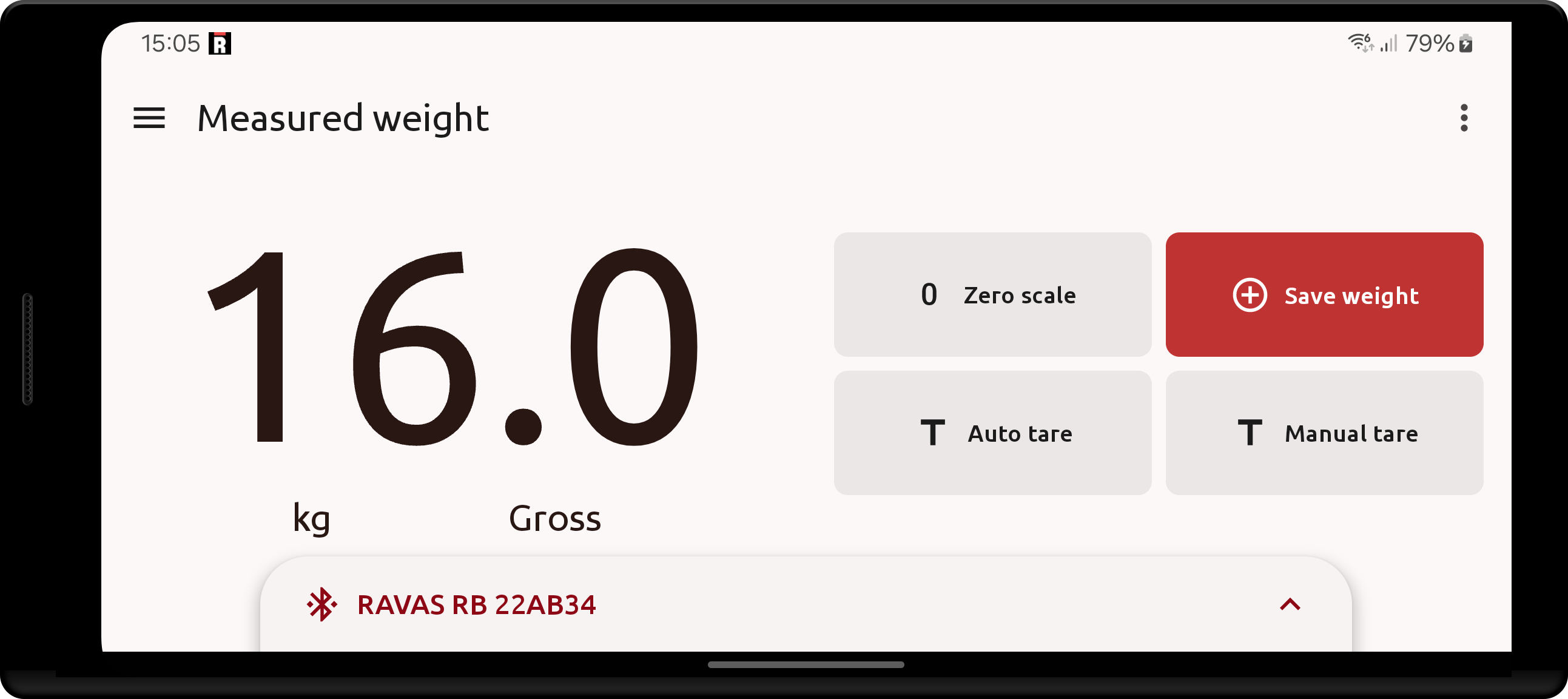
While other parts of the app are also usable in Landscape mode, it is recommended to use the rest of the app in Portrait mode for the best experience.
Weight only mode
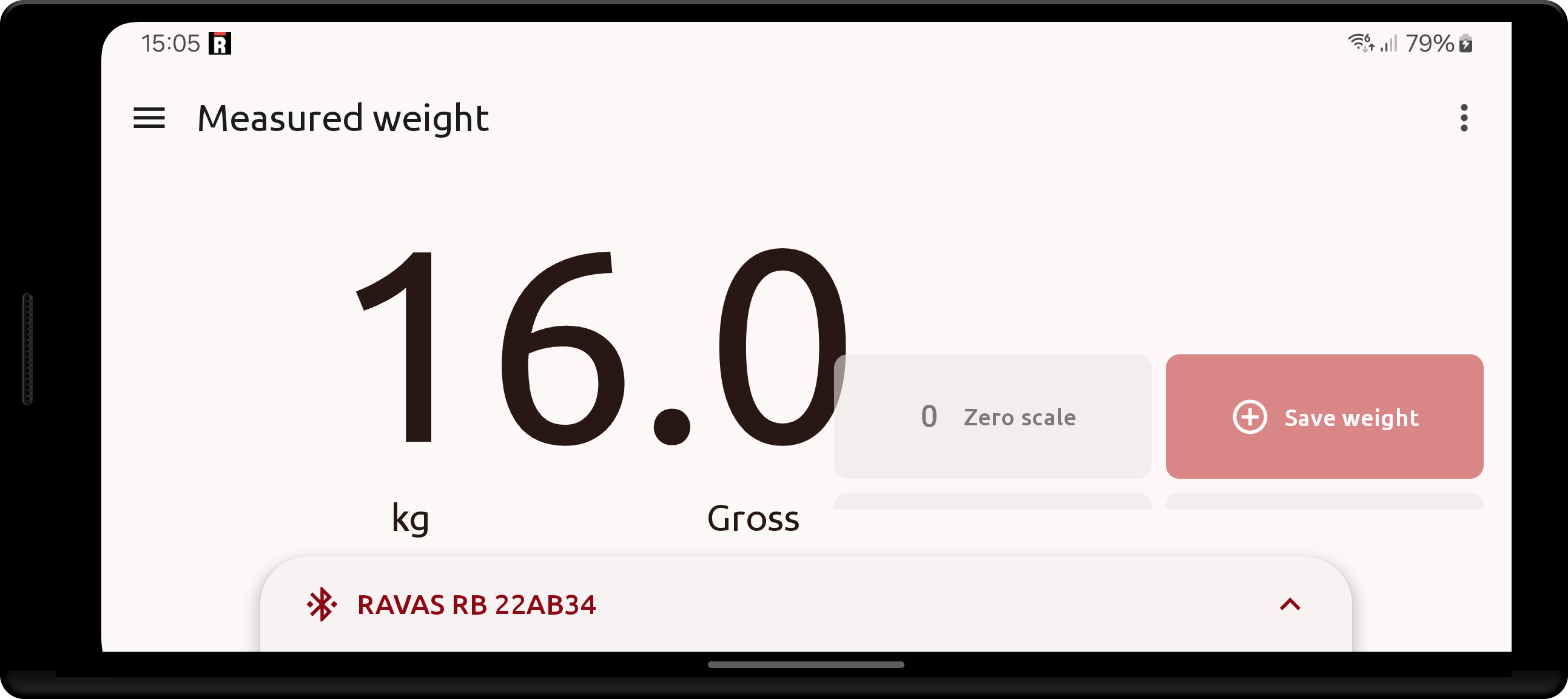
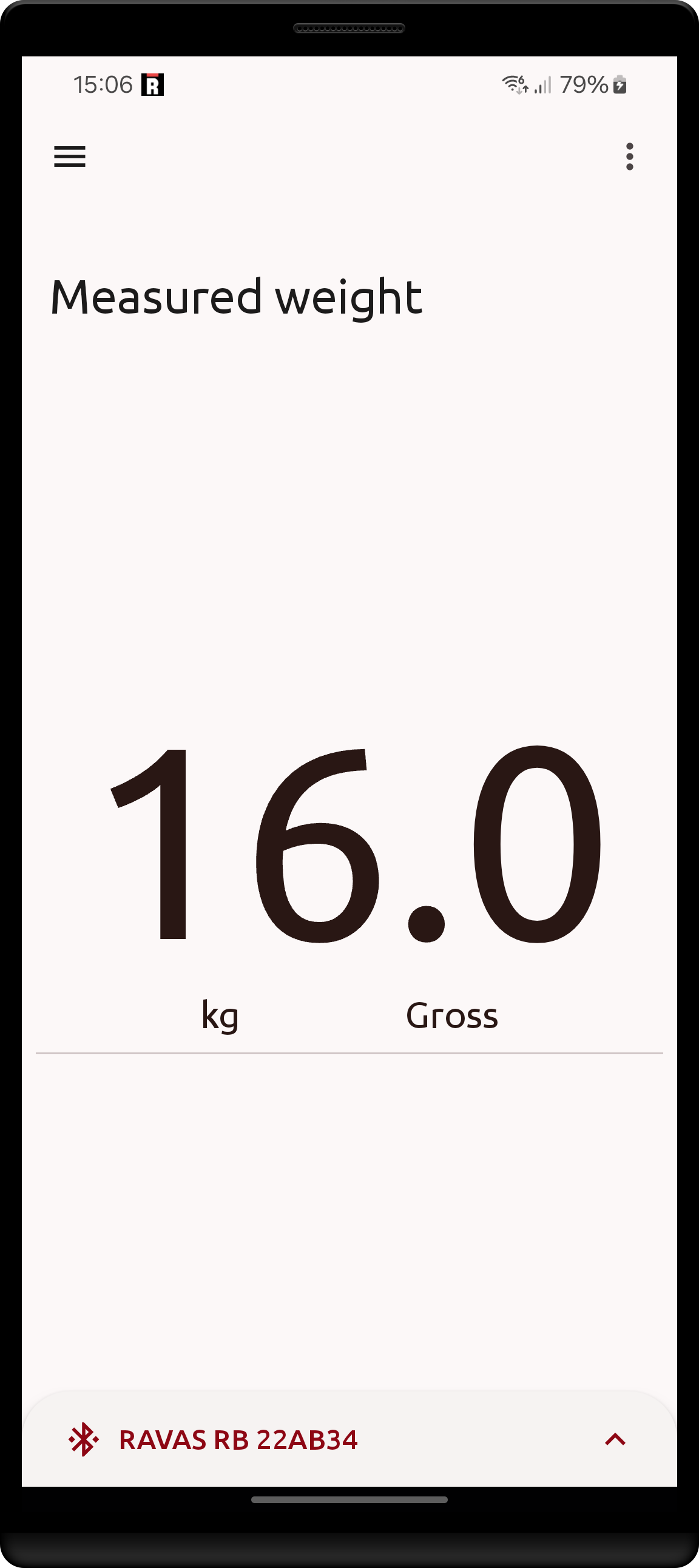
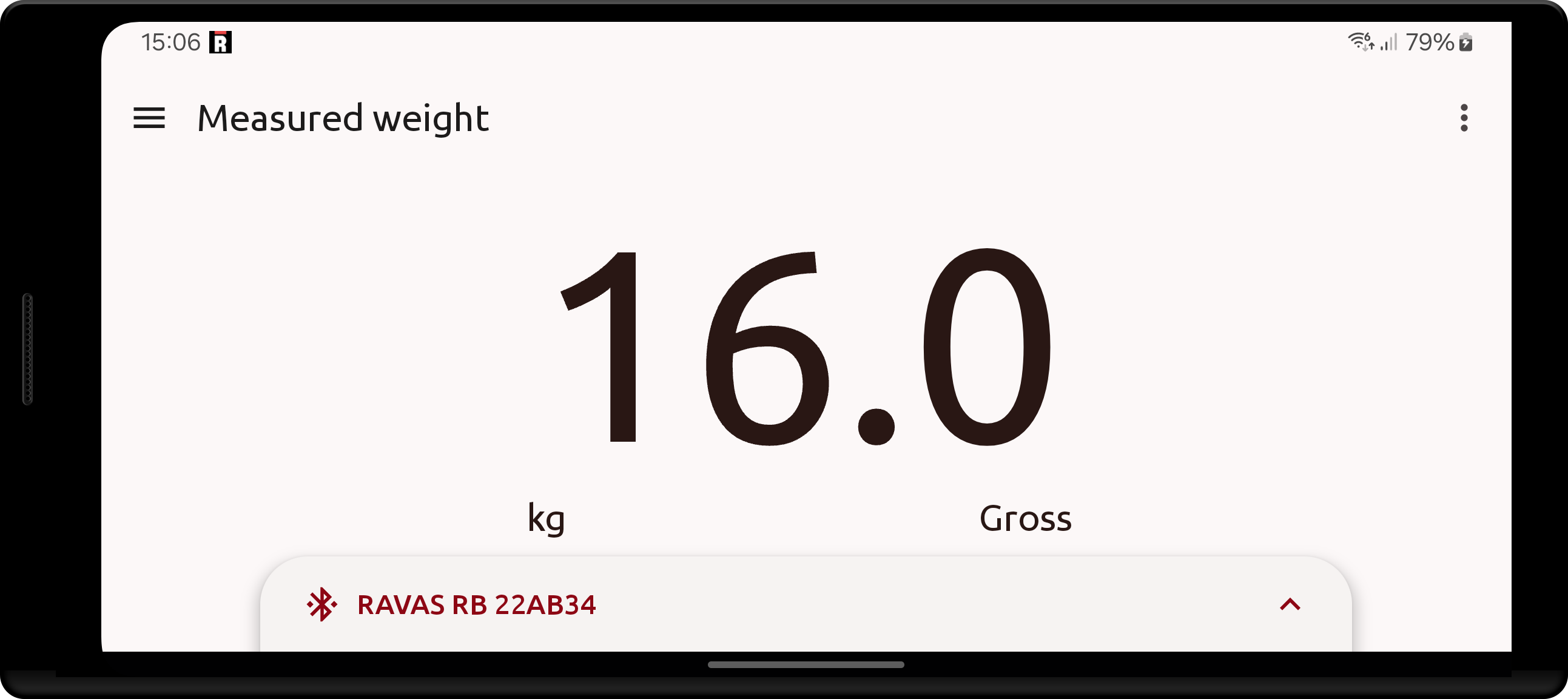
While in the Weight screen, you may hide the controls by either accessing the three dots menu in the top-right side of the screen and switching Hide controls On/Off or by swiping on the weight to push the controls away:
- swipe down (top to bottom) when in portrait mode
- swipe right (left to right) when in landscape mode
| Hiding controls in landscape mode | Portrait mode hidden controls |
|---|---|
|
|
|
|
| swiping right (left to right) to hide, then swipe left (right to left) to show |
Toggling Hide controls has the same effect
|
By enabling
Weight only displayin Settings, The Weight screen will hide the controls by default instead of showing them. This only affects the initial state when accessing the Weight screen.
Export device logs
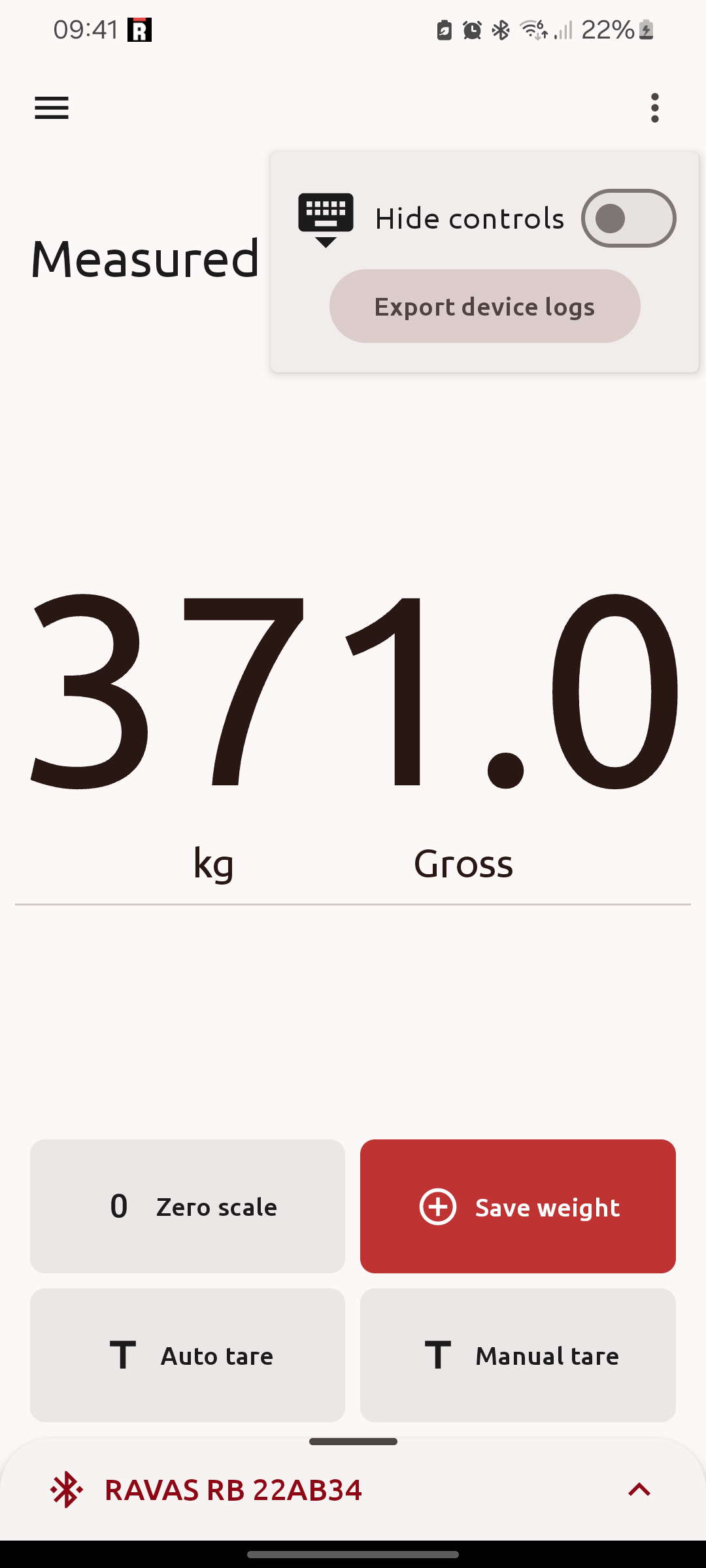
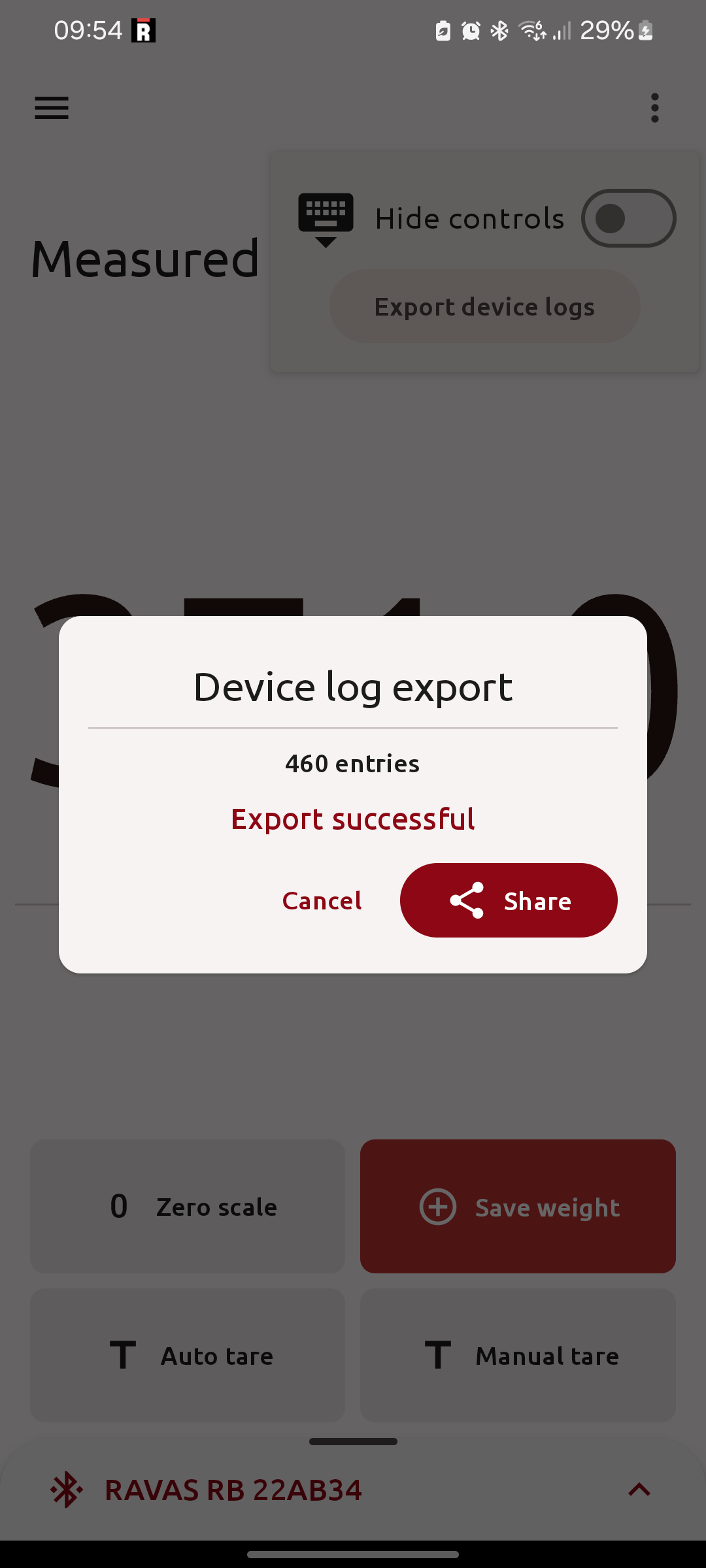
When on the Weight screen with a connected RAVAS device, it is possible to export the device's logs to a .csv file. The button is located in the three dots menu in the top-right side of the screen.
| Button location | Logs exported dialog | CSV file sharing |
|---|---|---|
 |
 |
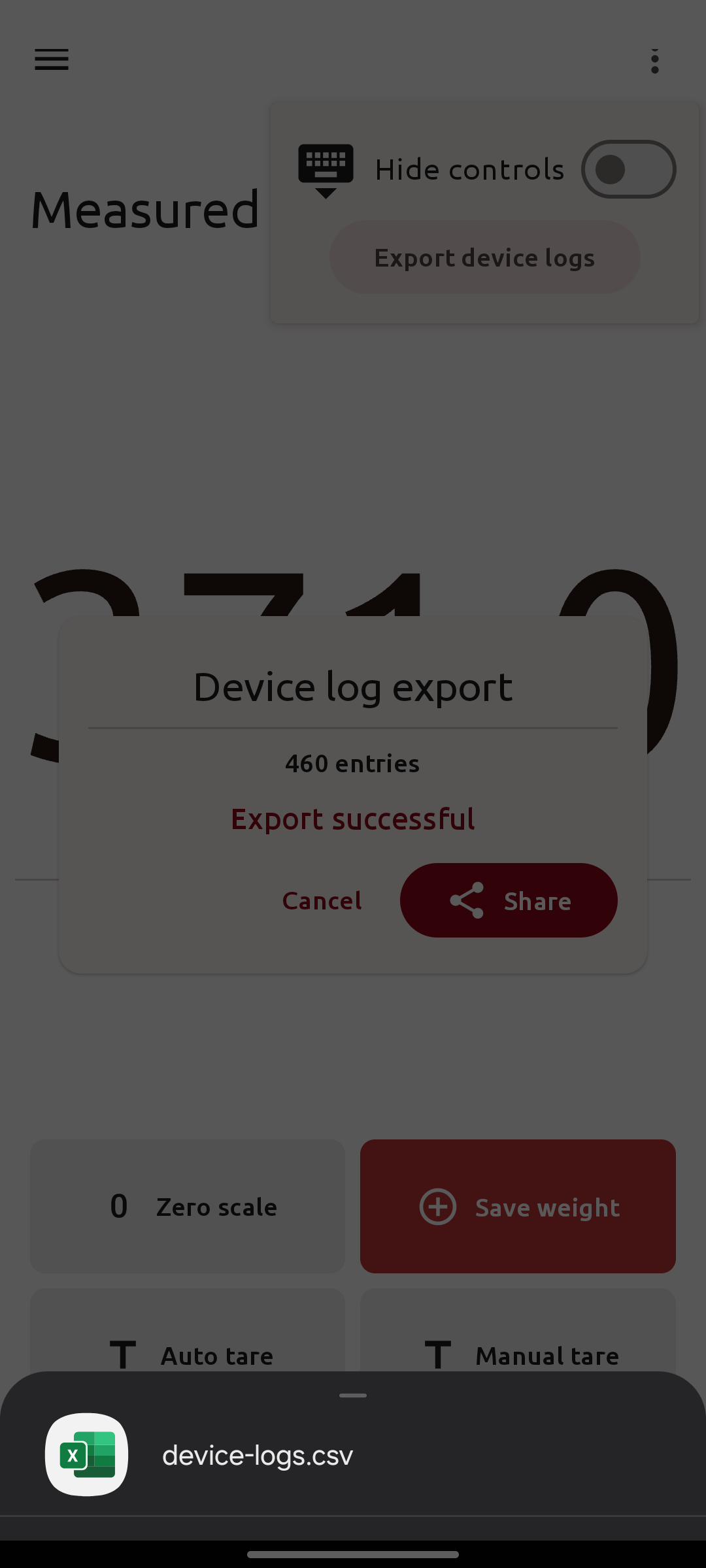 |
Once the export is complete, the dialog shows the number of exported entries and offers two ways to keep the file:
Save: write the .csv file to a location of your choice through the Android file pickerShare: send the file directly to another app using the system share dialog
While the export process may be cancelled on the app, requesting another export will only work if the previous one has completed on the device itself, this behaviour may vary by device: some do not support cancellation.
Manage saved weights
Note that the saved weights screen changes significantly when a license is present and RDC is enabled
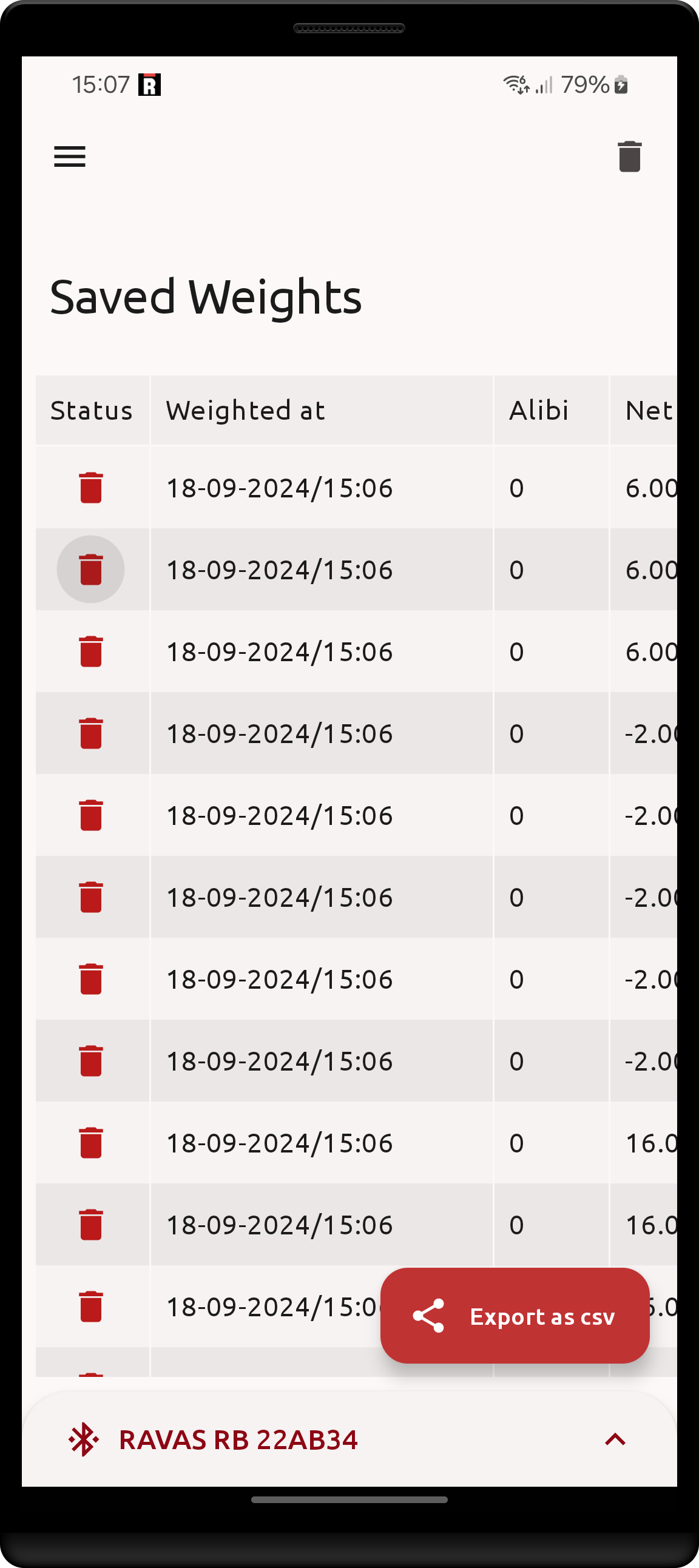
After having saved some weights in the Weight screen, they can be viewed in the Saved weights screen. This screen features a table showing relevant fields of all saved weights, with the option to delete fields. It also allows to export saved weights in .csv format
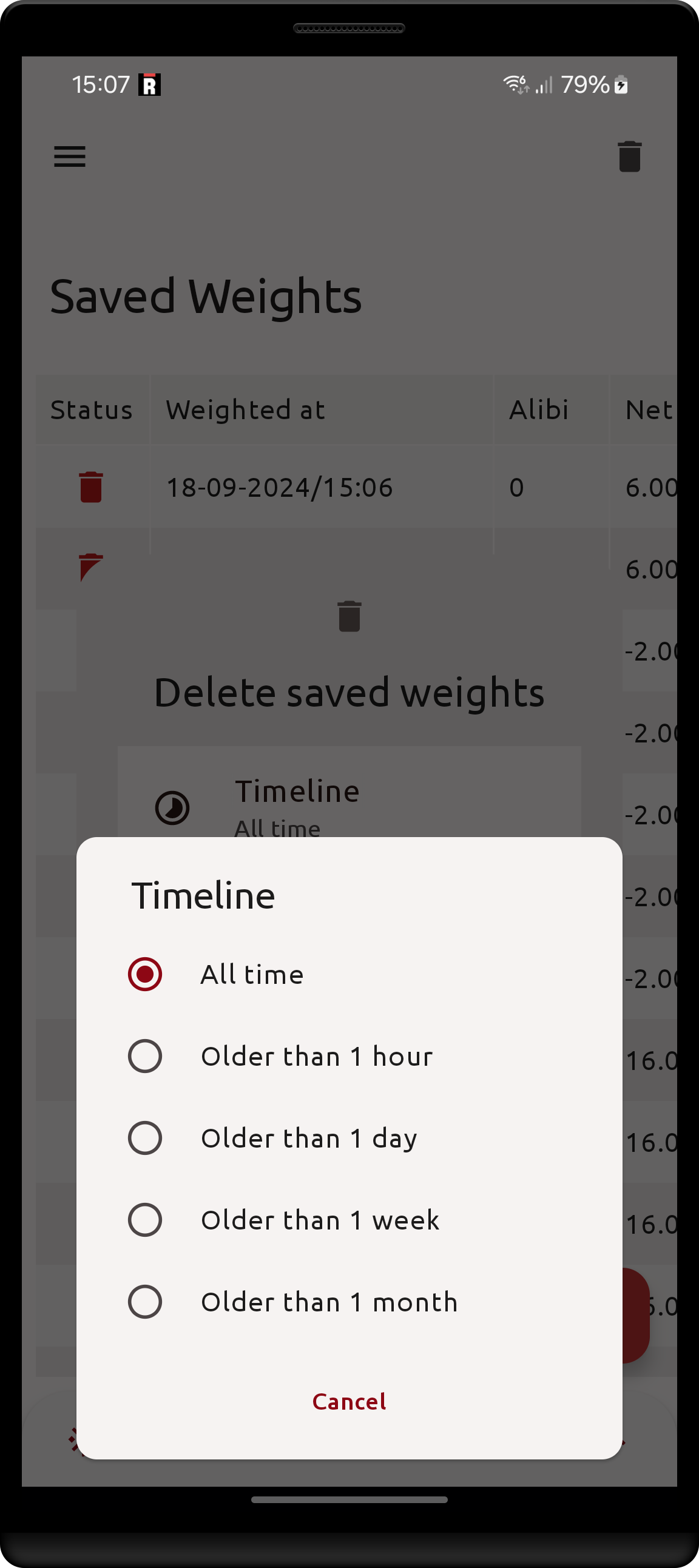
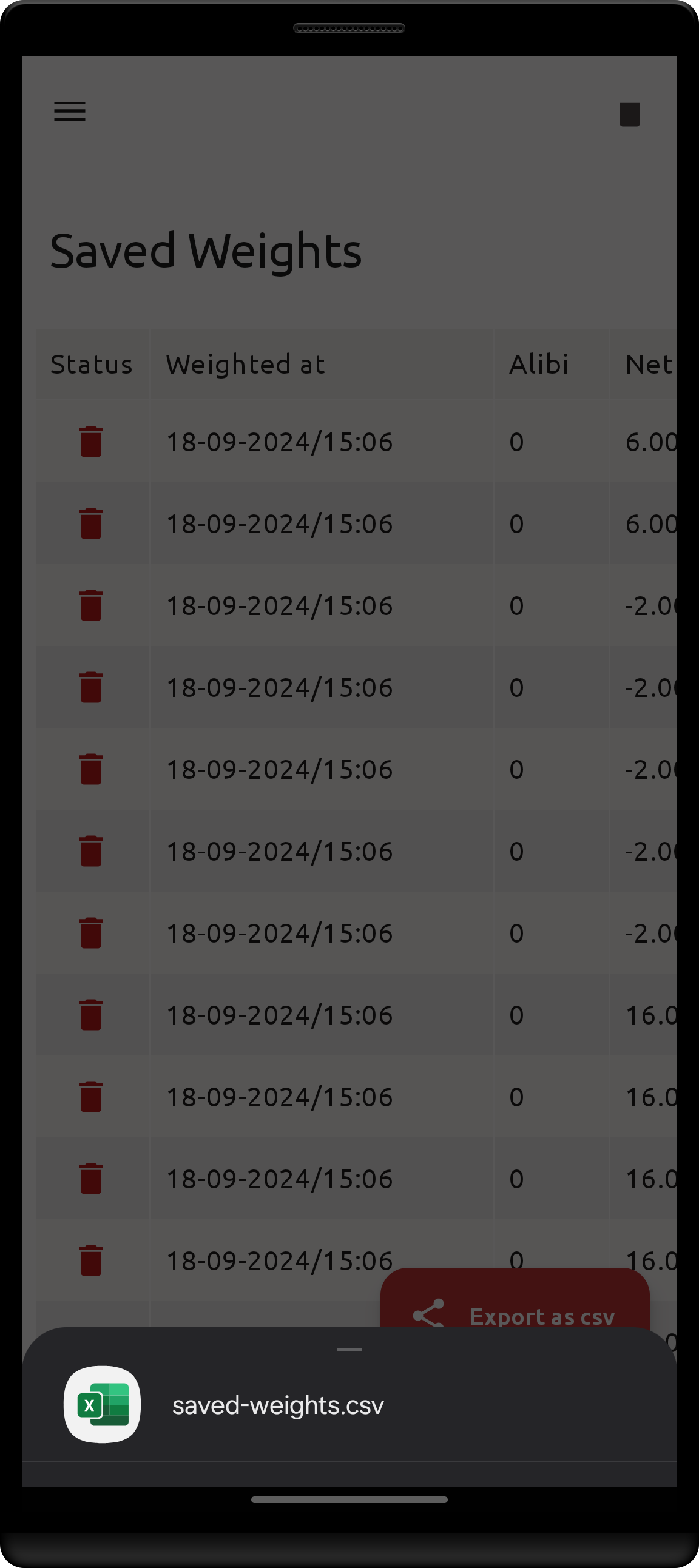
| Delete individual field | Bulk delete | Export |
|---|---|---|
 |
 |
 |
- Any individual weight may be deleted selectively
- Deleting in bulk is done by filtering on the age of the saved weight
- Clicking
Export as csvwrites the saved weights table to a .csv file, then shows a dialog with the number of exported weights, from which the file can be saved to a location of your choice (Save) or sent to another app (Share).
Weights that were saved together in one totalization or batch printing session are grouped
in the table under a Group #<number> header row.
The table always contains the following columns:
| Column | Contents |
|---|---|
Opt |
Delete button, or a menu button when RDC and/or printing are enabled |
Weighted at |
Date & time the weight was saved |
Alibi |
Alibi number reported by the scale, empty when the scale could not supply one |
Net |
Net weight |
Gross |
Gross weight |
Sequence |
The app's own counter, increasing with every saved weight |
ID |
Database row id |
Device |
Name of the scale the weight came from |
Fields |
Custom fields and their values at the time the weight was saved |
Group |
Batch number, set when the weight was part of a totalization/batch printing session |
Exporting to .csv
By default, Export as csv writes a semicolon-separated UTF-8 file (prefixed with a sep=; line so that spreadsheet
applications pick the separator up automatically) containing all saved weights, with the columns:
ID, Sequence, Weighted at, Alibi, Net, Gross, Weight tare, Total weight count, Total weight sum,
Device, Group, followed by the custom fields and, when at least one weight has RDC information, by
Updated at, RDC Server Address, Status and Error.
How the custom fields are written depends on the Custom field columns setting:
- switched off (default): a single
Fieldscolumn containingname: valuepairs - switched on: one column per custom field, which is more convenient for further processing in a spreadsheet
In both cases the fields are ordered exactly as they are configured in the Weight custom fields screen. Fields that are no longer configured but still present on older weights come last, sorted by name.
Spreadsheet applications do not always read a plain .csv file correctly: Microsoft Excel in particular may show
accented or other special characters garbled, or put everything in a single column. Switch on the
Excel compatible export setting to avoid this. The file is then written tab-separated in UTF-16 (with a byte order
mark) instead of semicolon-separated UTF-8, which Excel opens correctly regardless of the Windows language settings.
Leave the setting off when the file is processed by other software that expects the default format.
| Sequence and Id columns |
|---|
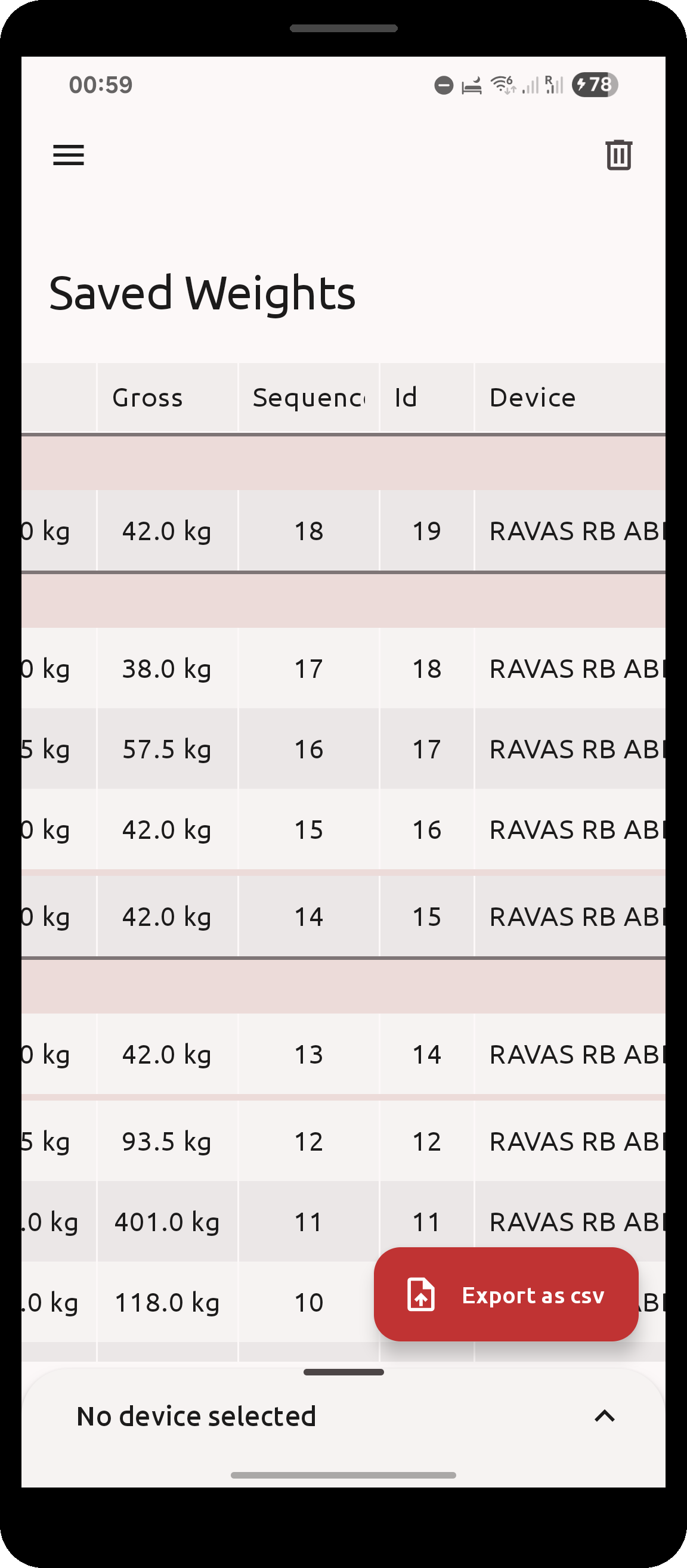 |
the table scrolls horizontally, Sequence and Group sit to the right of the weight columns |
Weight totalization
The app supports saving weights with cumulative weight and piece counting. Firstly the option Weight totalization must be enabled in Settings.
When enabled, the following changes appear in the Weight screen:
| Weight screen | Saving accumulates net weight |
|---|---|
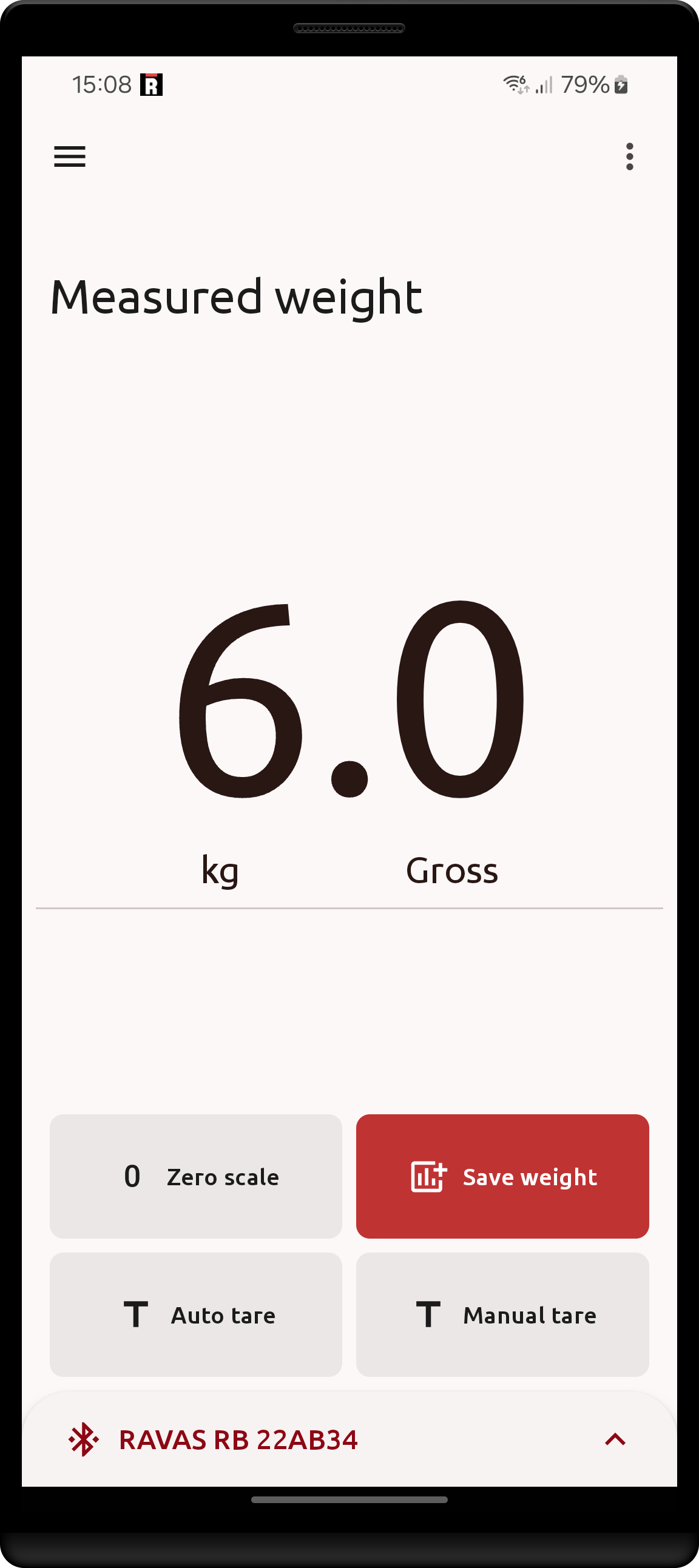 |
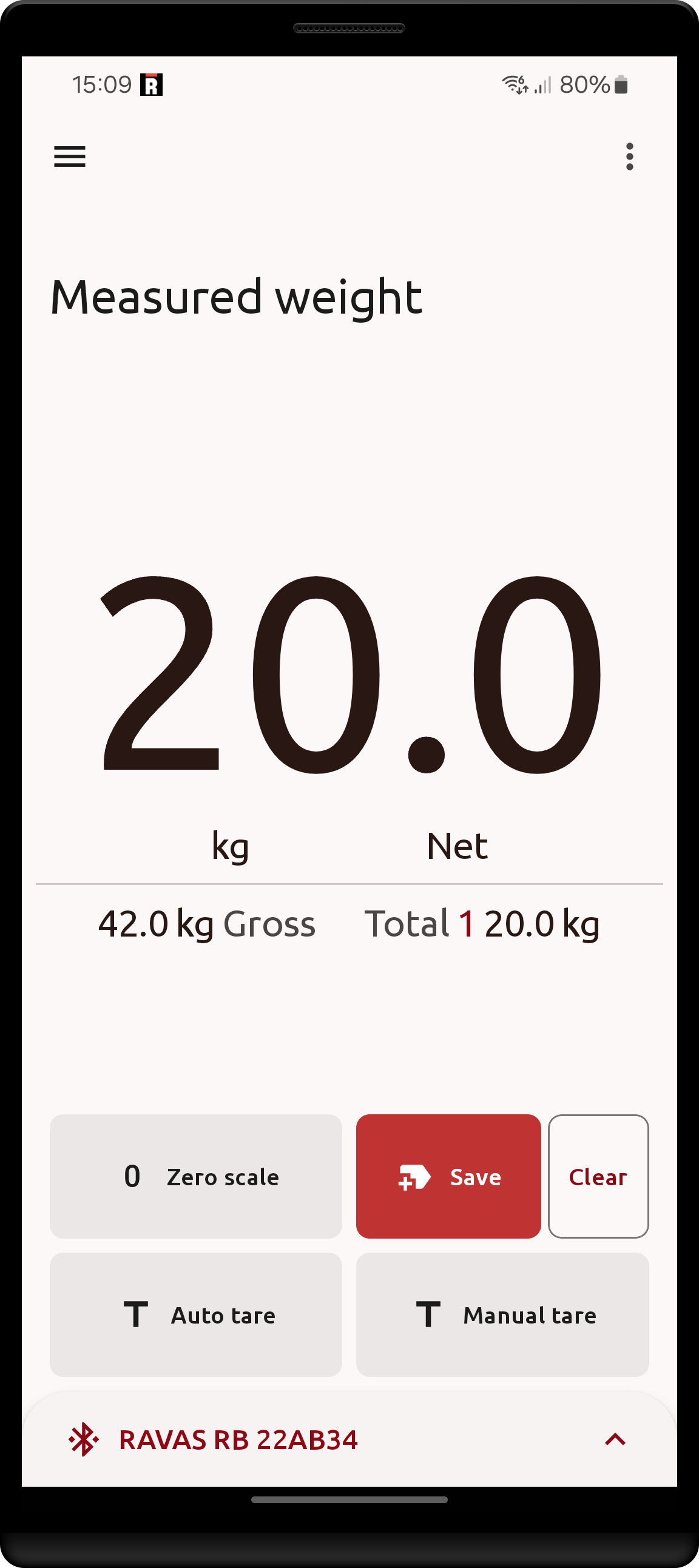 |
- The Save weight icon is now changed to reflect that totalization has been enabled
-
Whenever saving weights, the current Net weight (gross weight minus tare) is accumulated, with the number of weights and current sum shown
-
The current accumulation may be cleared by clicking the
Clearbutton that only appears when there is an active totalization. - Leaving the Weight screen or Disconnecting the current device will not reset the current totalization.
- The only way to reset totalization is to either click
Clearin the Weight screen or disableWeight totalizationin Settings
Totalization is enabled regardless of its setting if a license is present, printer integration is enabled, and printing mode is set to
When clearing batched weights
All weights saved within one totalization session share a group number, which is shown in the Group column of
the Saved weights screen (where the weights of a group are also listed under a Group #<number> header row) and
included in the .csv export. Clearing the totalization starts a new group with the
next save. Grouping makes it possible to reprint a whole batch later - see
Print already saved weights.
Custom fields
Custom fields are named values that the operator fills in on the Weight screen and that get stored with every saved weight. They are shown in the Saved weights screen, included in the .csv export, sent to RDC and can be printed on labels.
The number of fields you may define is unlimited.
When RDC integration is enabled, only the first 4 fields are sent to RDC. The extra fields still remain and can be viewed in the saved weights screen.
Without an active license, a single plain text field can be defined and used. An active license unlocks the remaining field types and all of the text field options described below.
Defining a custom field
Under the Settings screen's Weighing section:
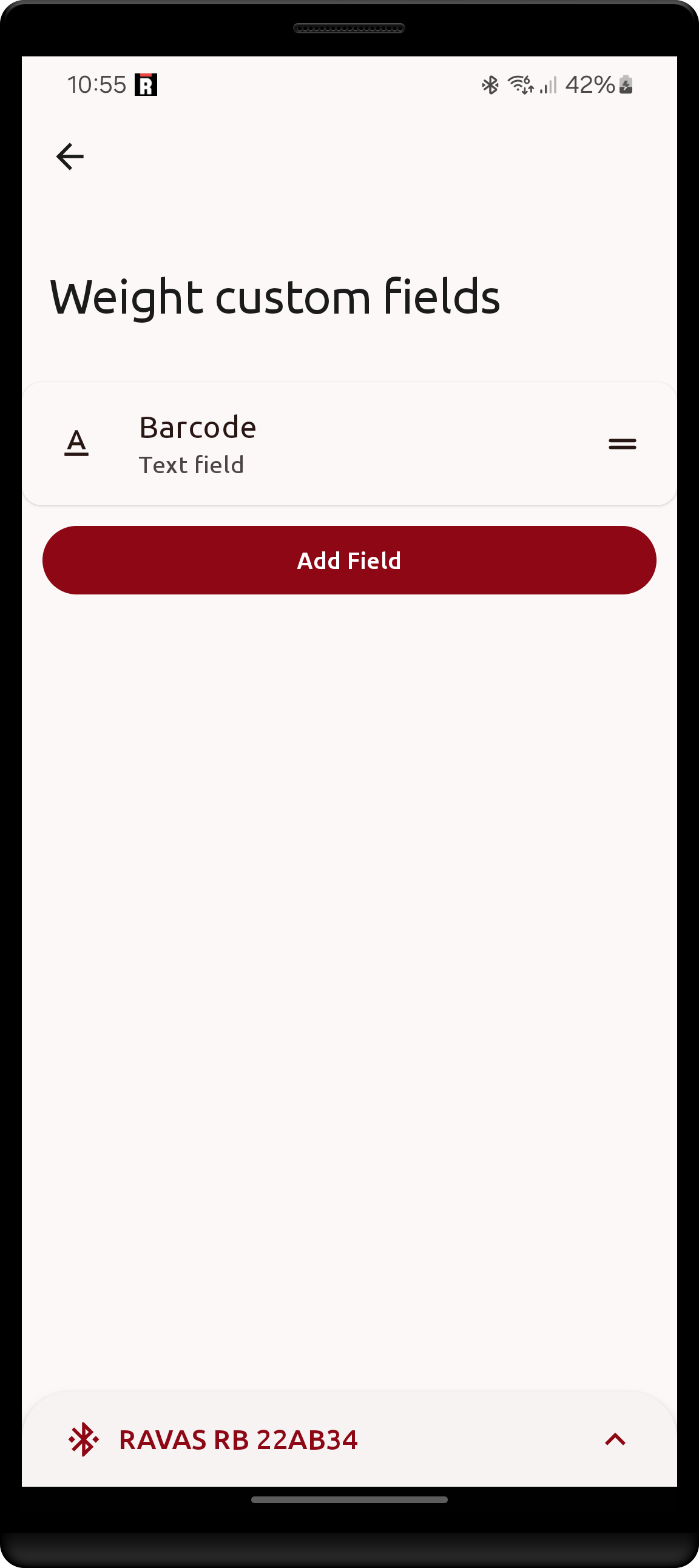
- click on
Weight custom fieldsto navigate to the page where all fields are listed. - initially there will be none.
- A new field may now be created by clicking
Add field
| Custom fields setting | Custom fields screen | Field creation form |
|---|---|---|
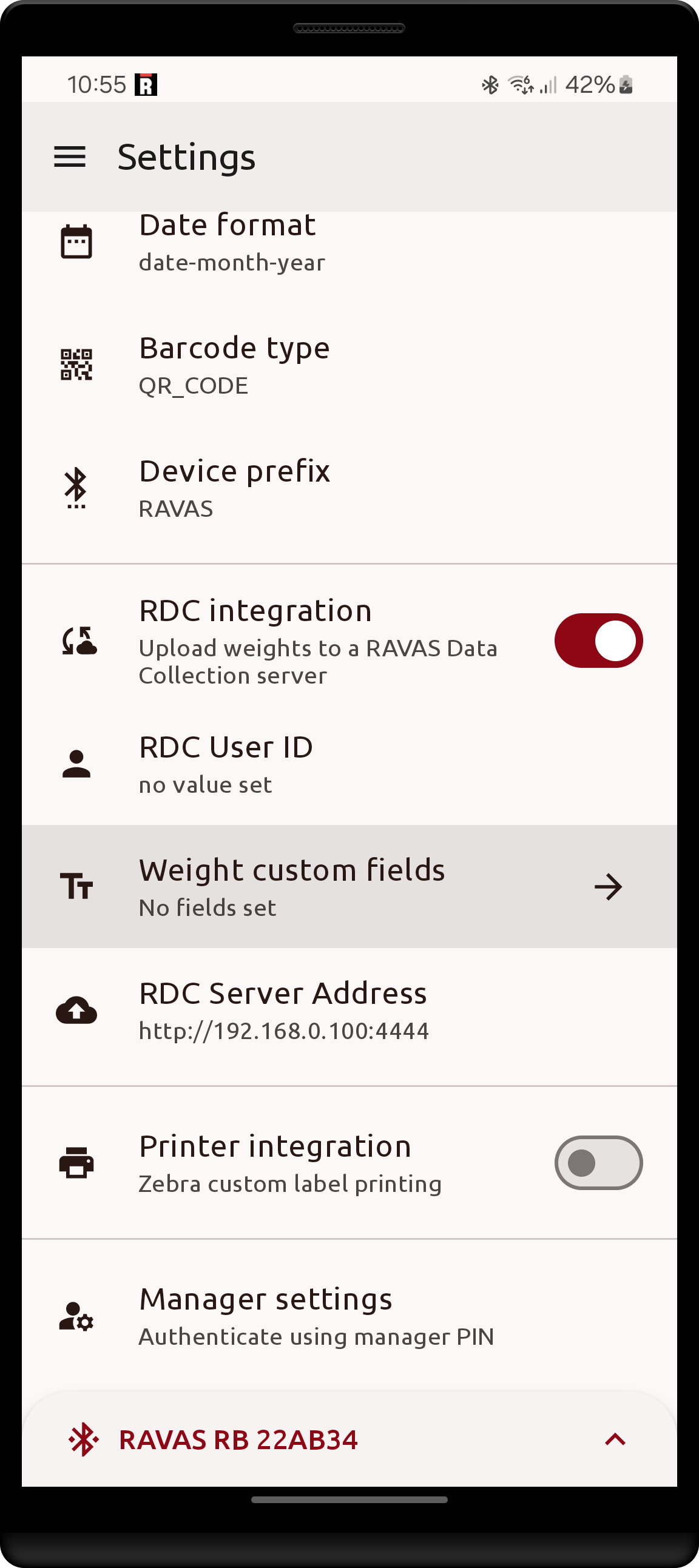 |
 |
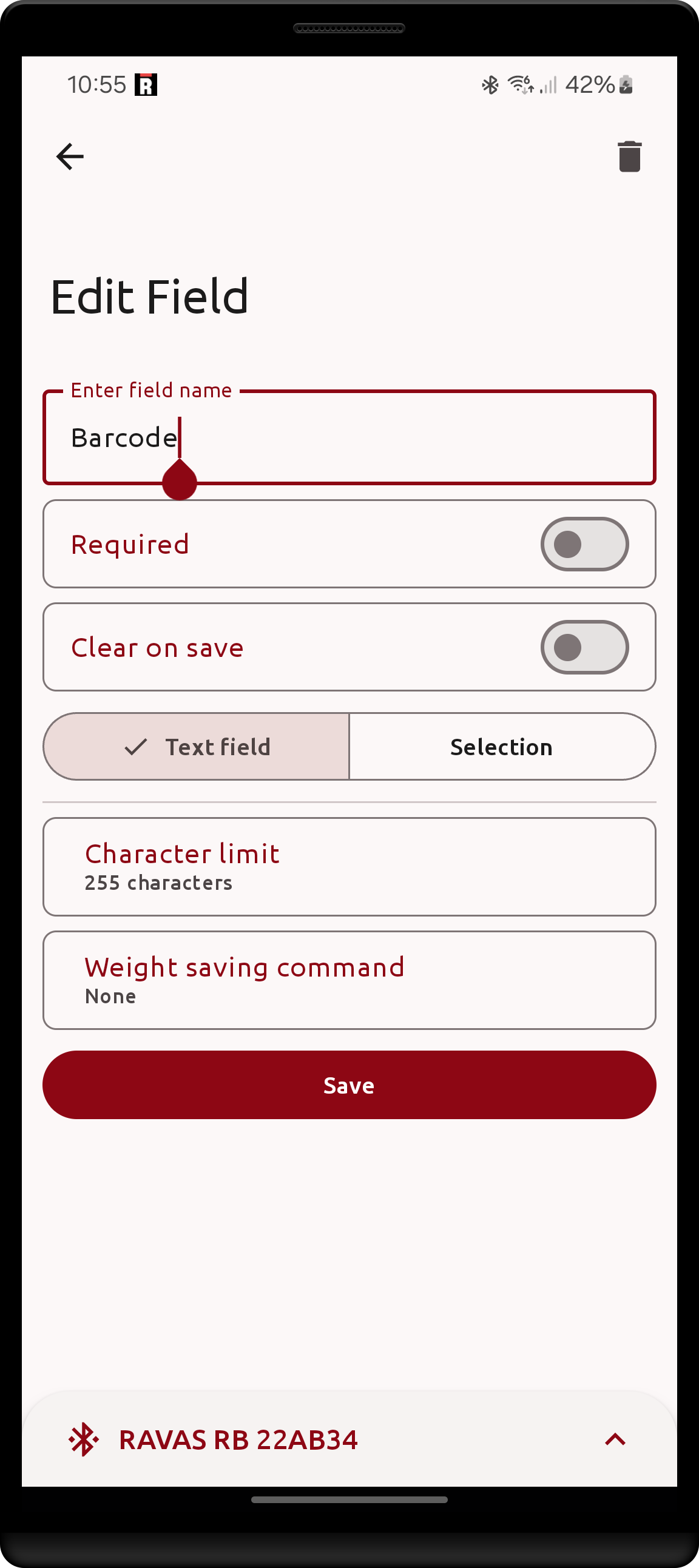 |
- The field's name must be non-empty
- The field's name must be unique among all fields.
- If a field is marked as
Requiredthen in the Weight screen saving a weight will be unavailable until all required fields contain a non-empty value. - If a field is marked as
Clear on save, its value is reset after every saved weight: back to the field's default value if one is set, otherwise to empty. After saving, the input automatically jumps to the first field that is both required andClear on save, so the next weighing can start straight away.
There are 3 types of custom fields:
- Text field: provides free-form text input through either
- the device's input keyboard or
- through scanning a QR/Barcode with the device's camera.
- Selection (
license): provides selection between predefined textual values. - Dataset (
license): like a selection, but each option carries additional columns of data.
Text field options
All of the options below require an active license; without one a text field is a plain, unrestricted text input.
| Option | Effect |
|---|---|
Character limit |
The input's value cannot exceed this number of characters. Must be a whole number between 0 and 2147483647; defaults to 255 and realistically anything past 100 characters is unlikely. |
Default value |
The value the field starts with, and the value it returns to when Clear on save is set. |
Weight saving command |
A marker string that triggers saving the weight, see below. |
Save on camera scan |
Save the weight immediately after a value has been scanned with the device's camera. |
Increment on print |
Every time a print job is started, the field's value is read as a number and increased by 1. Values that are not numbers are replaced by 0. Useful for label counters. |
| Text field options |
|---|
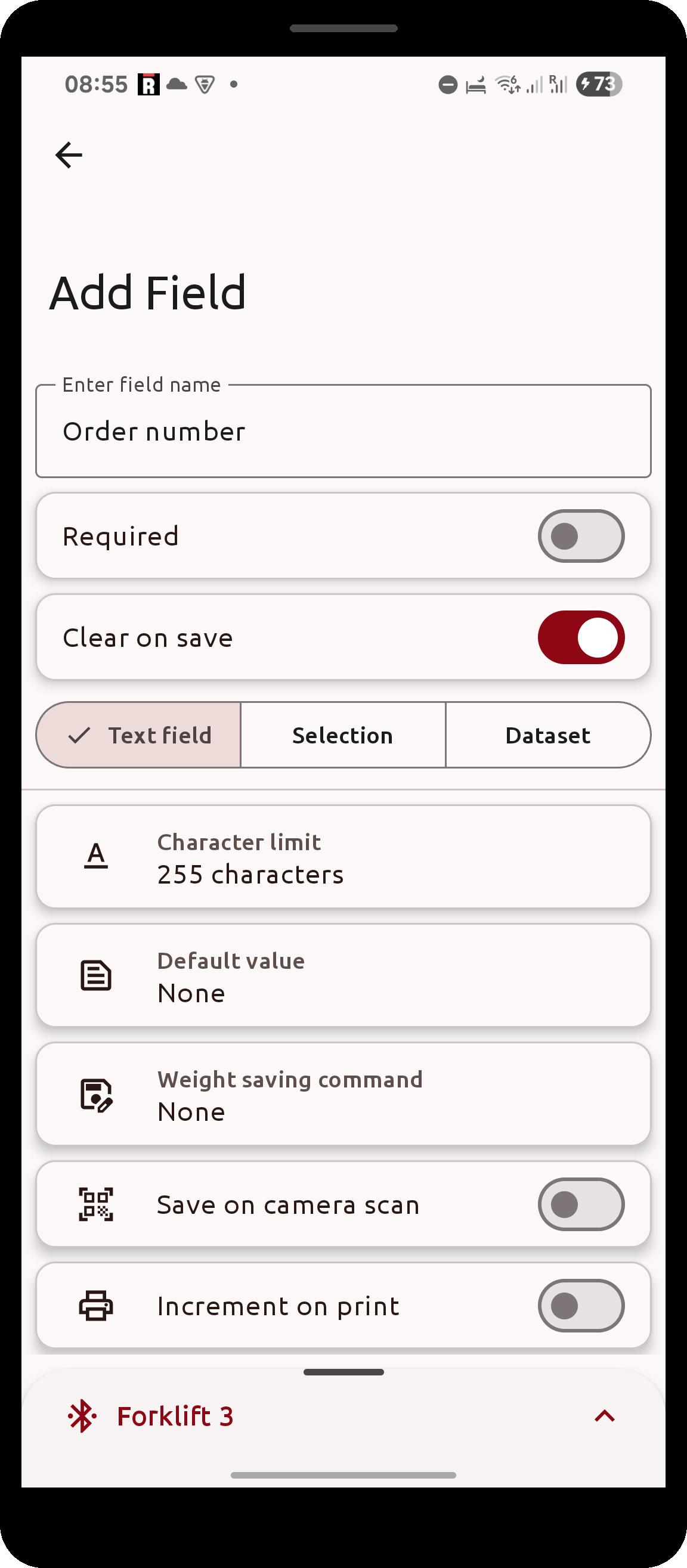 |
here Clear on save is switched on |
The Weight saving command is intended for hardware barcode scanners that act as a keyboard. Configure the scanner
to append a fixed suffix to every scan and enter that same suffix here. Whenever the field's text comes to contain
the marker - with at least one character in front of it - the app cuts the value off at the marker and immediately
saves the weight, no button press needed.
Save on camera scandoes the same for the in-app camera scanner. If both are configured and the scanned value already contained the command marker, the weight is saved only once.
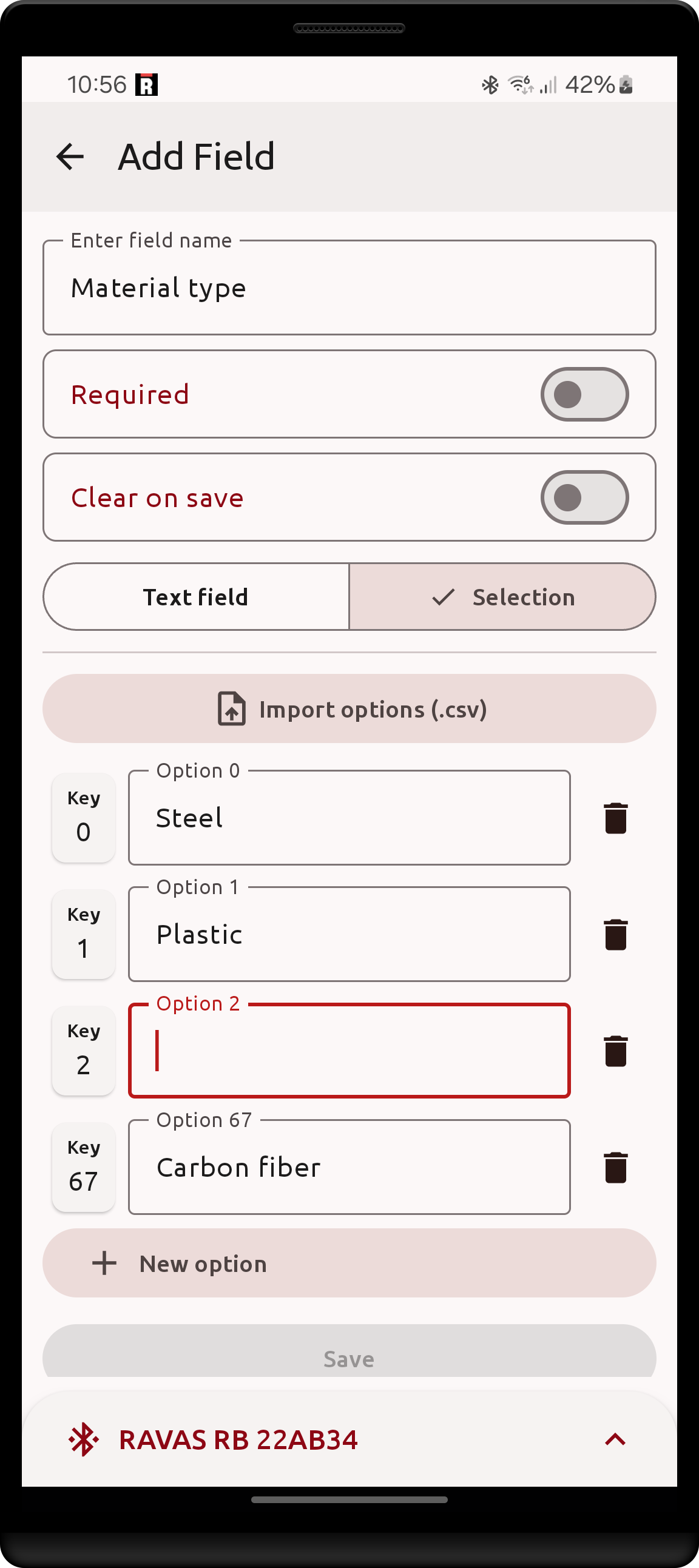
Selection options
- each option has an associated unique (per field) integer key.
- keys are only used for sorting the options in the selection menu.
- each option must have a non-empty name
- the number of options is unlimited
- selection options may be imported via a csv file.
- it is expected for the file to contain a 1-column table
- each row is inserted as a new option
| Selection input options | Option key change dialog |
|---|---|
 |
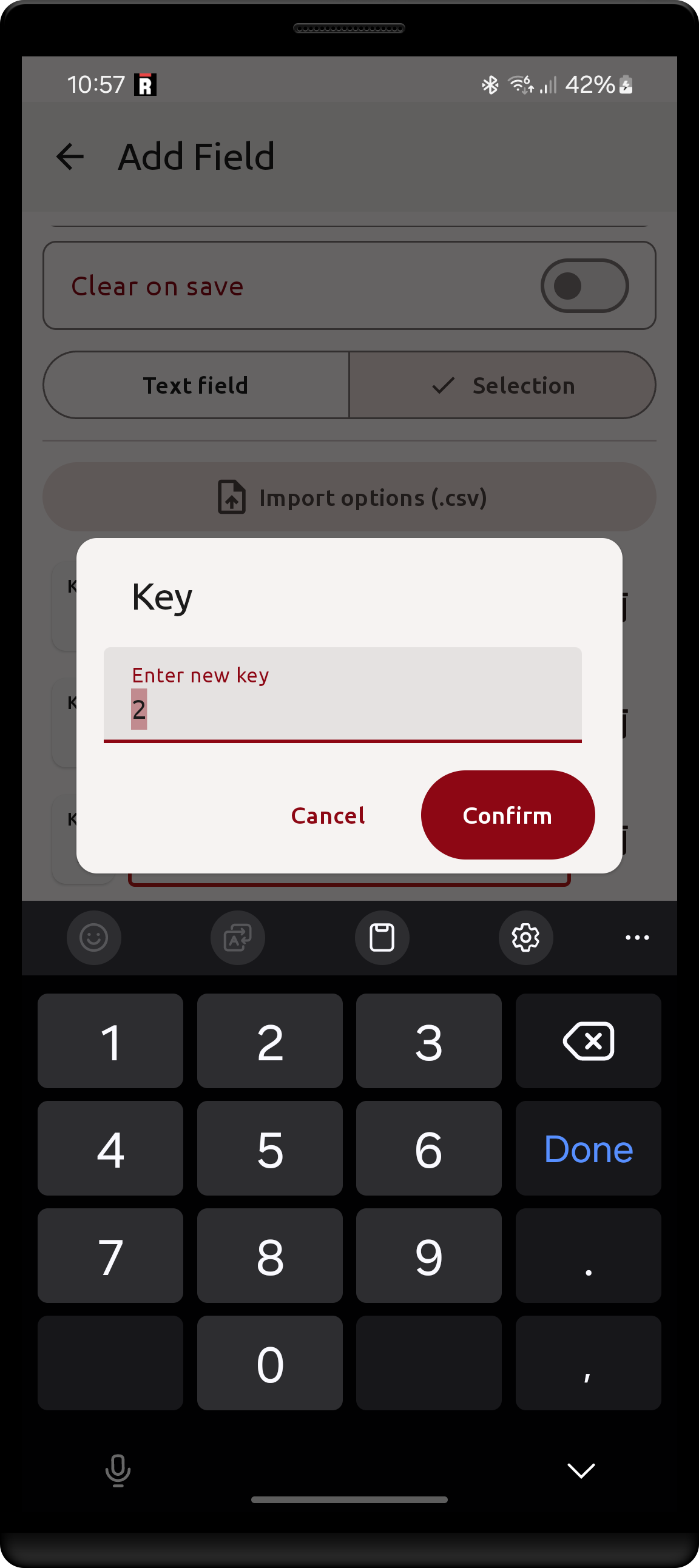 |
the key's value may be changed by clicking on the Key next to the corresponding option |
if you attempt to put a key value that is taken by another option, the change will not be made. |
Dataset fields
A dataset field lets the operator pick one entry from a table, and stores not only the chosen entry but every column of that entry alongside the weight. A typical use is an article list, where selecting an article code also records its description, customer and destination.
A dataset is always imported from a .csv file - click Import dataset (.csv):
- the first row of the file is the header row
- the first column holds the label, i.e. the value the operator selects from
- every further column becomes an extra value stored with the weight, named after its header
- the file must have at least 2 columns, and every row must have as many cells as the header
- rows with a duplicate label are ignored, only the first is kept
- the separator is
,by default; a leadingsep=;line (as written by many spreadsheet applications) is honoured
After a successful import the table is shown in the form, single rows can be removed with the trash icon, and the
field is named after the first column's header if no name has been entered yet. Default value selects which entry
is preselected on the Weight screen.
When a weight is saved, the app stores the selected label under the field's own name and each column's value under that column's name. These column values appear in the saved weights, the .csv export and are available as label replacements.
| Imported dataset | Choosing an entry on the Weight screen |
|---|---|
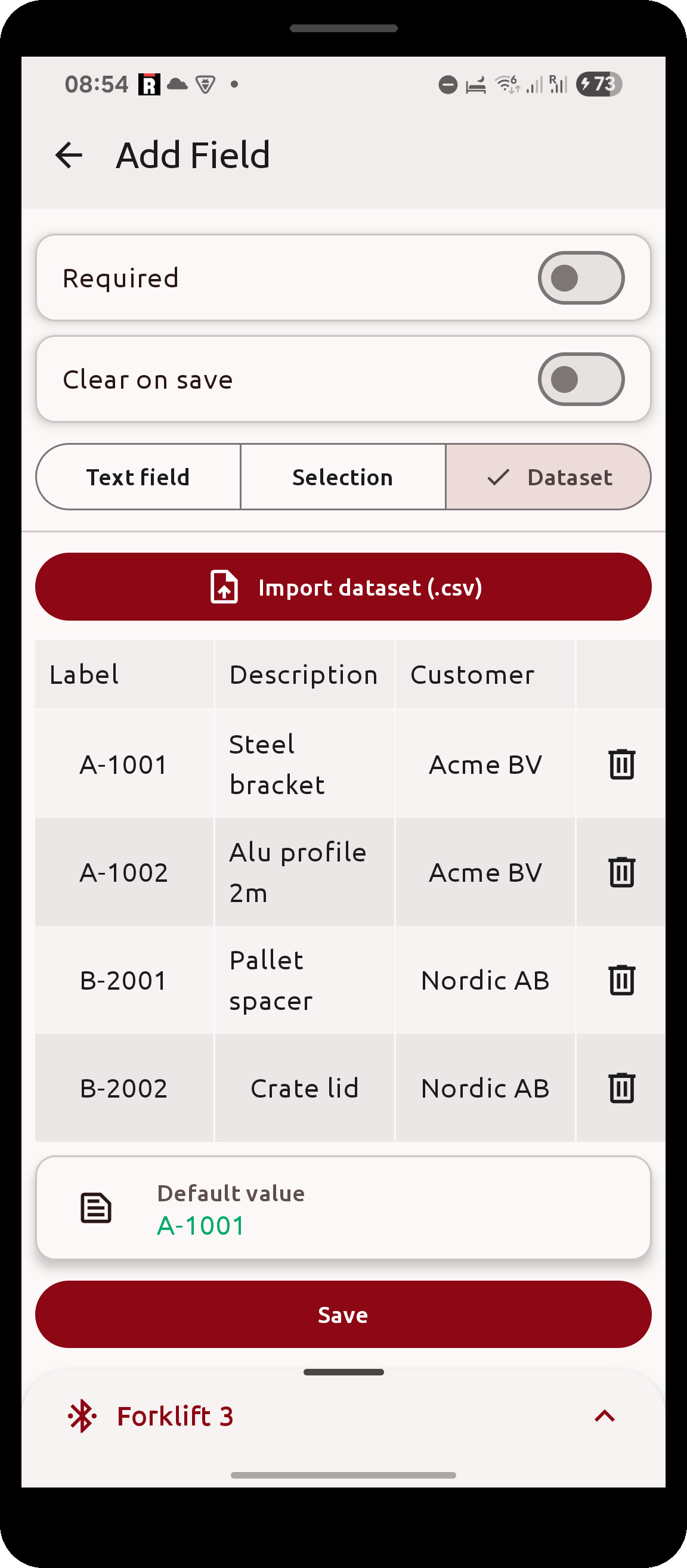 |
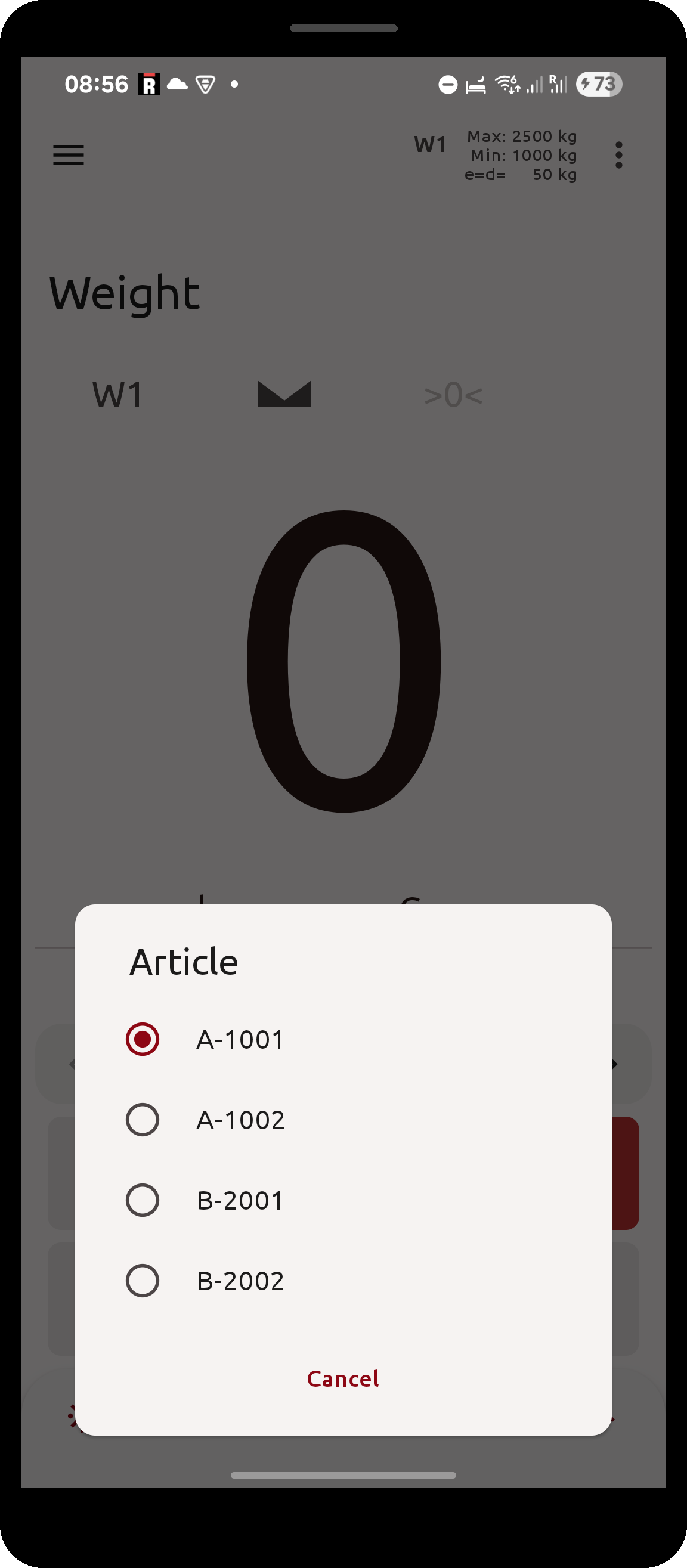 |
Managing existing custom fields
-
The order in which the fields appear in the Weight screen may be changed in the custom fields screen by clicking and dragging a field by its handle on the right-hand side. This order is also the order used by the .csv export.
-
By clicking on a field in this screen you will be directed to the field editing form, which is identical to the creation form except that when clicking
Saveit will overwrite the selected field instead of creating a new one. -
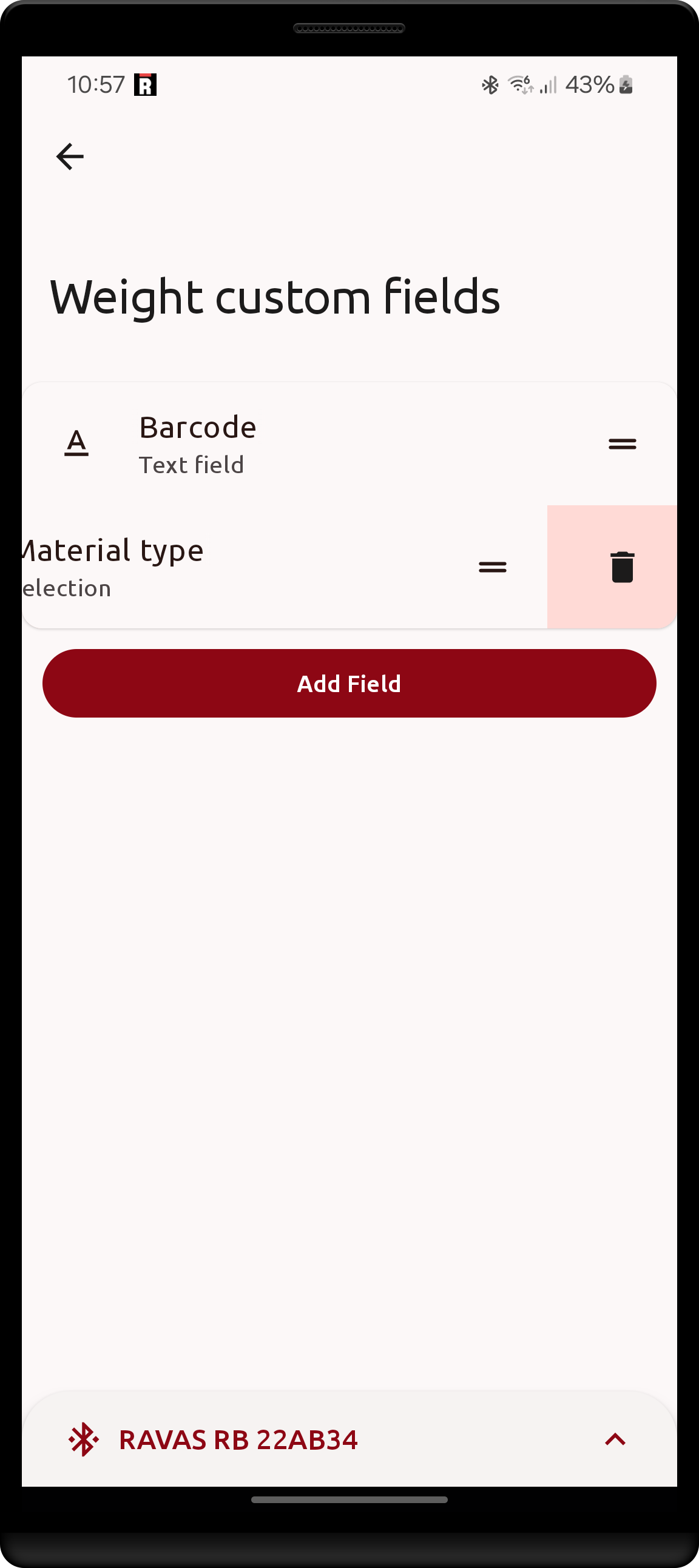
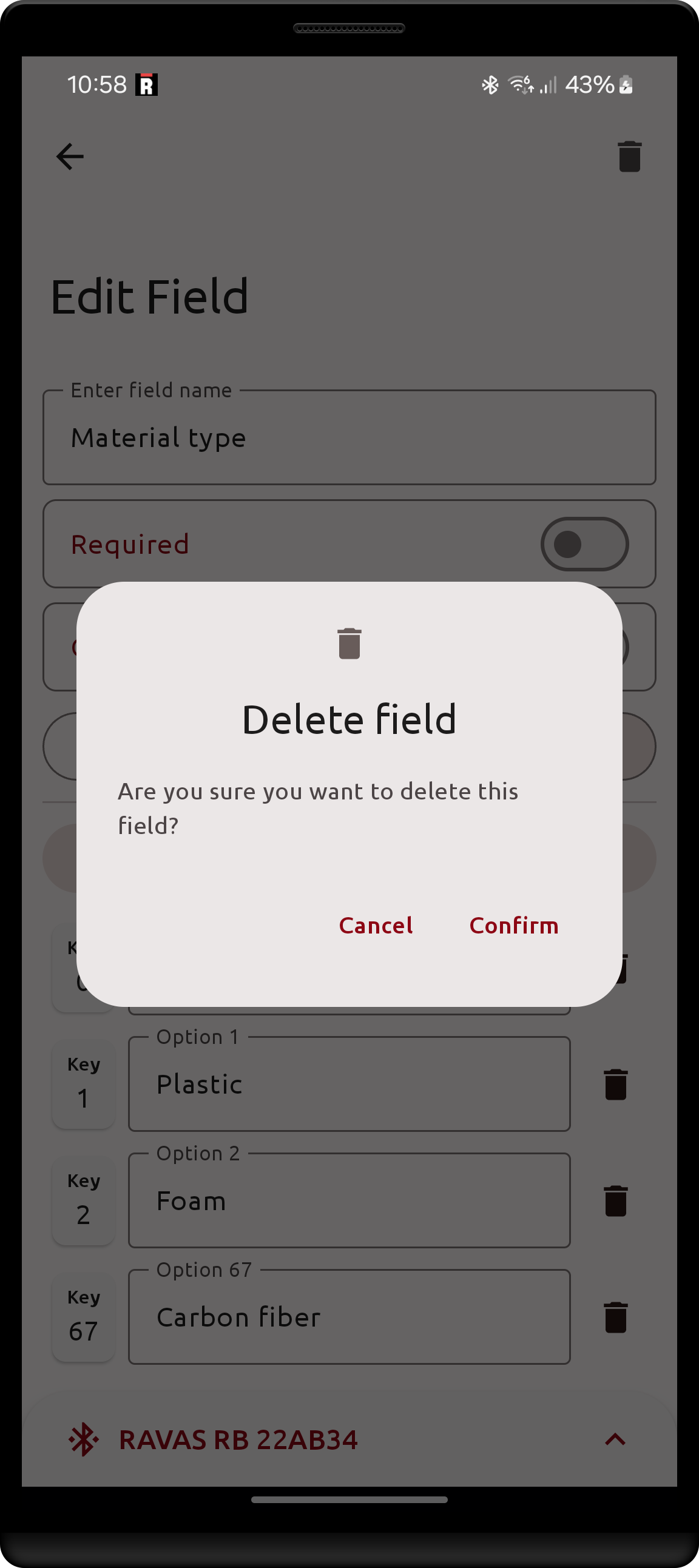
Deleting a field is possible by either clicking the trash icon in the top right side of the field editing screen or by swiping left (right-to-left) on a field in the custom fields screen. Both methods require confirmation.
| Reordering a field | Deleting a field | Delete confirmation |
|---|---|---|
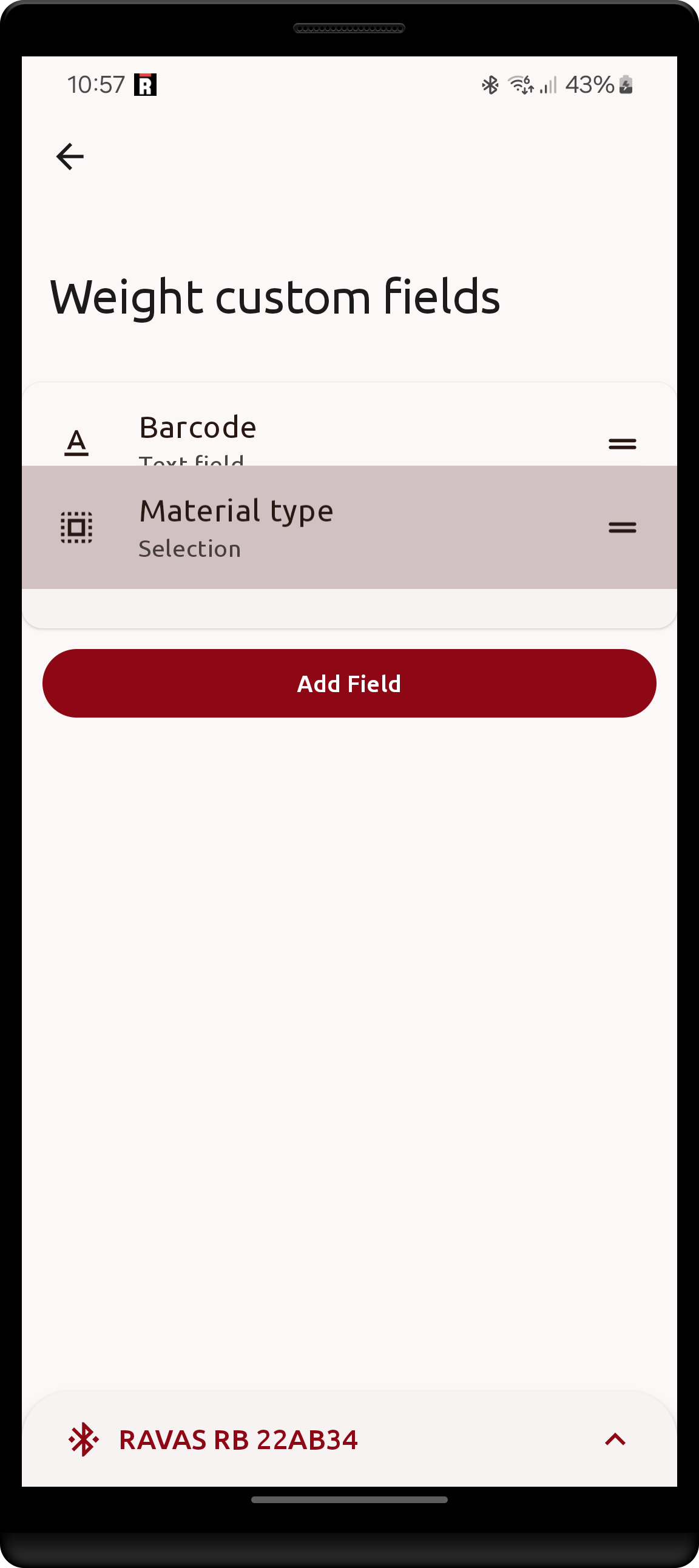 |
 |
 |
When a license is lost or deleted, all custom fields are removed except the first one, and only if it is a text field. That field also loses its licensed options (character limit reset to 255, default value, weight saving command and save-on-scan cleared).
Changes to Weight screen
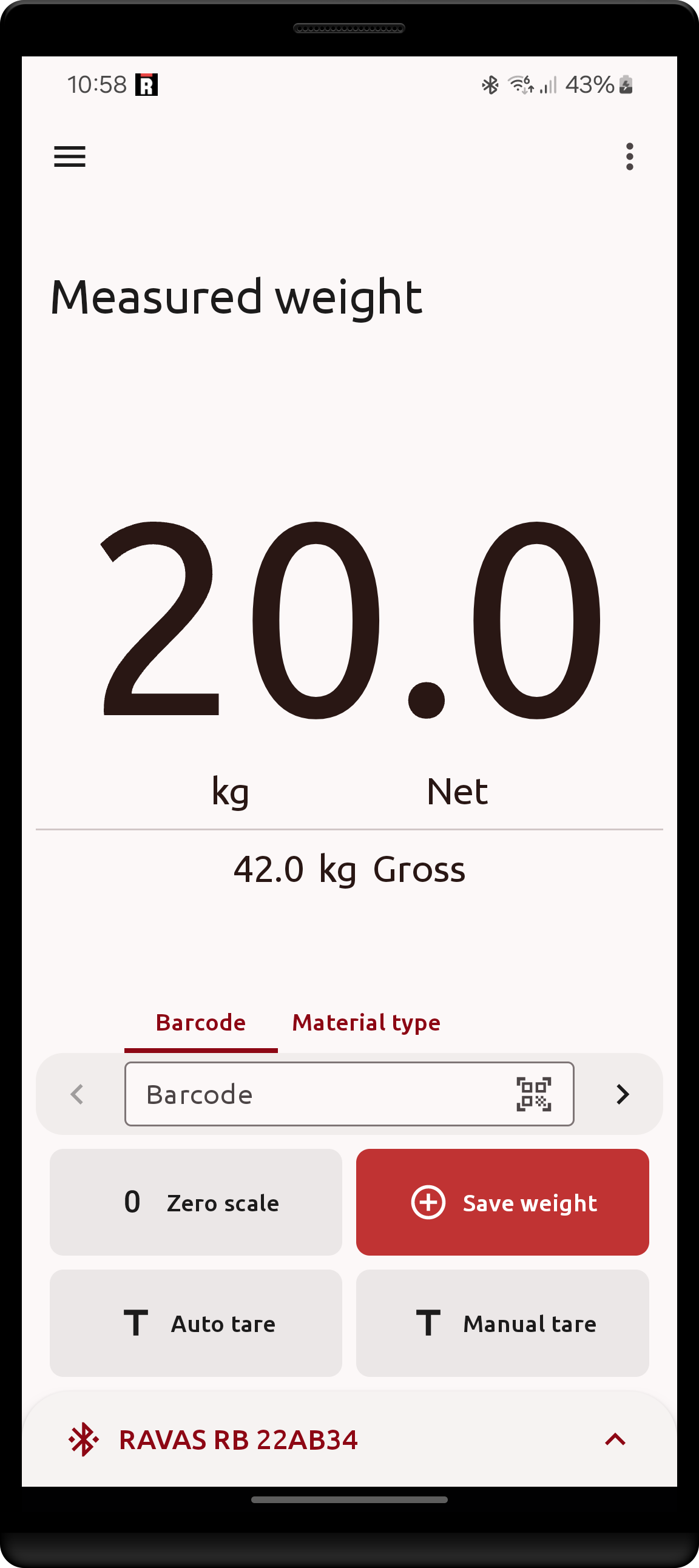
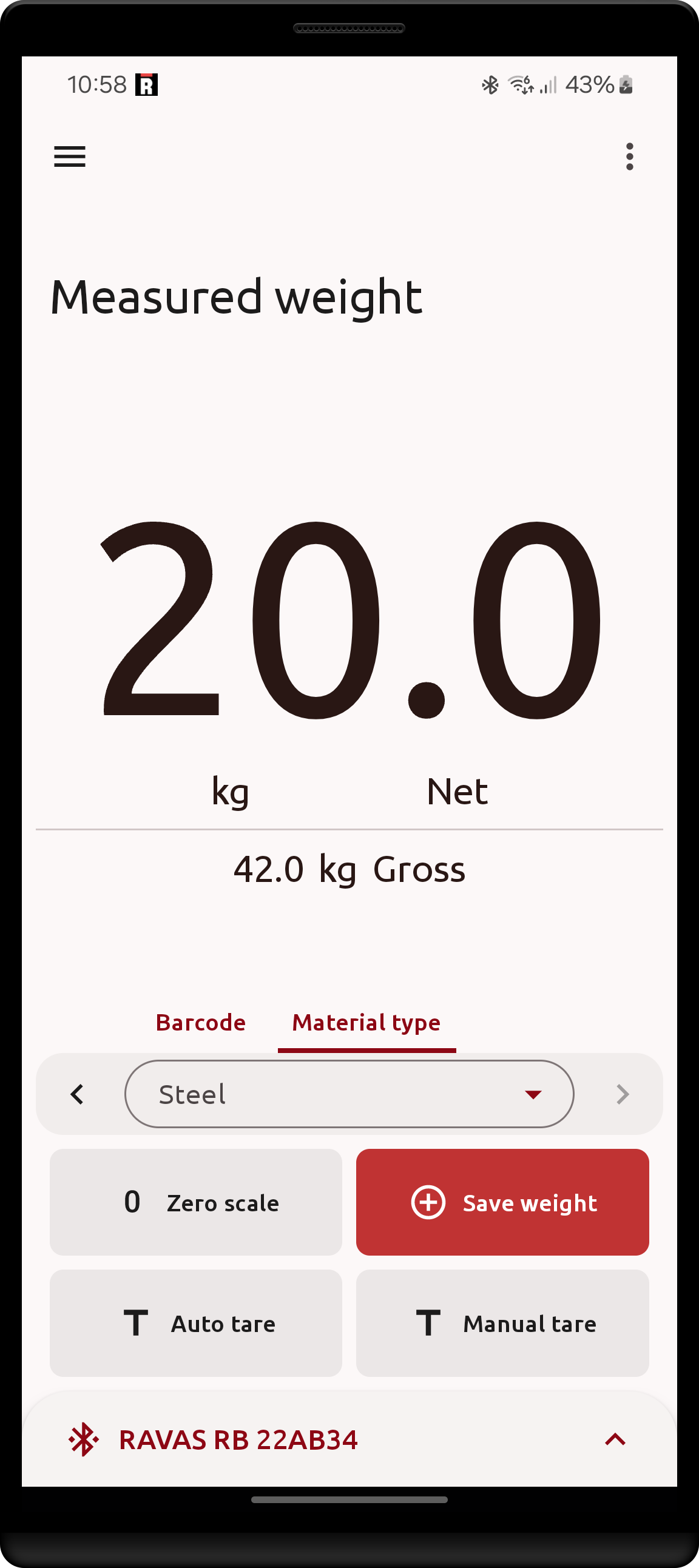
Once one or more custom fields have been defined. They will appear as inputs in the Weight screen.
| Custom fields text input | Selection input | Entering a text value |
|---|---|---|
 |
 |
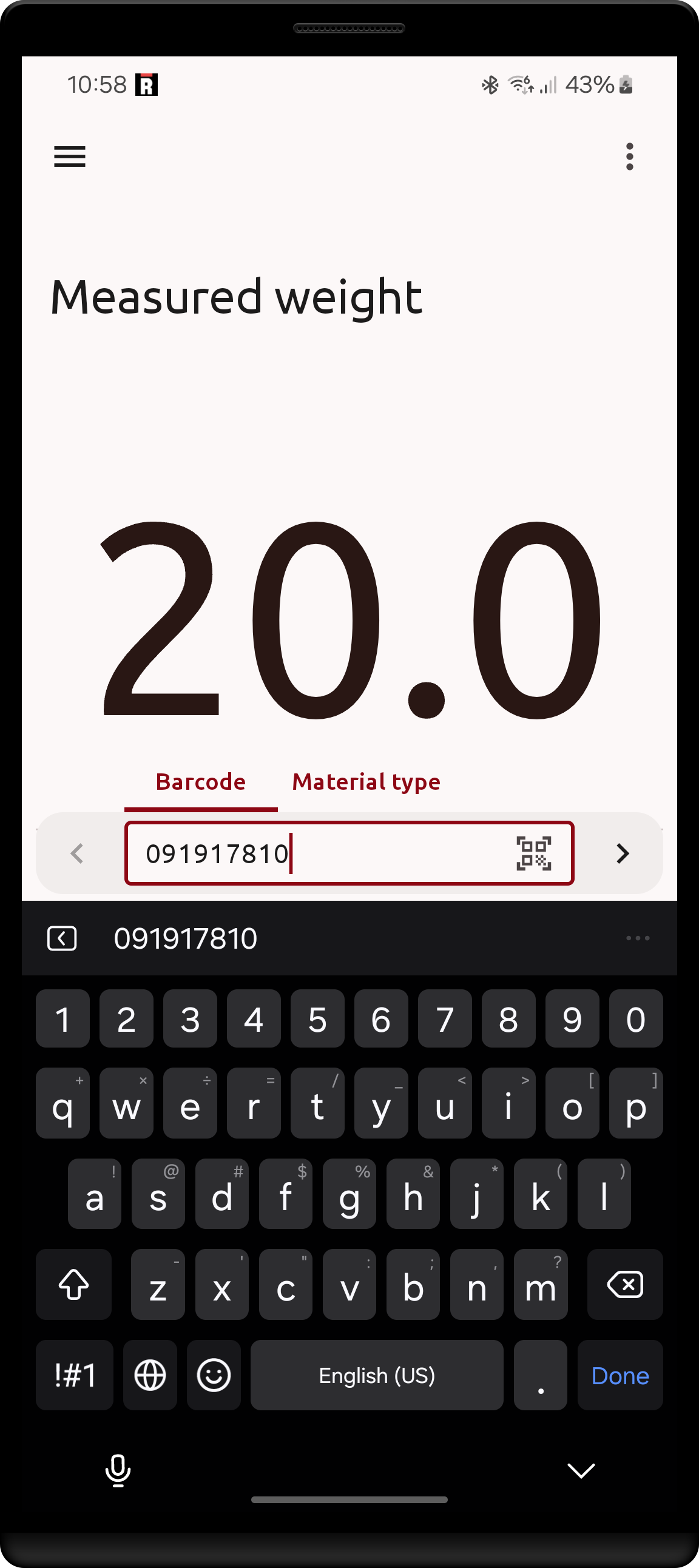 |
Since this field is required and has no value, it is marked and the Save weight button is unavailable |
Selection and dataset inputs open a dialog to choose a value | All required fields (1) contain non-empty values, Save weight is available |
- Switching between fields can be done either by clicking on the desired field's name above the current input.
- The tabs may be scrolled horizontally when there are too many fields to fit on the screen.
- The left and right chevron icon buttons can be used to sequentially switch to the next/previous field.
- Text fields have a scan icon button that opens the camera to read a QR/Barcode into the field (requires a license).
- A required text field that is still empty automatically receives the input focus.
- Selection and dataset fields that are marked
Requiredstart onNone, forcing a deliberate choice. Fields that are not required start on their default value, or on the first option if no default is set.
| Dataset and text field on the Weight screen |
|---|
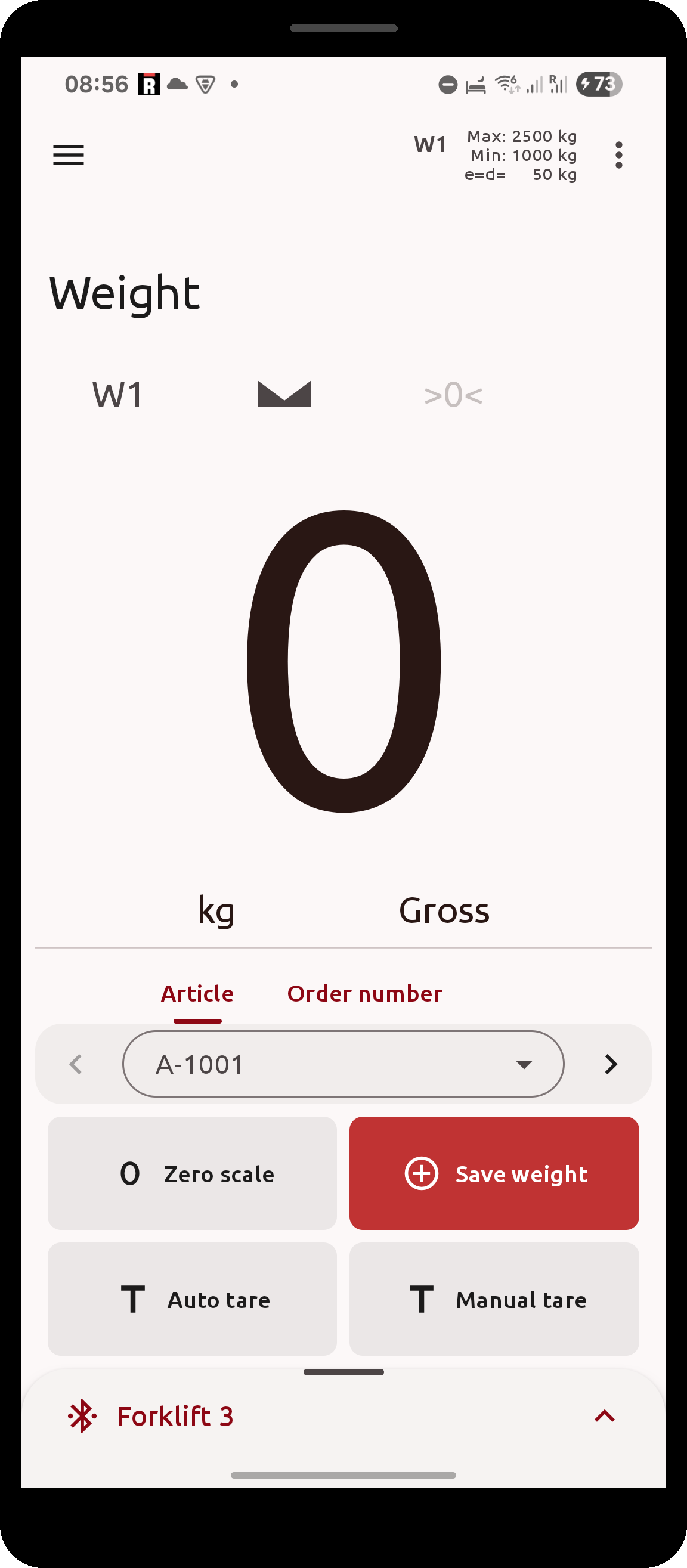 |
Field values are kept when you leave the Weight screen; they are only cleared by
Clear on saveor by editing the field definitions. Without an active license only the first text field is shown.
Backup settings
A backup represents the state of system settings at some point in time. This includes the entire system state except for:
- Saved weights
- Saved backups
- Current License & device identifier
It does include previously found printers, saved custom print labels and the list of known RAVAS devices (together with their aliases) though. Other settings not mentioned will also be included.
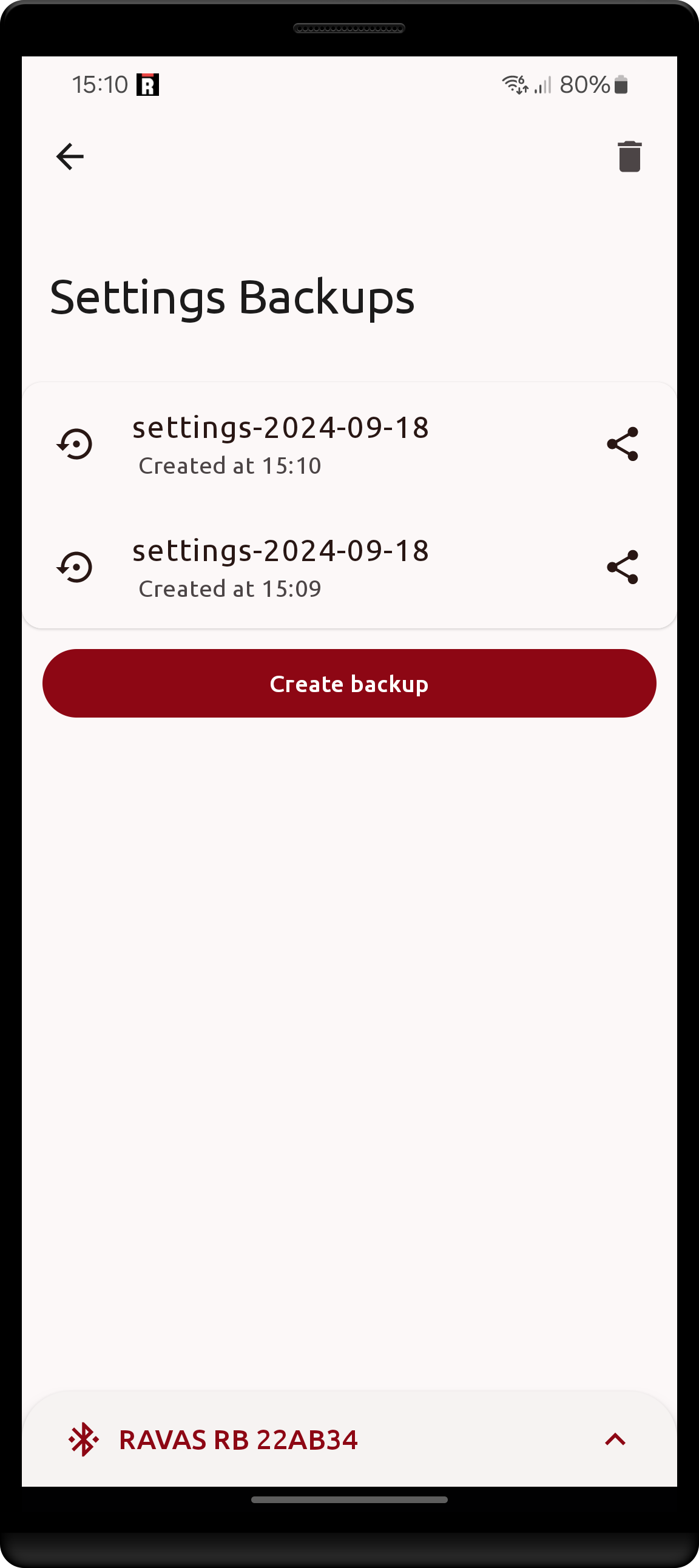
A backup may be created manually or automatically. All available backups can be viewed in the Settings Backups screen by navigating to the Settings screen > clicking Backups > clicking Backups again in the management screen.
The management screen reached by the first Backups click (titled Settings Backups in the app, like the backups
list itself) is referred to below as the Manage Settings screen. It offers five entries: Send, Receive,
File import, Backups and Application logs.
The app creates a backup named
license-lost-<year>-<month>-<day>.bak.binautomatically just before it resets the licensed settings because the license expired or was deleted. Restoring it after reactivating a license brings the previous configuration back.
| Setting location | Location in management | Setting Backups screen |
|---|---|---|
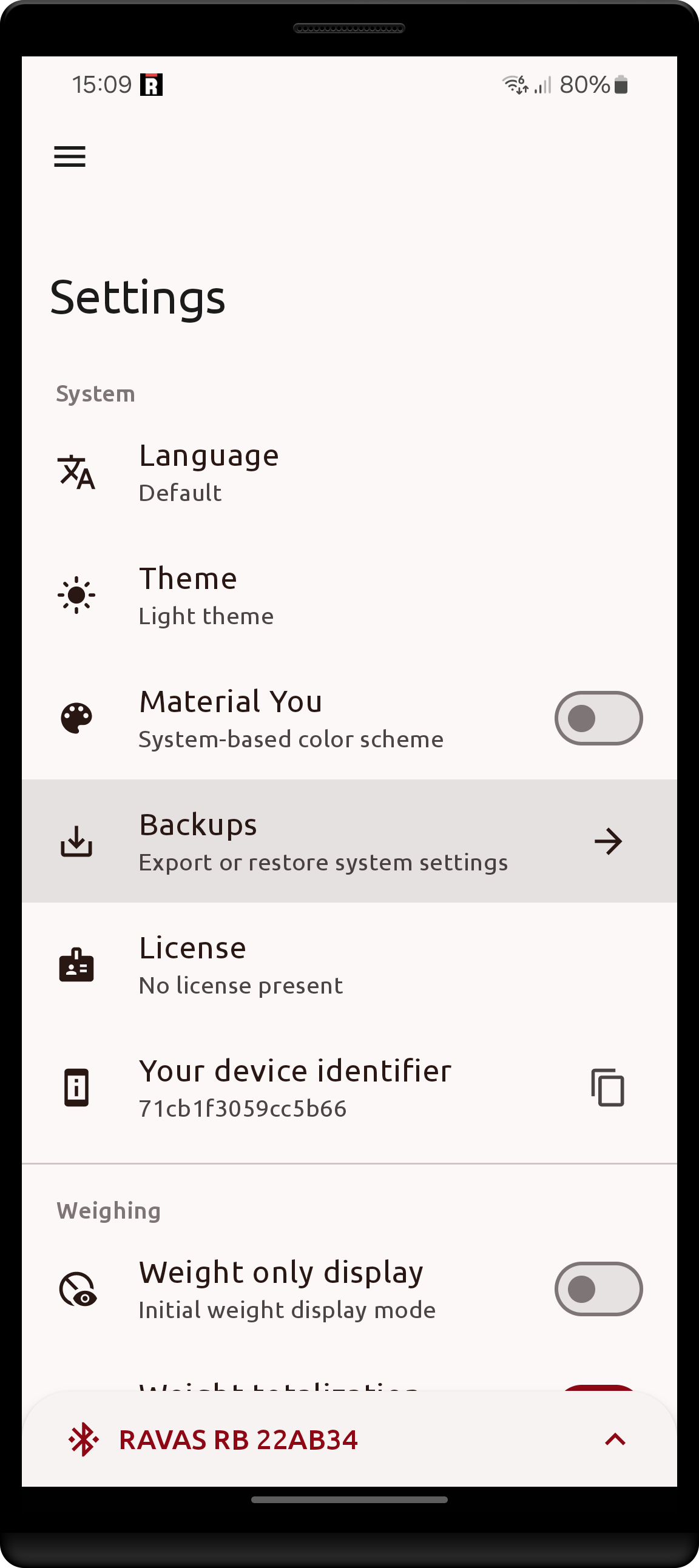 |
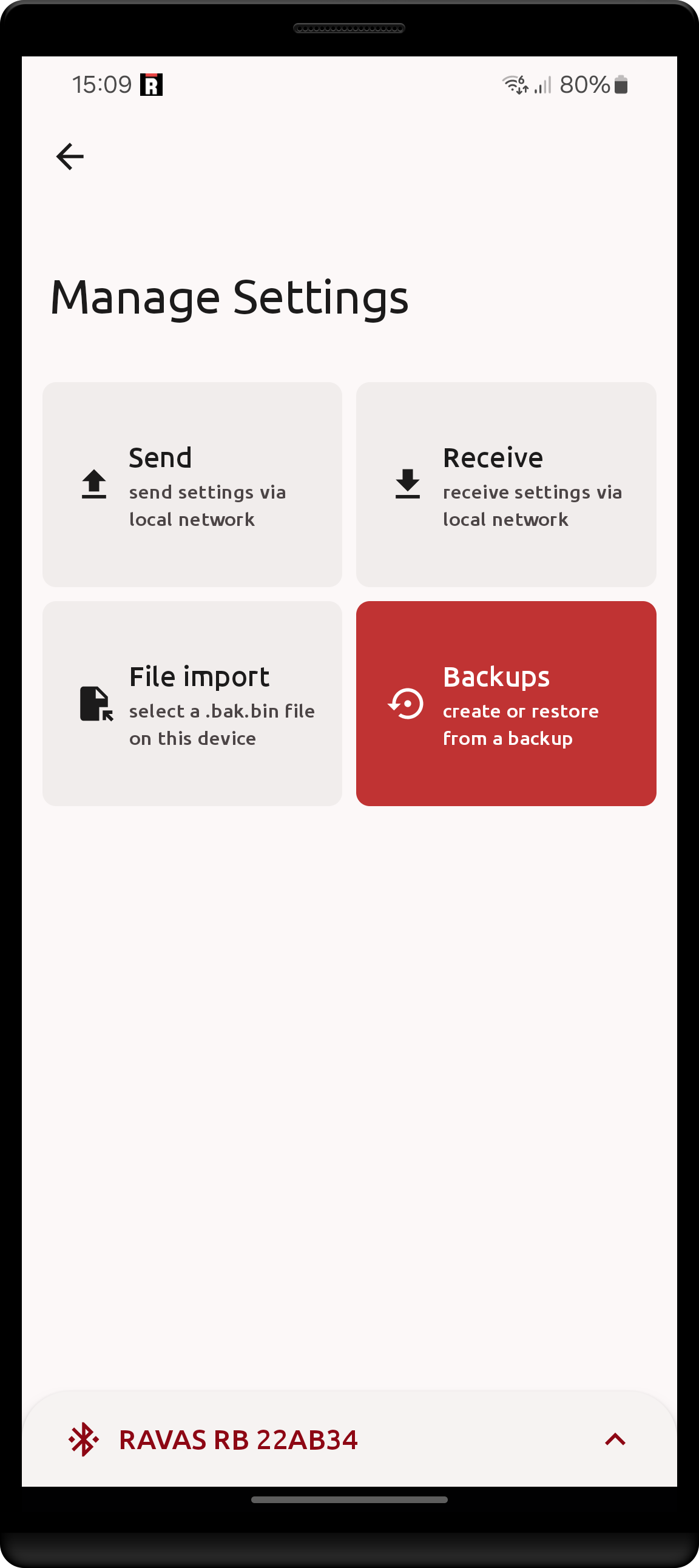 |
 |
Managing backups
In the Settings Backups screen, you may manually create new backups. Upon clicking Create backup, a new backup file will be created with the naming scheme settings-<year>-<month>-<day>.bak.bin.
- Backup files are stored on the device's persistent storage.
- These files are inaccessible outside the app.
- If you delete app data in android settings or reinstall the app all backups will be lost.
- If you create multiple backups in the same day, a number discriminant will be added to the end of the file name.
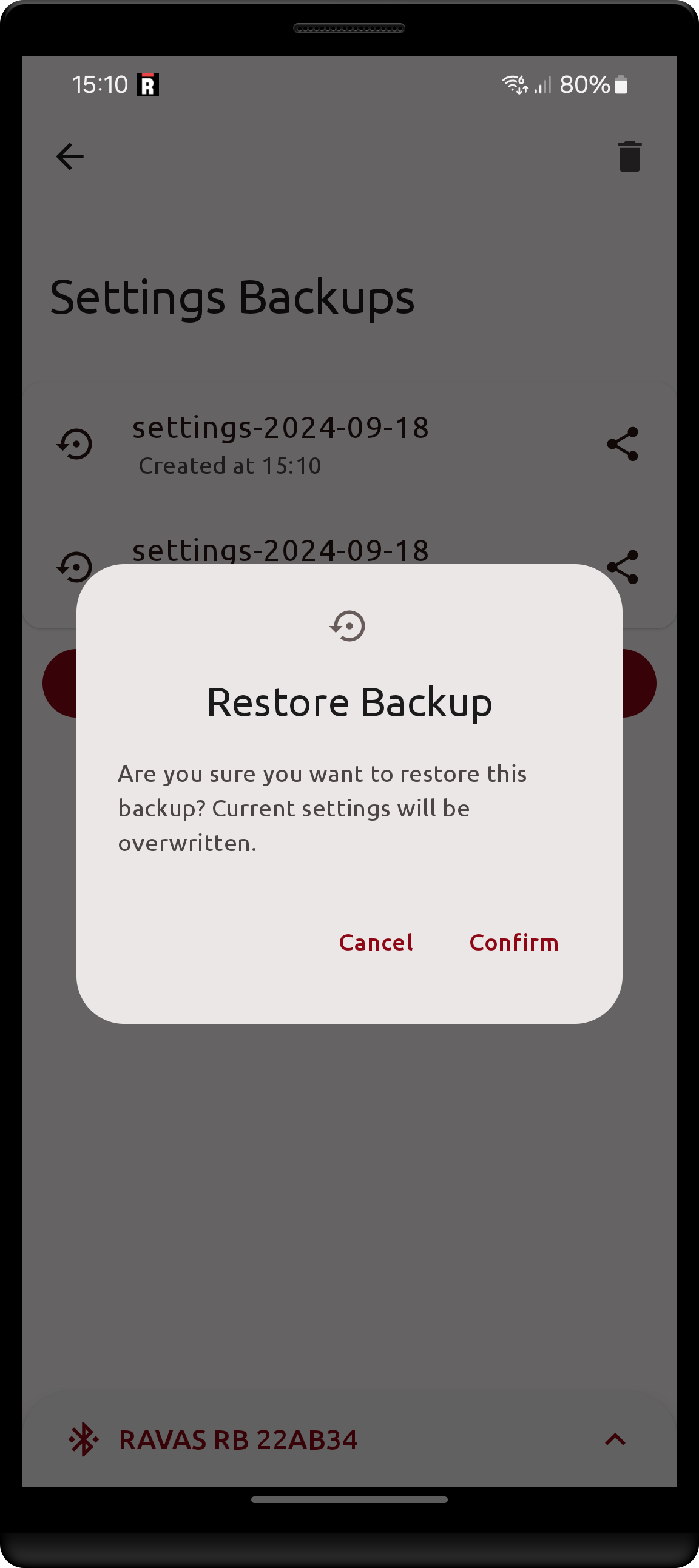
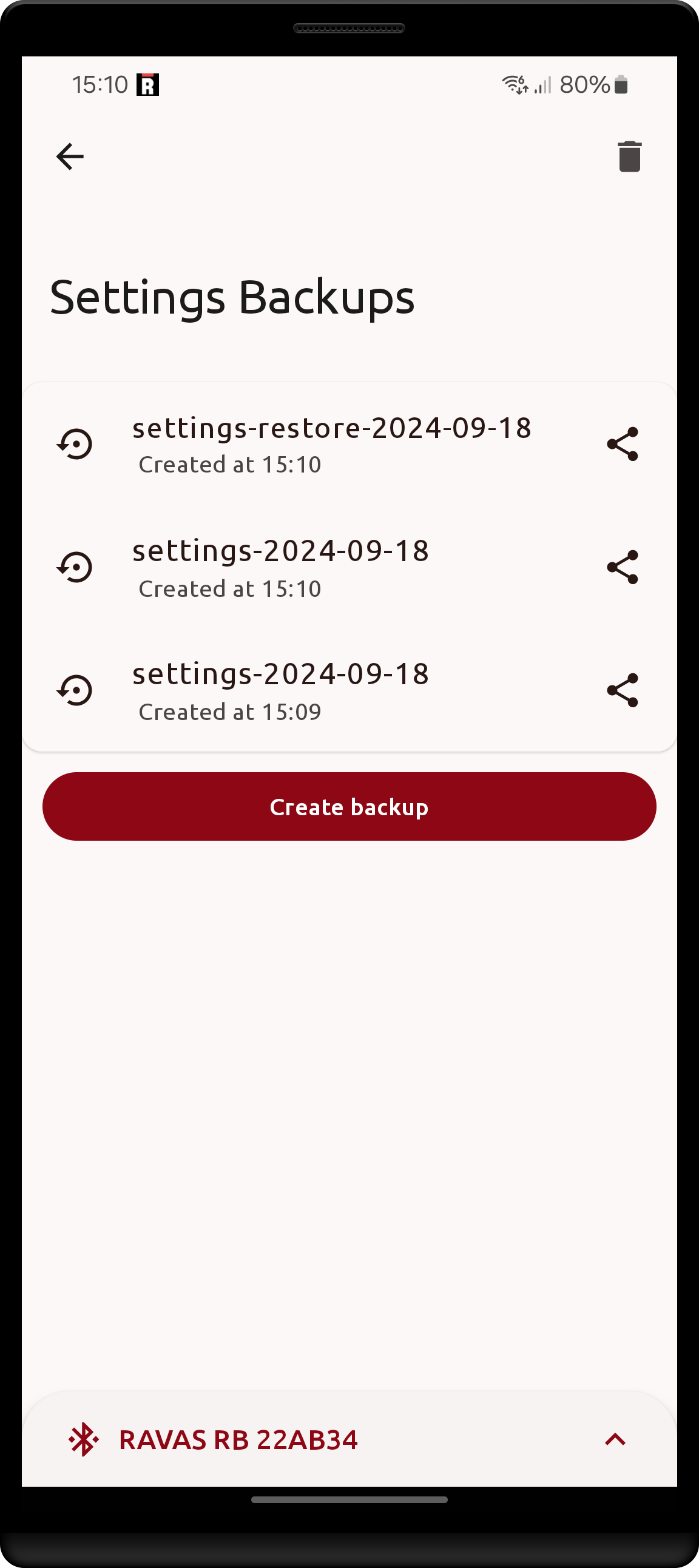
A backup may be restored by clicking on the corresponding backup's button and confirming the dialog. Right before actually performing the restore, the app will first create a new backup of the current settings with the naming scheme settings-restore-<year>-<month>-<day>.bak.bin, and only after will apply the selected backup.
If you restore a backup whose name starts with
settings-restore, a restore point will not be created and the backup will be applied immediately upon confirmation.
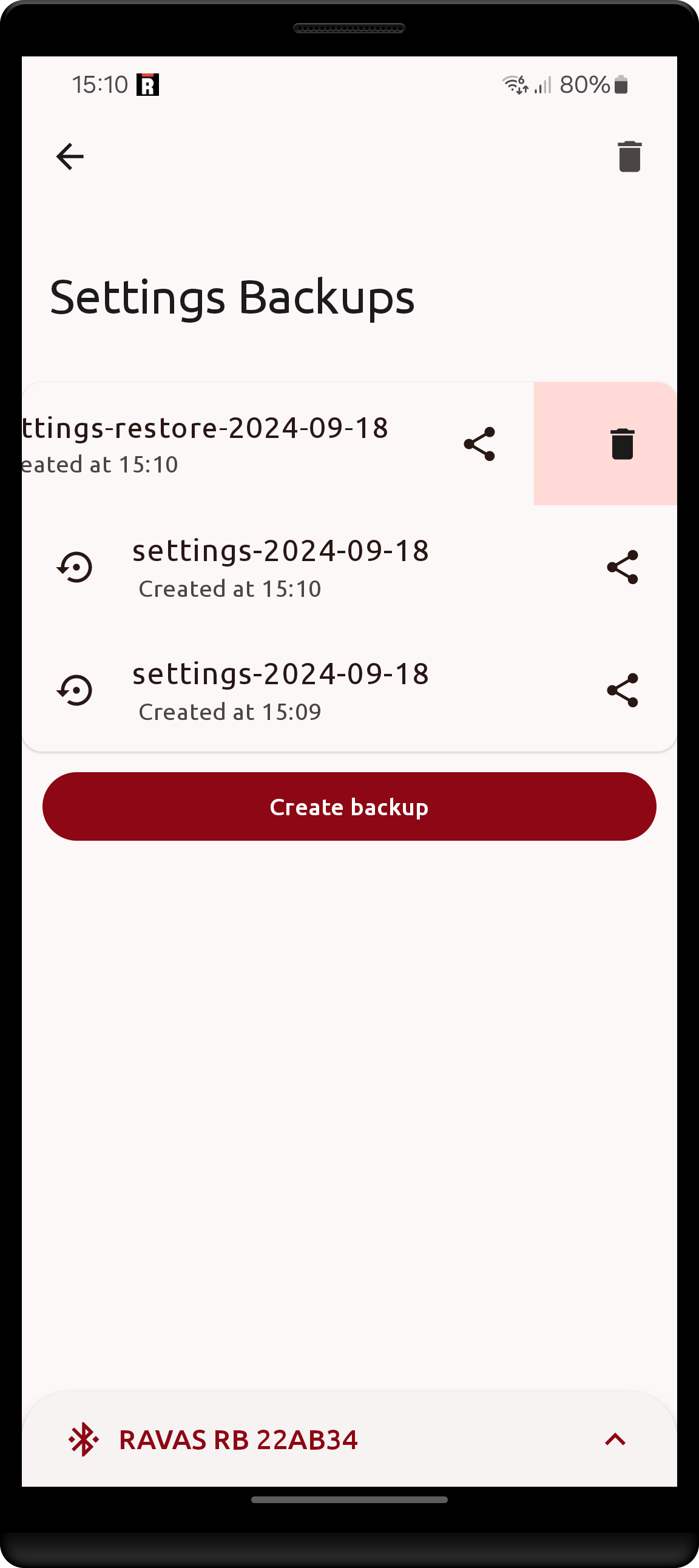
As with other parts of the app, you may delete a specific backup by swiping left (right-to-left) on its button.
| Restore confirmation dialog | Created restore point | Deleting a backup |
|---|---|---|
 |
 |
 |
You may also delete backups in bulk, with filtering by file age. This is intended to provide easy access to get rid of old, numerous backups.
A backup file may be shared using the android file share system dialog by clicking the share icon button next to the corresponding backup.
| Bulk deletion | Share button | File system dialog |
|---|---|---|
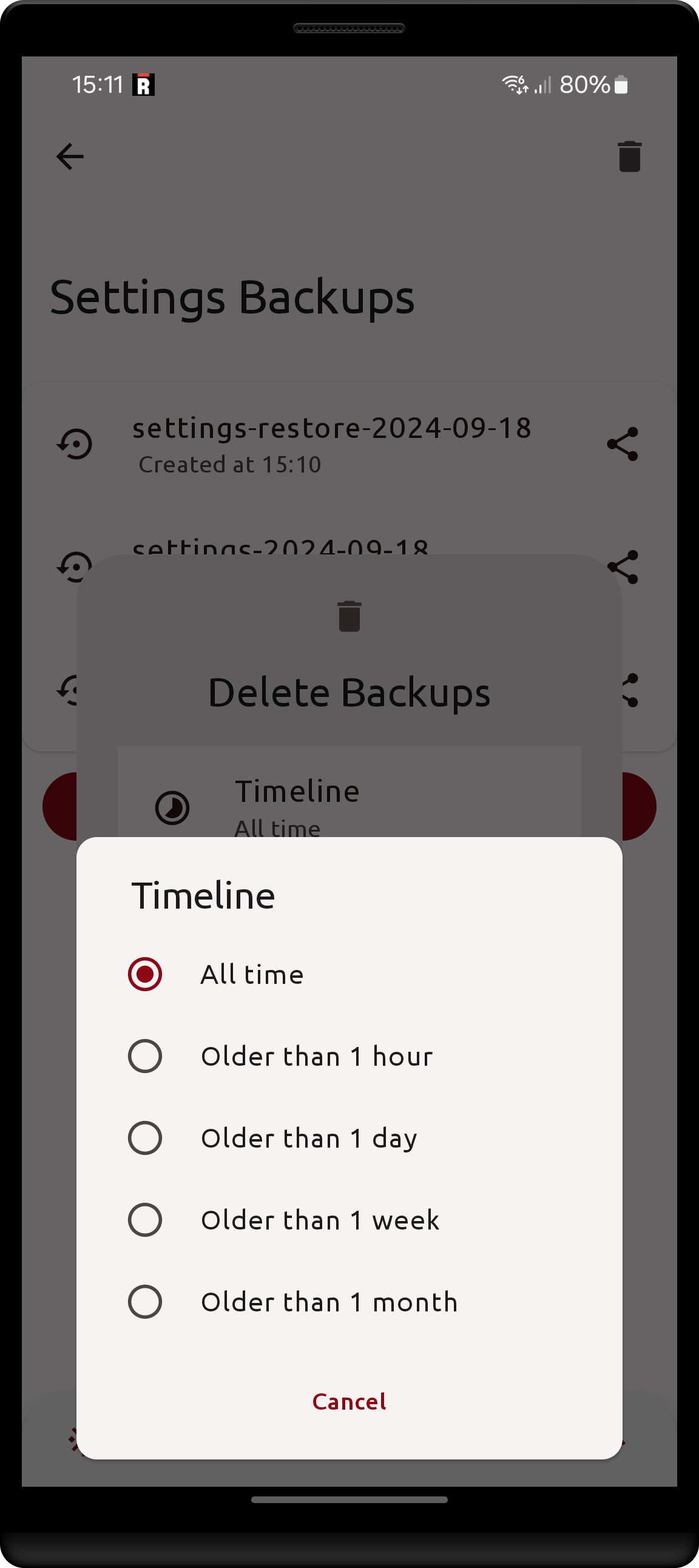 |
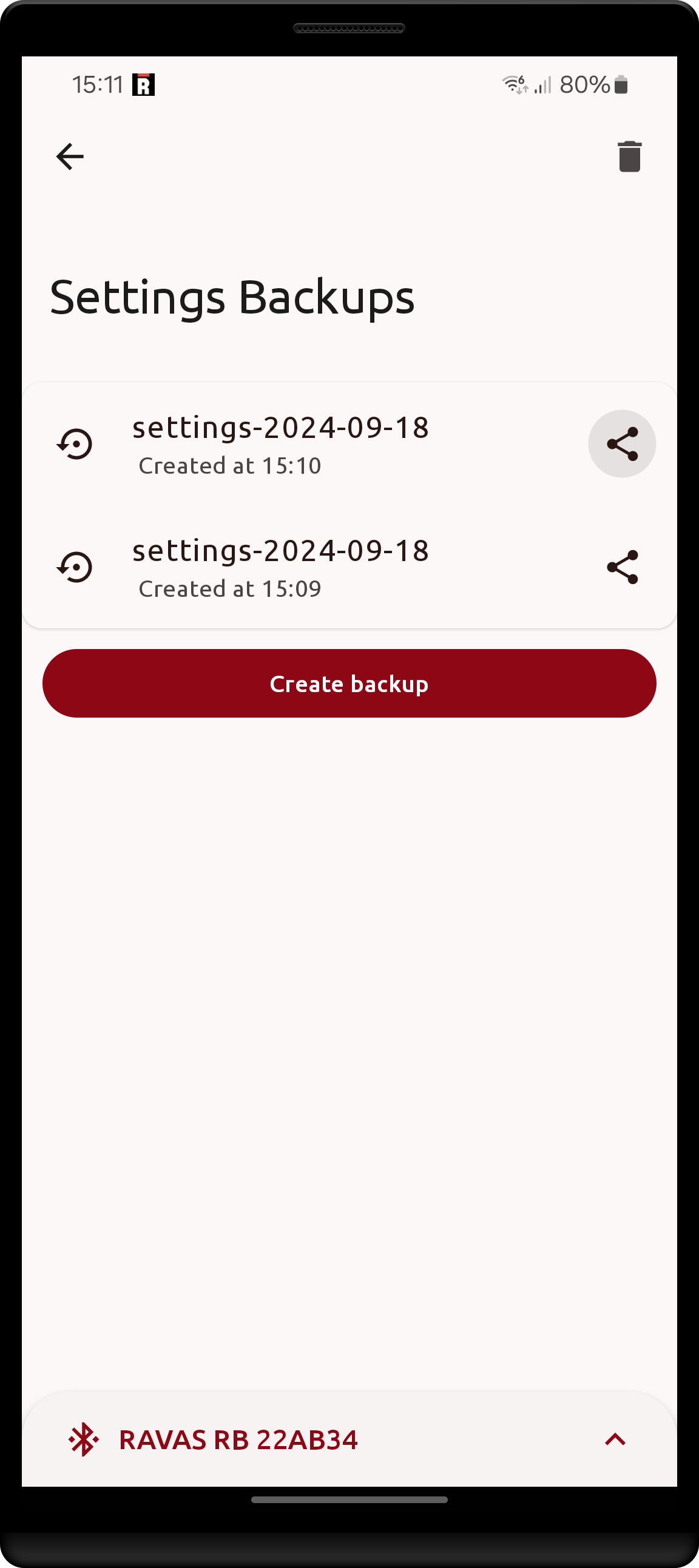 |
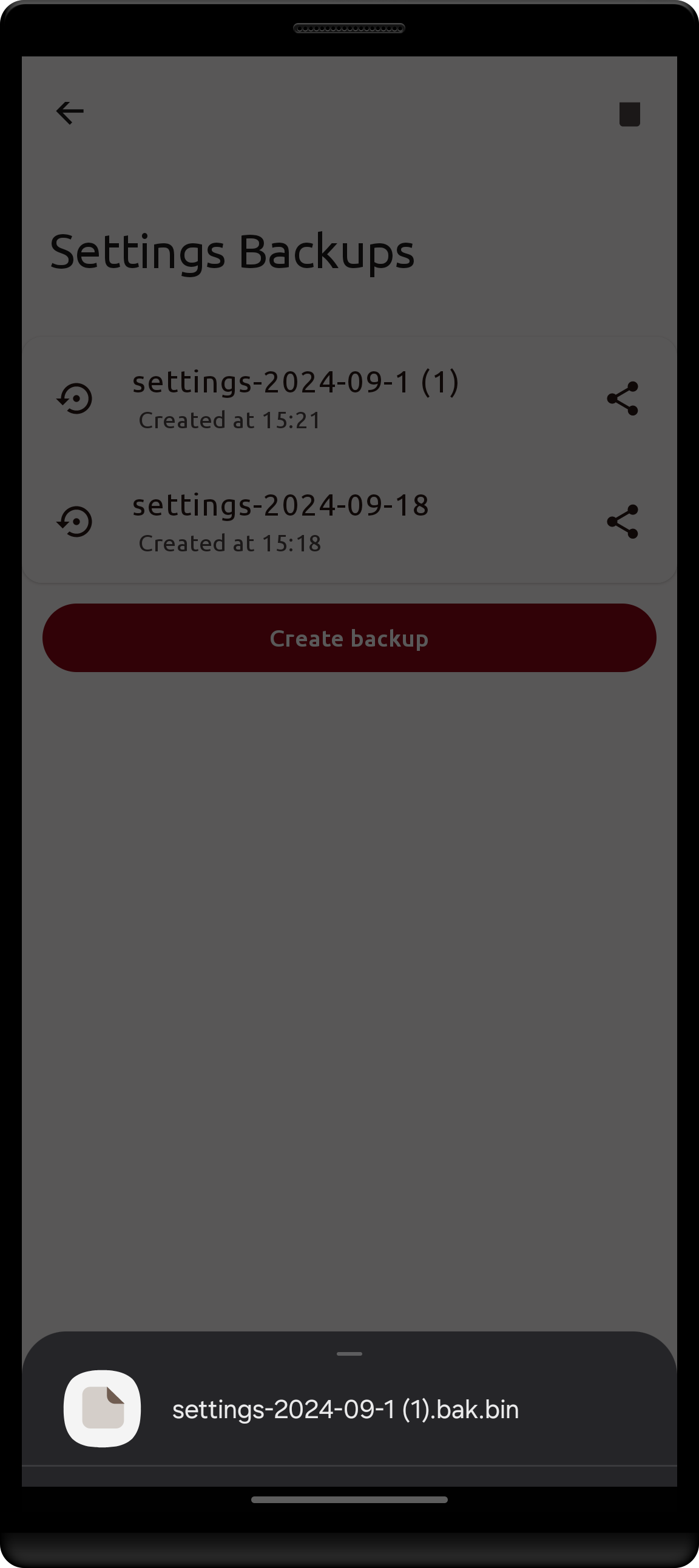 |
Importing a .bak.bin file
A backup .bak.bin file that has been previously exported using the share icon button can be imported and restored using the share icon button.
- In the Manage Settings screen click the
File importbutton which will open a system file picker dialog. - Select the desired .bak.bin file.
- If successful, the app will navigate to back to the Settings screen, the imported settings are now applied.
- If the restore failed, the app will remain on the same screen, nothing will have changed.
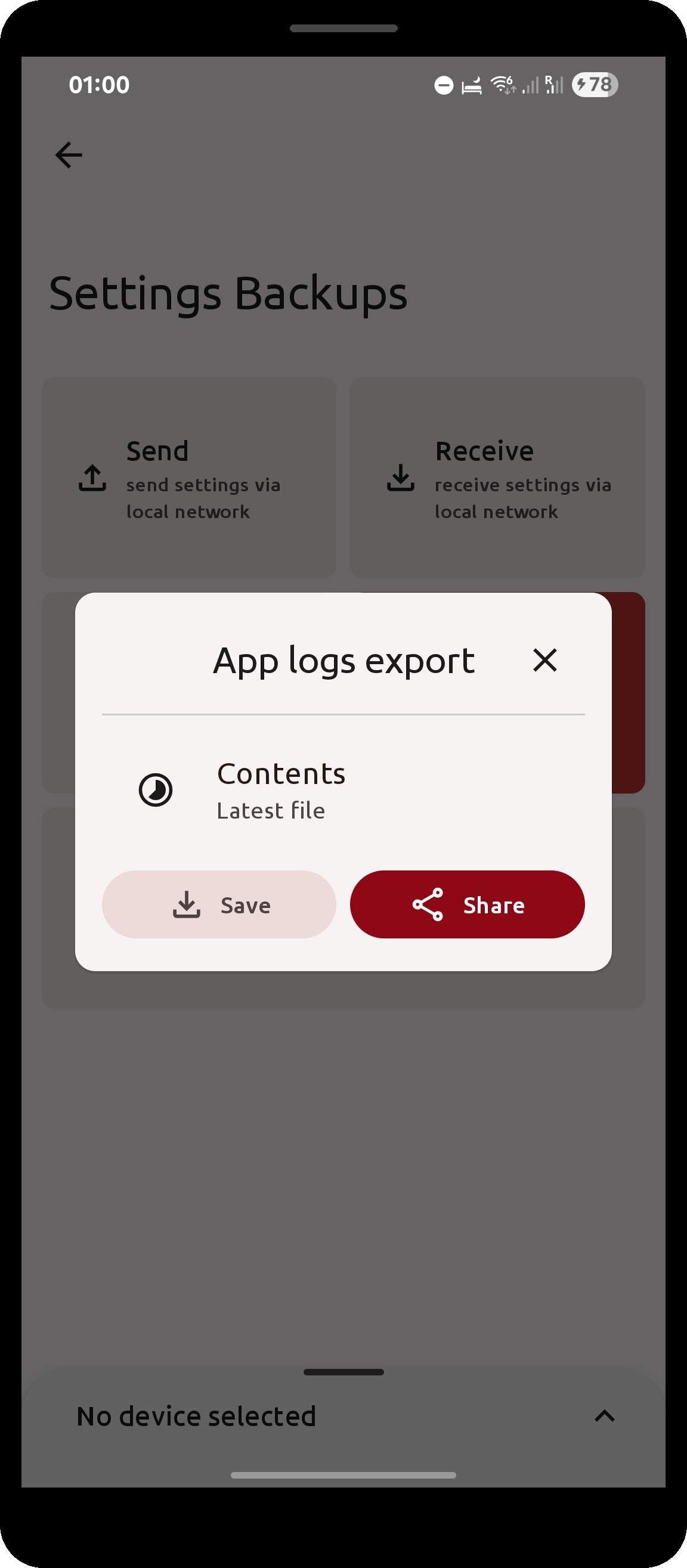
Export app logs
Separately from the device logs, the app keeps its own diagnostic log files. These are useful when reporting a problem to RAVAS.
- In the Manage Settings screen click
Application logs. - Choose what the export should contain under
Contents:Latest file(default): only the current log fileAll: every log file the app still has on the device
- Click
Saveto write the file through the Android file picker, orShareto send it directly to another app.
If the app has not written any log file yet, a message is shown instead of the file picker.
| Manage Settings screen | App logs export dialog |
|---|---|
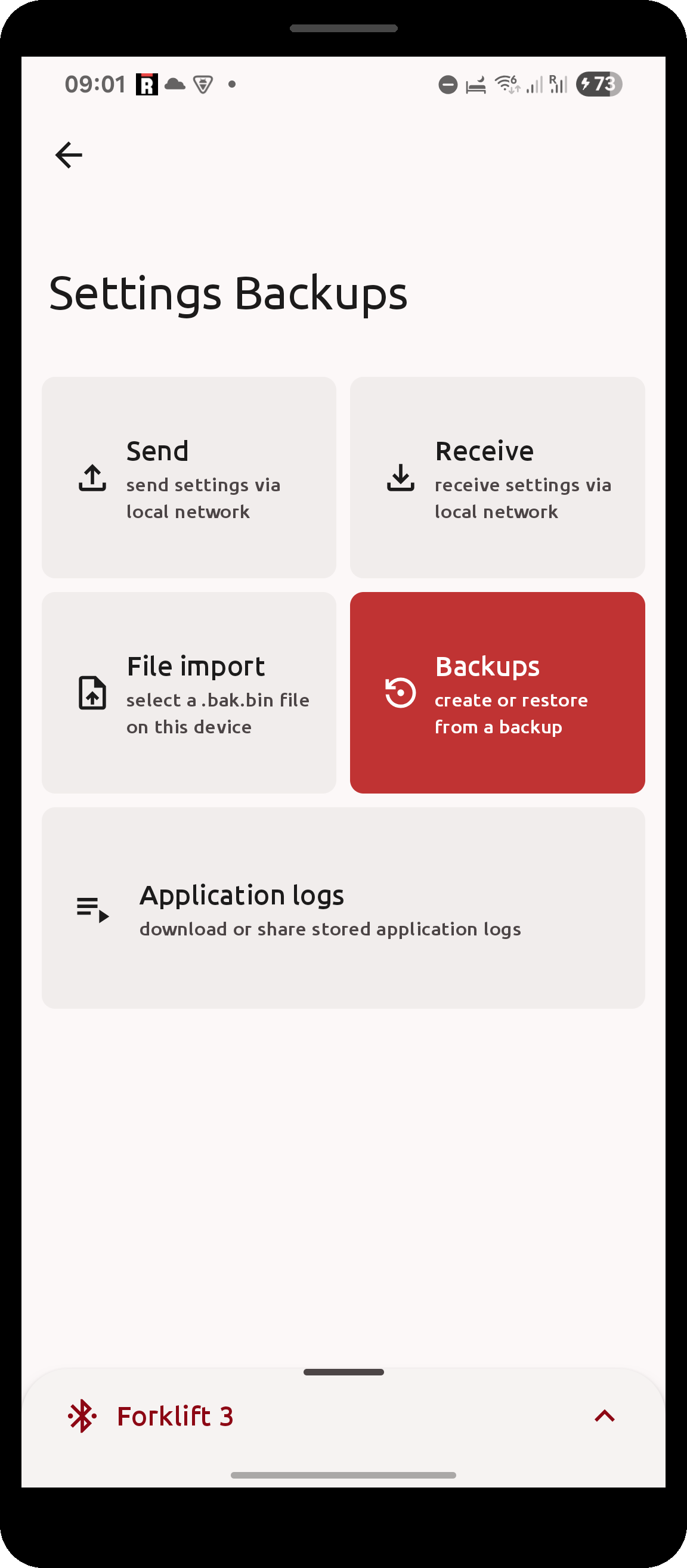 |
 |
Sharing over the local network
Backups may also be shared or received over the local network. For simplicity, it is recommended for one android device to create a Wi-Fi access point having other devices connect to it (it does not matter who is the "host"). A Wi-Fi router's private network can also be used, however some routers block clients from interacting with each-other which will not allow this feature to work.
Each android device on the network can assume one of two roles:
Settings provider: clickSendin the Manage Settings screenSettings receiver: clickReceivein the Mange Settings screen
To arrive at the Manage Settings screen, first navigate to Settings then click
Backups
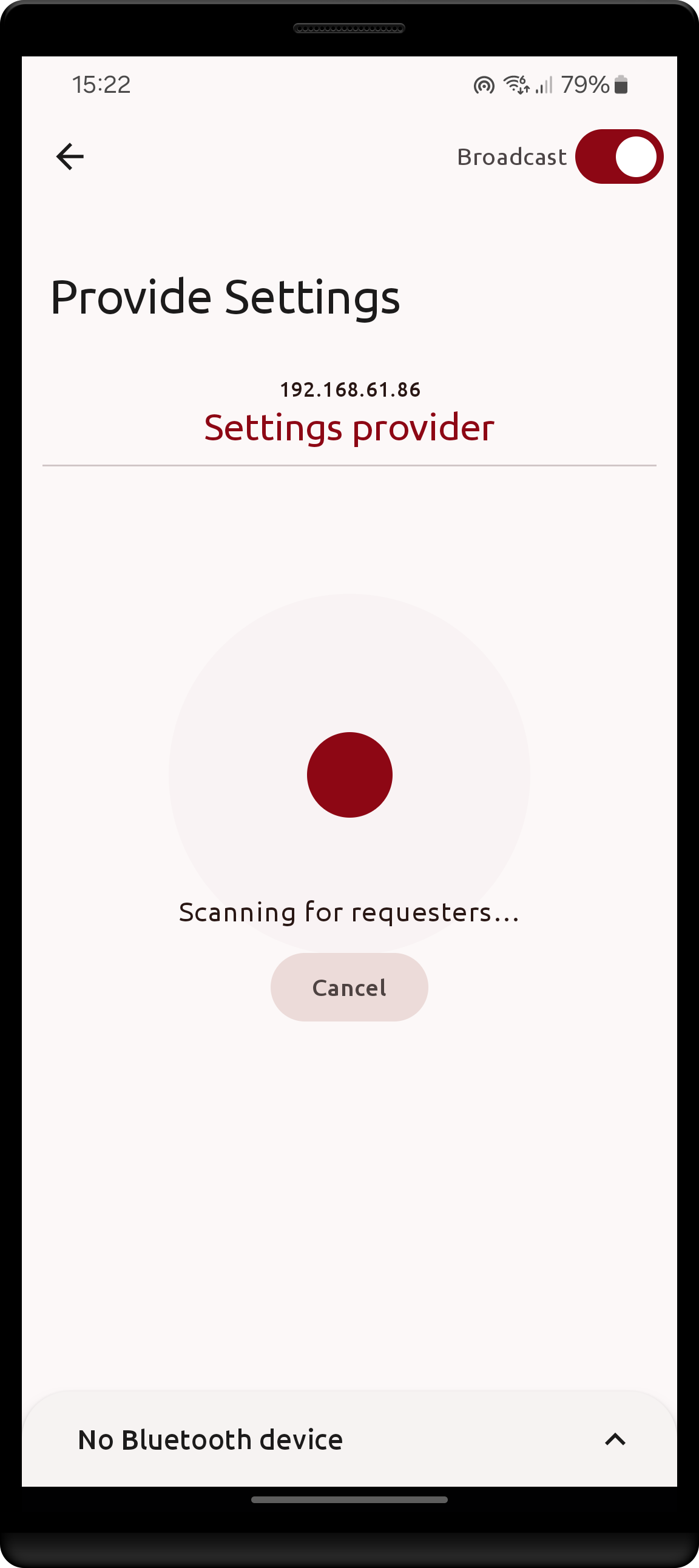
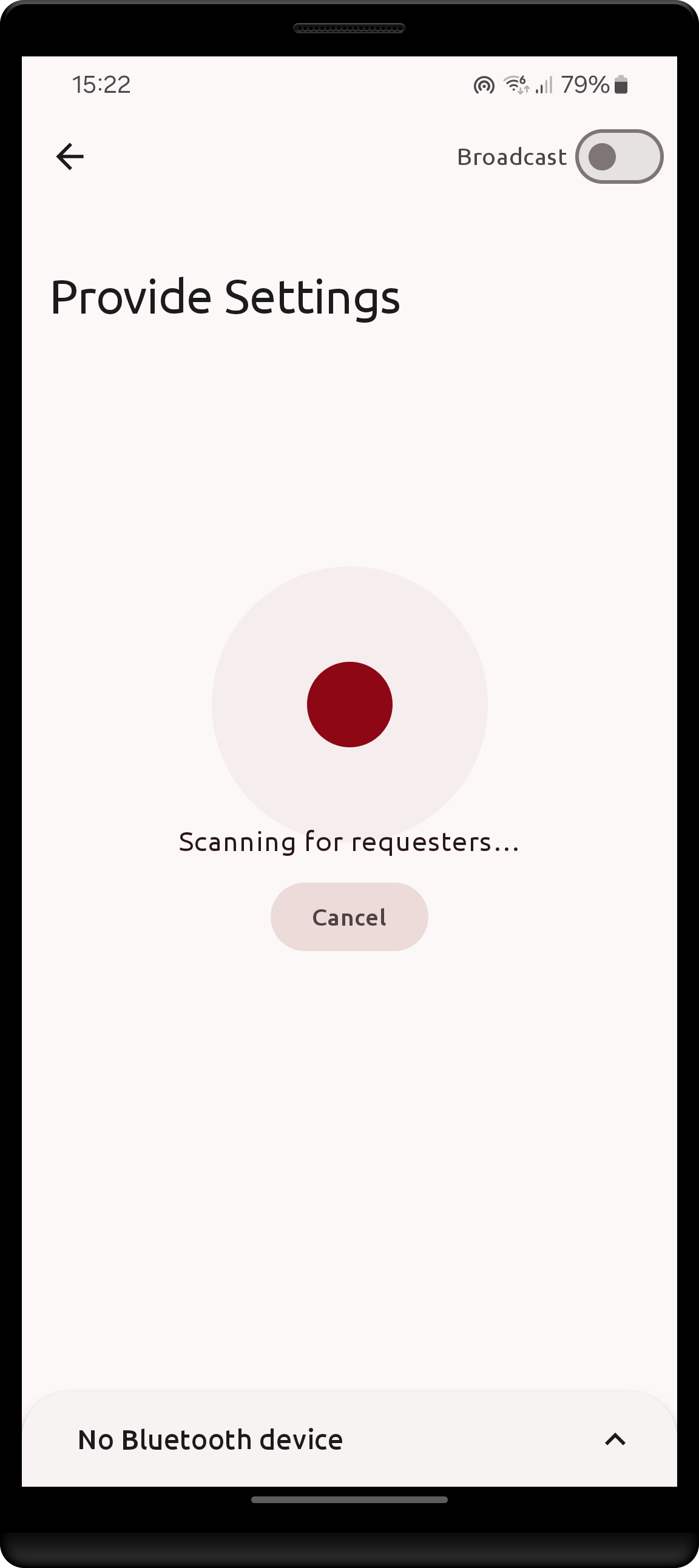
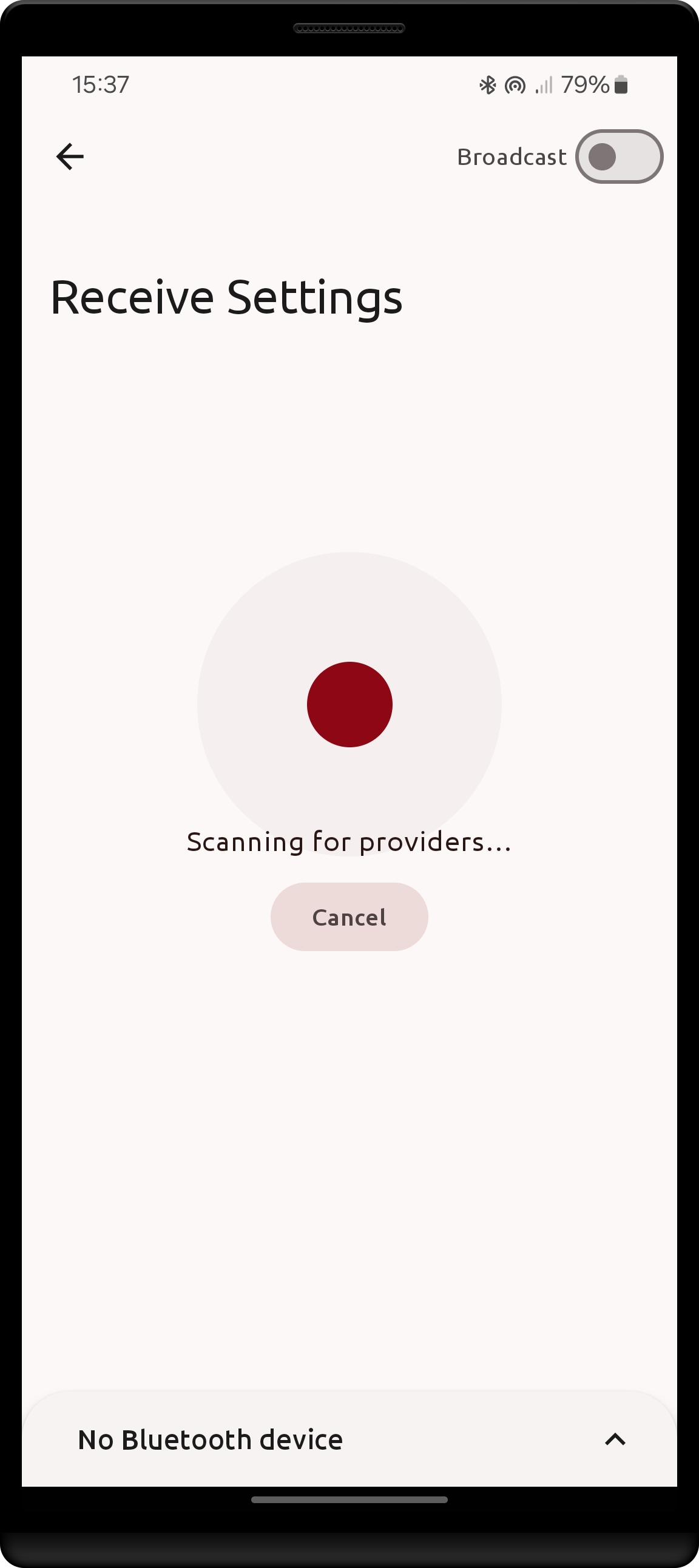
Each device may choose whether or not to broadcast themselves on the local network. When Broadcast is switched on:
- The device will await a network address
- The device registers itself on the network as either provider or requester
- The device receives a unique name of either
Settings providerorSettings requester - In case of multiple broadcasting requester/providers, some devices will have a number discriminator appended to their name.
For convenience, if selecting to Send settings (i.e. becoming a Settings provider), the Broadcast option will be switched on by default, as broadcasting for providers only allows others to PULL the current settings configuration. Meanwhile a requester is broadcasting, it allows others to PUSH their configuration to the requester, which will accept it without question.
| Default settings provider | Non-broadcasting provider | Default settings receiver |
|---|---|---|
 |
 |
 |
When multiple devices are connected to the same network, and at least one is broadcasting, sharing settings becomes possible.
The expected common scenario is to have a single broadcasting provider with any number of requesters on the network.
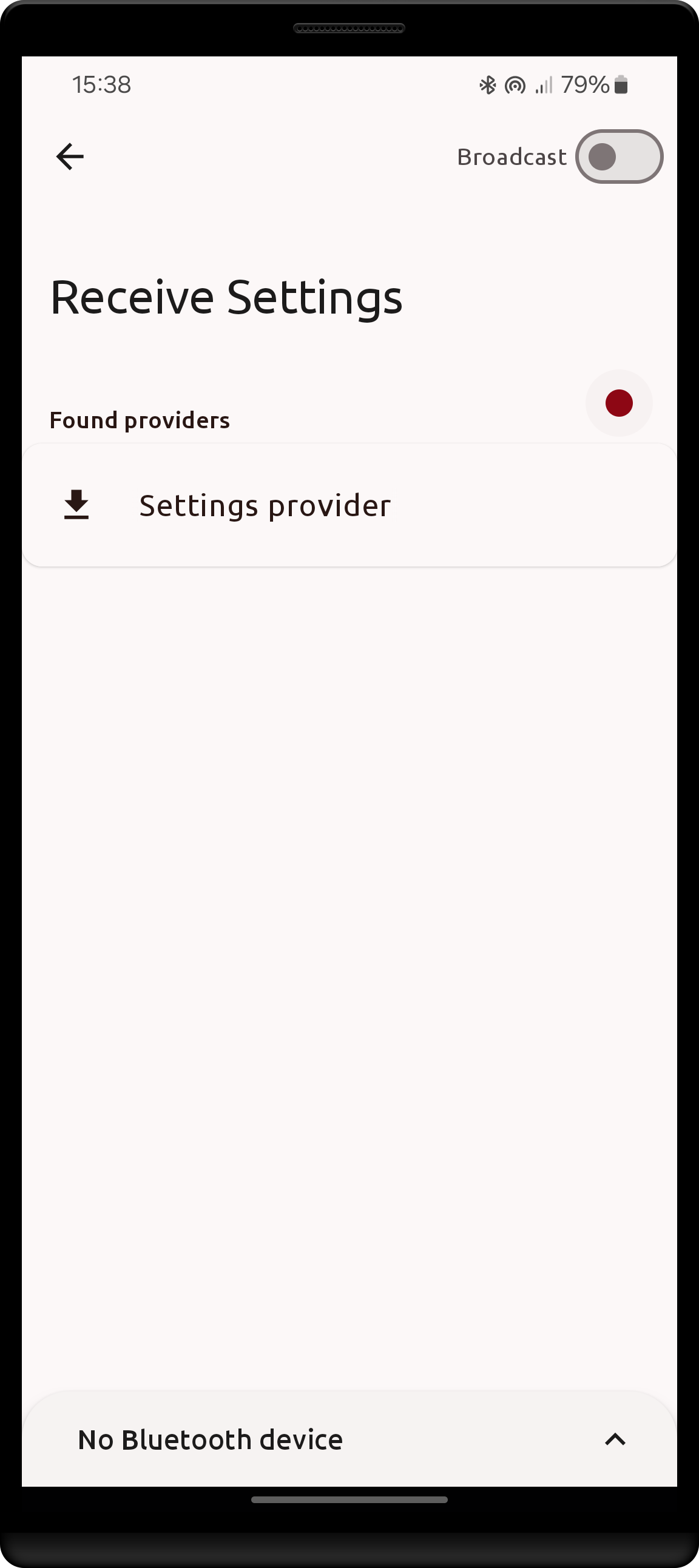
Performing a PULL as a requester
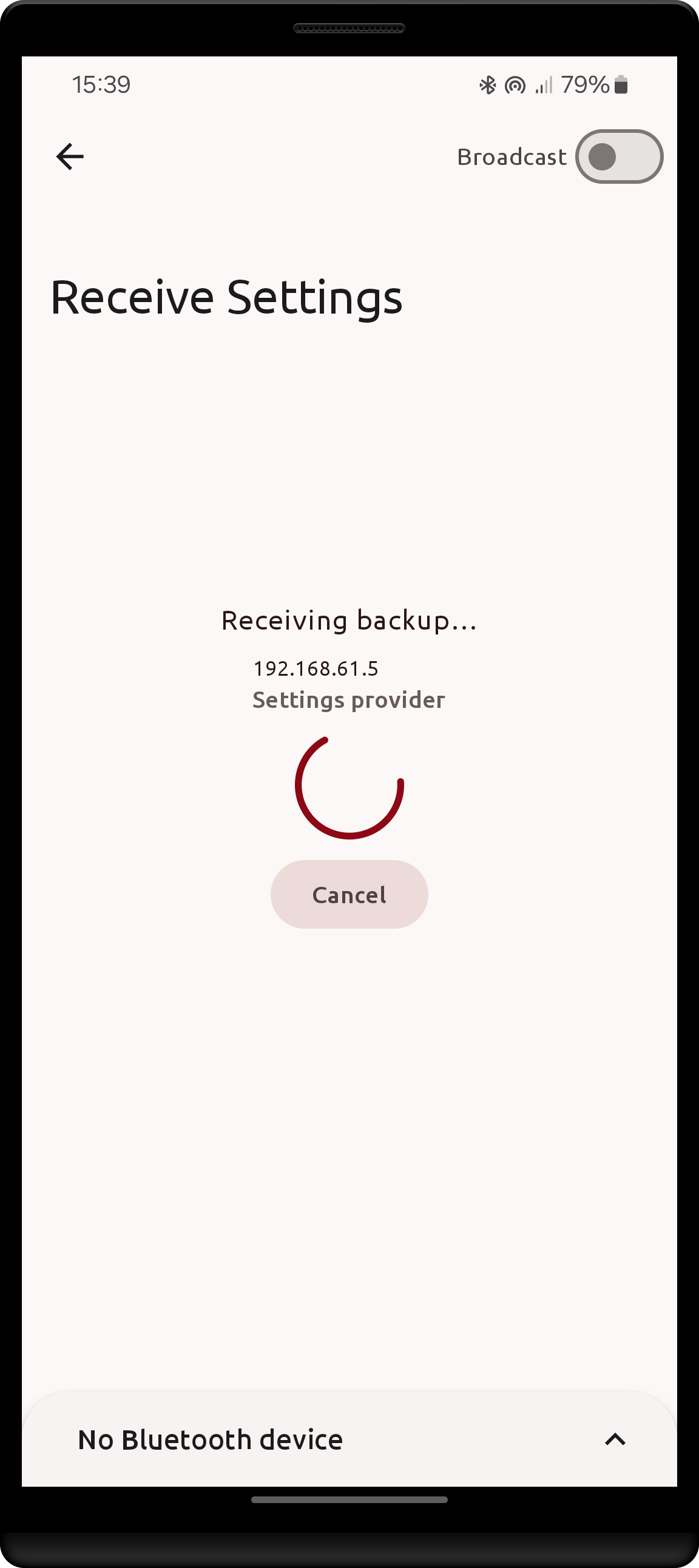
Clicking on a found provider will PULL their current configuration:
- the requester is shown a process dialog
- the provider will create a new backup
- the backup is sent over the network
- the requester creates and saves a restore point for himself
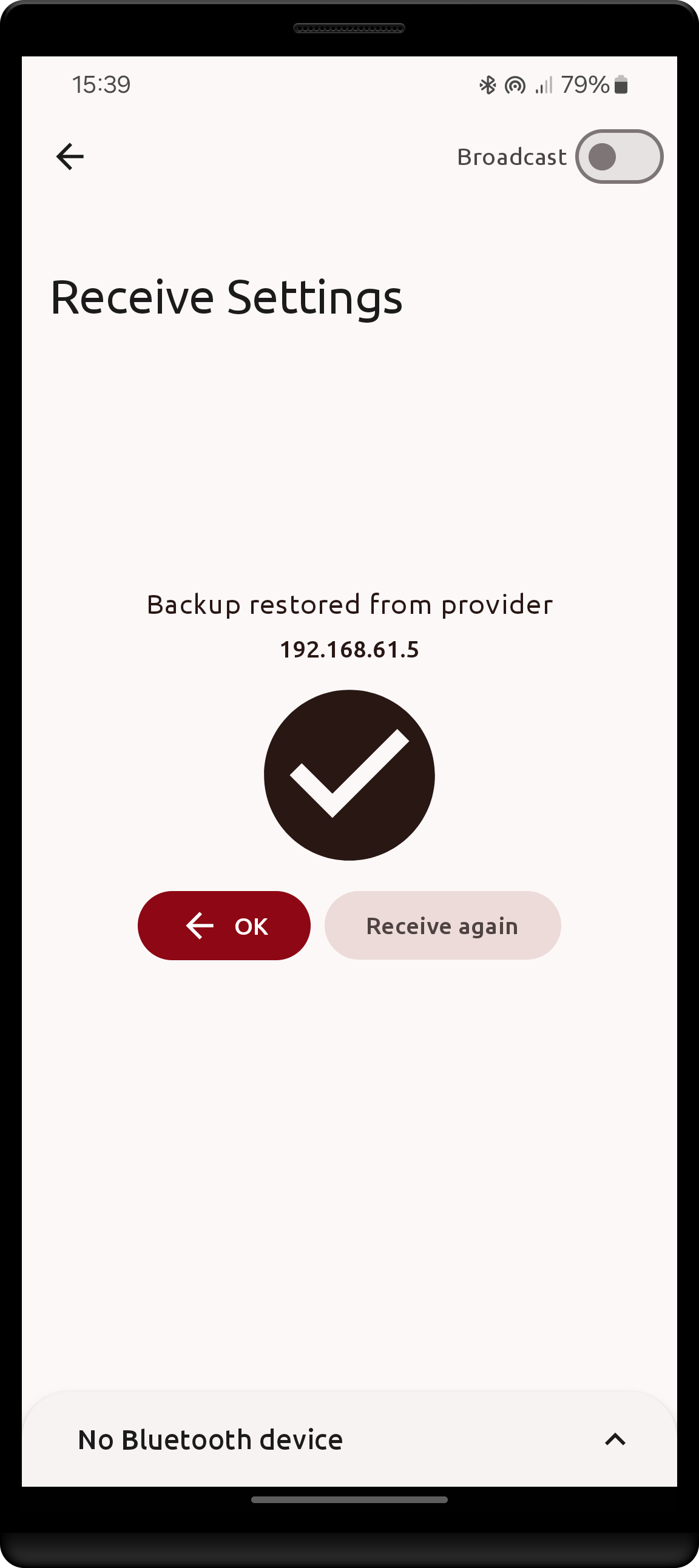
- the requester applies the received backup
- the requester sees a status dialog with the result
| Requester perspective | Process dialog | Success dialog |
|---|---|---|
 |
 |
 |
the provider's screen sees no changes during the PULL process
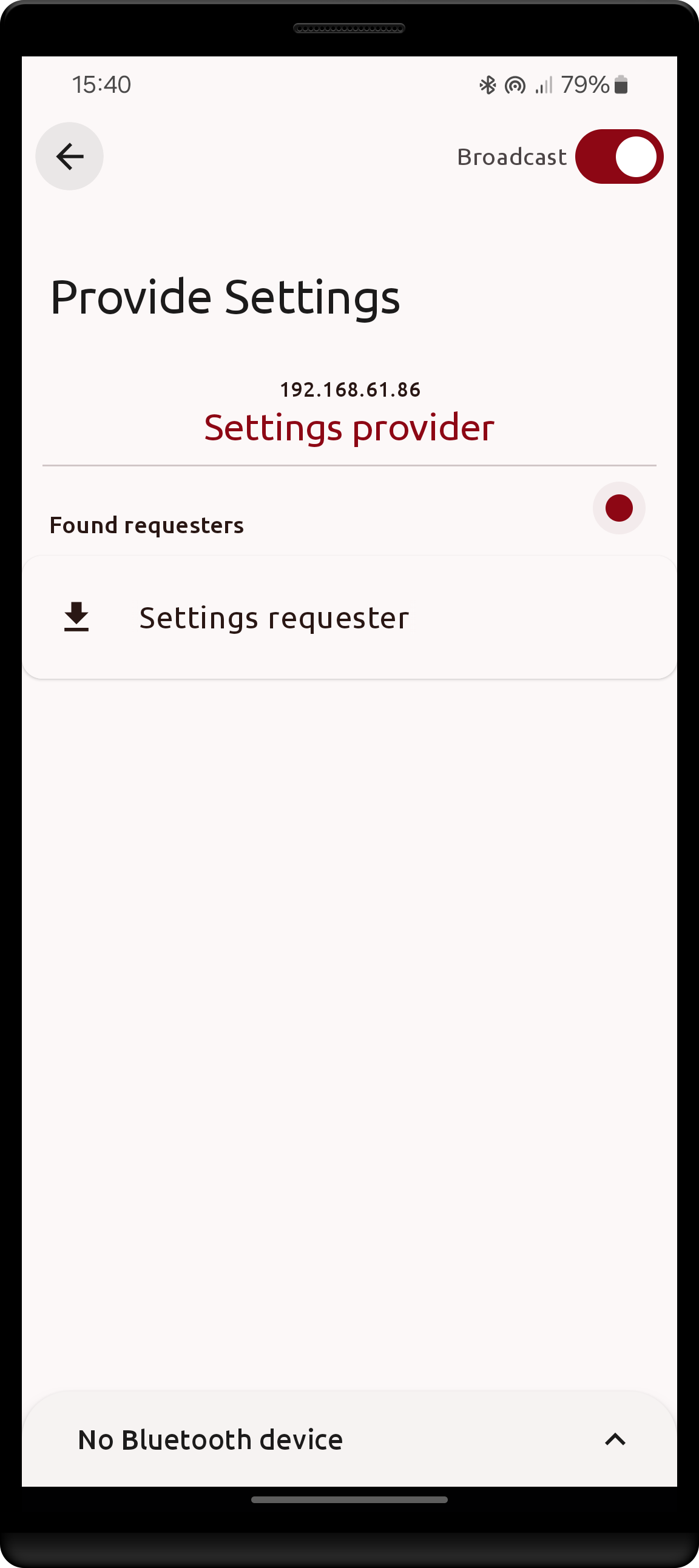
Performing a PUSH as a provider
For this to happen, a requested has to have enabled Broadcast in the top-right corner of their screen.
Clicking on a found requester will PUSH the current device's configuration to the target:
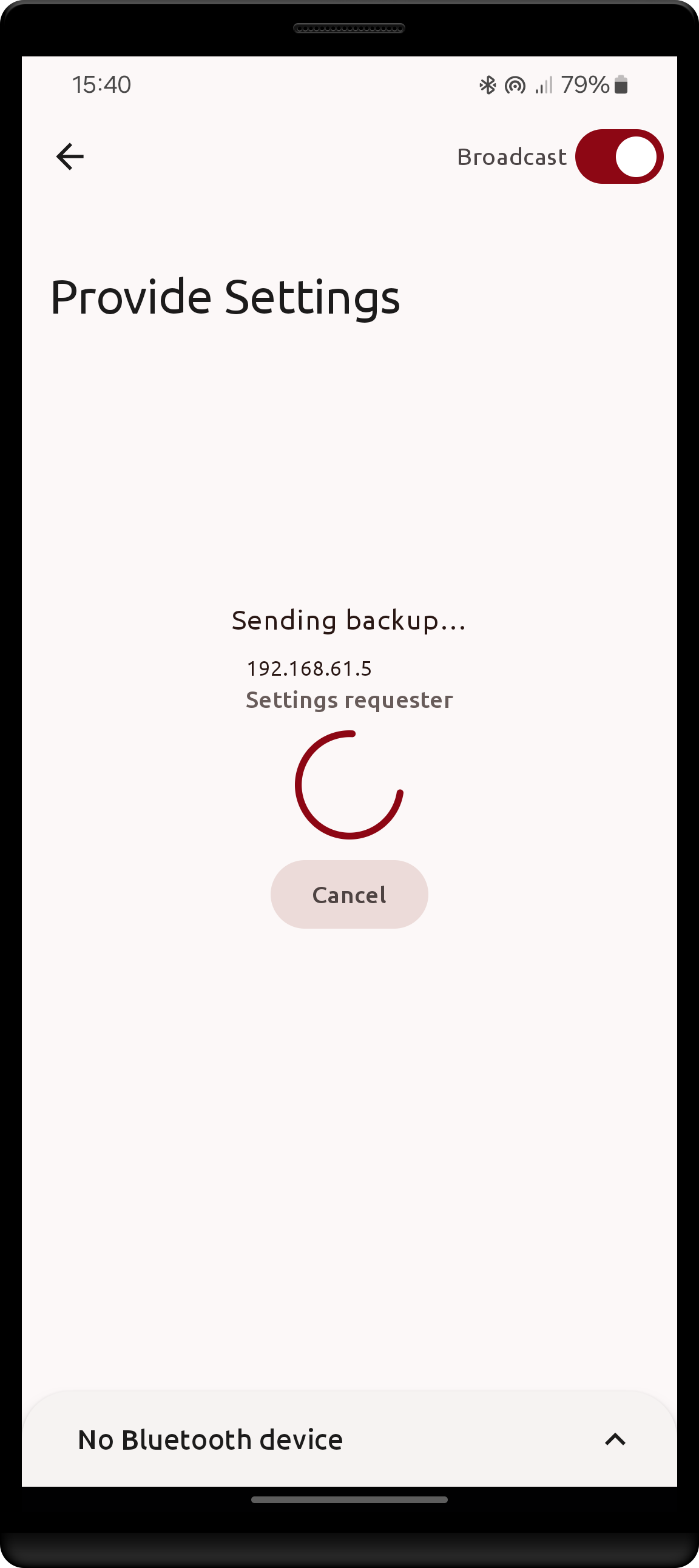
- the provider is shown a process dialog
- the provider creates a new backup
- the requester receives the request, is now shown a process dialog, and automatically confirms the request
- the backup is sent over the network
- the requester creates and saves a restore point for himself
- the requester applies the received backup
- the requester reports successful restore to the provider
- the provider goes back to initial state
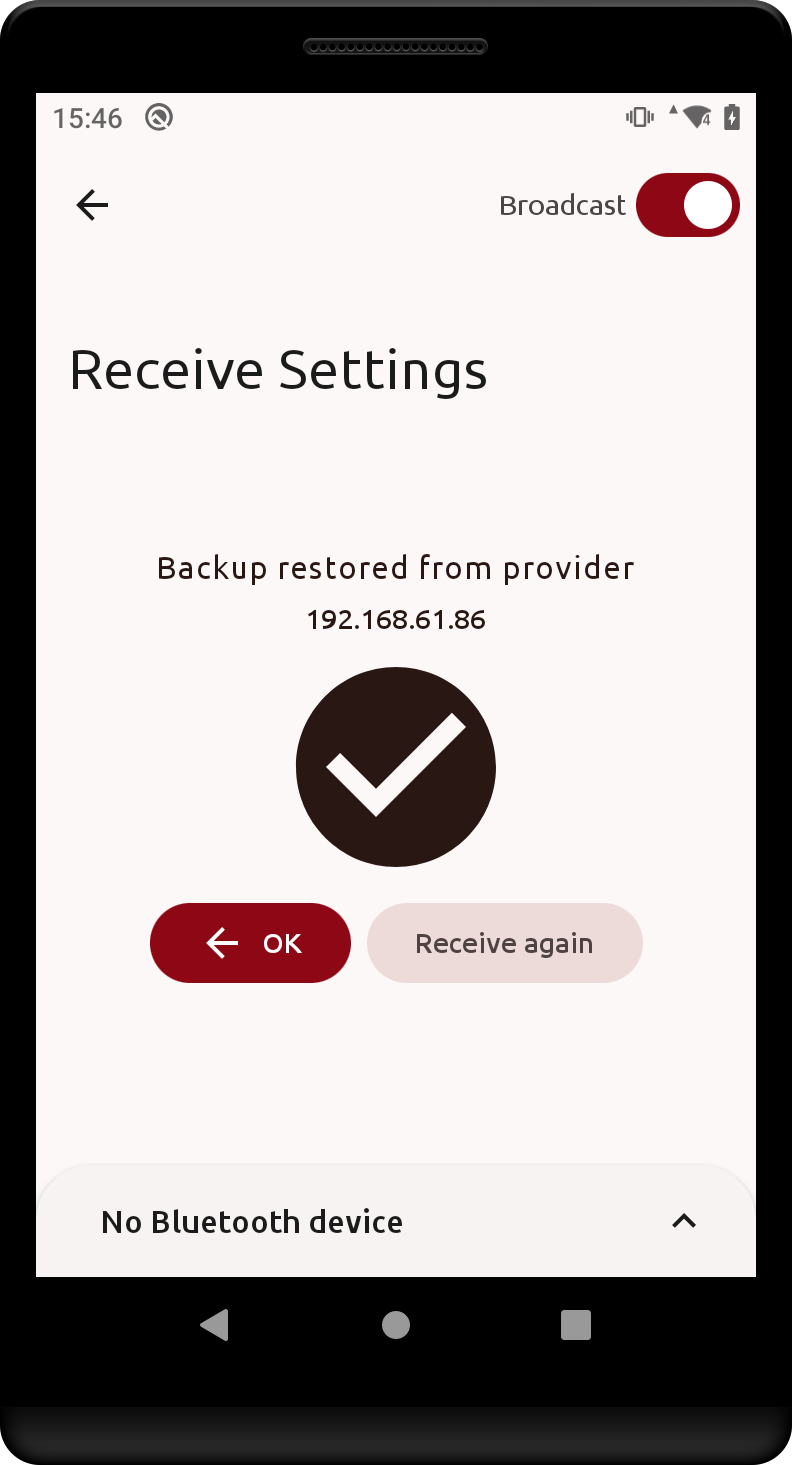
- the requester sees a status dialog with the result
| Provider perspective | Process dialog | Requester success dialog |
|---|---|---|
 |
 |
 |
Notes on sharing over the network
- Once a broadcasting requester receives a backup, he will stop broadcasting until
Receive againis clicked as long as theBroadcasttoggle is still enabled. - It is not recommended to switch networks while broadcasting as either provider/requester, however the app should handle network switches and will update the received network address as the network changes.
- On some networks it is possible for the awaiting destination stage to take extended periods of time. The cause is thought to be some resolution timeout, and the solution so far is to either wait it out or switch networks.
- Restore points caused by network shares are named
download-restore-<year>-<month>-<day>.bak.bin. Unlike normal restore points, when restoring thesedownload-restorebackups a normal restore point will be automatically created beforehand.
Manager mode
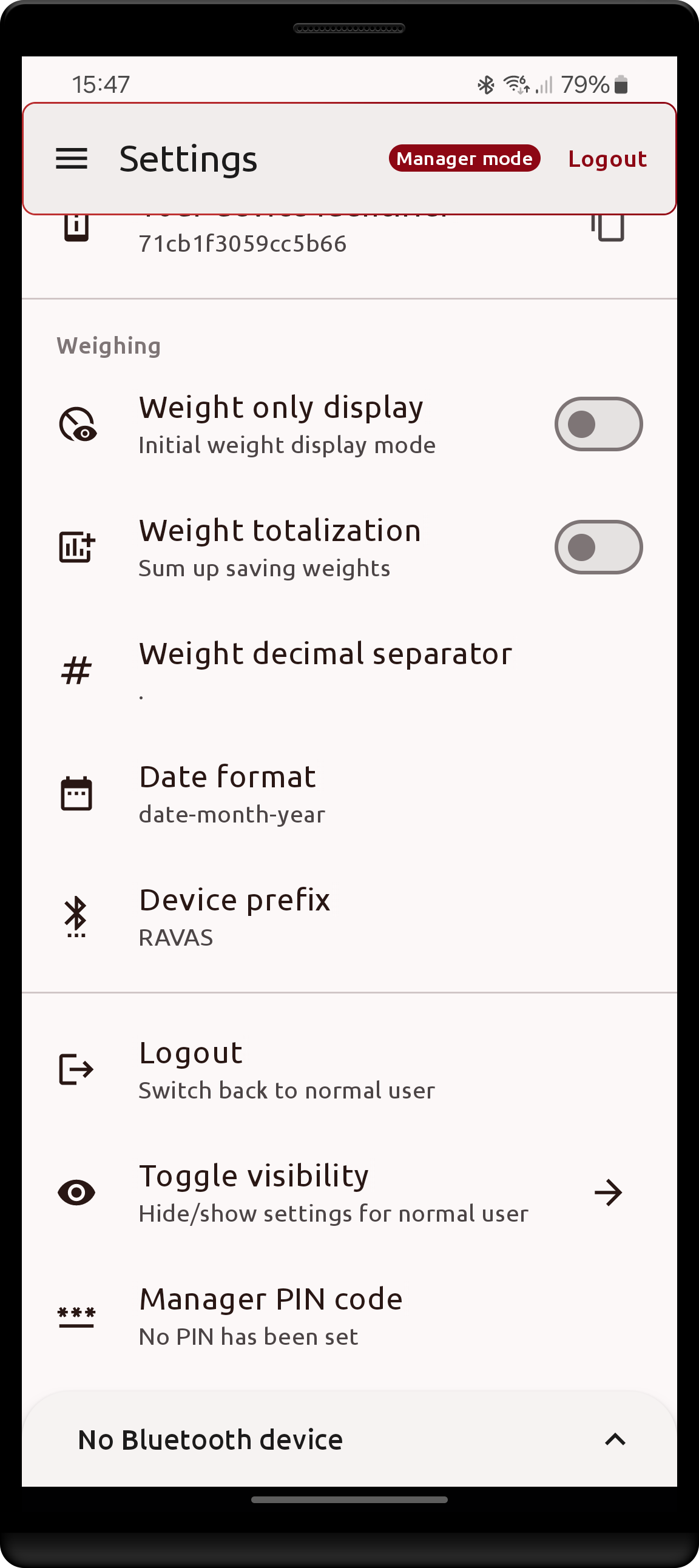
During operation, app settings may be hidden/protected against change by using the manager mode. Once a setting is hidden, the only way to change its value is to first access manager mode, afterwards it becomes visible again. When in manager mode, the top navigation bar of the Settings screen acquires a border, a Manager mode label, and a Logout button that can be used to exit the mode.
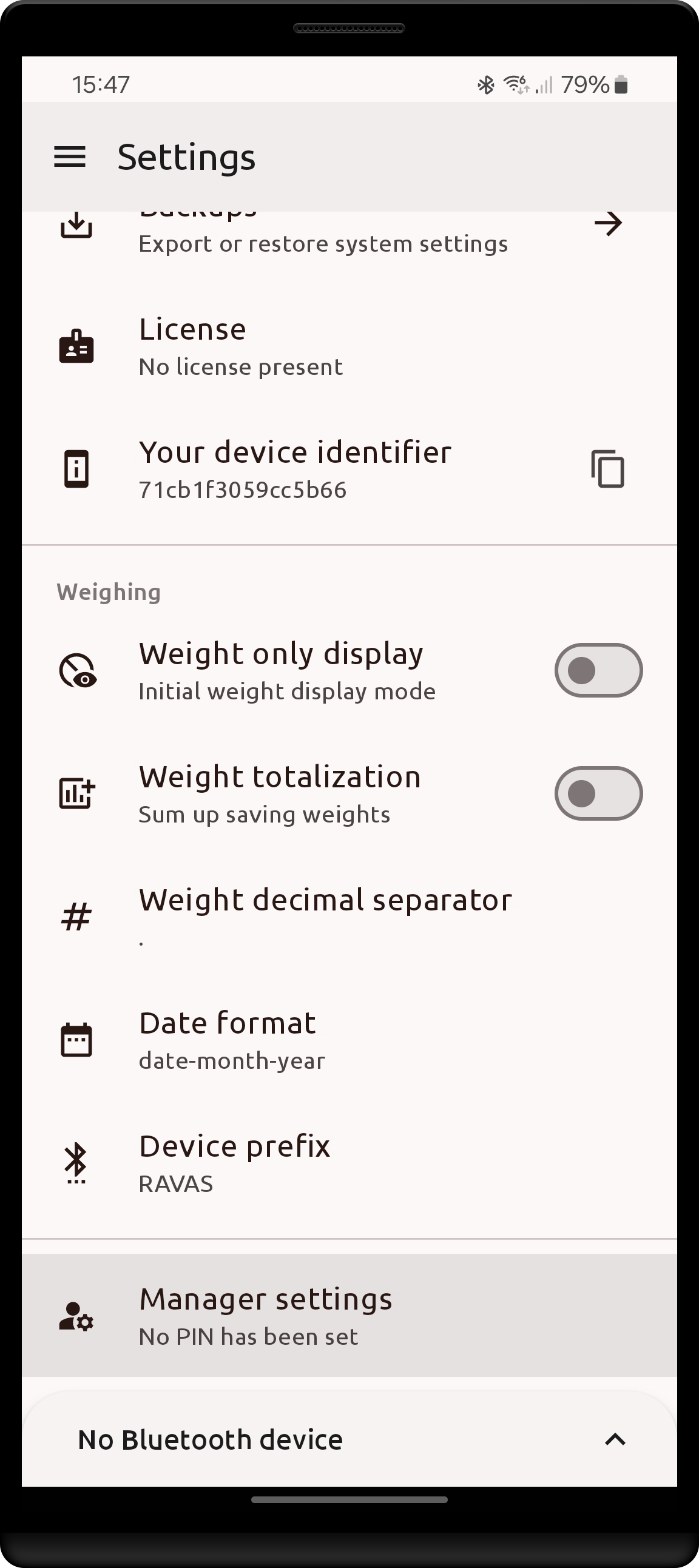
By default, no PIN is set and the user can enter manager mode using the Manager settings button in Settings. It is situated all the way down below the other settings.
Hiding settings
Once in manager mode, the option Toggle visibility becomes available.
| Setting location | Default manager mode (nothing hidden) | Visibility screen |
|---|---|---|
 |
 |
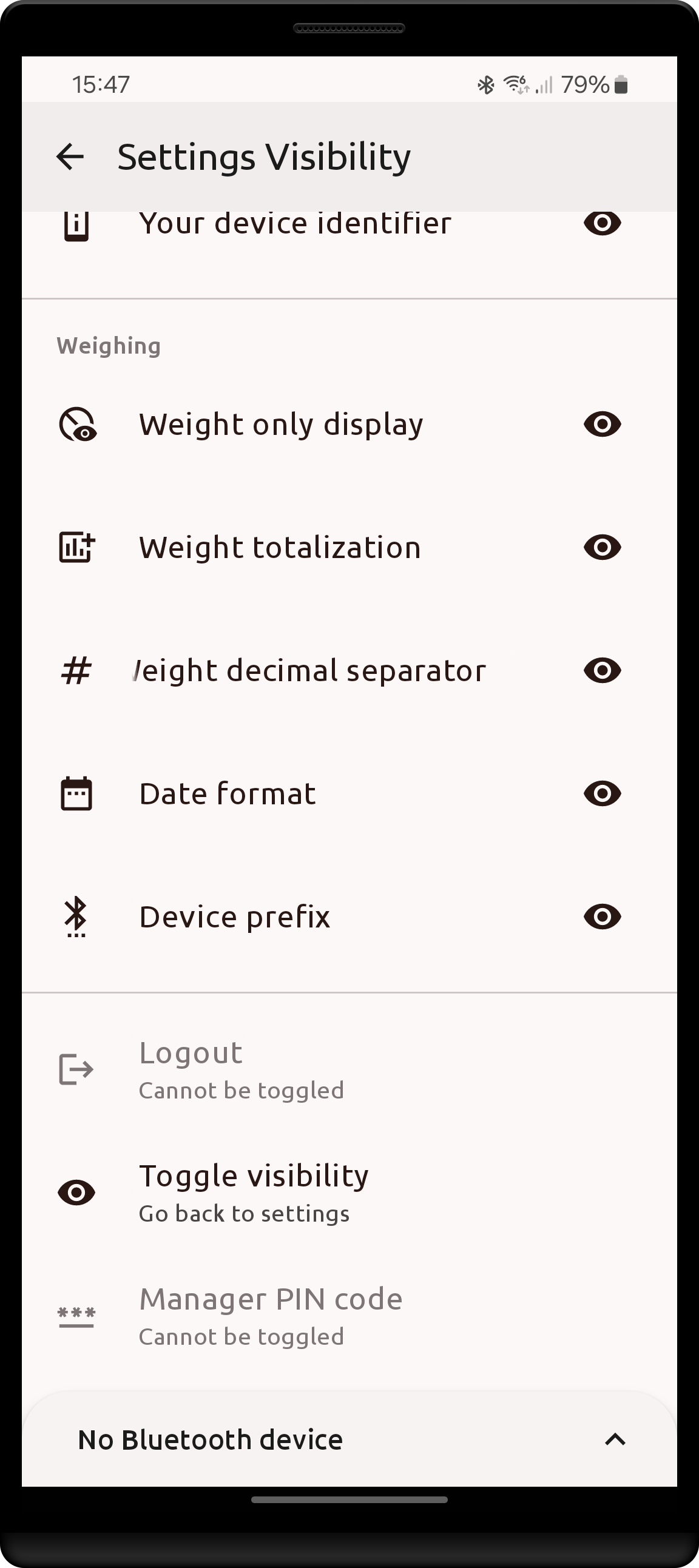 |
The visibility of any and all settings may be toggled (including features requiring a license) except for the manager specific: Logout, Toggle visibility, Manager PIN code, and Manager settings.
In order to hide a setting, click on the corresponding button in the Settings Visibility screen. Its current status is shown by the eye icon to the right:
- normal eye: visible always
- crossed eye: visible only in manager mode
Hidden settings simply no longer show up in the Settings screen, unless manager mode is active.
Each manager mode "Session" will last for 1 hour after you login (i.e. automatic logout). It is recommended to click
Logoutas soon as you are done toggling visibility of settings/changing hidden settings.
Manager PIN code
Manager mode access may be protected using a PIN code. Once in manager mode, you may set a PIN using the Manager PIN code setting. For simplicity, it is a numbers-only code allowing any number of digits. It is not intended to be secure.
- Note that upon confirming the a PIN you will be logged out of the manager mode, and will now have to enter the set pin next time you wish to enter manager mode
- If you confirm a new PIN without any value entered, the setting will revert to the default No PIN has been set, allowing free access to manager mode.
| Setting location | Entering a new PIN | Required login after PIN is set |
|---|---|---|
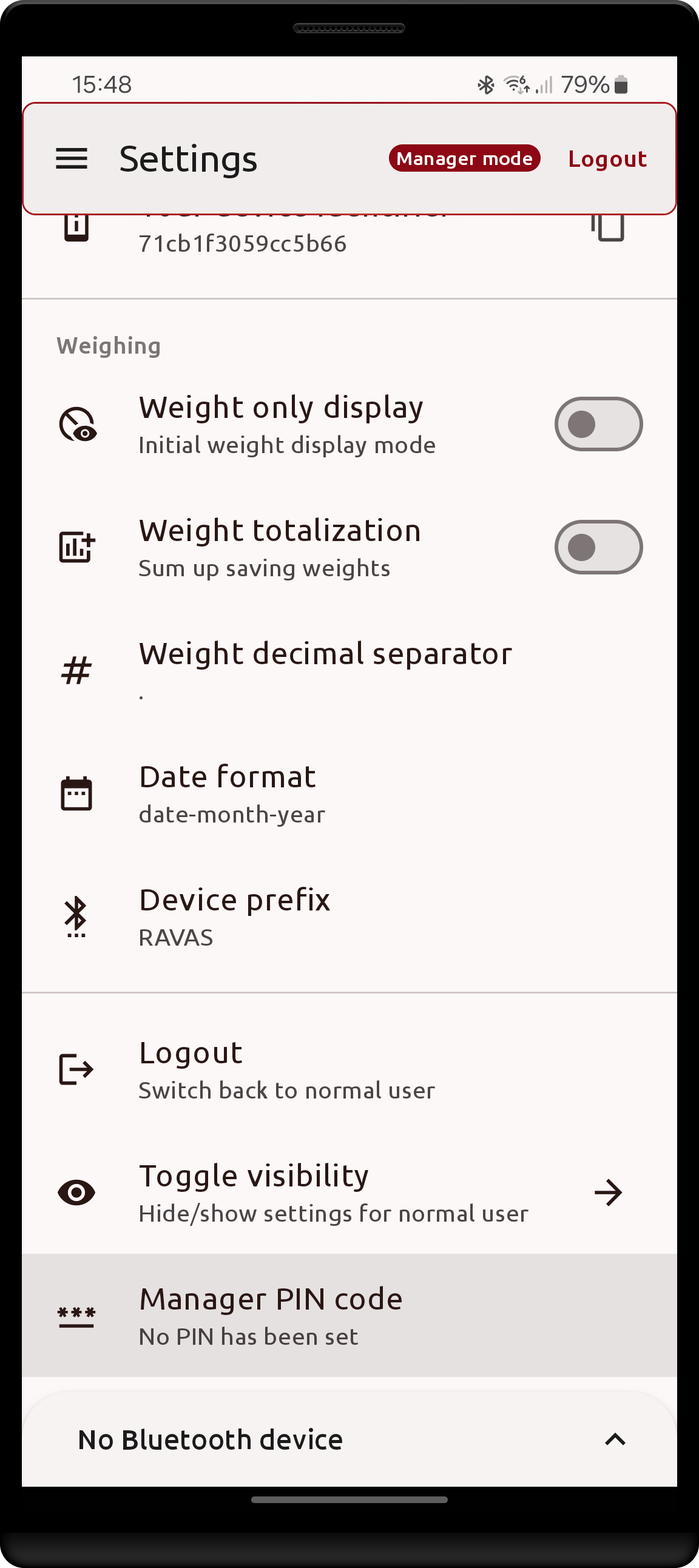 |
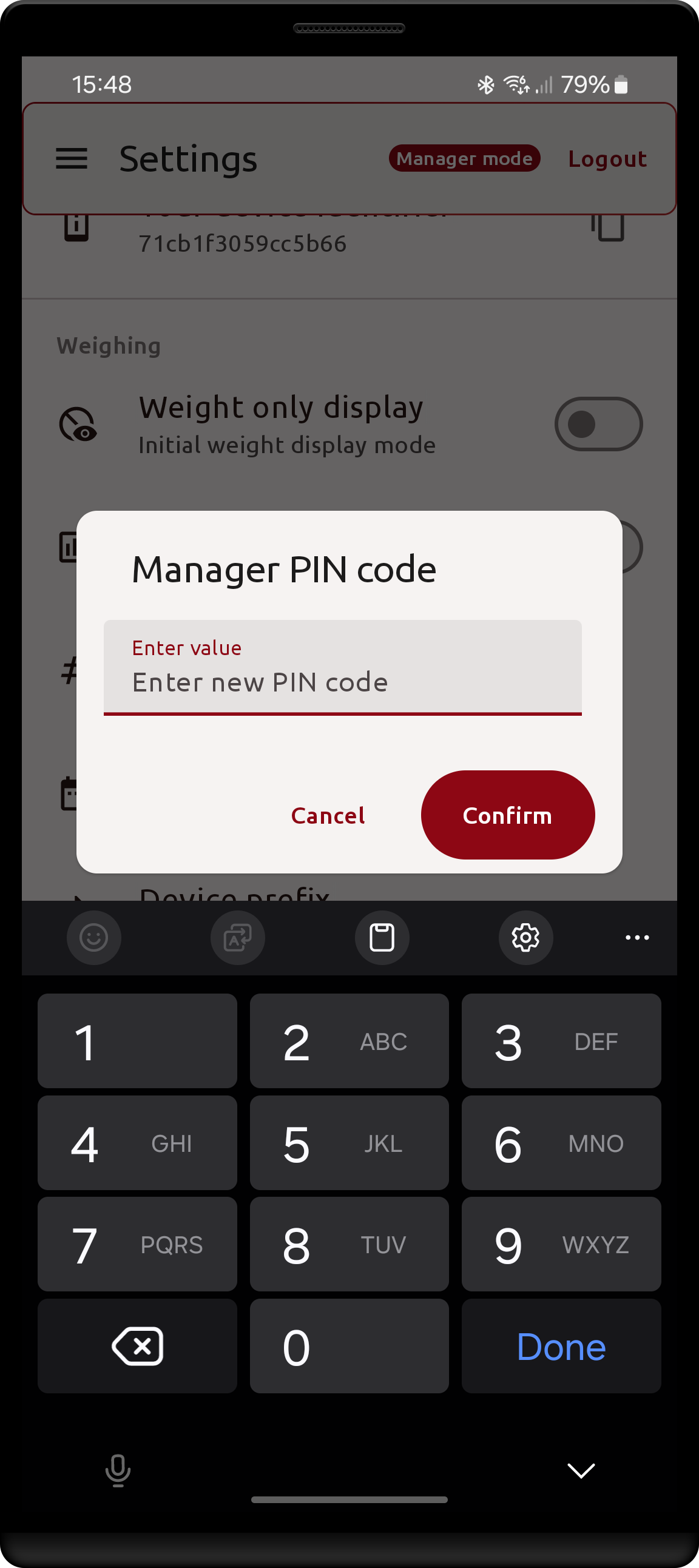 |
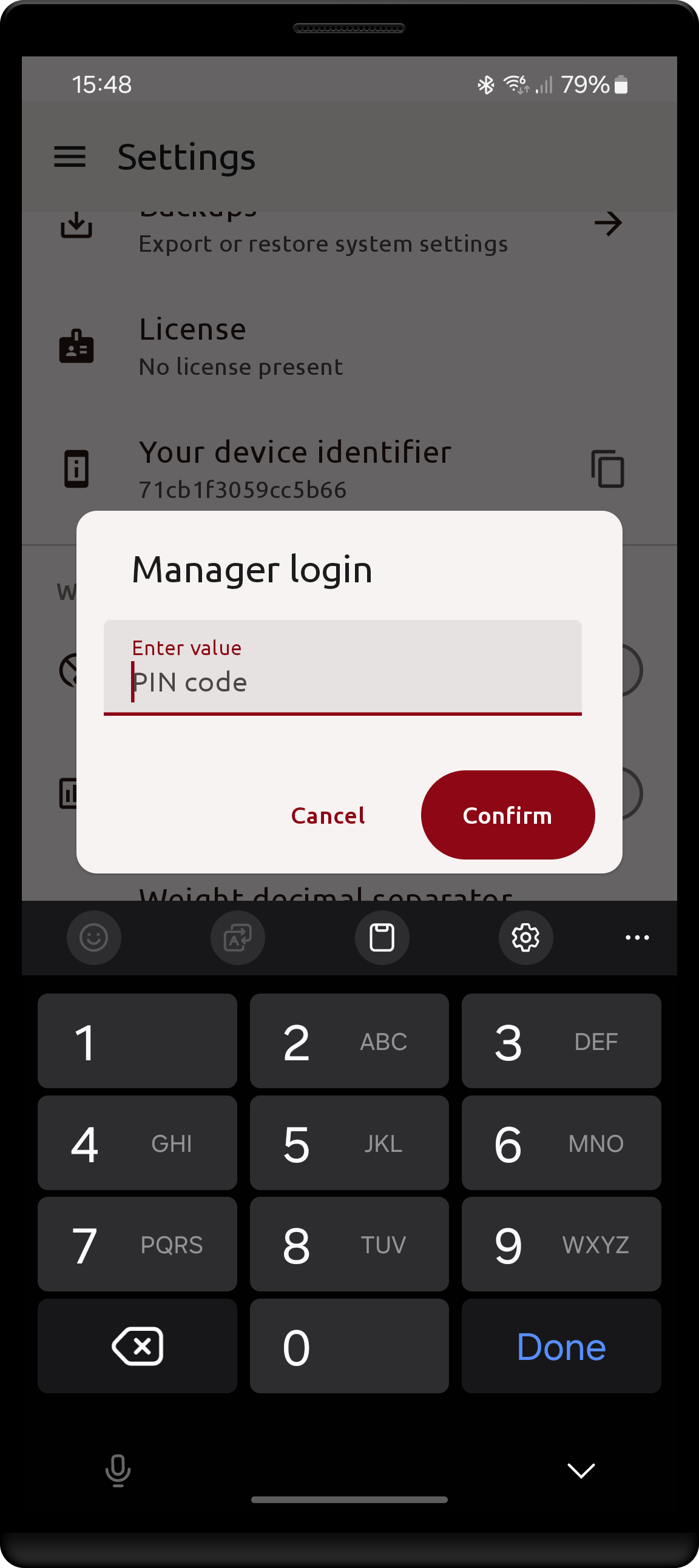 |
Note that if you forget the PIN code there is currently no mechanism of recovering it! Available solutions are to either restore a previous backup provided the
Backupssetting was not hidden or to clear the app's data from android settings or reinstall the app.
Experimental features
The Experimental features setting, located just above the manager settings in the Settings screen, restricts
the app to a fixed scale and a fixed set of screens. It is intended for installations where the Android device is
permanently mounted to one truck and the operator should not be able to change the connection.
Like any other setting, it can be hidden from normal users through manager mode.
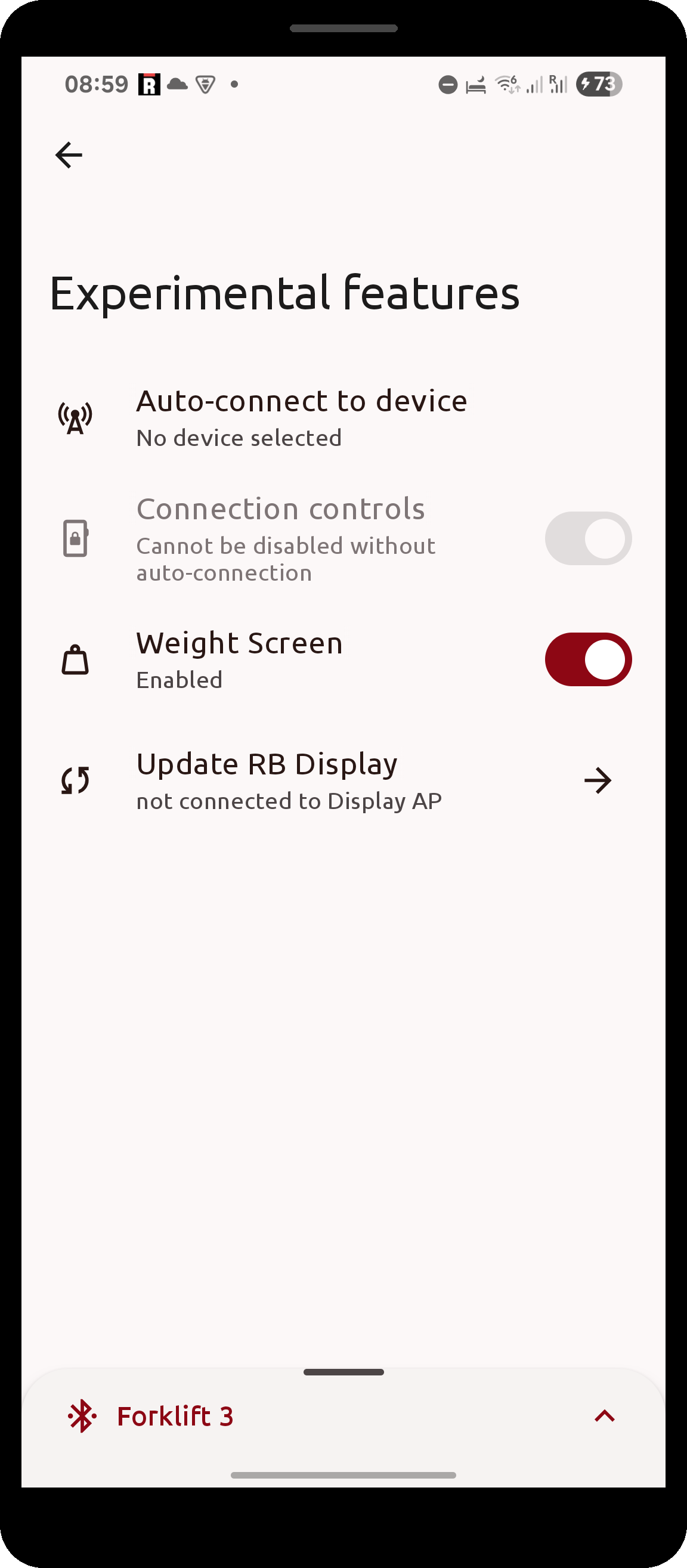
Auto-connect to device
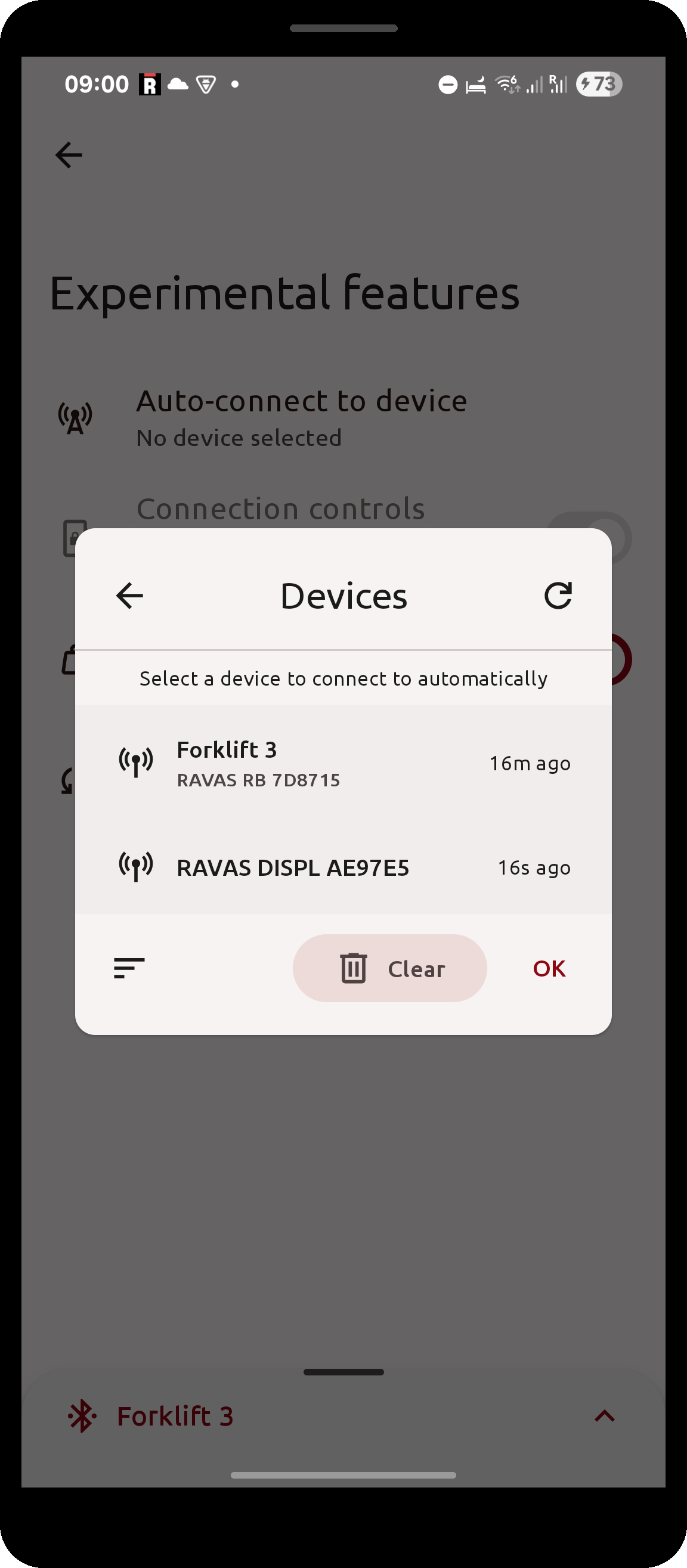
Click Auto-connect to device to open a dialog listing the RAVAS devices found nearby. Selecting one makes the app
connect to that device automatically whenever Bluetooth is available - on start-up, after the connection drops and
after Bluetooth is switched back on.
- the currently selected device is highlighted in the list
- the sort icon re-sorts the list by last seen
Clearremoves the automatic connection again (and re-enables connection controls)
| Experimental features screen | Auto-connect device selection |
|---|---|
 |
 |
Connection controls
With an auto-connect device selected, the Connection controls toggle can be switched off. The app then hides every
way of connecting to or disconnecting from a scale: the connect/disconnect buttons in the bottom sheet, the
Disconnect action of the connection notification, and connecting by clicking a device in the Devices or Home
screens. The app keeps retrying the auto-connect device indefinitely.
This toggle cannot be switched off while no auto-connect device is selected, otherwise the app would be left with no way to connect at all.
Weight Screen
Switching Weight Screen off removes the Weight screen from the sidebar, the Home screen tile and the bottom sheet.
Use this when the device is only meant to collect or display saved weights.
Update RB Display
Update RB Display pushes a firmware update to a RAVAS RedBox Display over Wi-Fi rather than over Bluetooth. The
button is only enabled once the Android device is connected to a Wi-Fi network; if that network is not the Display's
own access point (recognised by the address 192.168.0.2), the button says so underneath.
RedBox settings
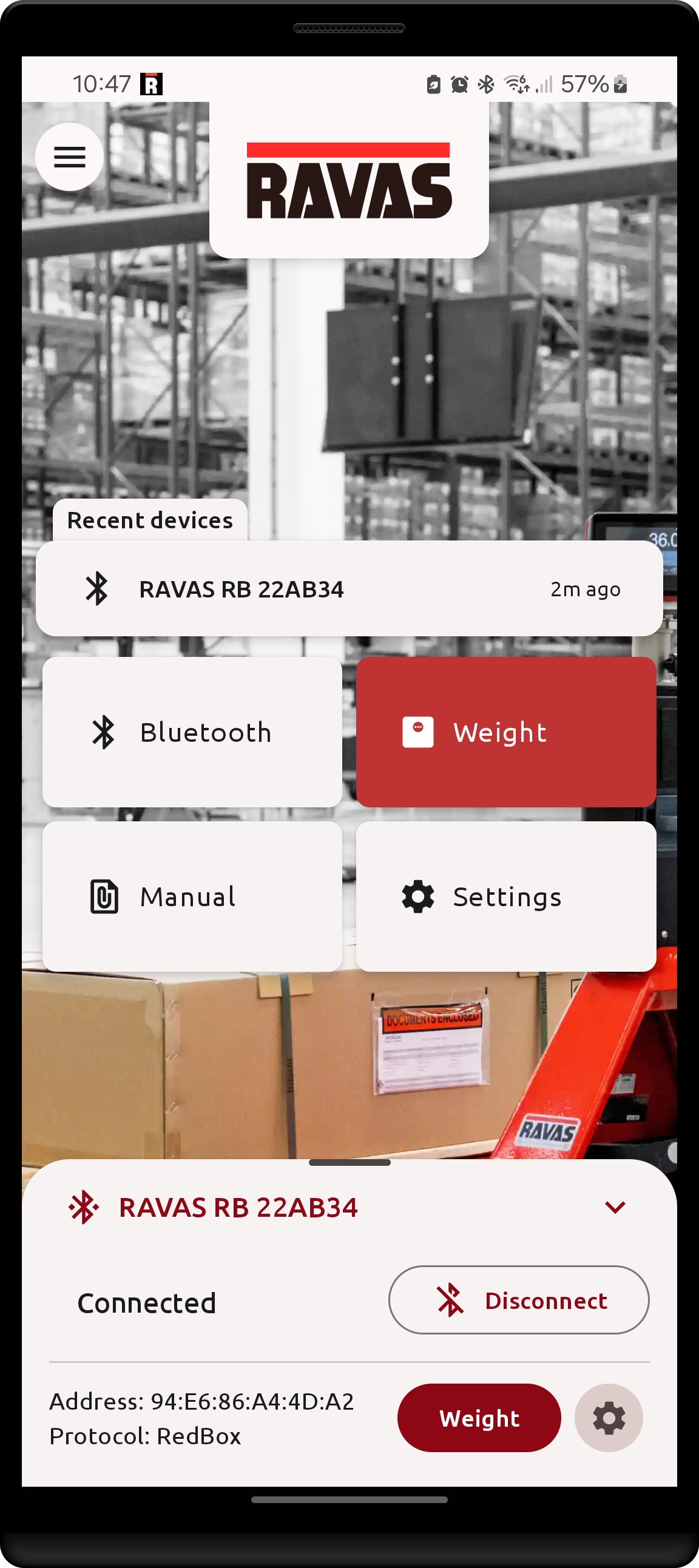
When connected to a RAVAS RedBox device, an additional settings menu is accessible through the bottom sheet that indicates connection icon - Gear icon on the bottom-right side of the expanded sheet.
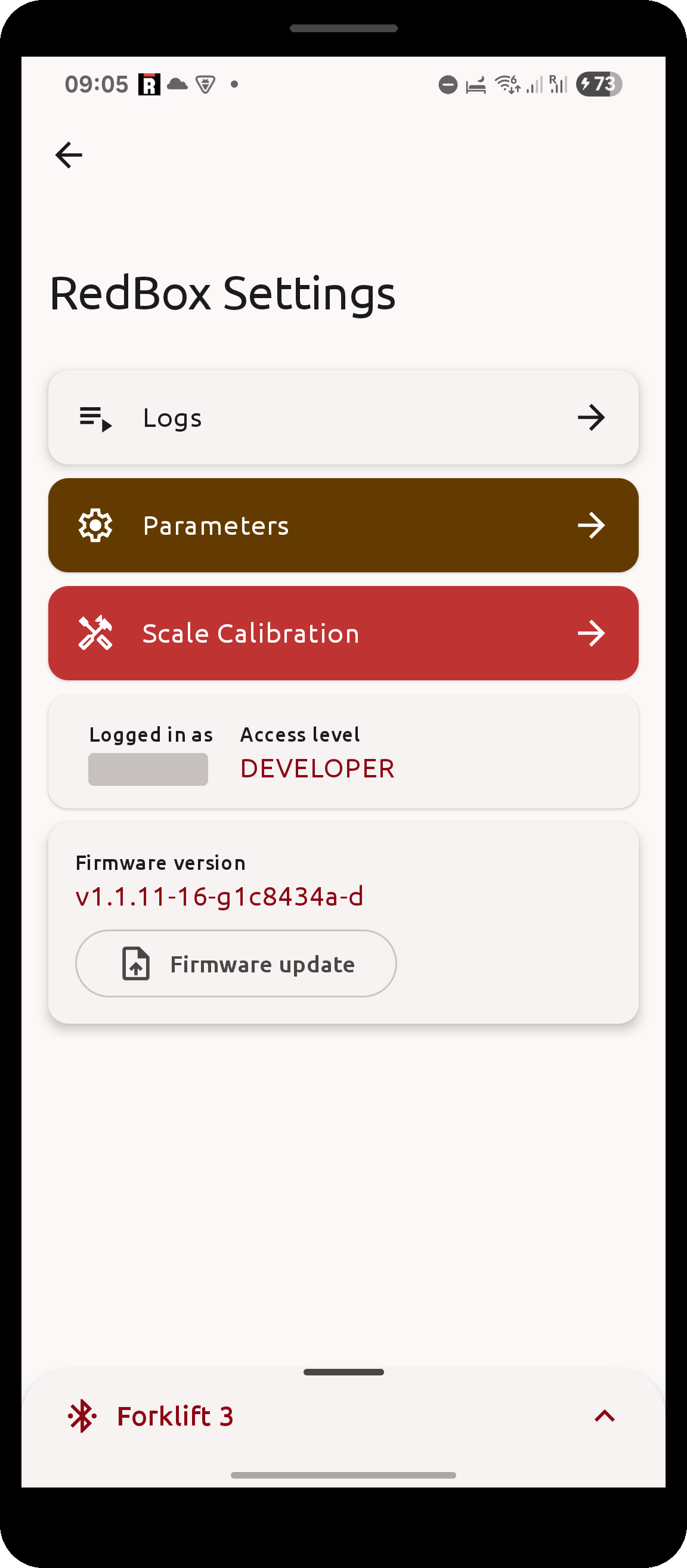
The RedBox Settings screen collects everything the app can do with the connected device:
Wifi Setup: configure the device's Wi-Fi connection, see belowLogs: a live view of the device's own debug logFirmware versionandFirmware update: read the installed firmware and upload a new oneService authentication: a login form for RAVAS service personnel. The menus it unlocks (scale setup, calibration and device parameters) are outside the scope of this manual.
Wifi Setupis only listed when the connected device reports Wi-Fi support, so it is absent on RedBox devices without Wi-Fi hardware.
| RedBox Settings screen | RedBox logs |
|---|---|
 |
 |
this device has no Wi-Fi, so no Wifi Setup entry is shown |
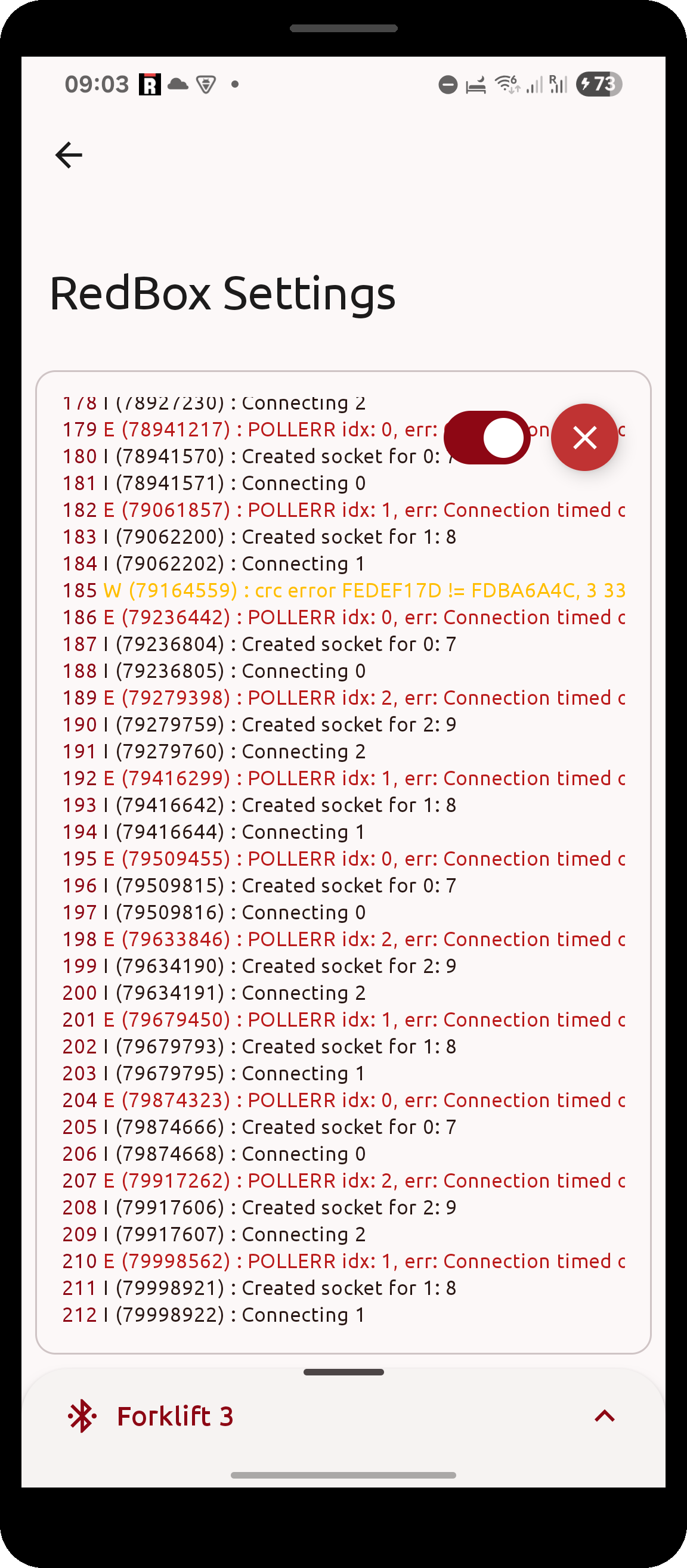
information, warnings and errors are colour-coded |
RedBox logs
The Logs screen subscribes to the device's own debug log and shows the lines as the device produces them, with
warnings and errors colour-coded. It is a live diagnostic view and is not stored anywhere - for a persistent record
use Export device logs or Export app logs.
- the switch in the top-right keeps the view scrolled to the newest line; scrolling up turns it off
- the round button next to it clears the currently displayed lines
- lines can be selected and copied
RedBox firmware update
The firmware version currently installed on the device is shown at the bottom of the RedBox Settings screen.
Click Firmware update to pick a firmware file through the Android file picker and start the transfer.
- progress is shown as a percentage while the update runs
- the update can be cancelled with the
Cancelbutton Logs/Hide logstoggles a live view of the update process- the app reports whether the update completed successfully or failed
Do not disconnect the device or close the app while a firmware update is running.
RedBox WiFi Configuration
When the Wi-Fi screen is accessed, the app has to first retrieve all relevant parameters from the device.
Some RedBox devices do not support WiFi connectivity, in that case this screen will be unavailable. The page will continuously retry fetching parameters. When this happens, click
Go backto return to the Weight screen.
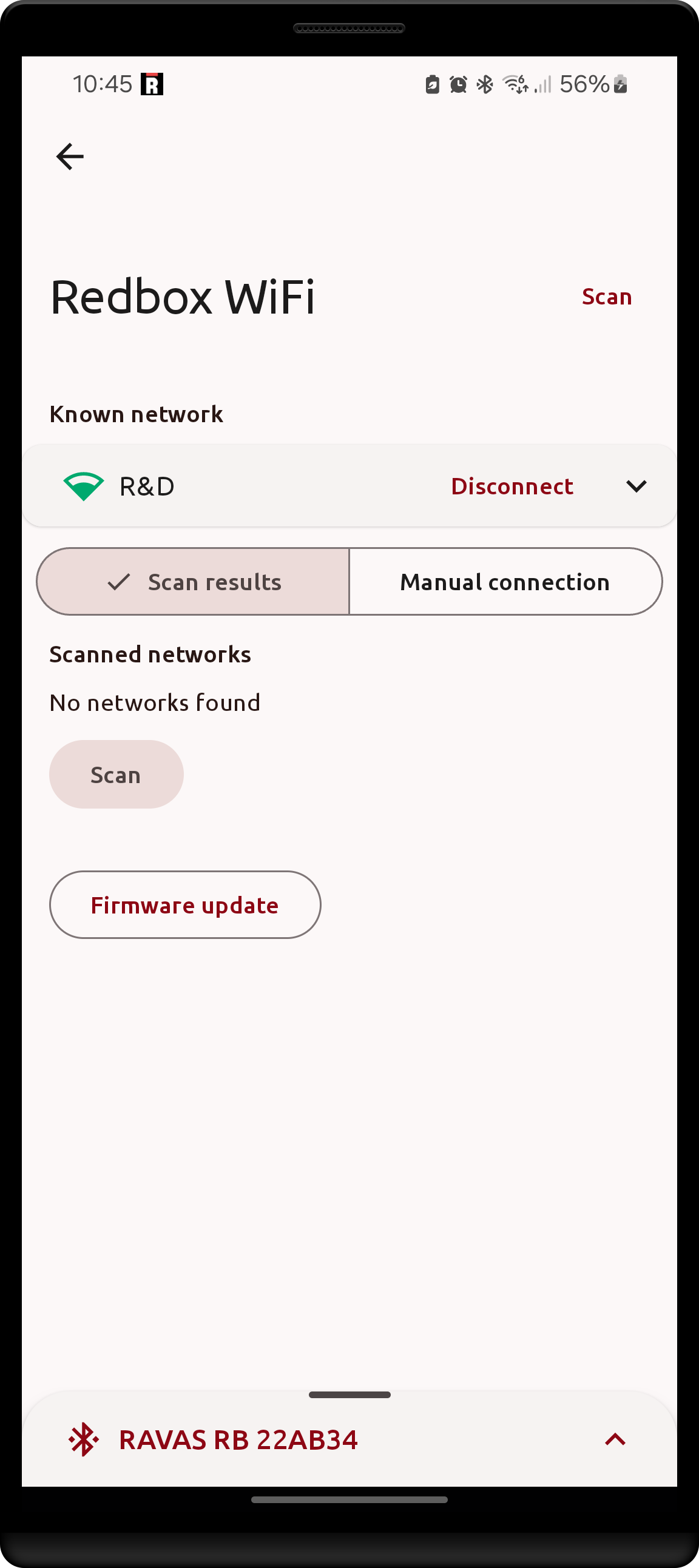
On the WiFi configuration screen, the current WiFi status can be viewed
- Connected:
- Network SSID
- IP Address of the RedBox
- MAC Address of the network
- RSSI (Signal strength)
- Disconnected:
- Last available details of the known network
The device will only save information on the last known network when it successfully connects to that network.
If Disconnected, a Connect button will be displayed, allowing the user to connect to the last known WiFi network, without the need to re-enter its details.
When Connected, the option to Disable/Enable the device's Access Point inside the known network collapsible becomes available.
- When the AP is disabled, the device is in Station mode, retrying to connect to its last known network until stopped.
- When the AP is enalbed, the device is in APSTA mode, trying to connect to its last known network only once, providing a WiFi access point at the same time.
Connecting a WiFi network
The RedBox device may be connected to a new WiFi network in 2 ways:
- Through selecting a scan result
- The networks must first be scanned by the device using the
Scanbutton - Select the desired network from the list of scanned networks (
Scan resultstab) - Enter the password for the network (if required) and click connect
The scanned networks list is persisted on the device until the next restart
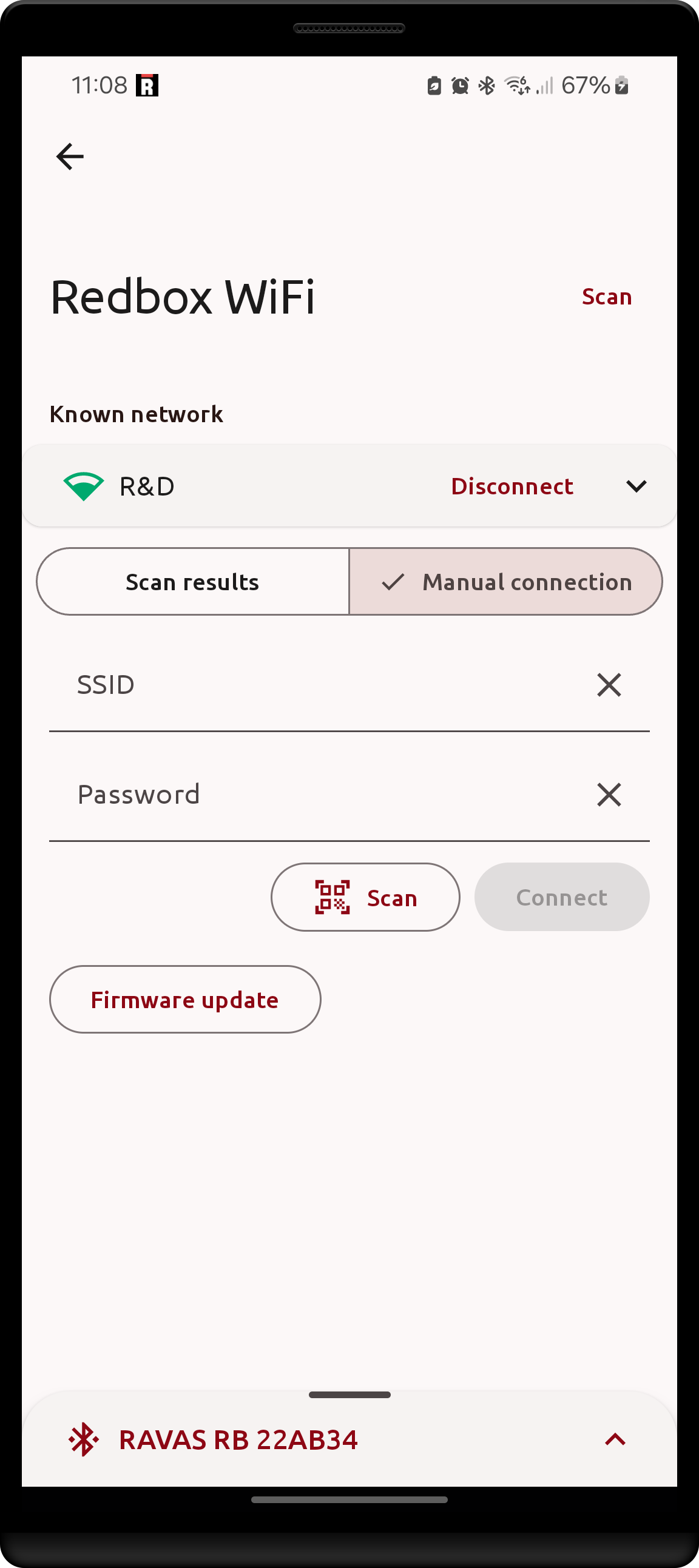
- Manually through SSID and password
- Select the
Manual connectiontab - Enter the SSID and password for the network and click
Connect - Manually through a network QR code
- Select the
Manual connectiontab - Click the QR code
Scanbutton - Scan a valid QR code with the device camera, the details will be forwarded to the device
Note that while Scanning for networks or Connecting to a network, the device will usually disconnect from Bluetooth while performing the operation. The app should automatically reconnect to the device after the operation is completed
| Gear icon | WiFi Configration menu | Manual connection menu |
|---|---|---|
 |
 |
 |
License management
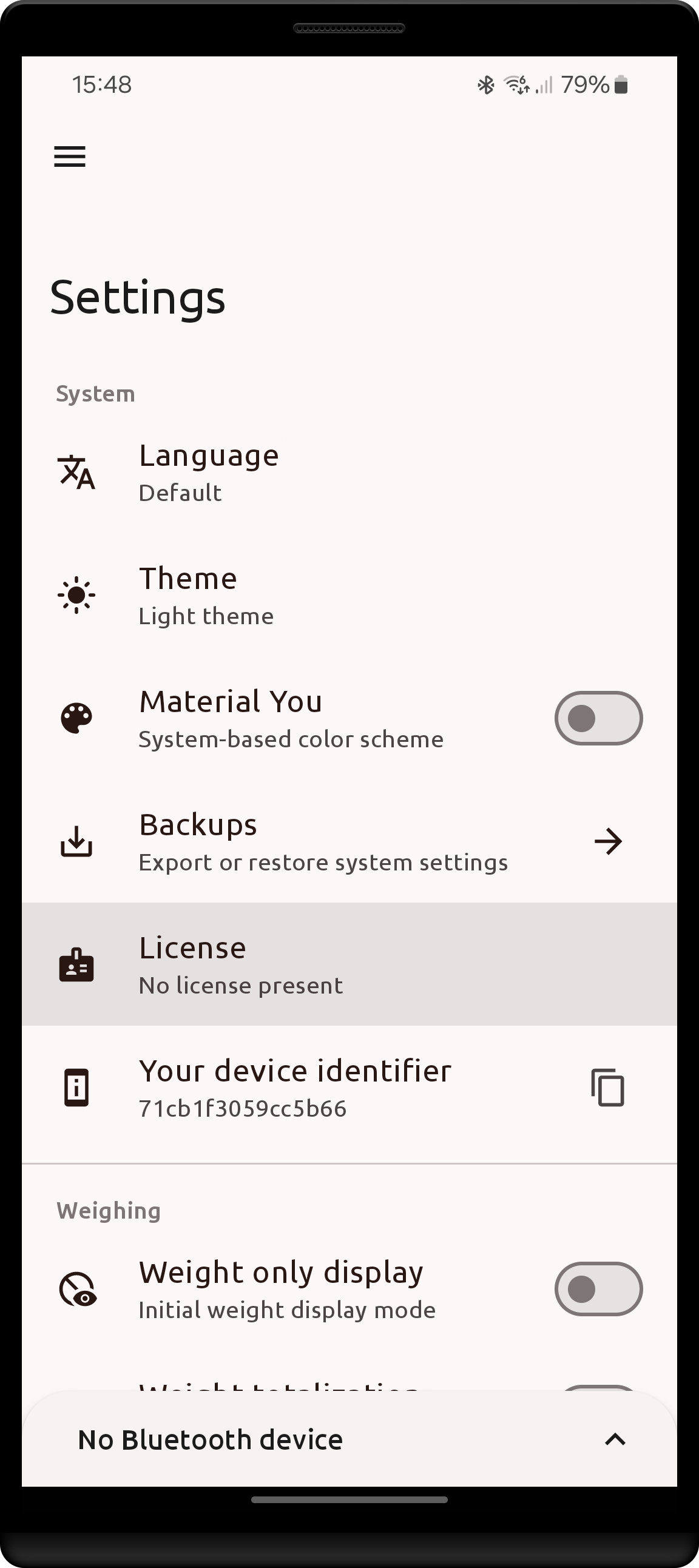
Under the Settings screen, the current RAVAS license can by managed using the License setting.
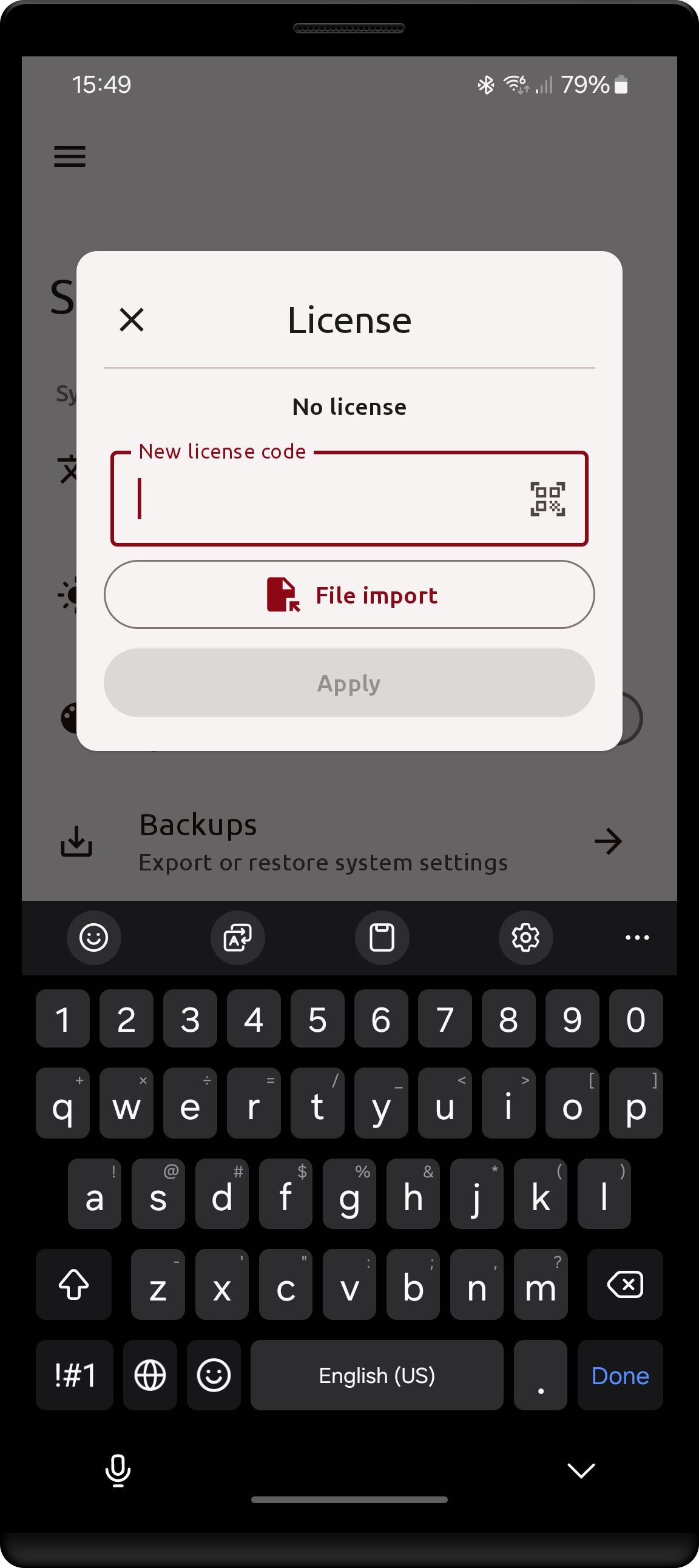
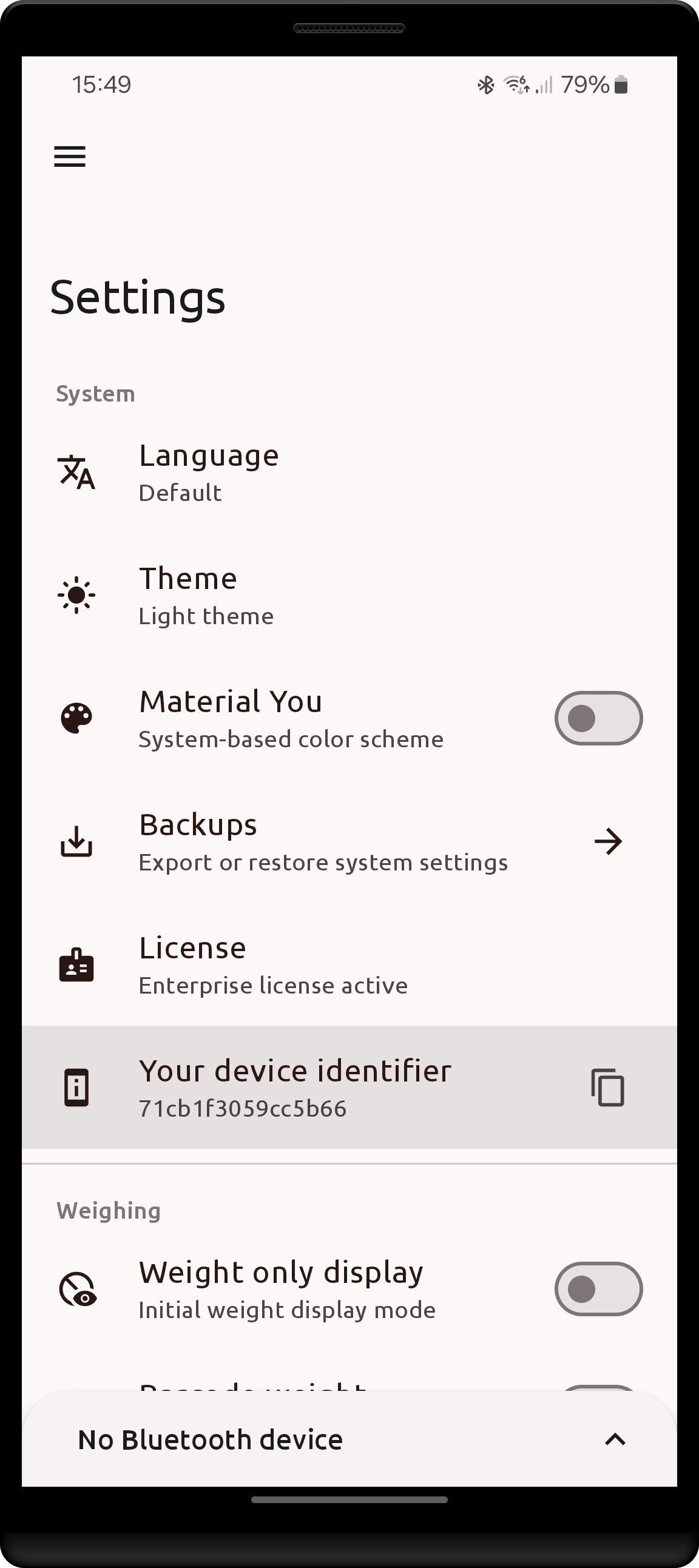
License setting |
License dialog | License Device identifier |
|---|---|---|
 |
 |
 |
- Initially, no license will be present. App features requiring a license are inactive.
- Upon clicking the setting, a dialog appears where the license can be viewed/entered/deleted
- Each device has an unique identifier that may be required to further validate an entered license
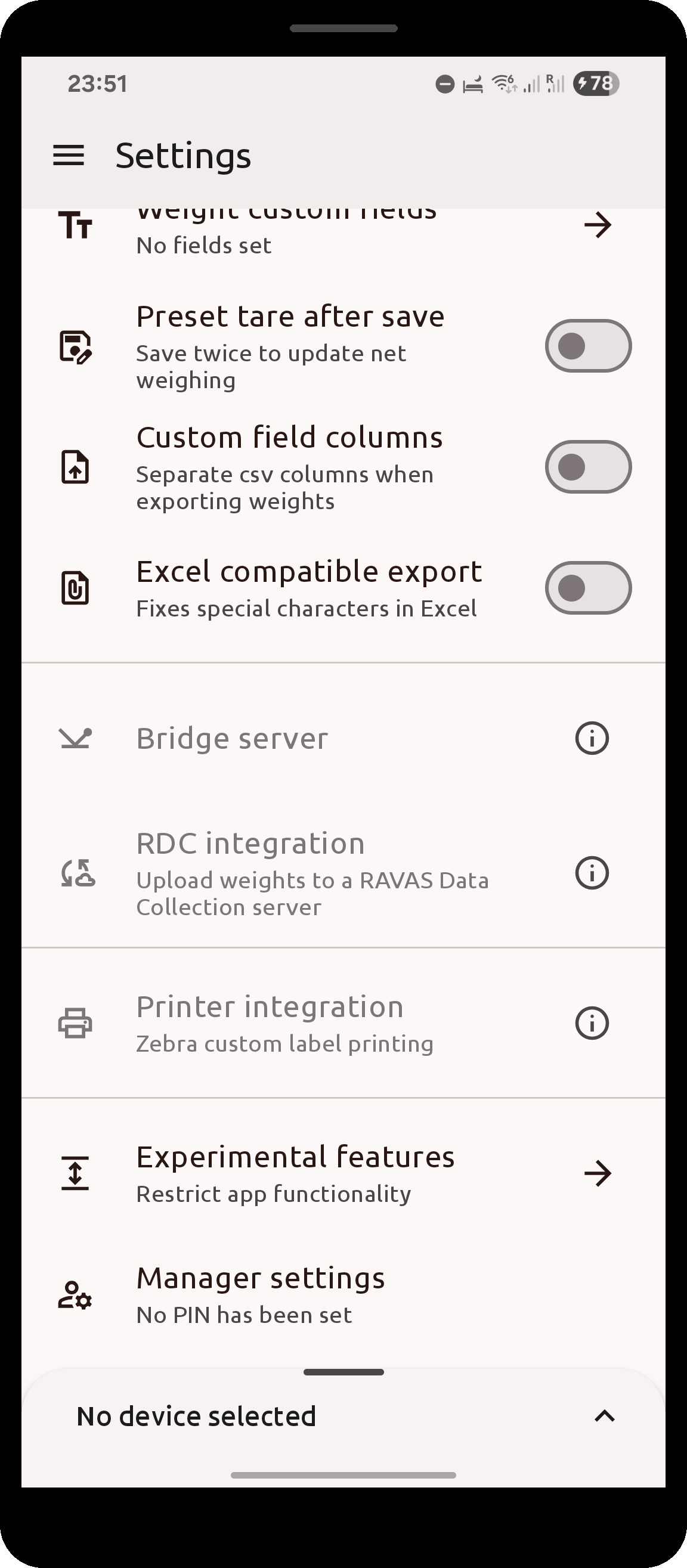
Without a license, the settings of licensed features (Barcode weight, Barcode type, Bridge server,
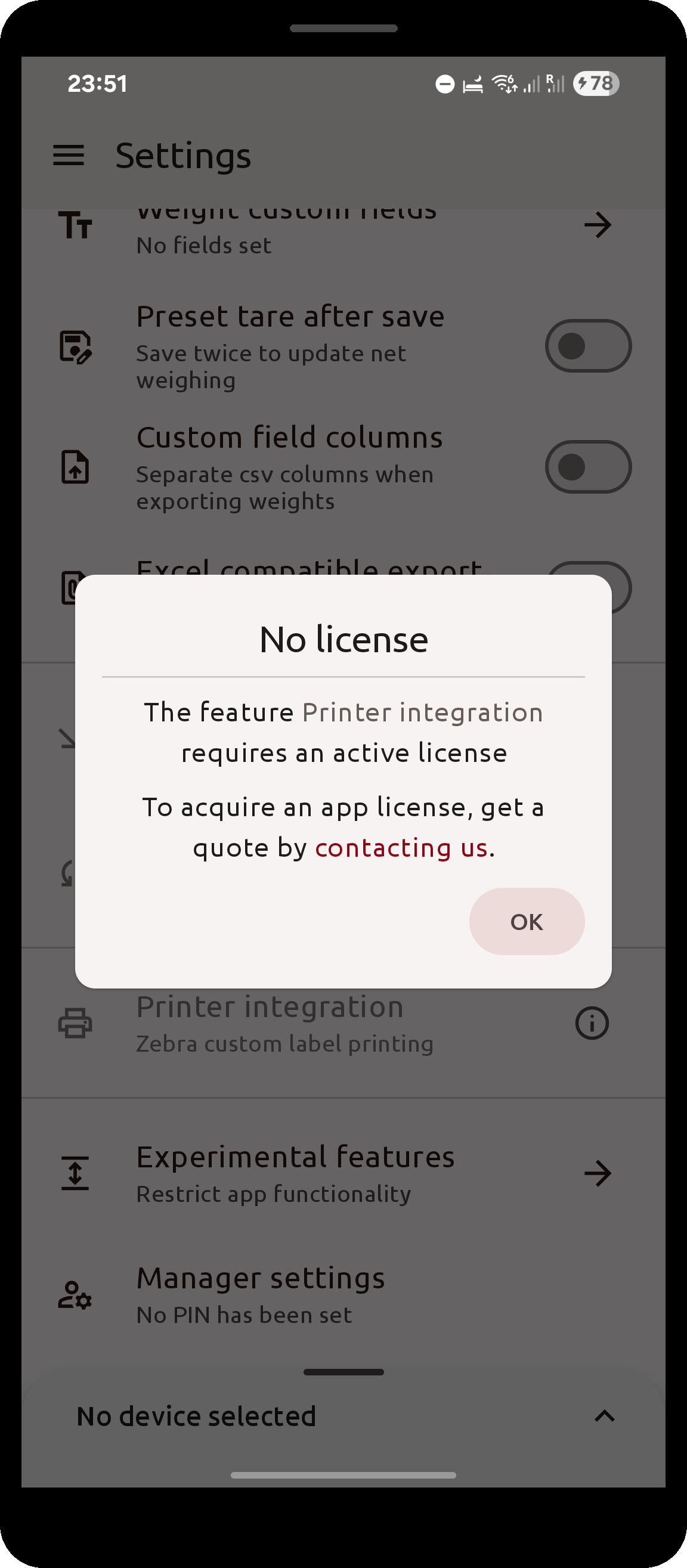
RDC integration and Printer integration) are still listed in the Settings screen, but greyed out. Click the
info icon next to such a setting for an explanation and a link to contact RAVAS for a license quote.
| Licensed settings without a license | Info dialog |
|---|---|
 |
 |
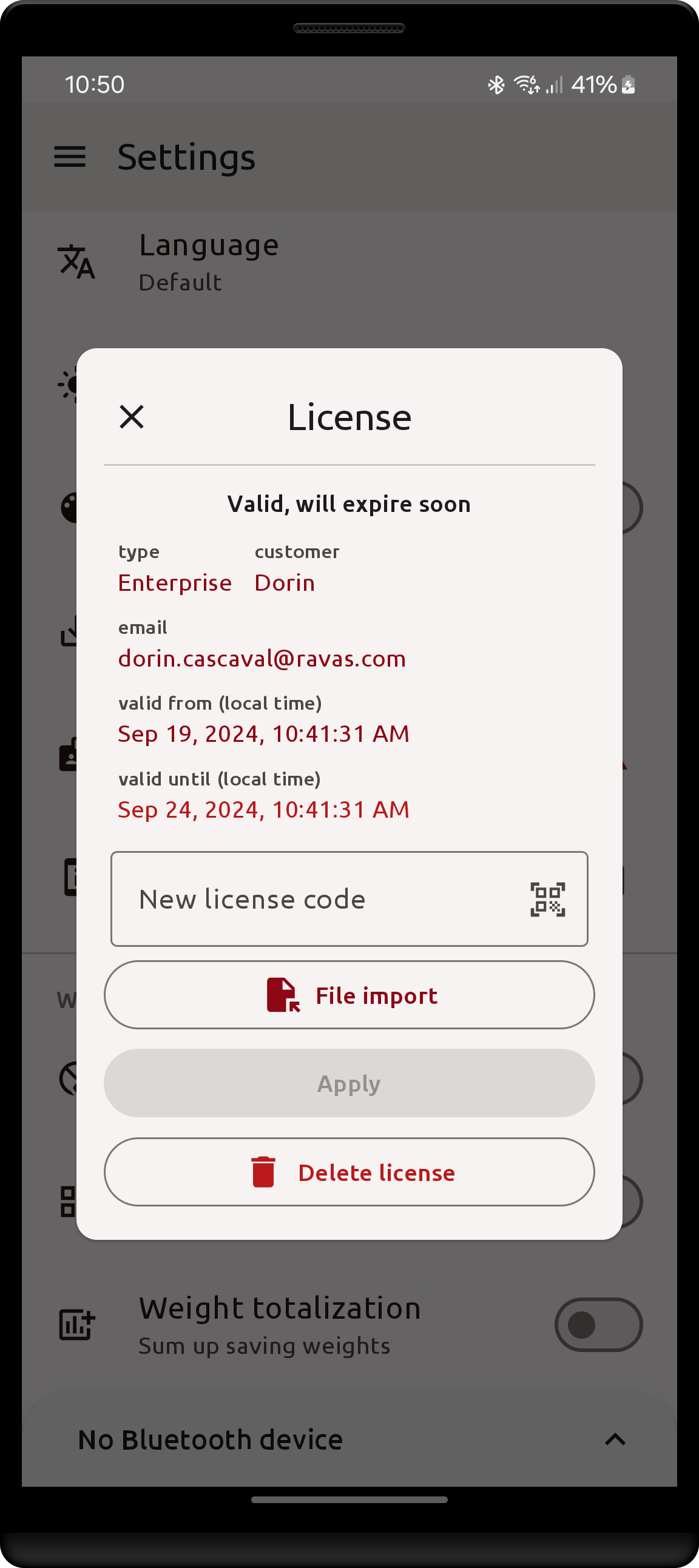
For an active license the dialog shows its Type, Customer, Email and, when the license is bound to one device,
its Identifier. Service licenses issued to RAVAS personnel additionally show an Access level, which grants the
service menus on connected RedBox devices without a separate device login.
Obtaining a license
The process of obtaining a license starts with an active app installation on a new device:
- Navigate to the Settings screen.
- Locate the
Your device identifiersetting and click it so the ID is copied to the clipboard, or note down the identifier value. - The customer makes a license creation request which includes the device identifier to RAVAS.
- RAVAS creates a license code which encodes the identifier, license type*, start & end dates.
- The code is sent back to the customer, who is to store it safely: in either textual or QR/Barcode formats.
*Note that for
Enterpriselicenses, the device identifier is irrelevant, as Enterprise licenses are meant to be reused across multiple devices.
Entering a license - no license present
When in possession of a license code, it may be entered in the License dialog in one of two ways:
- Input via keyboard/clipboard
- Input via QR/Barcode scan Once entered, click
Applyto attempt activation. - The activation process validates the license integrity, device identifier (UUID) if necessary, start & end dates (license cannot start in the future, cannot end in the past)
- The activation process may be performed offline. At no point does the app attempt a connection over the internet.
| Successful activation | Failed activation | License dialog with active license |
|---|---|---|
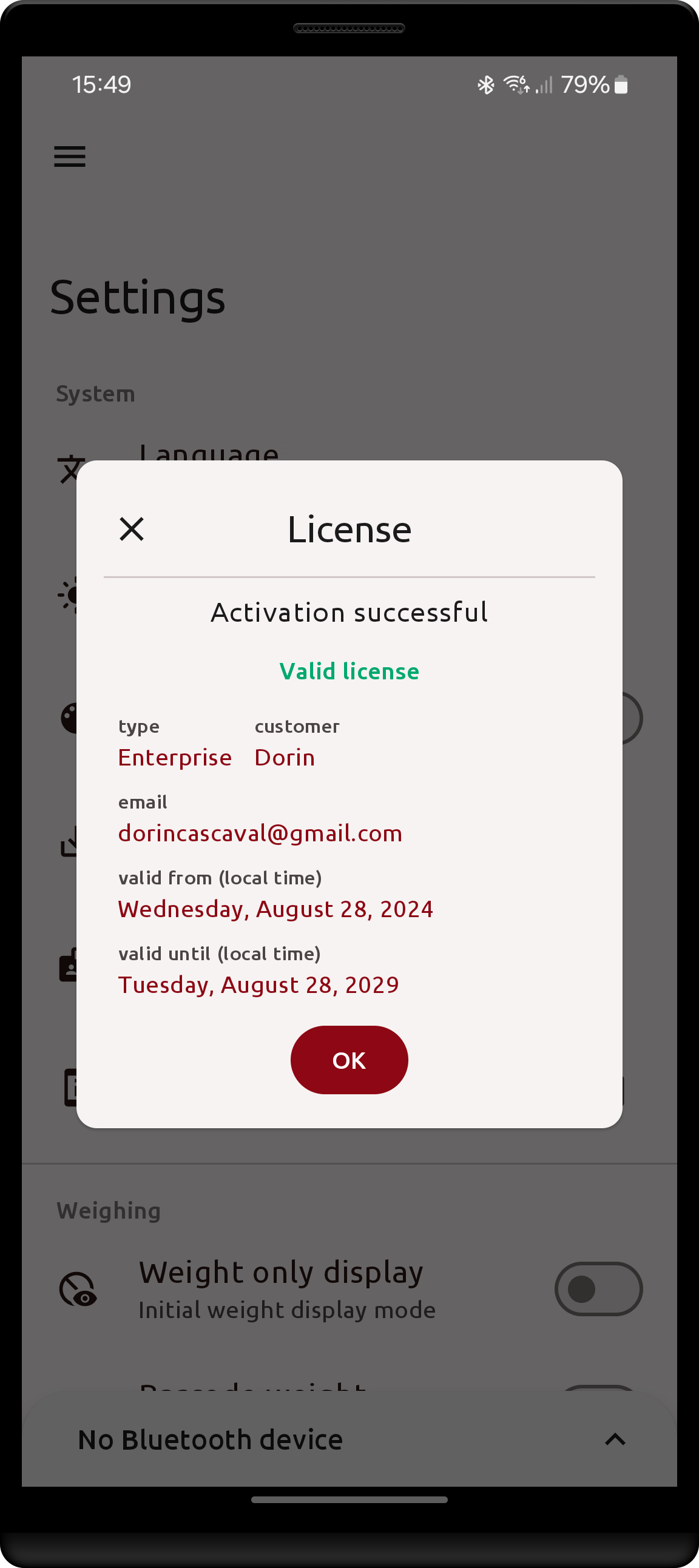 |
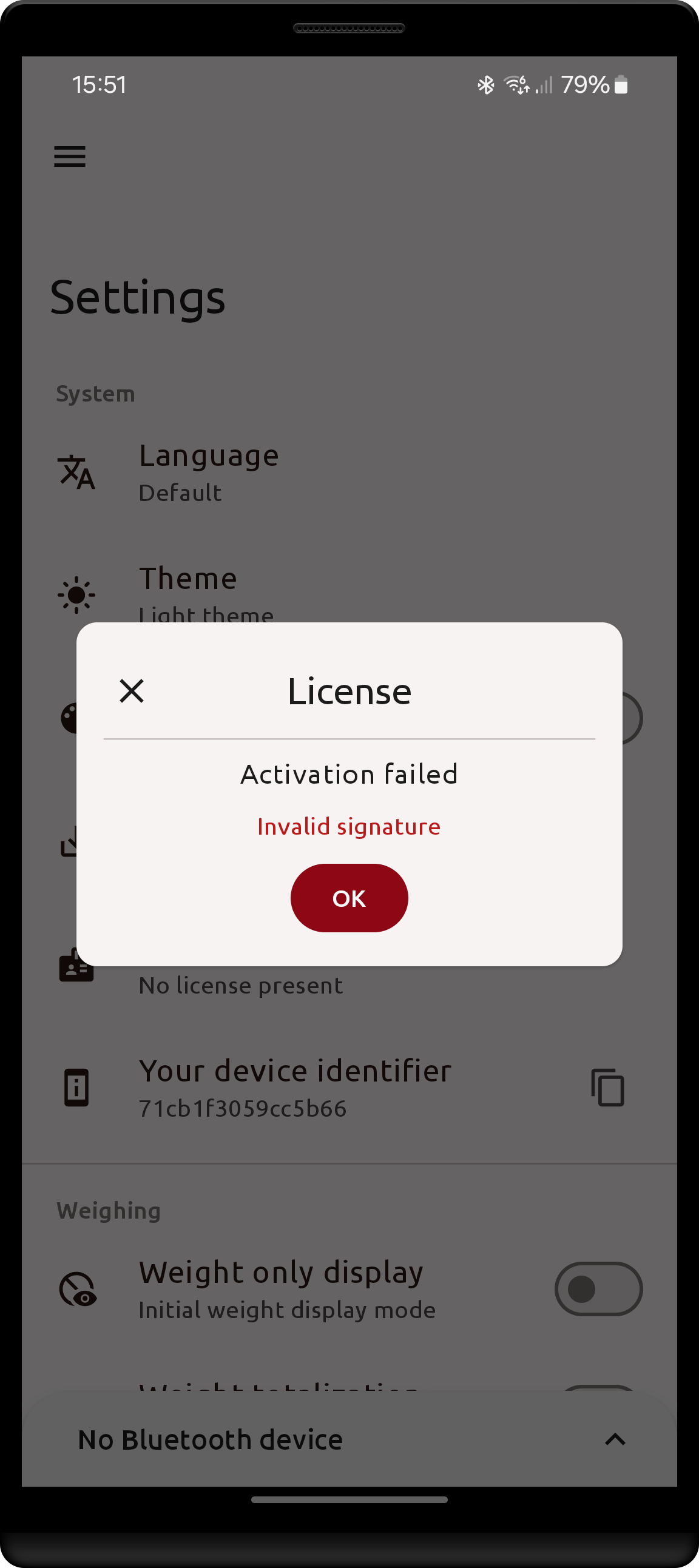 |
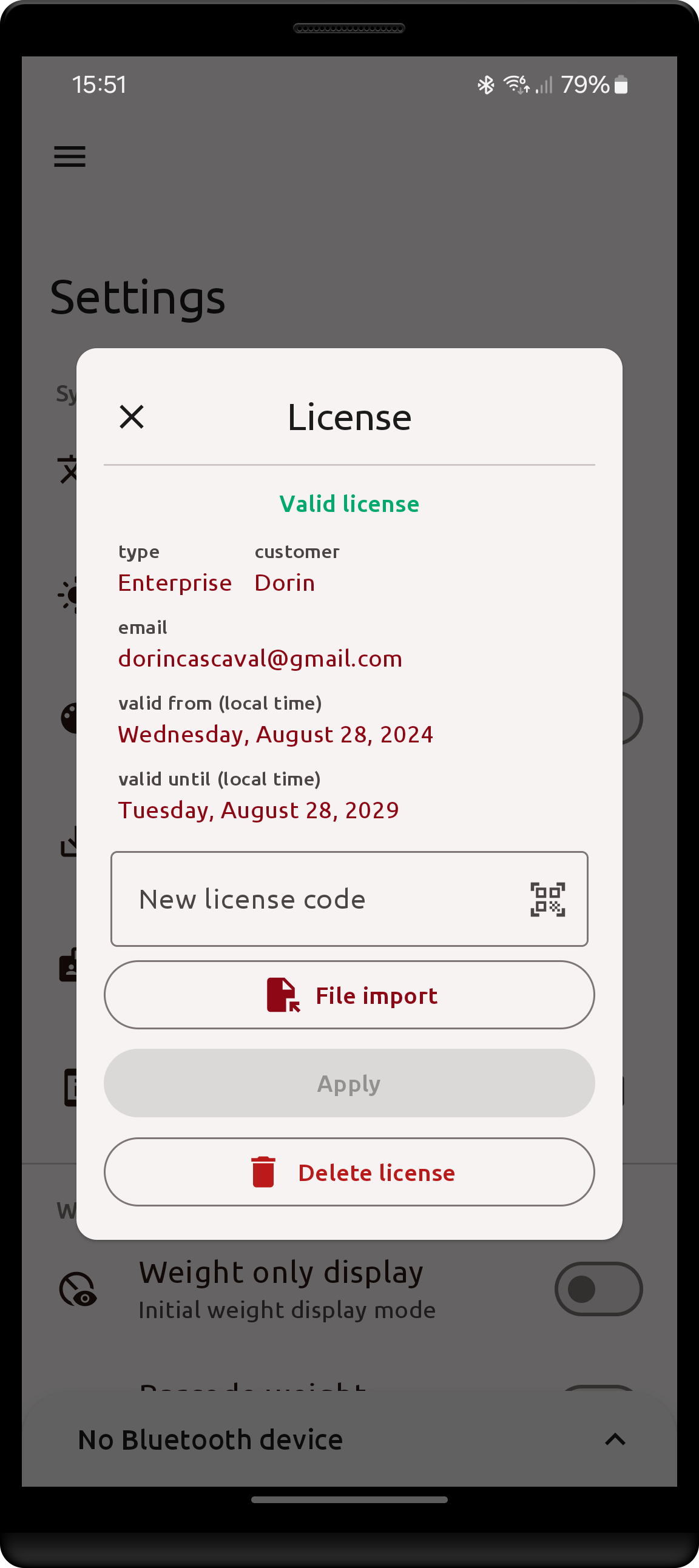 |
| here the license has been tampered with. | reactivation may now be performed. |
An active license may be deleted at any point. Note that when a license is lost either due to deletion or expiration all features that require a license will cease to function immediately and associated settings will be reset!
The same license may be activated an unlimited amount of times on the same device, so long as it remains valid.
Note that when the device performs a factory reset and installs the app again, the device identifier may change and a new license may be required. The identifier will remain the same across updates/re-installs of the app so these are safe to perform without risk of losing the current license.
License expiration & reactivation
When a license is nearing its end-date, a reactivation will soon be needed otherwise the app will go back into "no-license" mode once the end (expiration) date passes, meaning:
- features requiring a license will become unavailable.
- settings specific to features requiring a license will be reset. (even if reactivation occurs, old settings of the previous license are lost provided the app was ever in a "no-license" state)
Immediately before performing that reset, the app saves a backup named
license-lost-<year>-<month>-<day>.bak.bin. Restoring it after a new license has been activated brings the licensed settings back - see Managing backups.
In order to avoid losing settings & disruptions in functionality, a reactivation may be performed while a license is still active.
| Reactivation scenarios |
|---|
| Normally, on a fresh install (no license), you cannot activate a license that starts in the future |
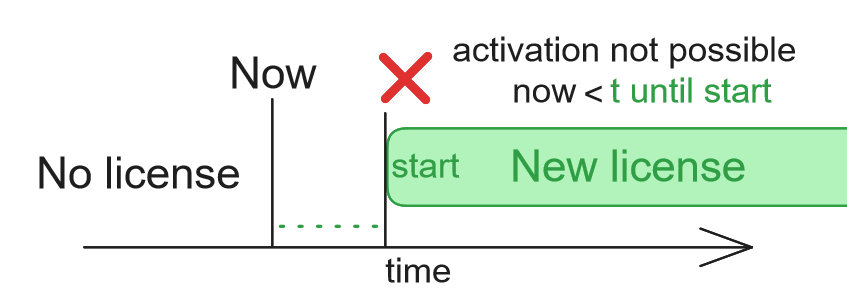 |
| However, if an existing license is present, a new license that starts in the future may be activated as long as the time until the start date is smaller or approximately equal to the time until expiration of the current license |
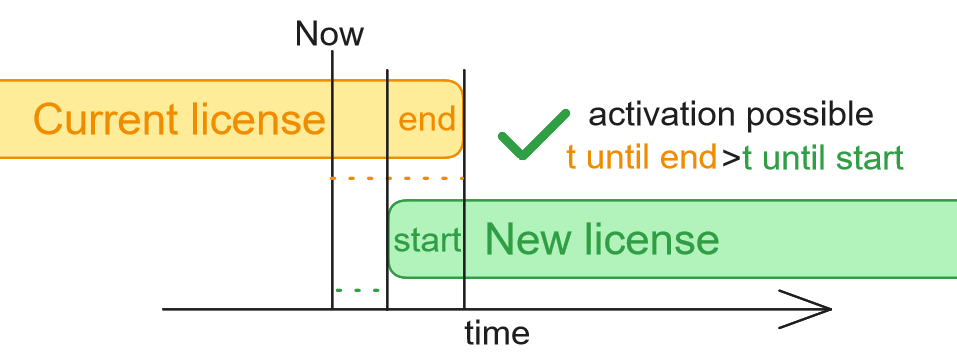 |
| There exists a small buffer window (\~2 days) after the expiration of the current license in which the new license can still be activated "early". In this case it would mean at most 1 day early after the license expired |
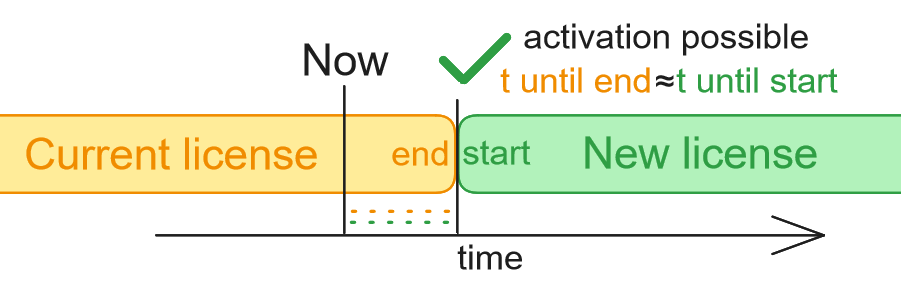 |
| If the time between the expiration of the current license and the start of the next is too long (>2 days), early activation is not possible |
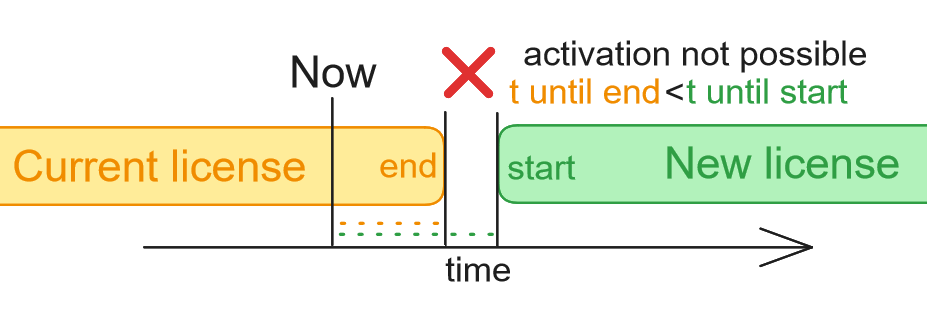 |
The expected process is that the customer purchases a license for a certain amount of time (i.e. 1 year), and when the license period comes close to an end, a new (i.e. 1 year) license that starts when the previous one ends is acquired. Then within the app the new license is activated before the previous one gets to expire and cause a settings reset.
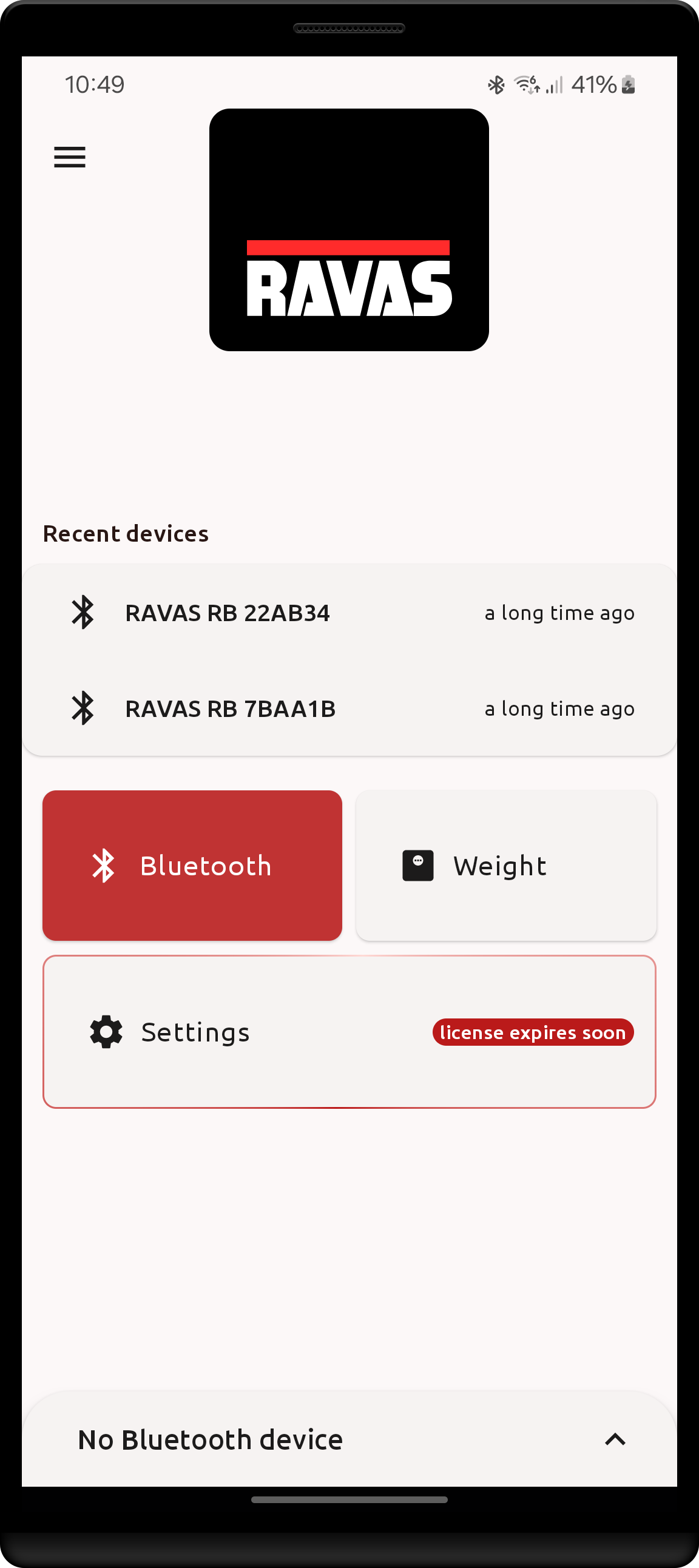
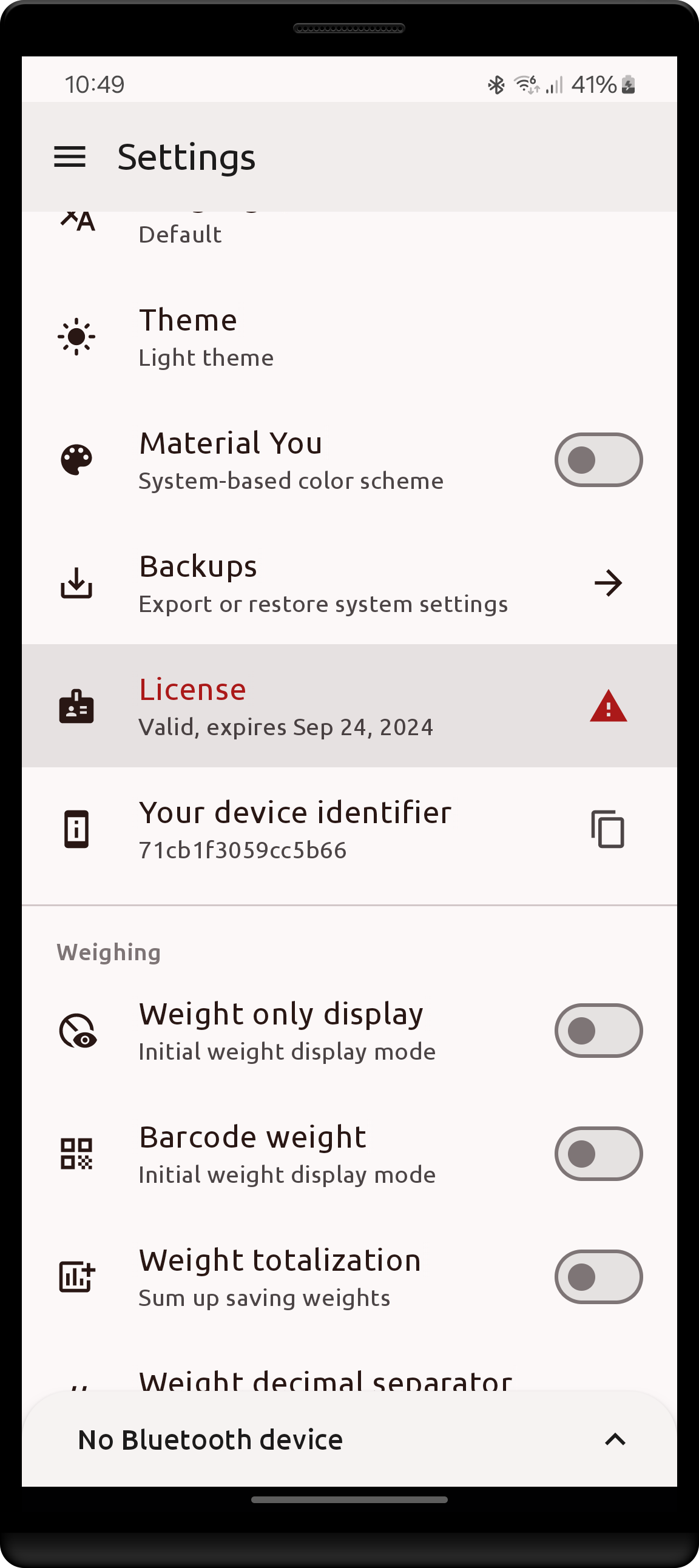
When a license is close (within 2 weeks) to the end (expiration) date, a warning mark will be shown on the Home and Settings screens to act as reminders that unless reactivation occurs the license activation state of the app will be lost.
| Home screen warning | Settings screen warning | License dialog warning |
|---|---|---|
 |
 |
 |
Features requiring an active license
The following set of features and associated settings are only available when the app has a valid active license.
QR weight mode
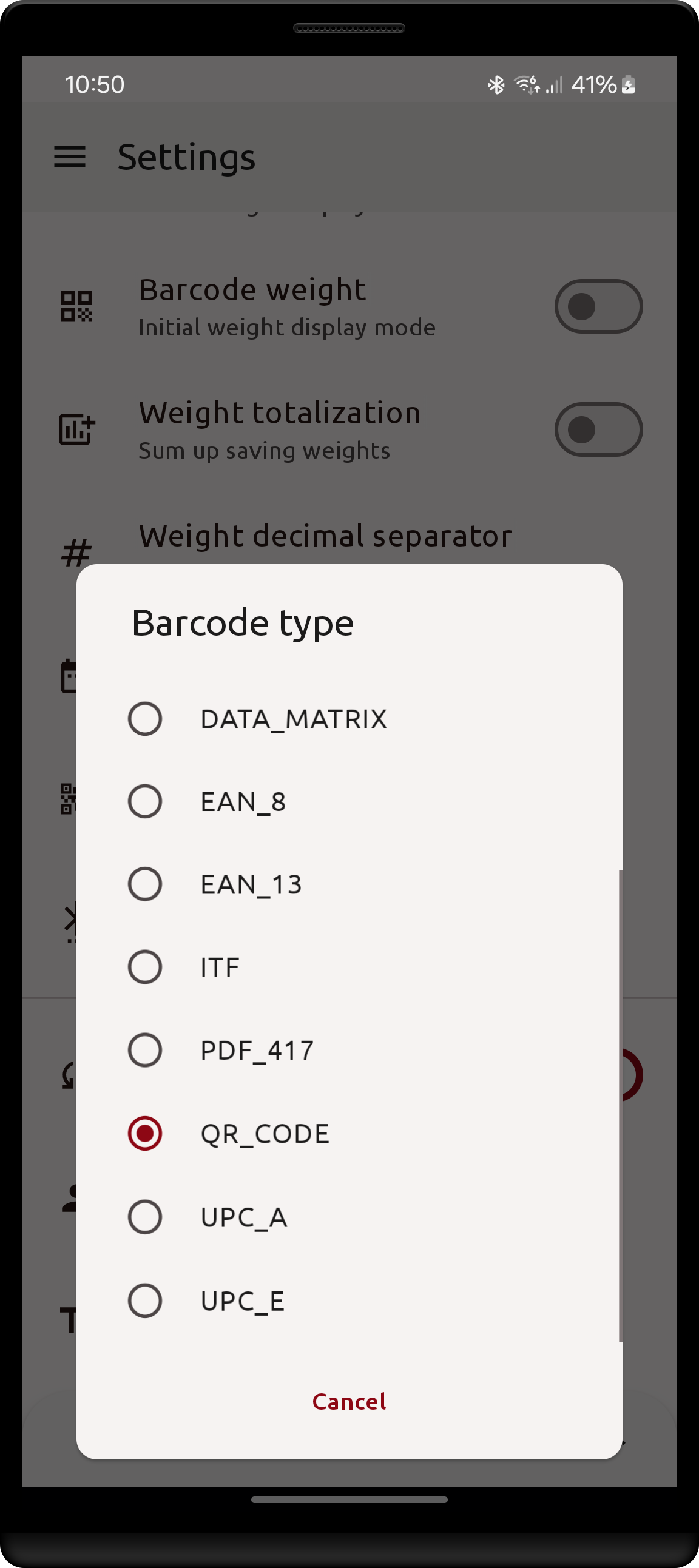
The app allows the weight to be viewed as a QR/Barcode instead of a plain number. While the default barcode type is QR, it may be changed to a different format in Settings.
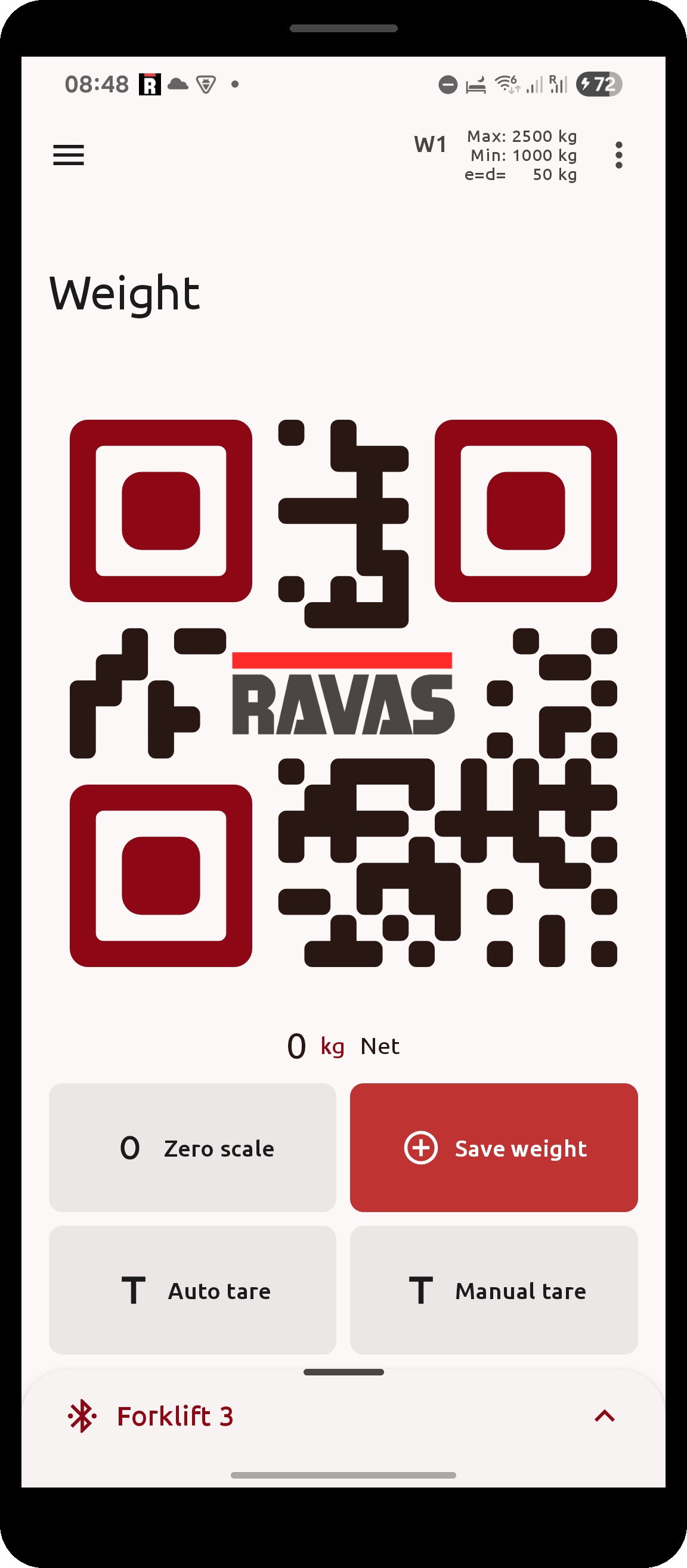
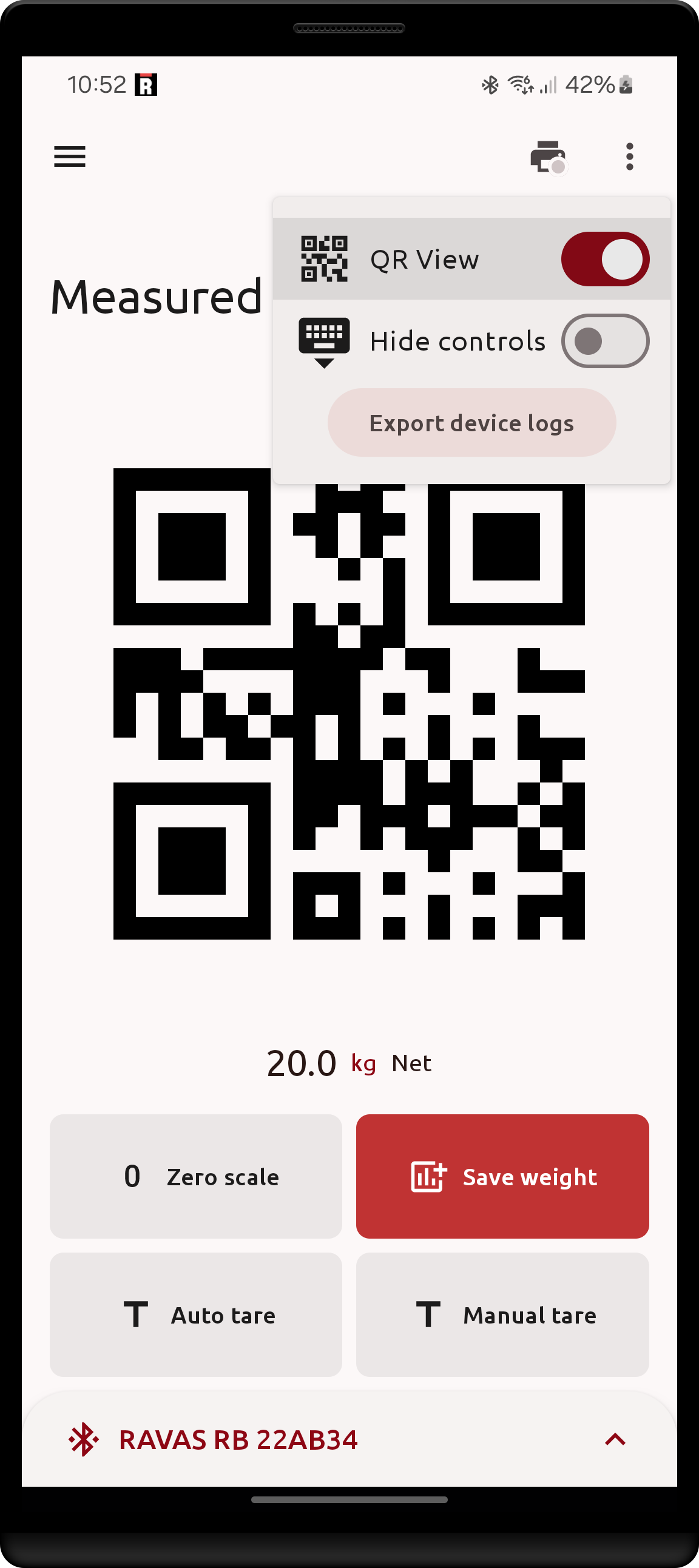
To view the weight as a barcode, toggle the QR View option in the Weight screen. The resulting image encodes the current net weight, exactly as it is displayed, in the chosen barcode format. It attempts to occupy as much screen space as possible while maintaining a height
Two QR variants are available:
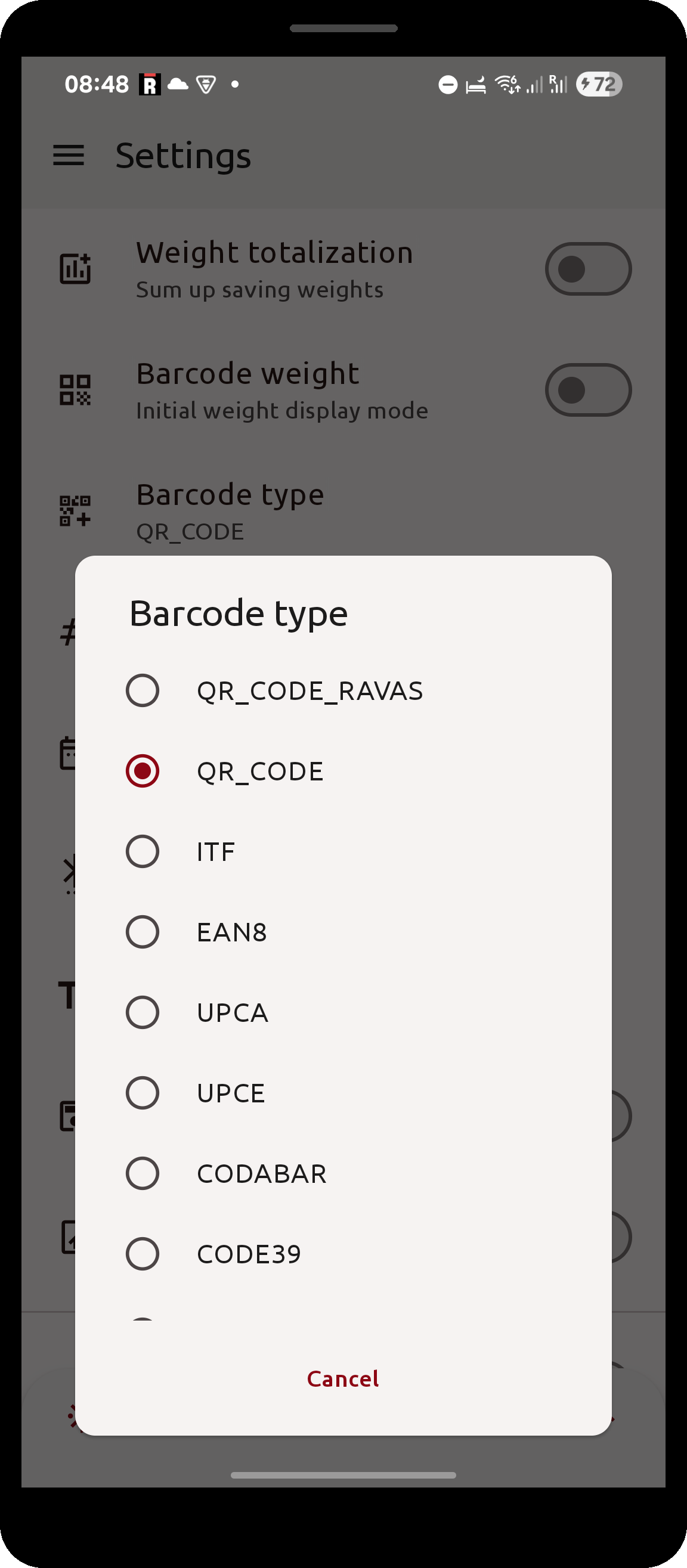
QR_CODE: a plain QR codeQR_CODE_RAVAS: the same data rendered in the RAVAS house style - rounded modules, a coloured finder pattern and the RAVAS logo in the centre
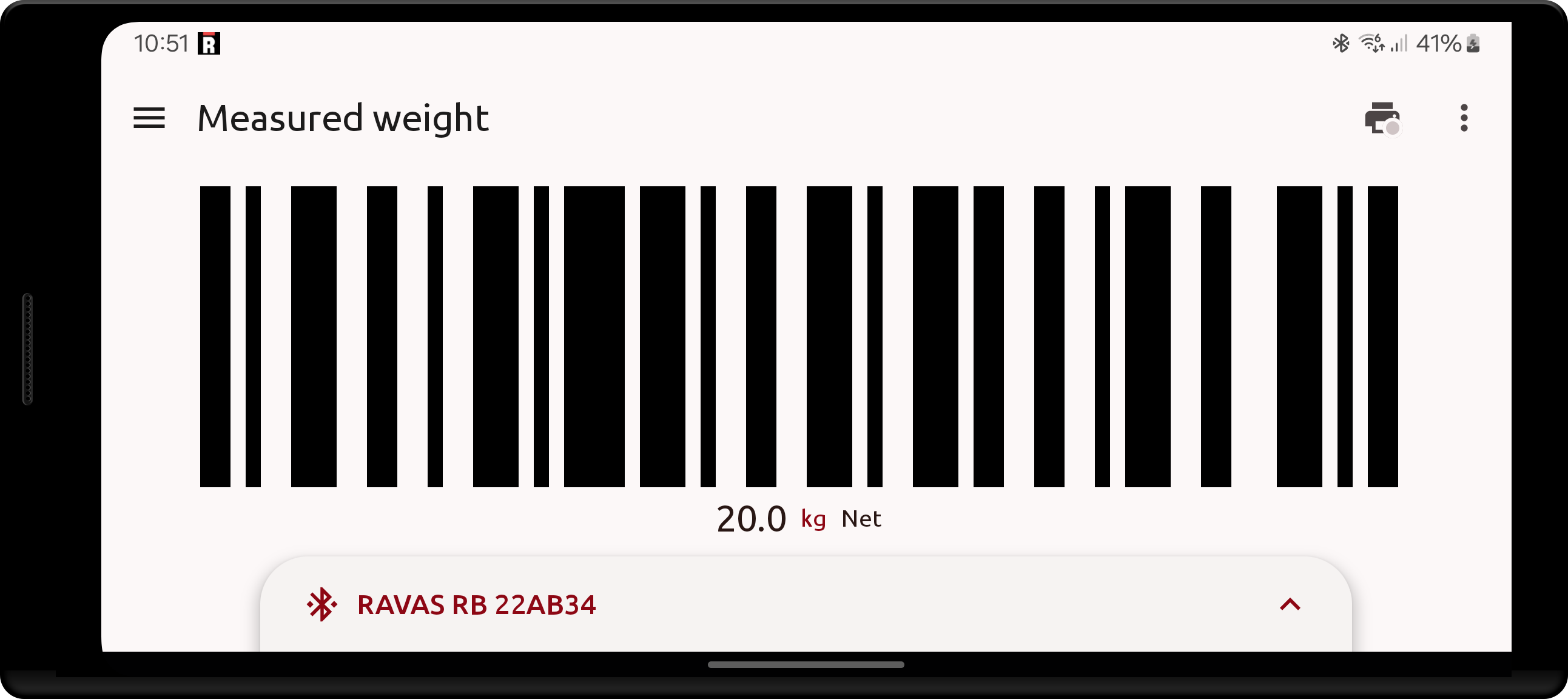
The 1D formats ITF, EAN8, EAN13, UPCA, UPCE, CODABAR, CODE39, CODE93 and CODE128 are also available.
The barcode is only drawn while the weight is stable. As long as it is not, a crossed-out code icon is shown in its place, so an unstable reading can never be scanned by mistake.
| Barcode type selection | QR_CODE_RAVAS on the Weight screen |
|---|---|
 |
 |
| Barcode type setting | QR View option | Horizontal CODE_128 barcode |
|---|---|---|
 |
 |
 |
You may toggle the Barcode weight setting in Settings so that the weight is displayed as barcode by default when navigating to the Weight screen
RDC (RAVAS Data Collector) integration
The app's integration with RDC involves uploading saved weights to some RDC software instance on the private network the device is connected to.
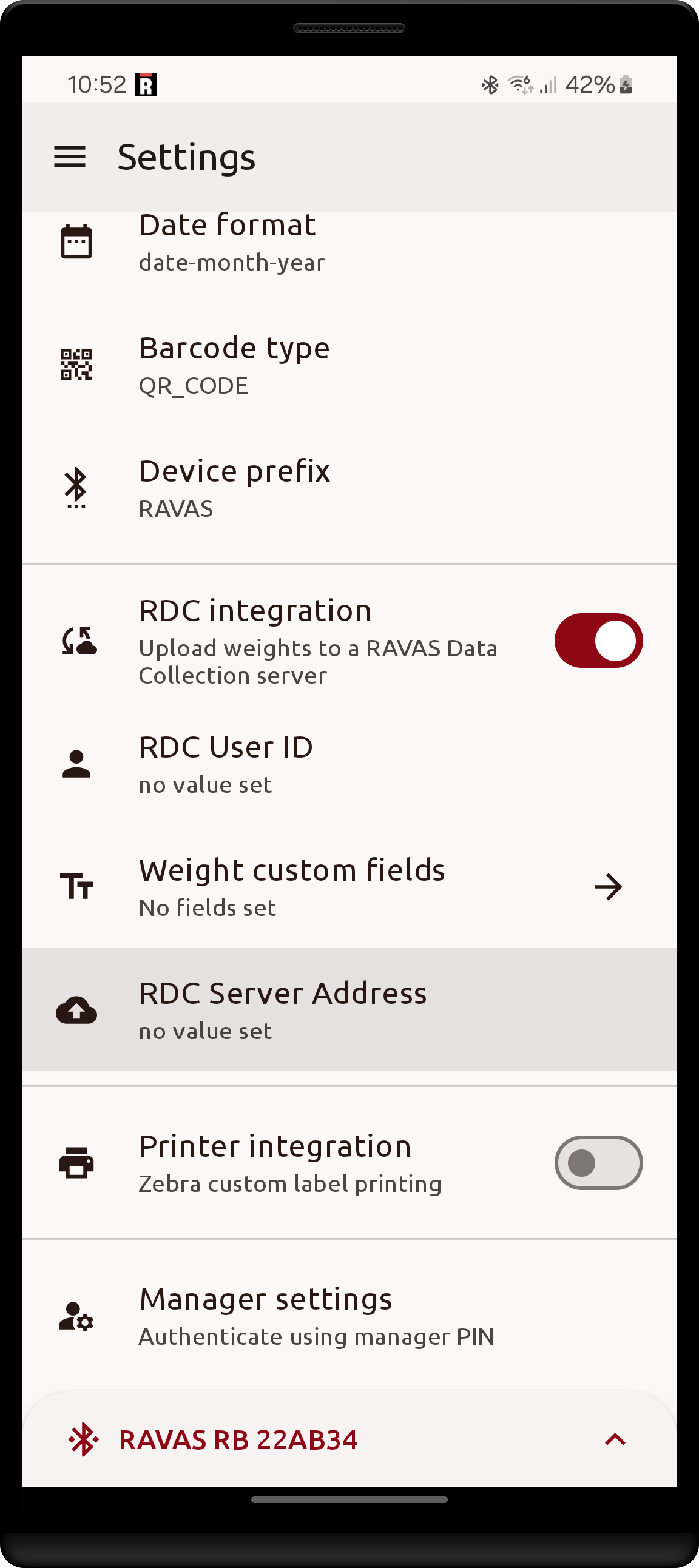
For the integration to work, the server's address must be configured.
RDC also allows for an User ID to be sent along with the weighing information. This field may also be configured under RDC Settings - it is a simple text field with constant value whose information is used for organization purposes.
| RDC Settings | Configuring the server's address |
|---|---|
 |
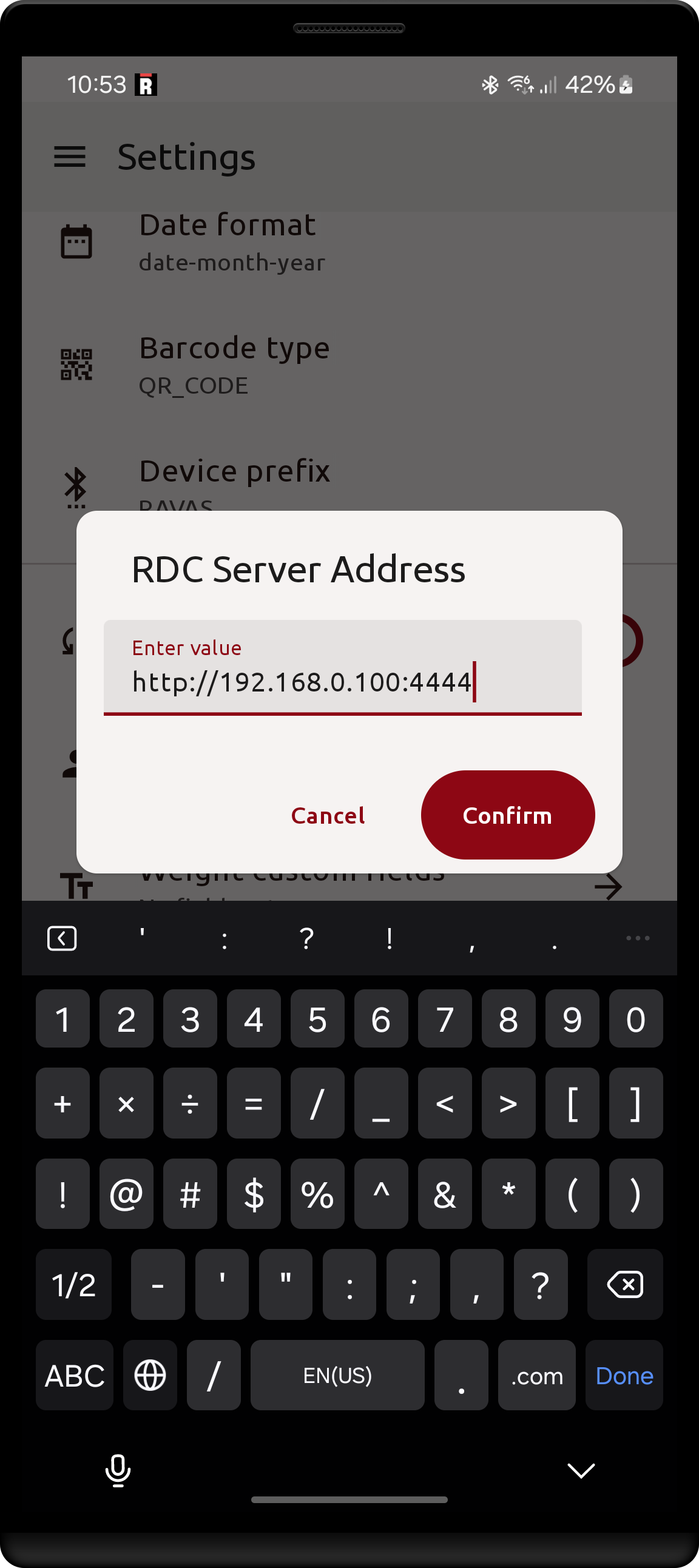 |
- a valid full url address must be provided, without the path. It may or may not end in a forward slash.
The app will append the path
/rest/scale/weightto the provided url when uploading weights
Weight saving behavior changes
Now, when a weight is saved on the Weight screen, the app will attempt to upload it to the configured RDC software server.
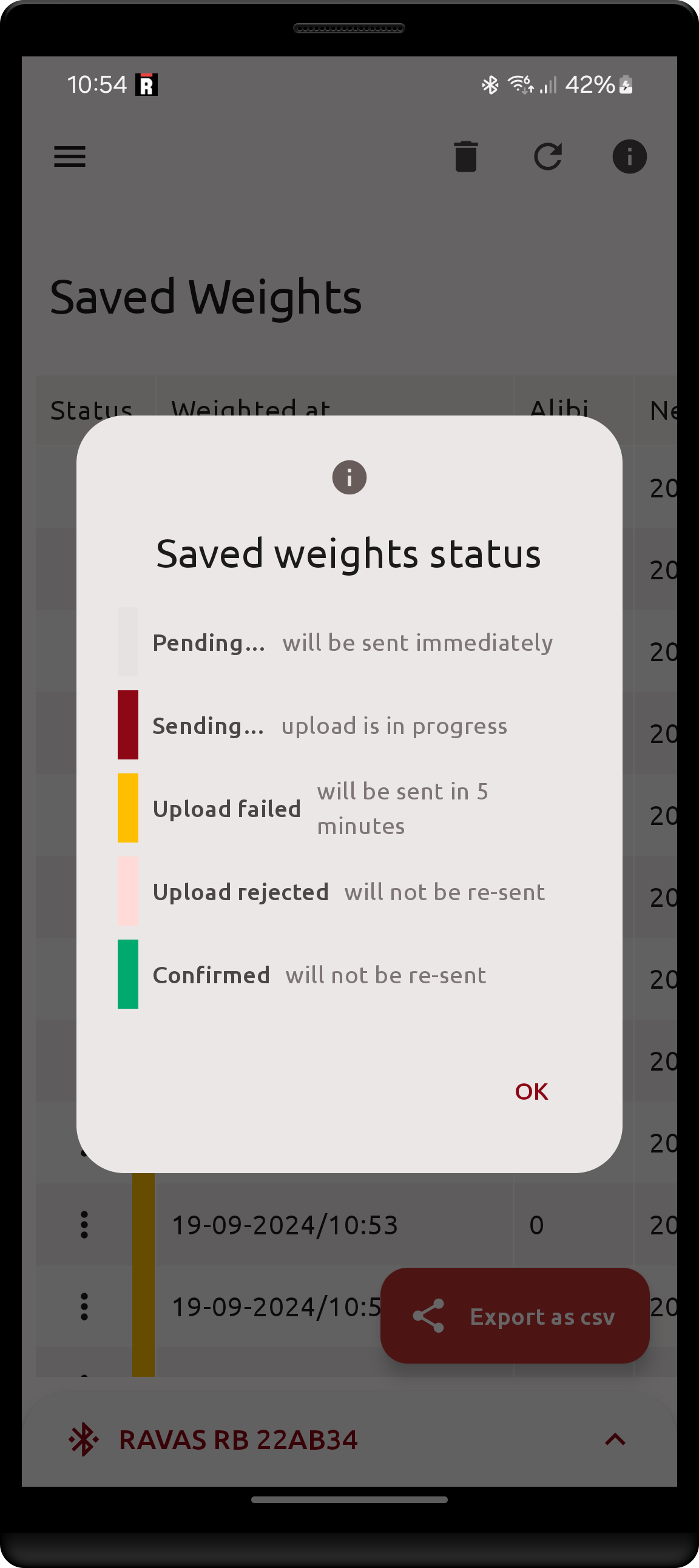
- If no Address is set or the upload fails for some other connectivity reason, it will be postponed for later (to be retried automatically after 5 minutes).
- If the RDC server rejects the weight upload, it will no longer be automatically retried.
- If the upload is successful, it will also not be re-sent.
- Saved weights are never deleted automatically, even after upload.
Saved Weights screen changes
As now saved weights will be uploaded to RDC, each weight record has more associated information. On top of the columns that are always present, the table gains:
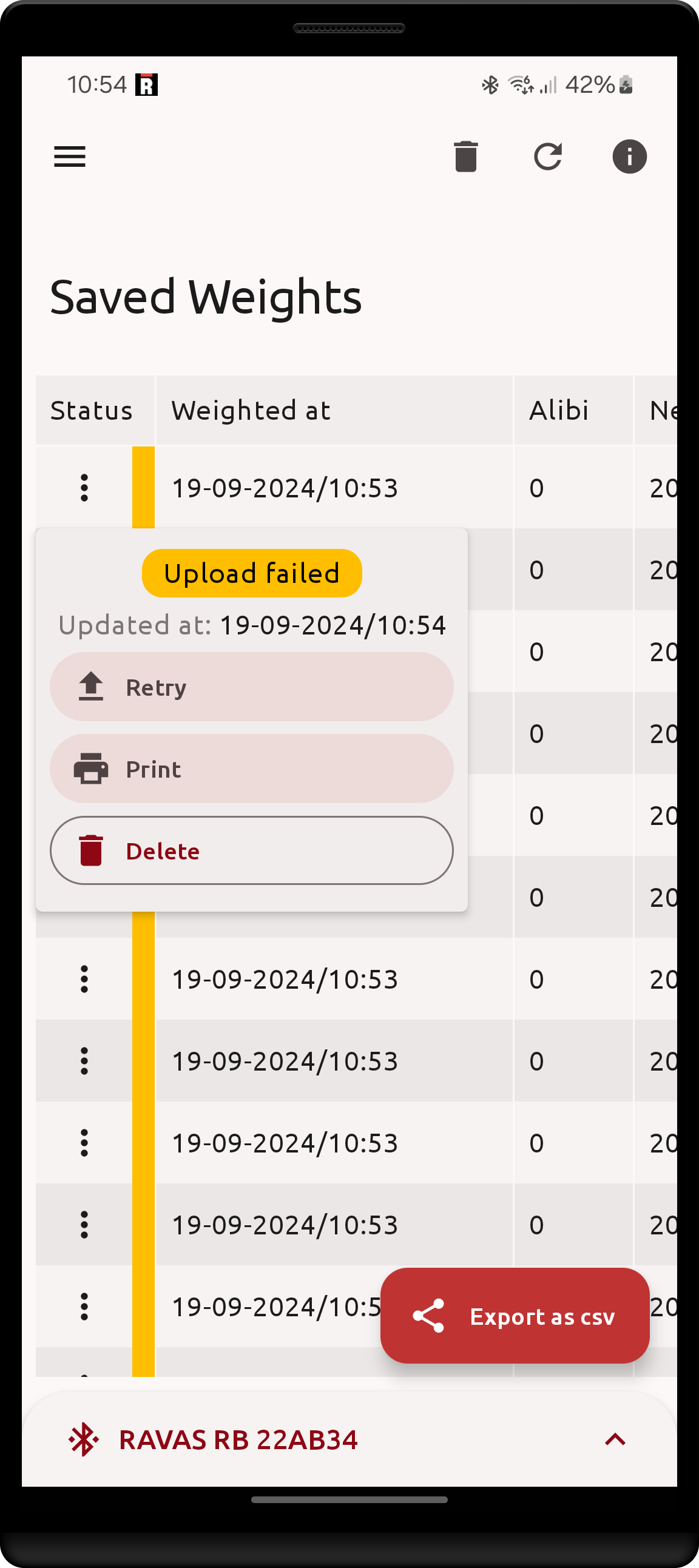
Updated at: date & time at which the weight state has last been changedMessage: the upload state (Pending, Sending, Failed, Rejected, Confirmed; more info below) and, in case the upload failed or was rejected, the reason message of the failure
Each row's action button also turns into a menu, from which the upload can be retried or the weight deleted.
Weights that were saved before RDC was enabled are still present, though they hold no values in the new fields and cannot be uploaded to RDC.
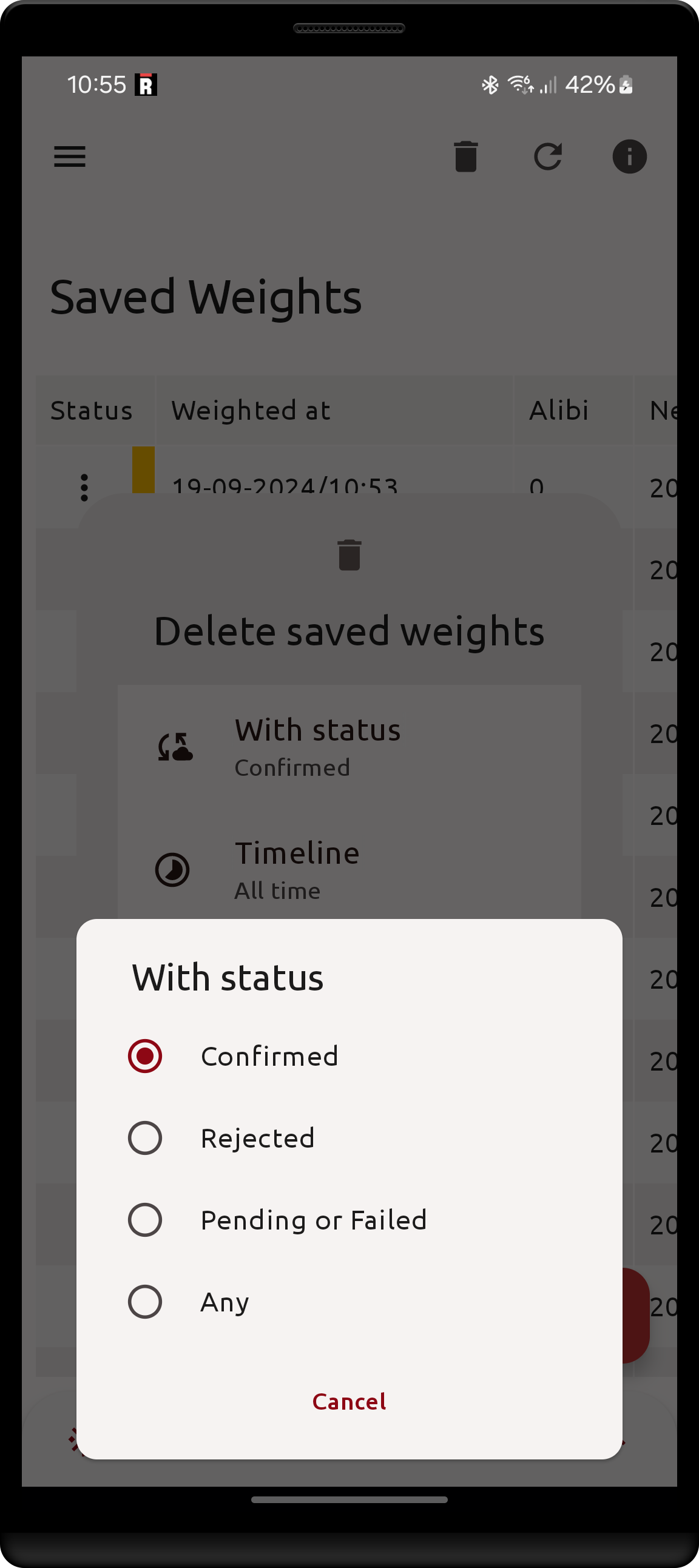
When deleting saved weights in bulk, a new filter option With status appears in the deletion dialog. This allows to fine-tune which records to delete.
Weights that were saved before RDC was enabled will ignore this filter option, they essentially are in all states at once and will be deleted based only on the timeline selected.
| State field | Explanation of states | Bulk deletion filter |
|---|---|---|
 |
 |
 |
uploads may be retried manually using the Retry button. You may also retry all failed uploads by clicking the refresh icon button in the top right side. |
this information dialog is available by clicking the info icon button in the top right side of the screen |
Usually it is expected that the user would delete the confirmed fields, as they have been successfully uploaded to RDC and are now redundant. |
Zebra printer integration
The app's integration with Zebra printers involves primarily sending a print job to a Zebra printer, over the local network or Bluetooth LE, with weight information when saving a weight in the Weight screen. The information on the print label is dynamic and can be configured using Labels, more information below.
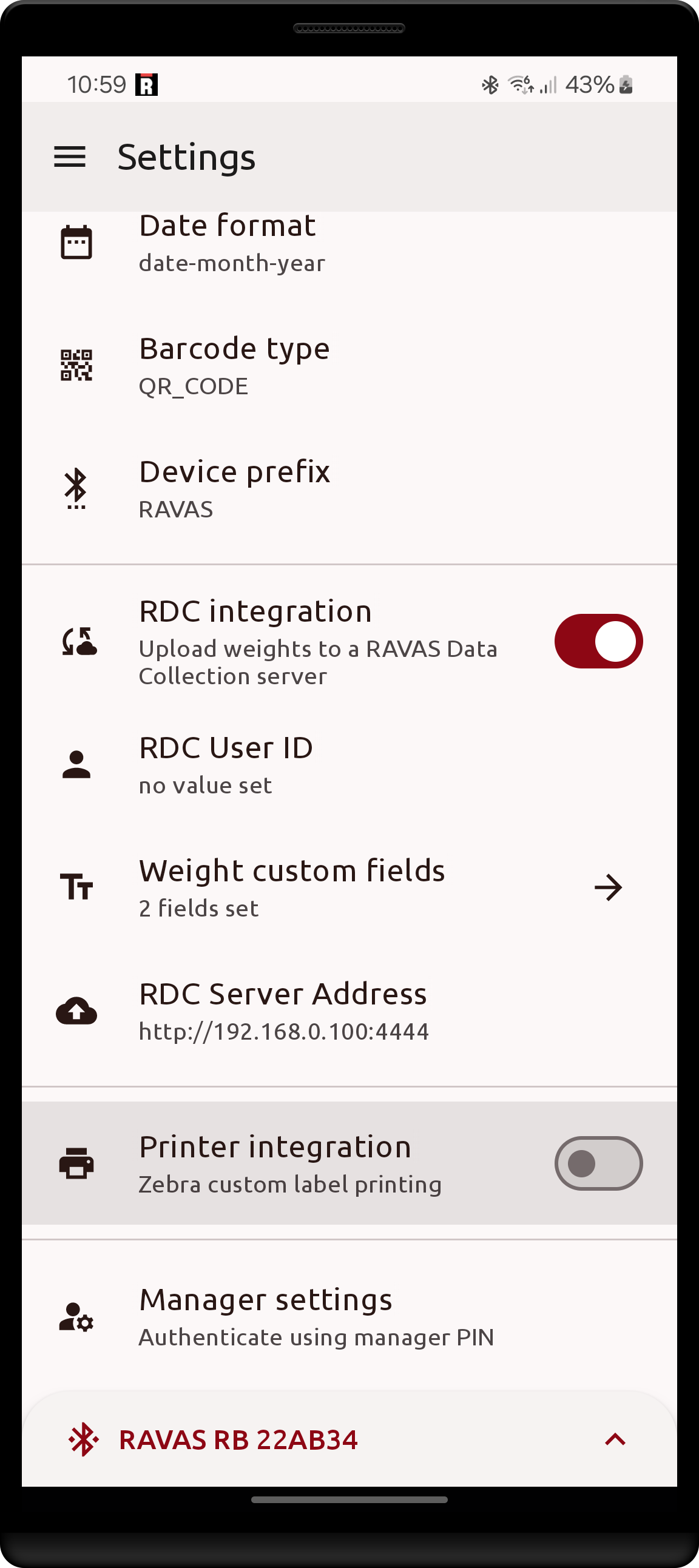
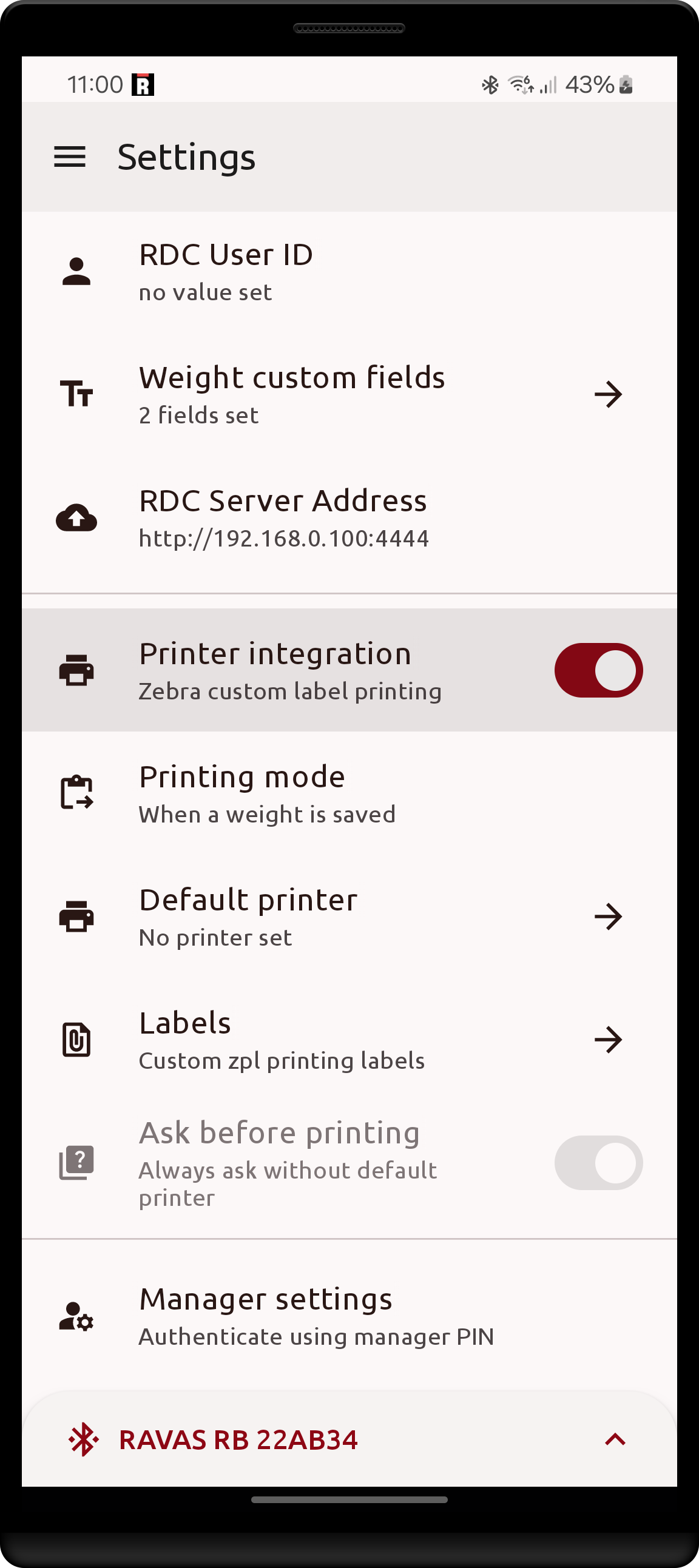
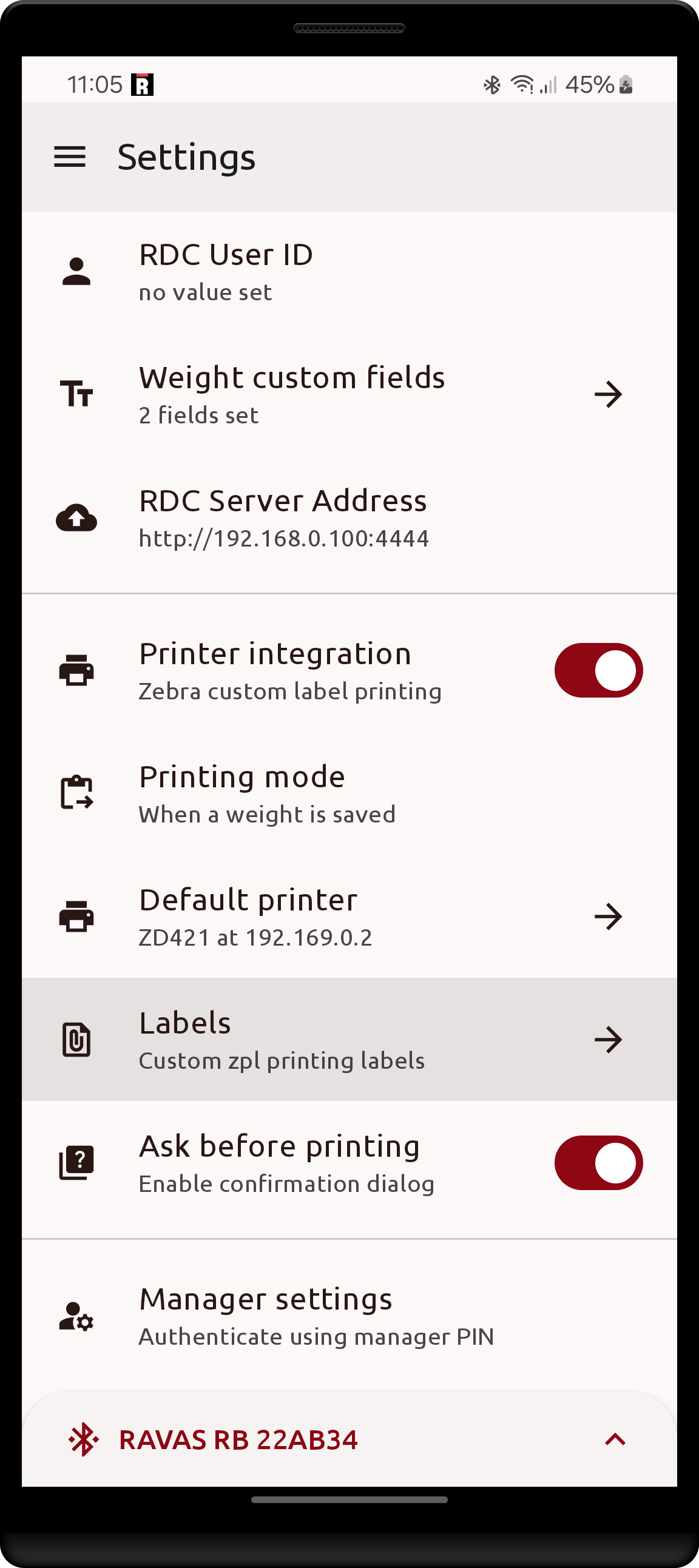
This feature is disabled by default, enable it in the Settings screen by toggling the Printer integration setting.
Enabling it uncovers the settings Printing mode, Default printer, Labels, and the toggle Ask before printing which is forced ON until a default printer is set.
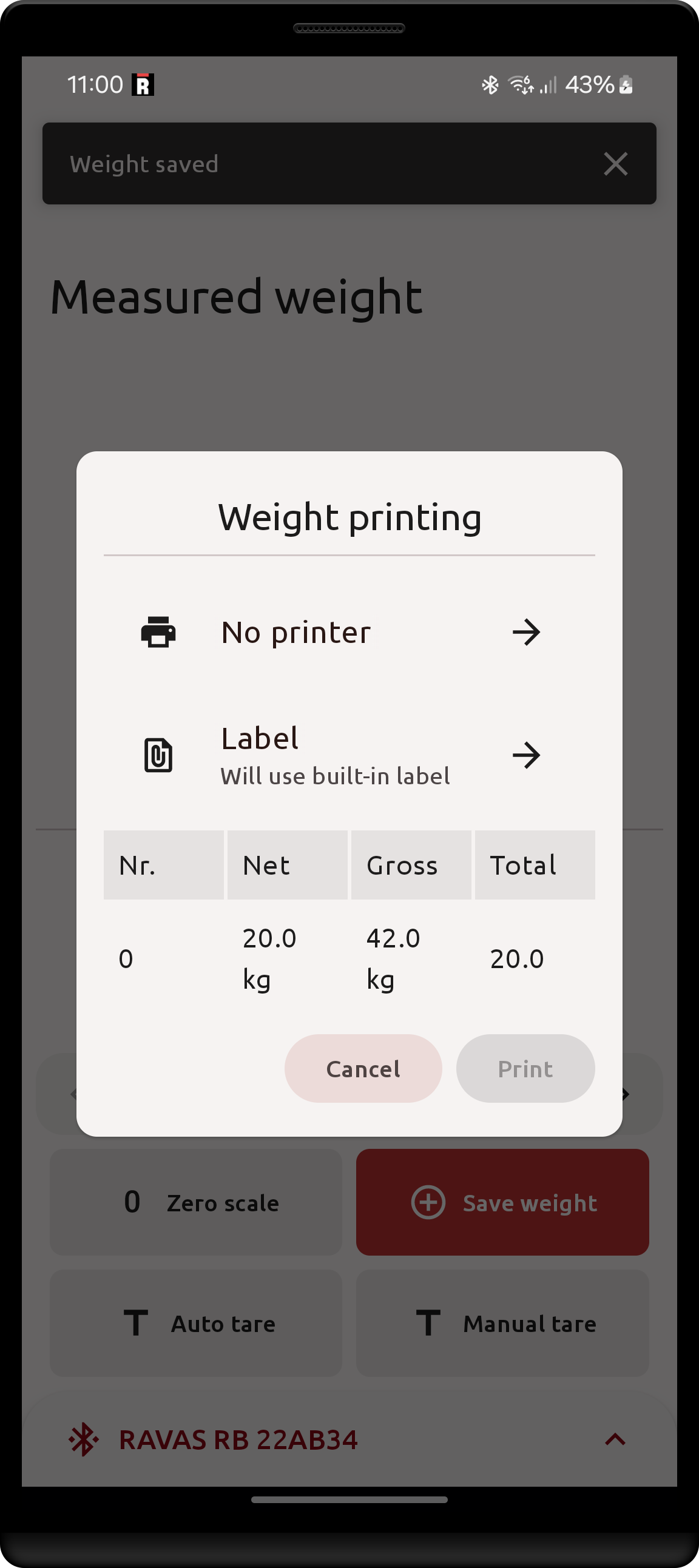
| Setting location | Enabled setting | Default printing dialog |
|---|---|---|
 |
 |
 |
Printing modes
The time when the printing dialog (and printing process) is started depends on the Printing mode setting:
Manual: printing is never started automatically, can only Print already saved weights.When a weight is saved: printing is started when a weight is successfully saved on the Weight screen.When clearing batched weights: printing is started when thePrintbutton is pressed on the Weight screen, after successfully saving one or more weights.
It is always possible to Print already saved weights
Printing does not affect the saving of weights, i.e. each weight is saved, remembered (& uploaded to RDC, if applicable) regardless of the printing process succeeding or not.
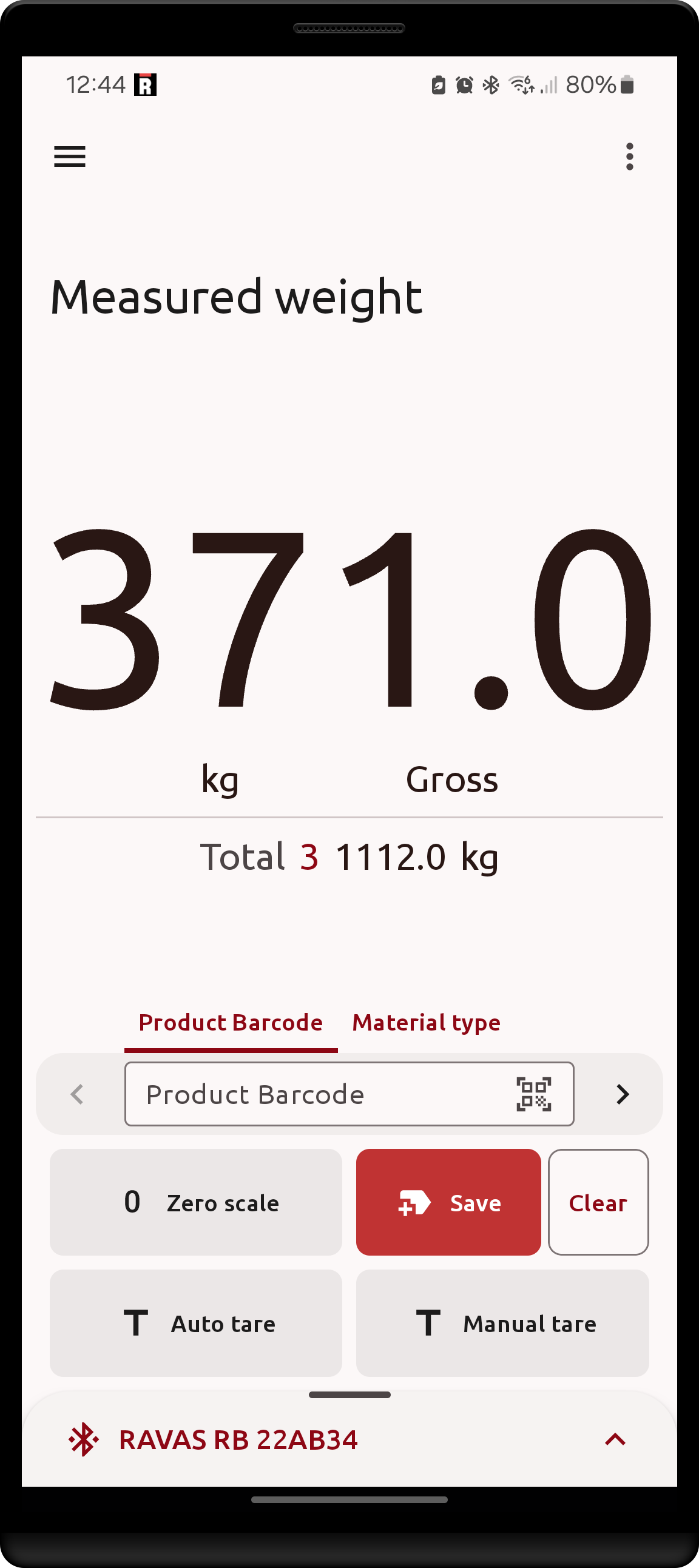
Setting the printing mode to When clearing batched weights enables the same weight saving behavior as Weight Totalization.
This settings takes priority over Weight Totalization - it does not matter if it is enabled or not. On the Weight screen, with batched weights printing, the Save button will have a different icon, and a Print button is present instead of the Clear button.
In order to clear the weight batch without starting the printing process, hold-press the Print button, which has the same effect as pressing the Clear button with weight totalization enabled (and no batched weights printing).
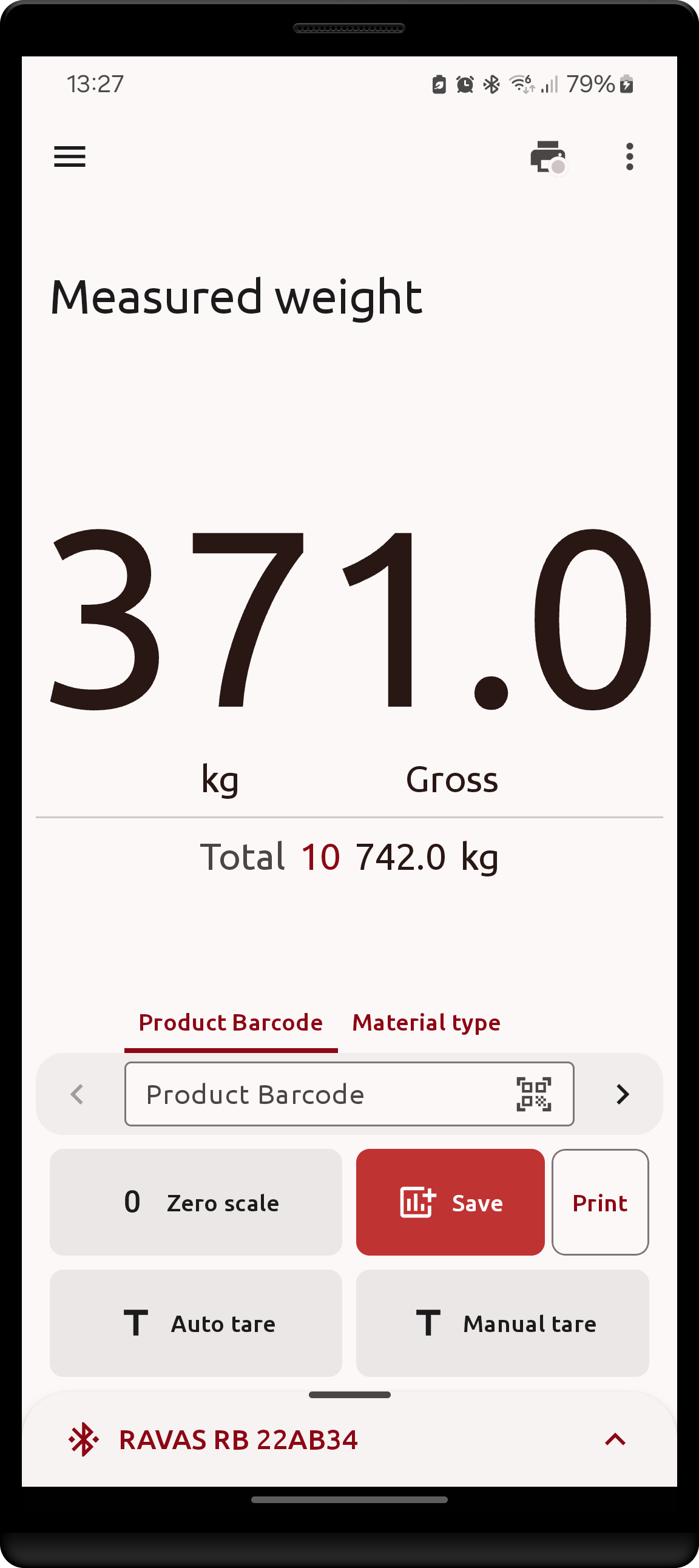
| Weight totalization without batched printing | Batched printing enabled | Batch printing using non-Table label |
|---|---|---|
 |
 |
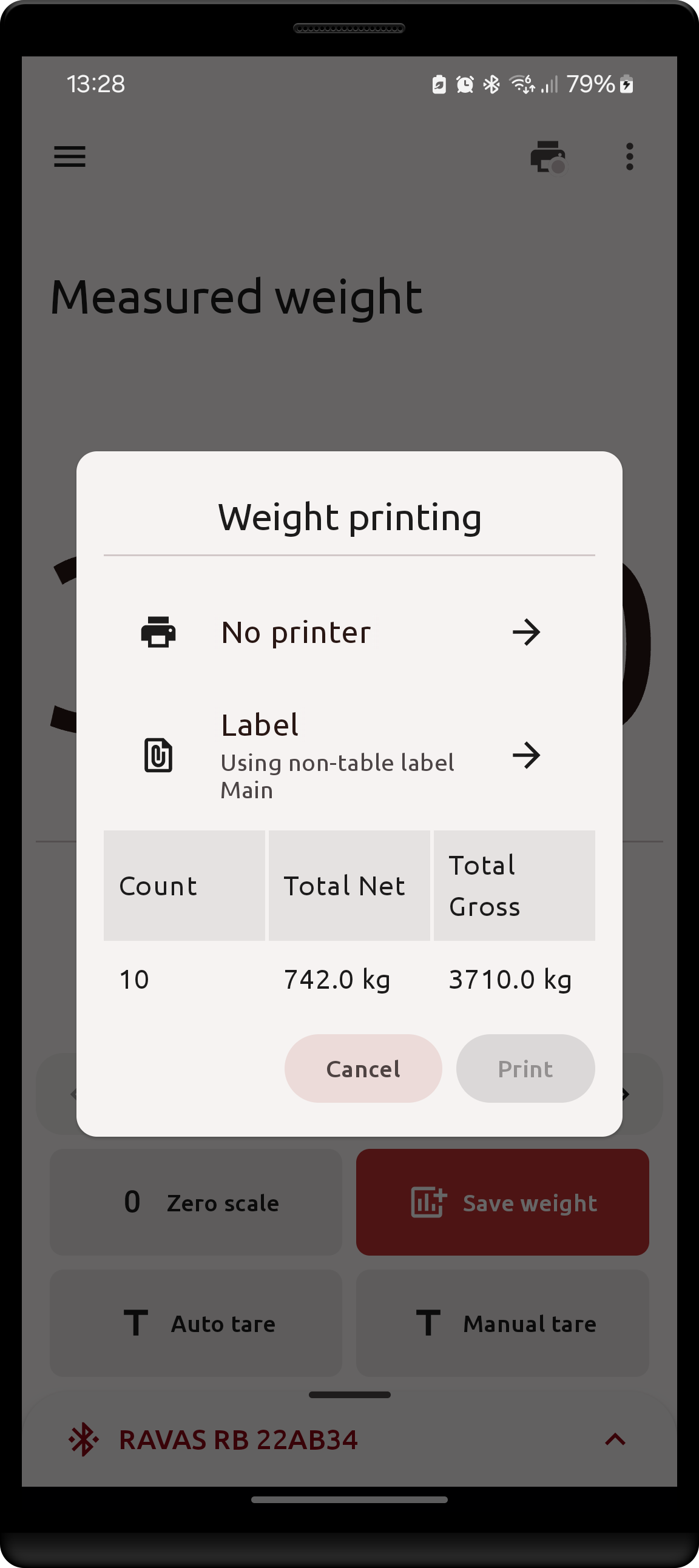 |
The printing mode When clearing batched weights is intended to be used with Table Labels. Printing will fail if more than one weight is present in the batch and a non-Table label is used.
Printing dialog
When a default printer is not set (default state). The printing dialog will show up with the No printer status shown, as such the Print button is unavailable and printing cannot commence yet.
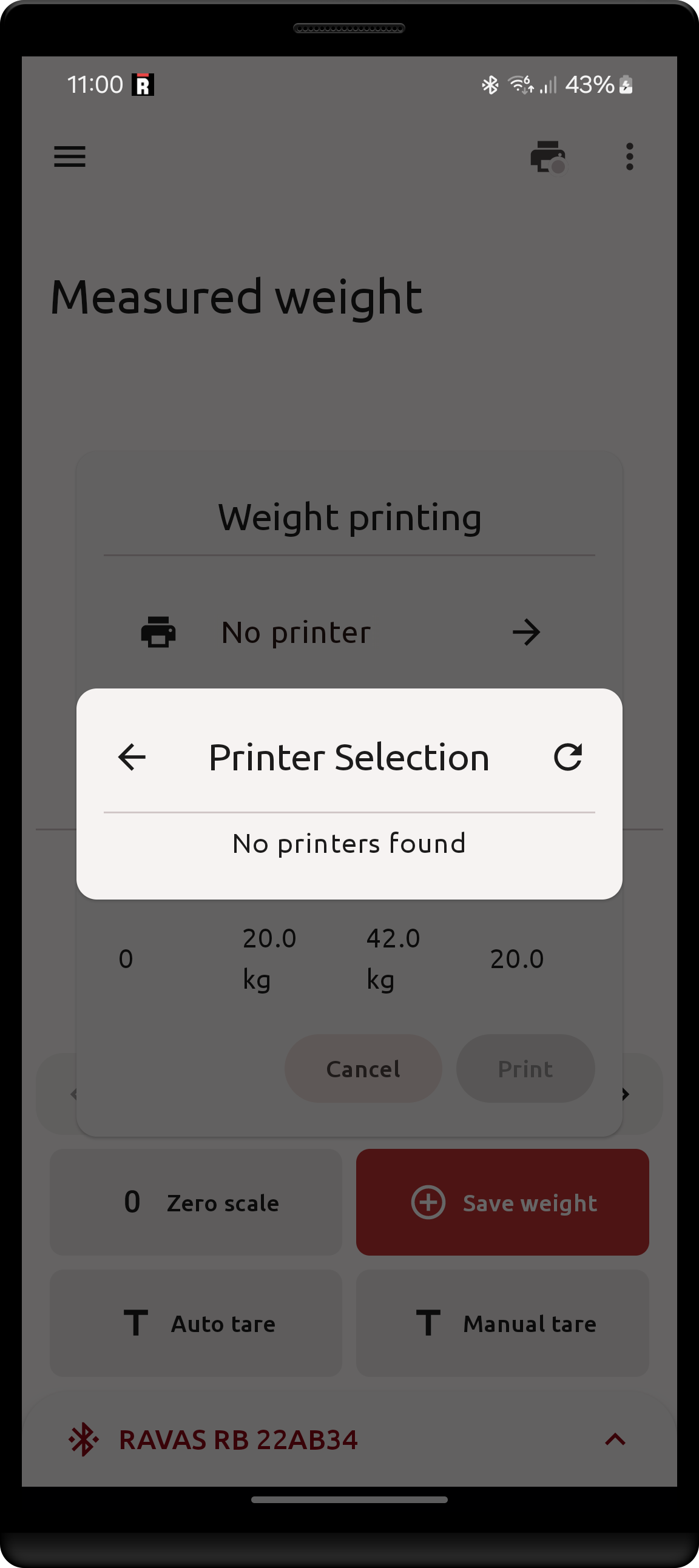
Clicking on the printer button will show the Printer selection dialog. Once accessed, the app will scan the local network and Bluetooth for compatible Zebra printers. The scan may be retried using the refresh button in the top-right.
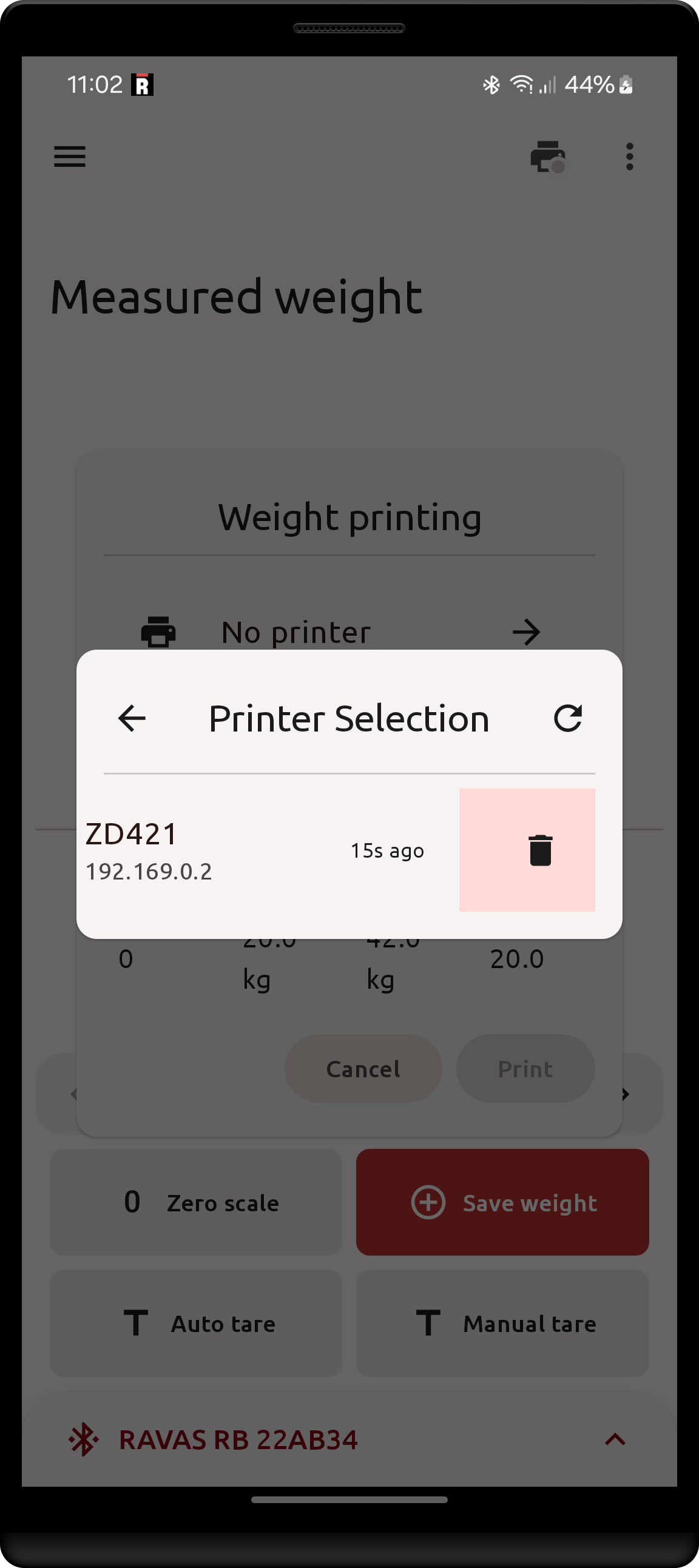
This dialog will also show previously found printers, which may not be reachable right now; the time on the right shows when a printer was last seen. Printers can be removed from the list by swiping left (right-to-left) on the item.
| Printer selection dialog | Removing a printer |
|---|---|
 |
 |
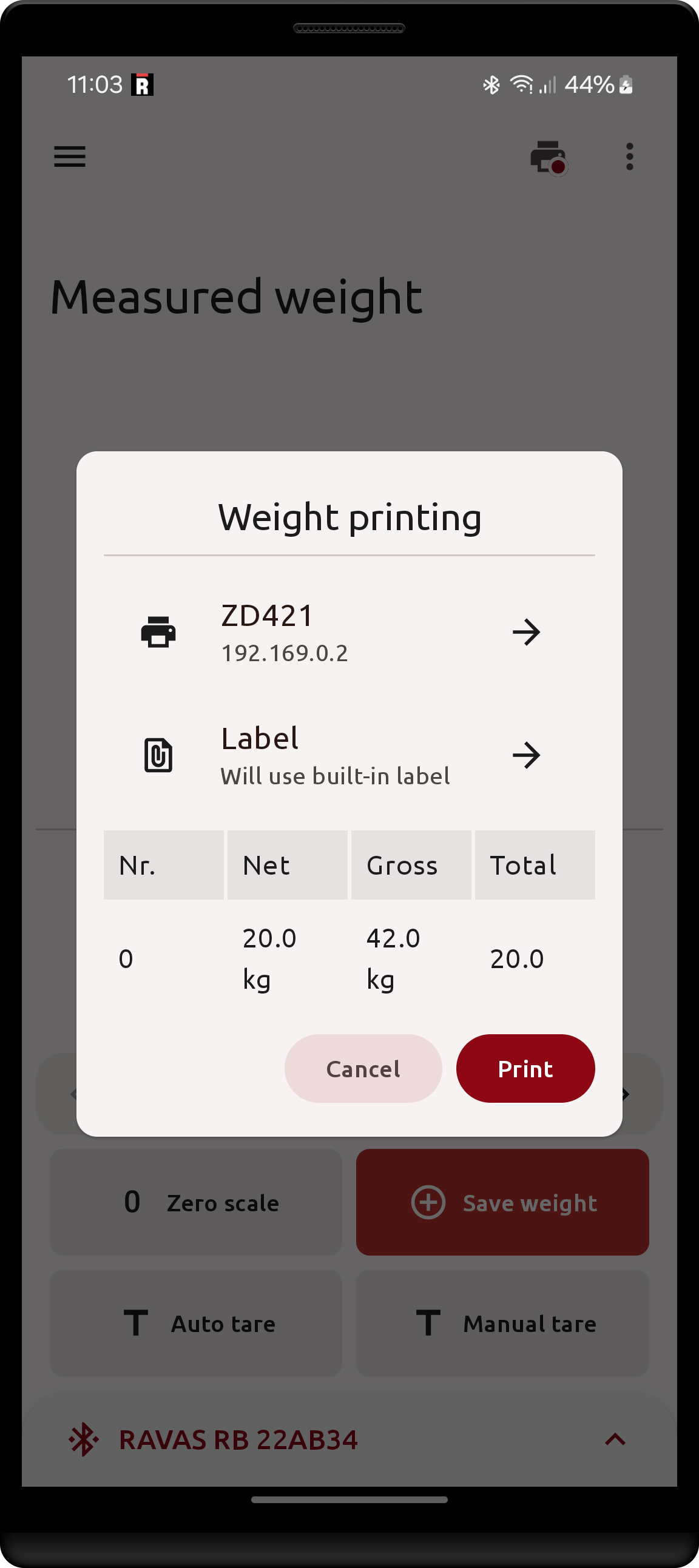
Once a printer is found and selected, the Print button becomes available. A label may also be chosen, by default (no custom labels created) there is a built-in label printing basic weight information. See below: Labels
The buttons at the bottom of the dialog behave as follows:
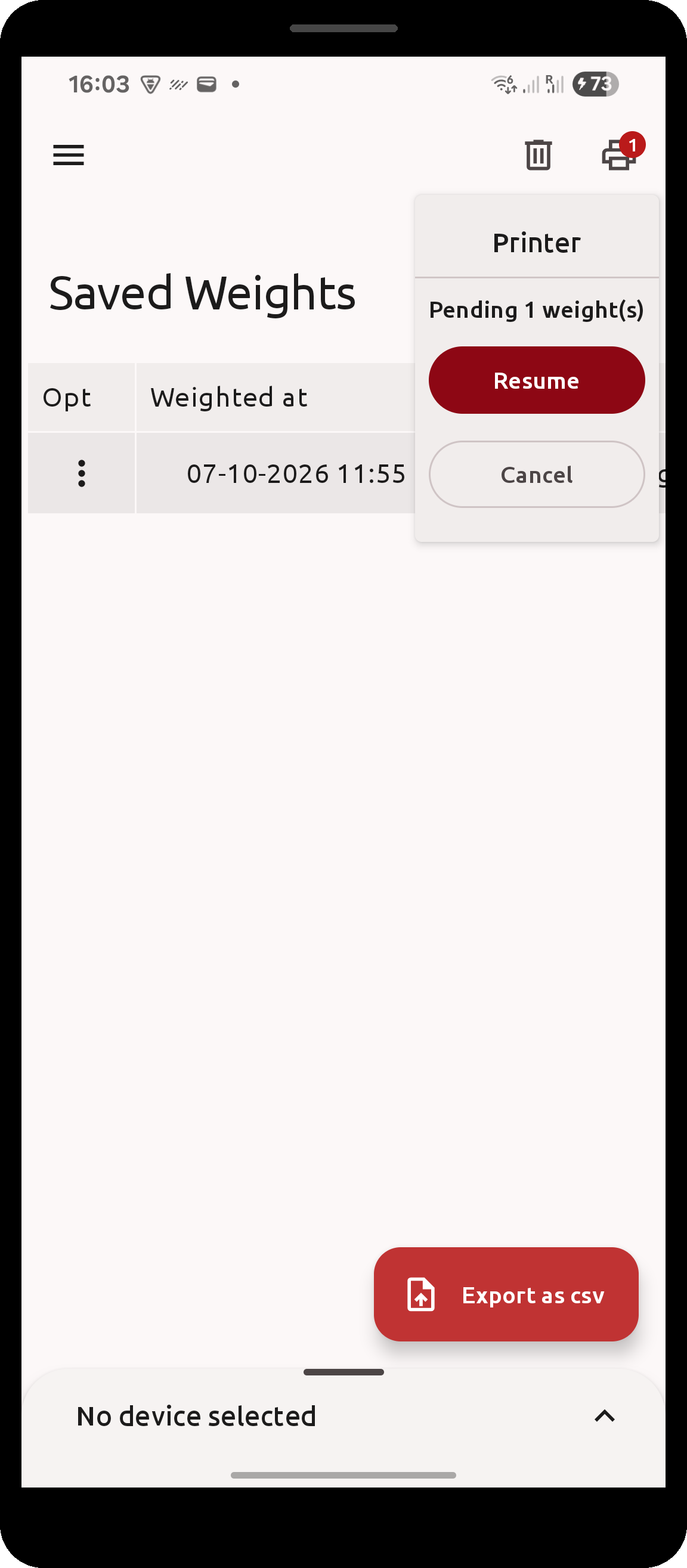
Printstarts printing (only available once a printer is selected)Cancelcloses the dialog but keeps the print job, which is then listed as pending in the printer status menu (see below) from where it can be resumed withResumeor dropped withCancel- the trash icon discards the print job altogether
| Pending print job in the printer status menu |
|---|
 |
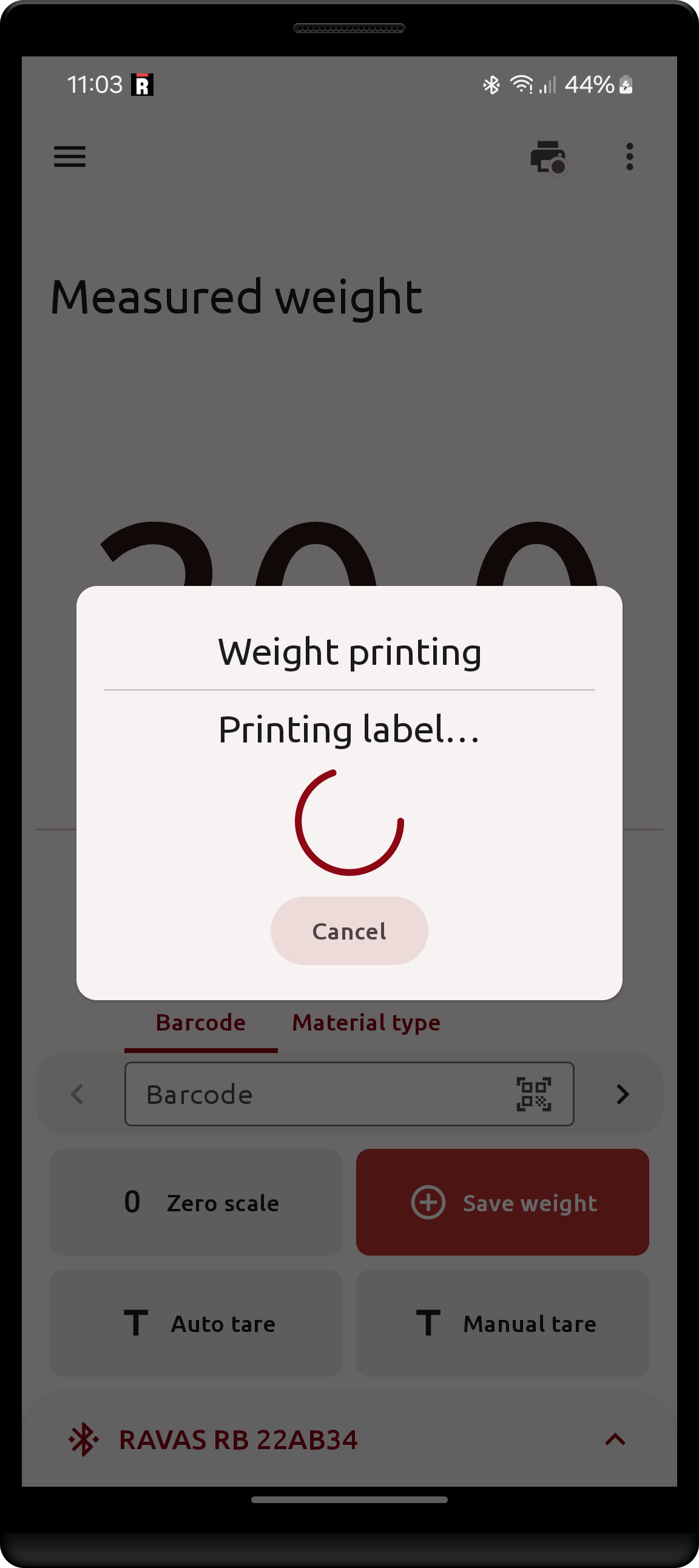
Click Print to start printing. The app first checks that the printer is ready; if it is not (e.g. its head is open, it is out of paper or paused), printing fails with the reason shown and can be retried.
| Dialog with selected printer | Print progress |
|---|---|
 |
 |
For network printers, make sure your android device is on the same local network (e.g. connected to the same Wi-Fi access point) as the target printer. For Bluetooth printers, Bluetooth must be on and the app needs the Bluetooth permission; the printer does not need to be paired. Printing over Bluetooth takes a few seconds longer, as the app connects to the printer for each print. Refer to your printer's instructions on how to setup its connectivity settings.
The printer dialog interaction is omittable by disabling the Ask before printing setting in the Settings screen, this is possible only once a Default printer has been selected. When disabled: saving a weight will immediately begin printing with the configured default printer and default label (built-in label if not set), similarly clicking print in the Saved Weights screen will also print straight away. During printing or if an error occurs the printing dialog will be shown with the option to cancel/retry printing and selecting a different printer/label on failure.
Default printer
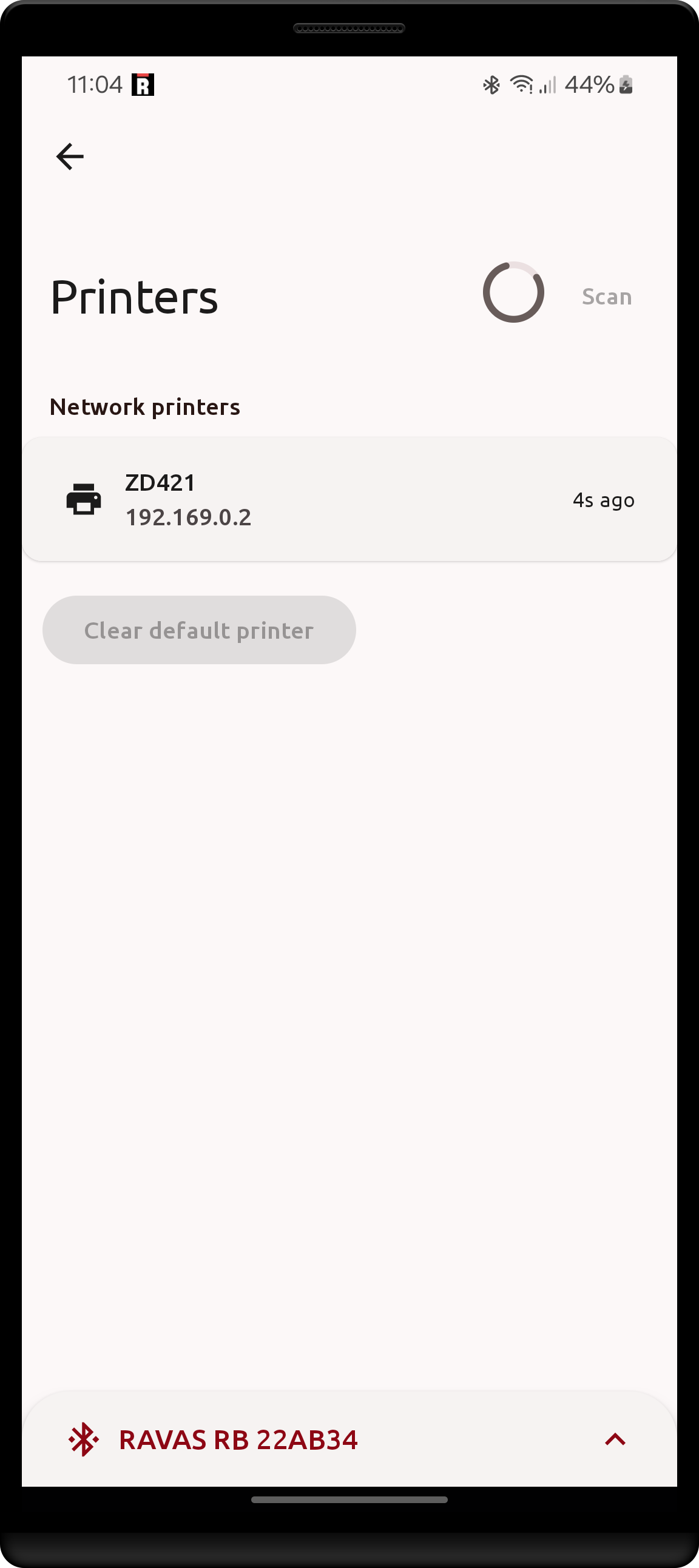
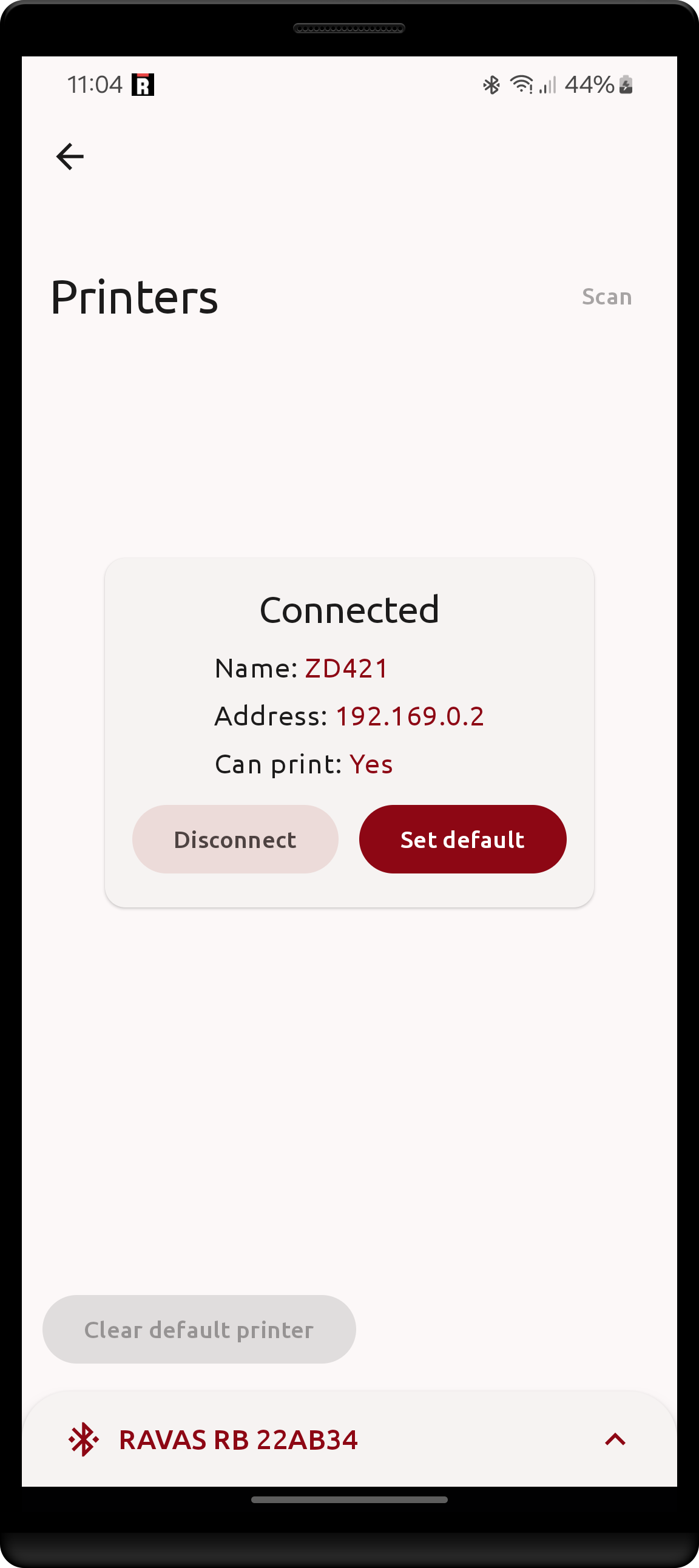
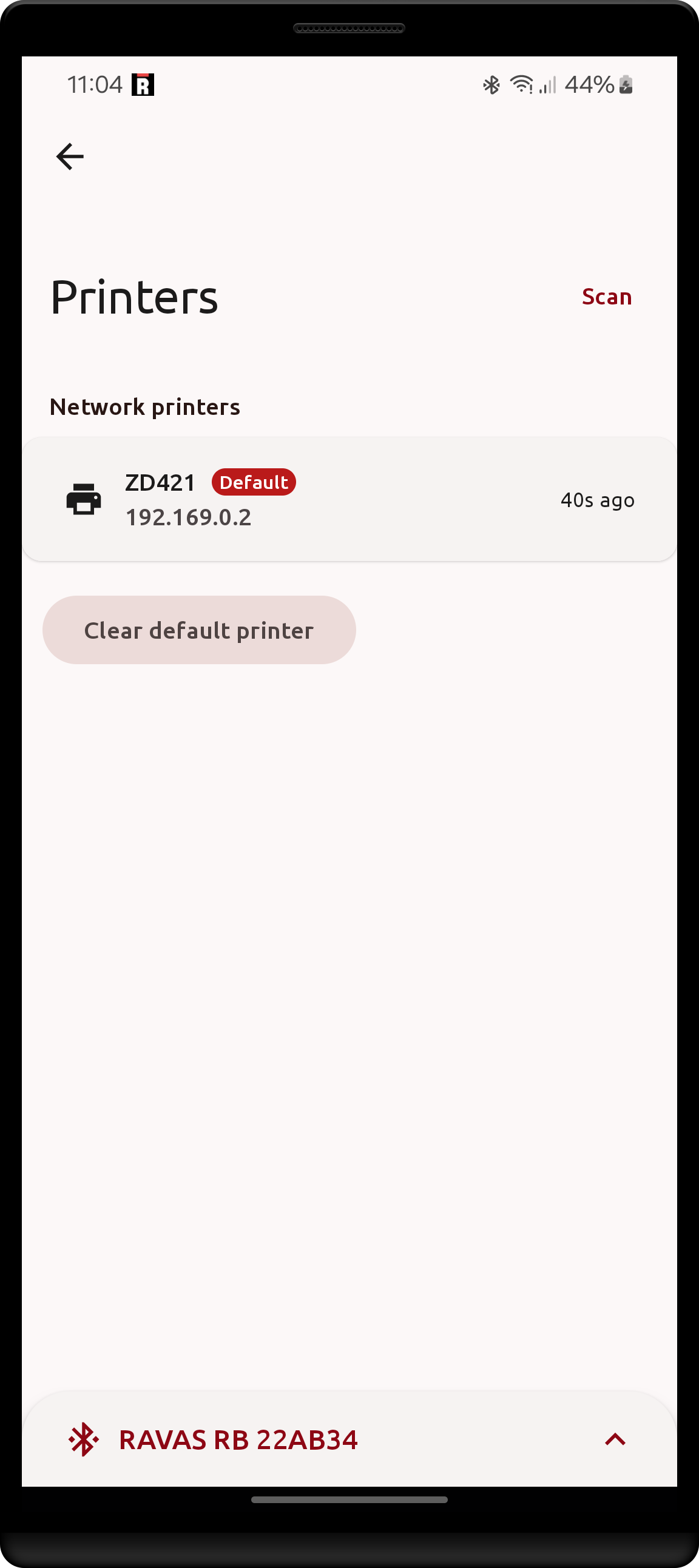
To avoid having to select a printer on each print operation, you may set a default printer in Settings. Navigate to the Printers screen by clicking the Default printer setting. It scans for network and Bluetooth printers when opened, or when Scan is clicked.
- Click a printer to make it the default, click it again to clear it.
- The menu next to each printer offers the same choice, and
Print test page, which prints a small label to check that the printer can be reached and is ready. Add printeradds a printer that is not found by scanning, by its IP address or hostname and port (9100by default).- Printers paired in Android's Bluetooth settings are listed as
Paired, as a paired printer no longer shows up in scans. Their menu has aBluetooth settingsentry to unpair them there; an unpaired printer disappears from the list on the next scan. - If the Bluetooth permission is not granted, only network printers are found, and an
Enable Bluetooth scanningbutton asks for the permission.
| Printers screen | Printer menu | Add printer |
|---|---|---|
 |
 |
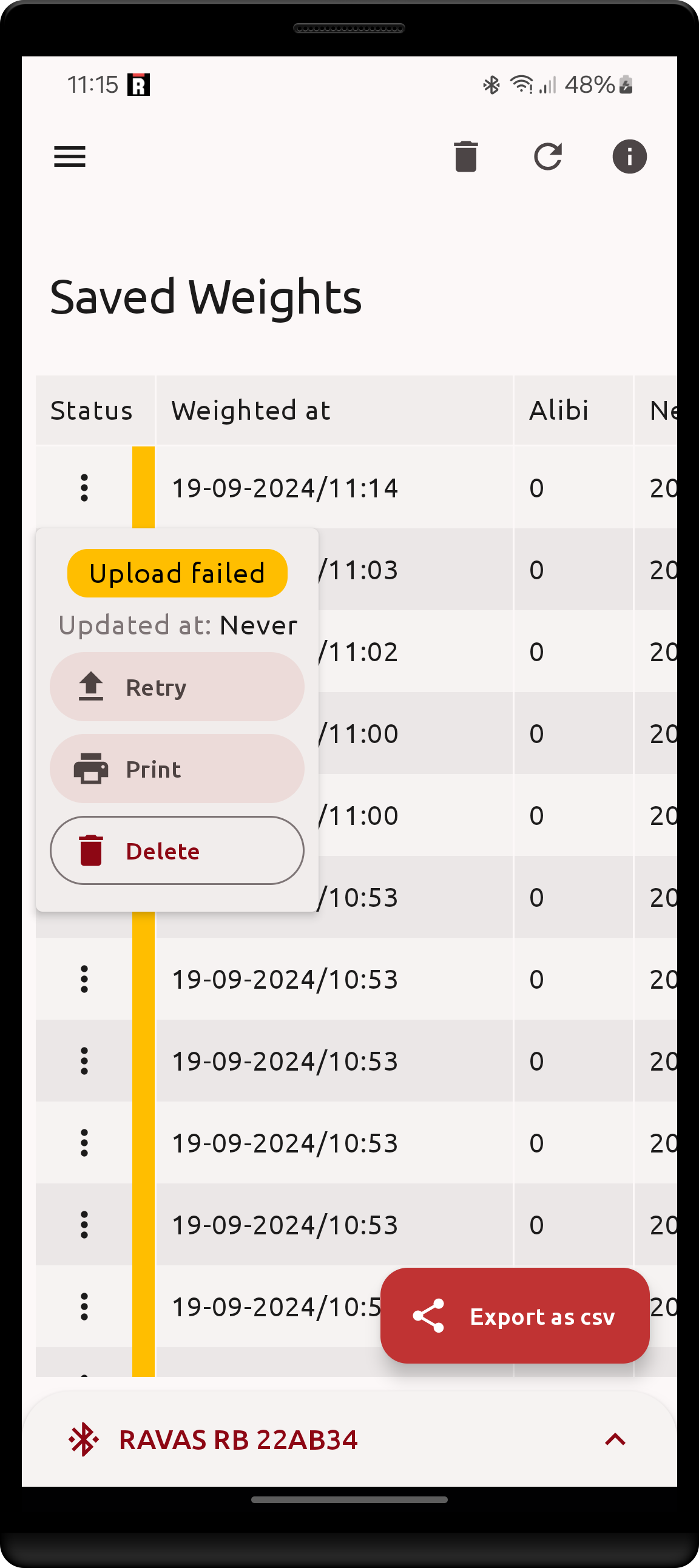
 |
Print already saved weights
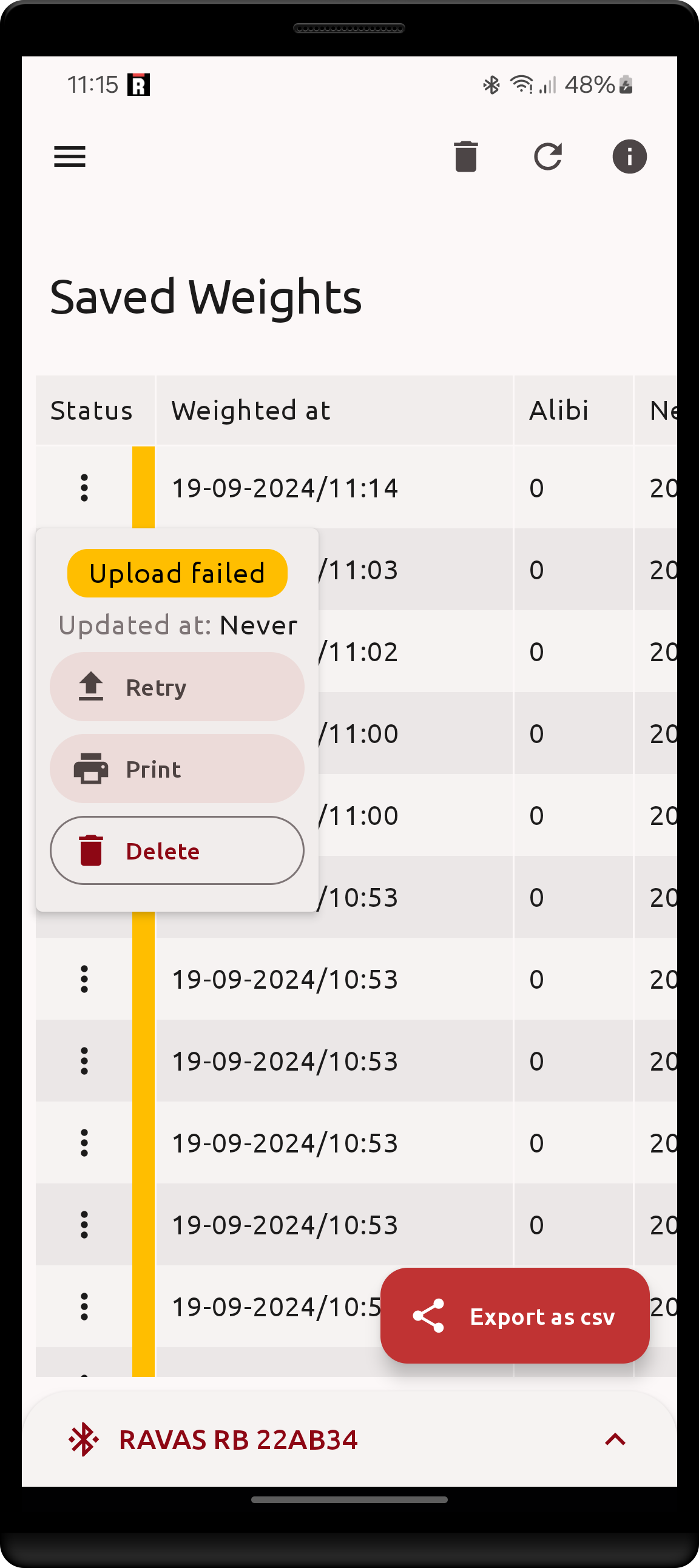
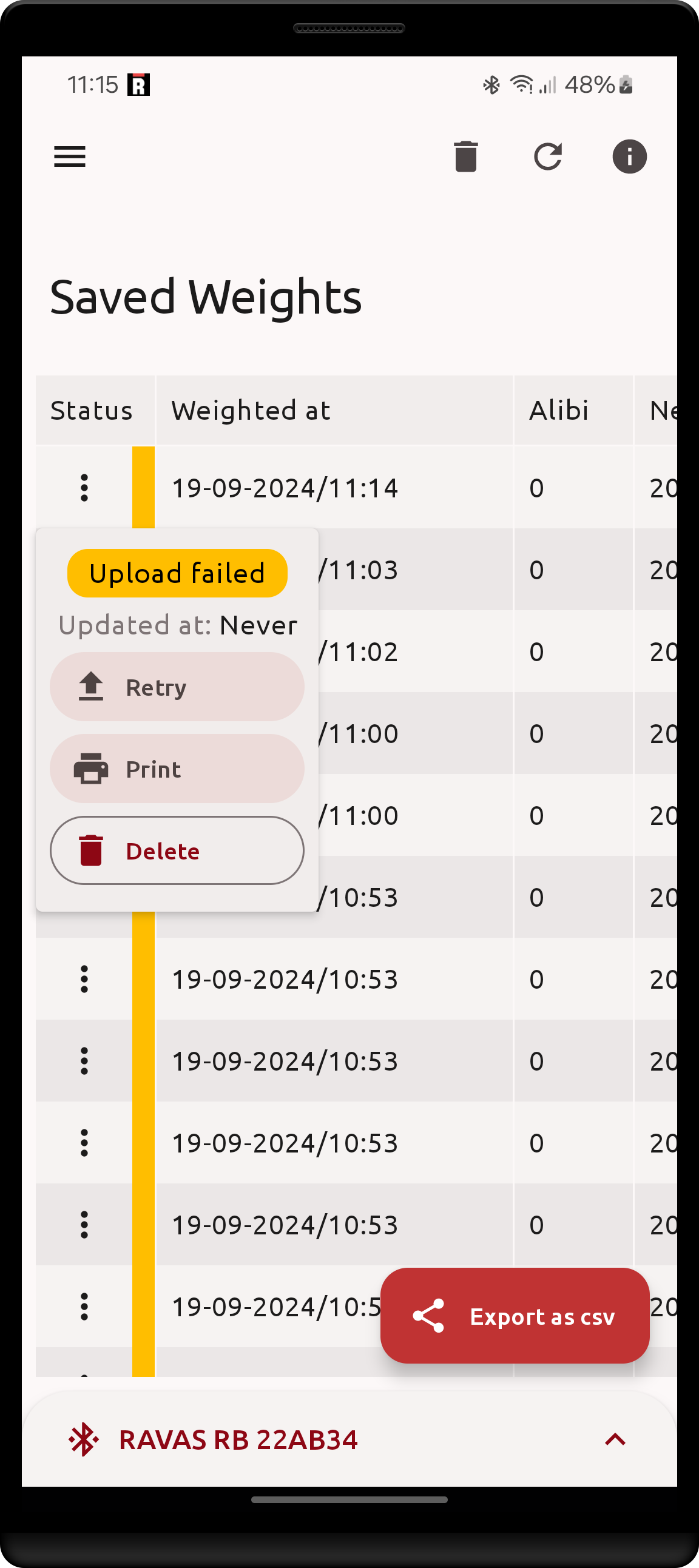
Another use-case is printing previously saved weights, this is possible without any configuration. Simply having a license unlocks the Print button in the Saved Weights screen for each individual weight.
When Print is clicked, the printing process is exactly the same as when the Printing mode is set to When a weight is saved and a weight is saved.
Reprinting a batch
Weights that were saved as part of a totalization or batch printing session carry a group number (the Group column).
For those weights the row menu shows an extra Print group button, which reprints the entire group in one job -
exactly as the original batch print would have done, table labels included.
| Print button for non-RDC weight | Print button for RDC weight | Print dialog for saved weight |
|---|---|---|
 |
 |
 |
Labels
The built-in label is basic and does not include all saved weight information (e.g. custom fields, alibi number, etc.). The app allows importing and customizing Zebra-specific print labels. A label can be marked default so it is chosen instead of the built-in label by default.
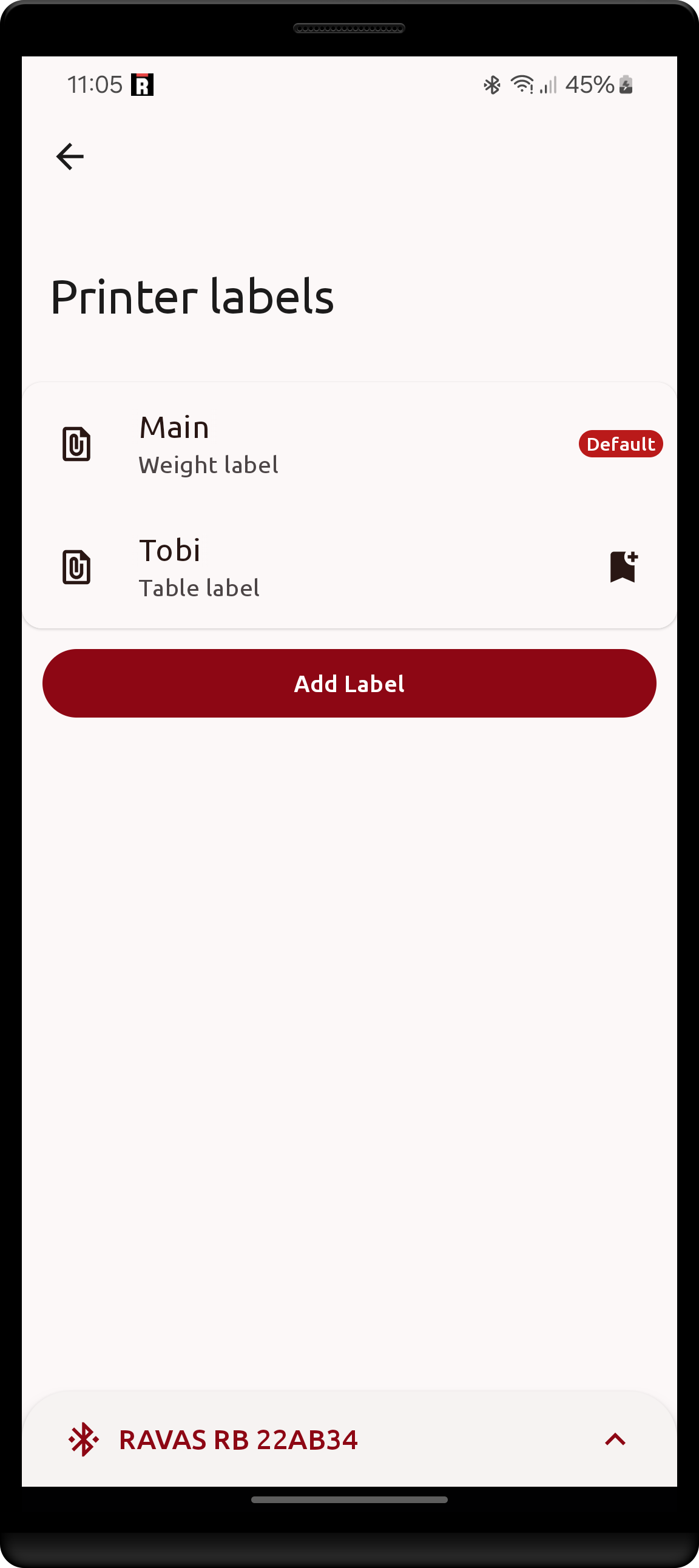
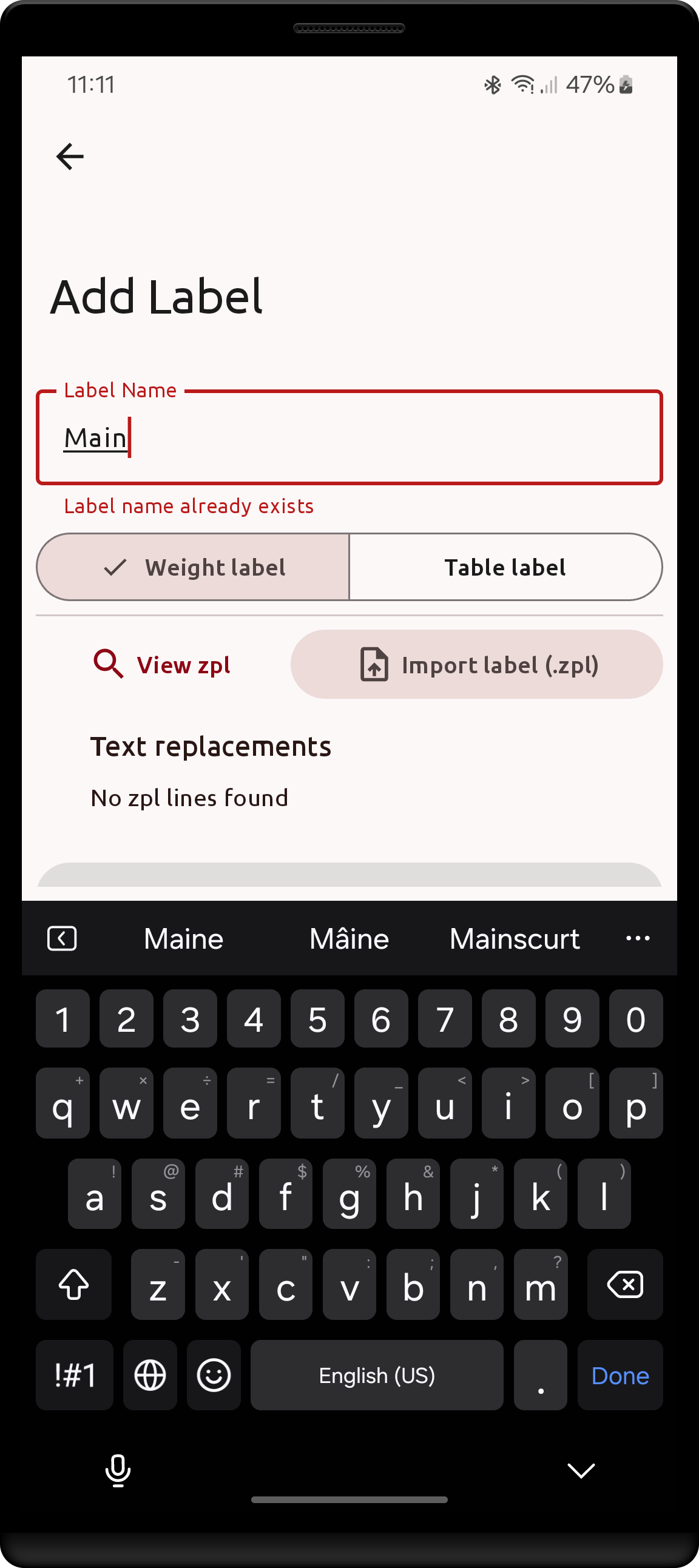
Creating a label
To add a label, navigate to Settings, click Labels, and click Add label. Each label must be given a unique name.
| Setting location | Labels screen | Basic creation form |
|---|---|---|
 |
 |
 |
Printer integration must be enabled |
Created labels will be shown here | An error will be shown when entering a duplicate name |
Afterwards, one (or multiple - for Table labels) valid .zpl file(s) must be imported. Click Import label (.zpl) to open the system file selector and choose an acquired label file.
- If the chosen file is valid, modifiable fields will show up under Text replacements.
- If the file is invalid, nothing will change in the form.
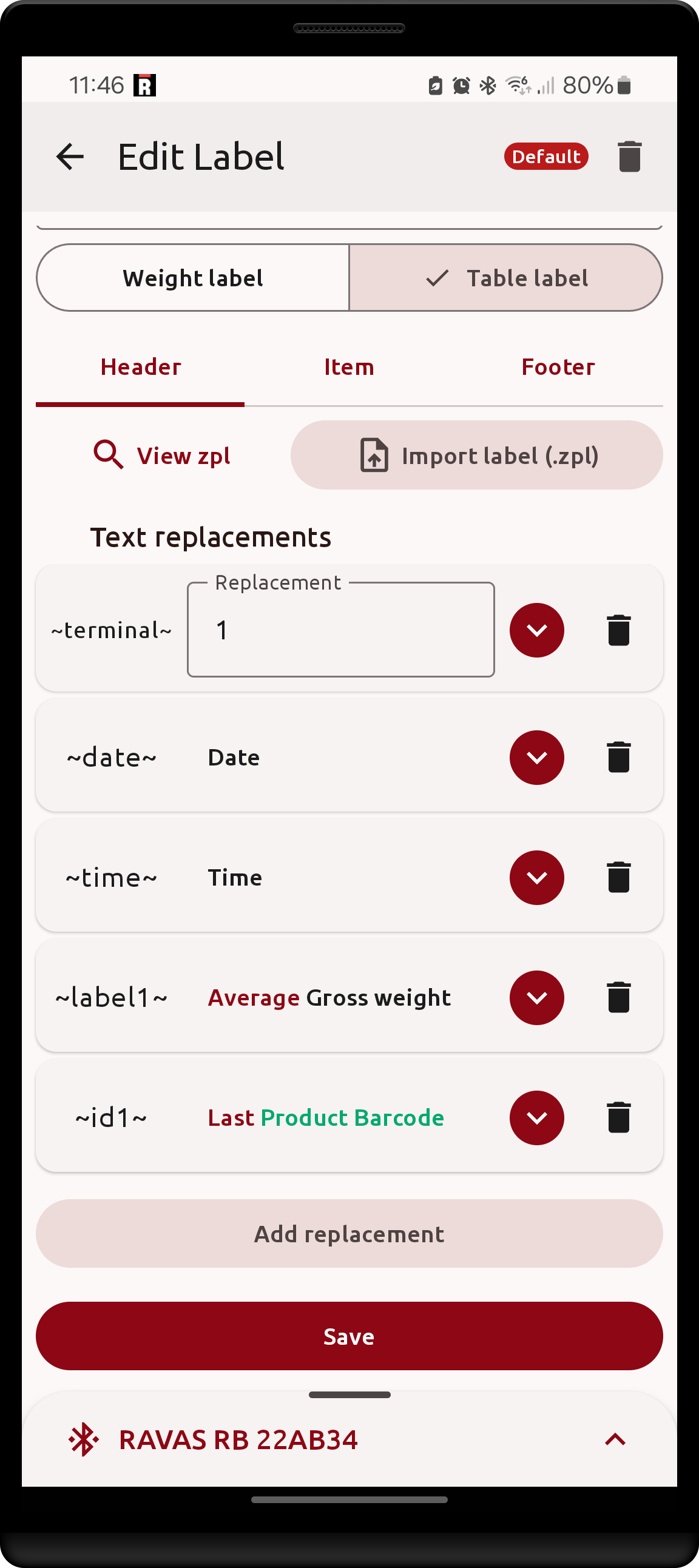
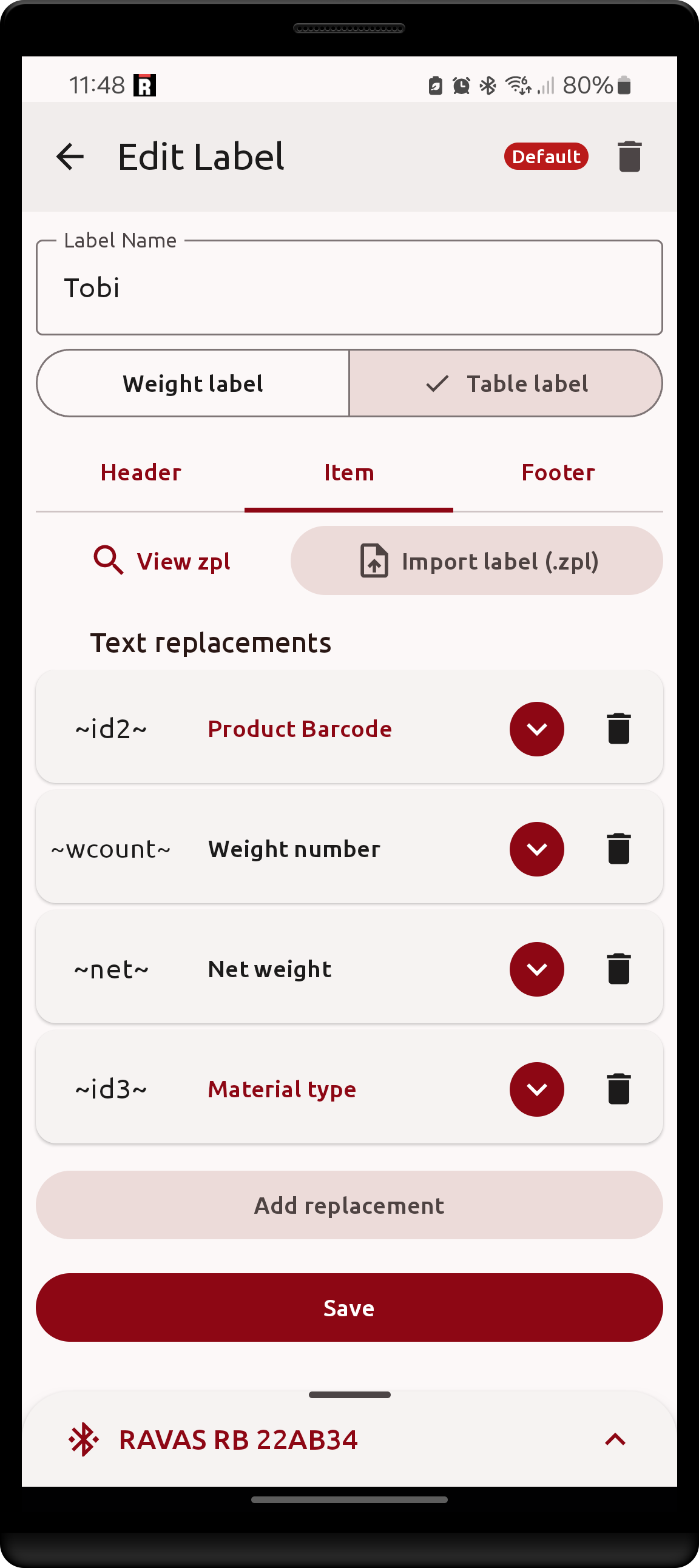
Table labels require 3 zpl labels to be imported & filled in - a
Headerlabel, anItemlabel, and aFooterlabel.
The imported label's text contents may be viewed by clicking View zpl. The Save button will become available once all text replacements have a valid selection.
| Valid label imported | Available text replacements | Label contents view |
|---|---|---|
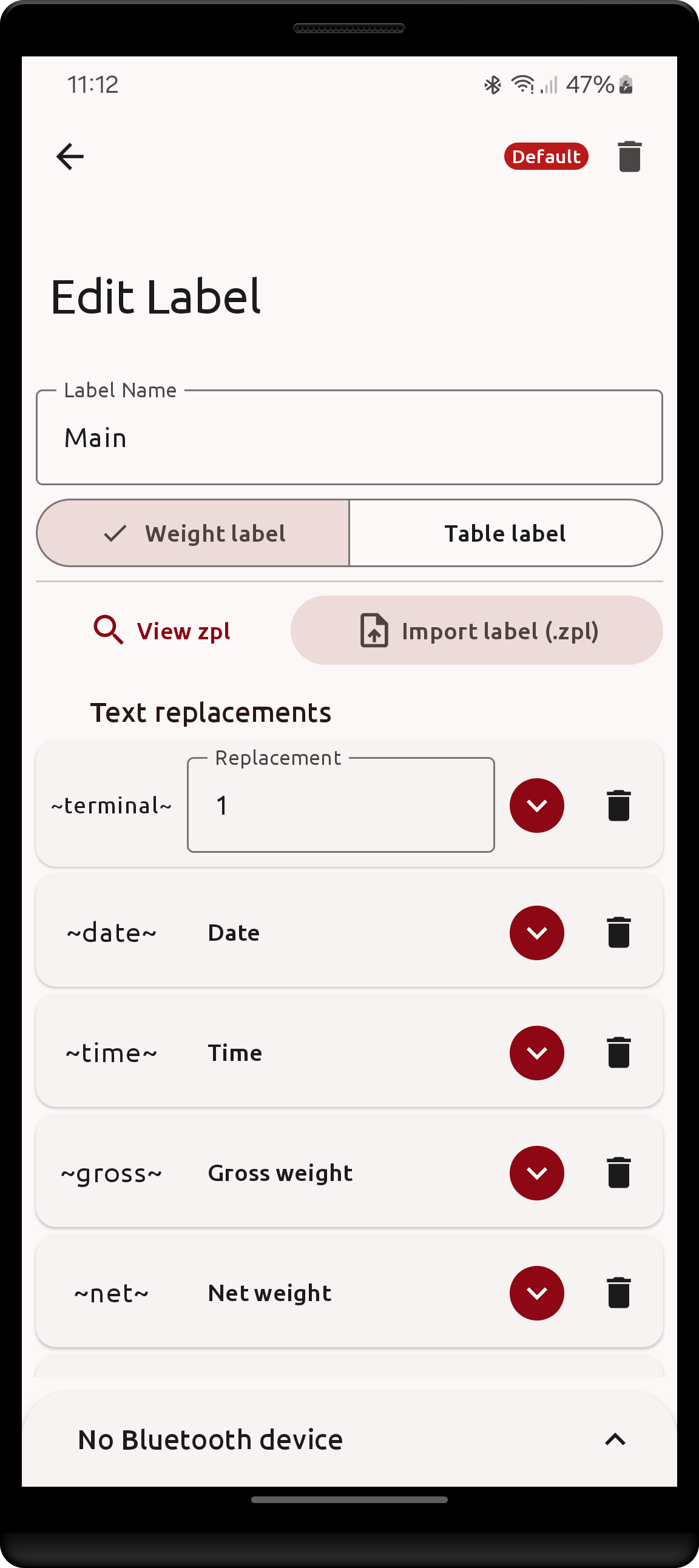 |
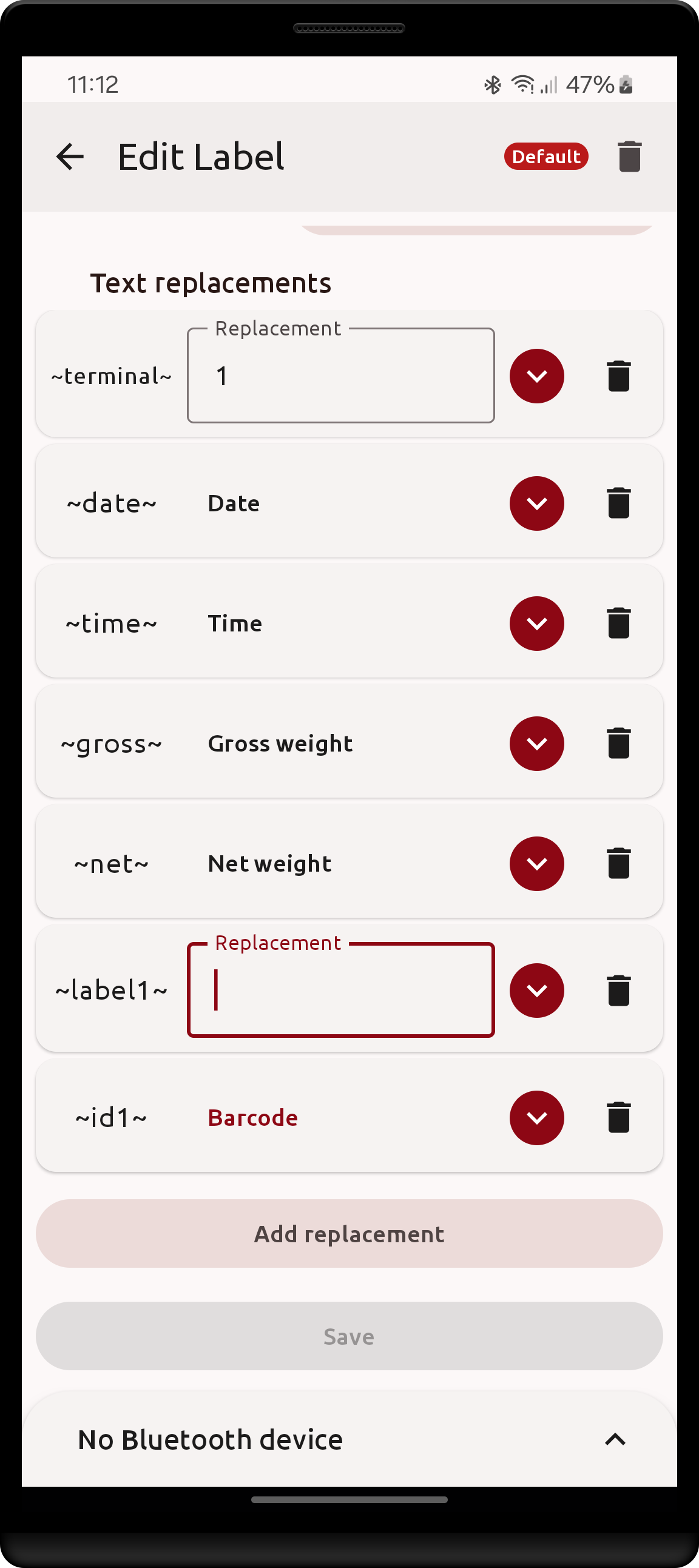 |
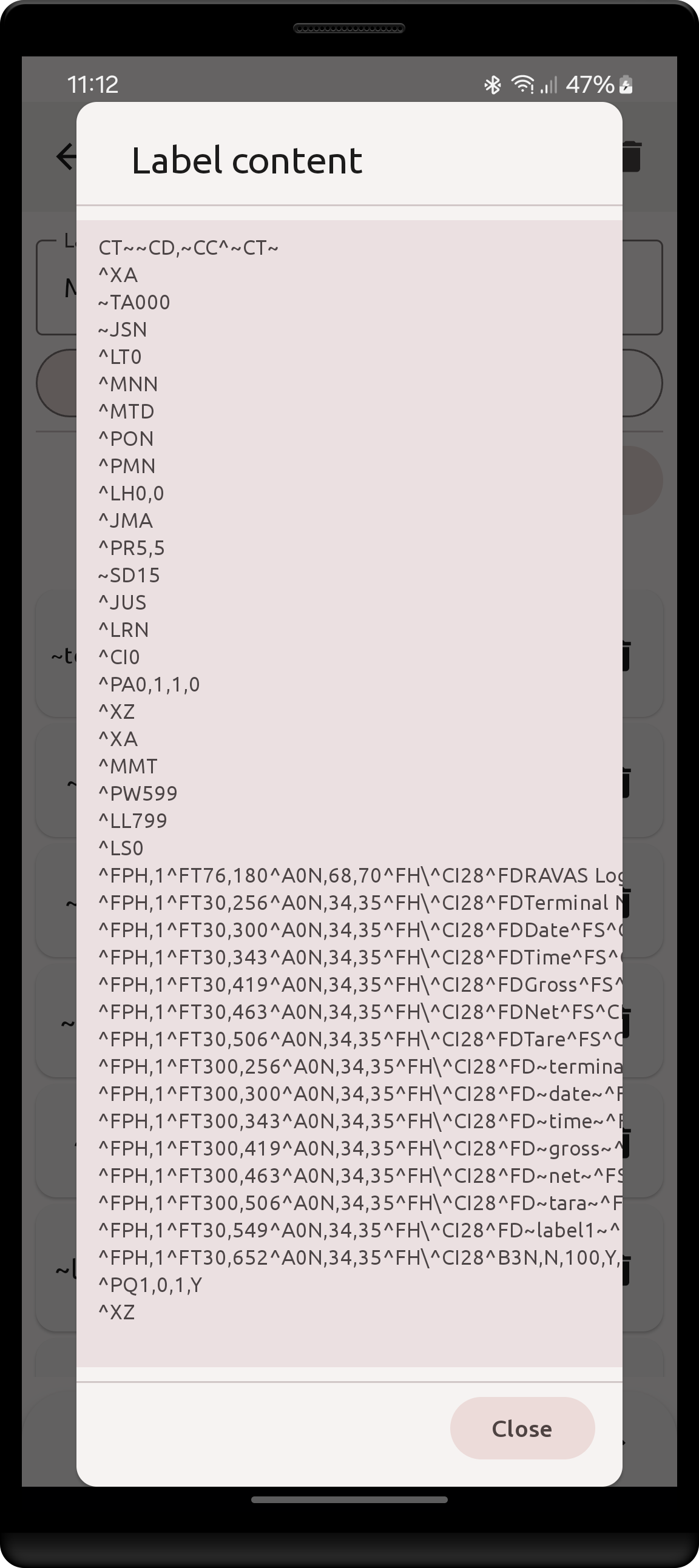 |
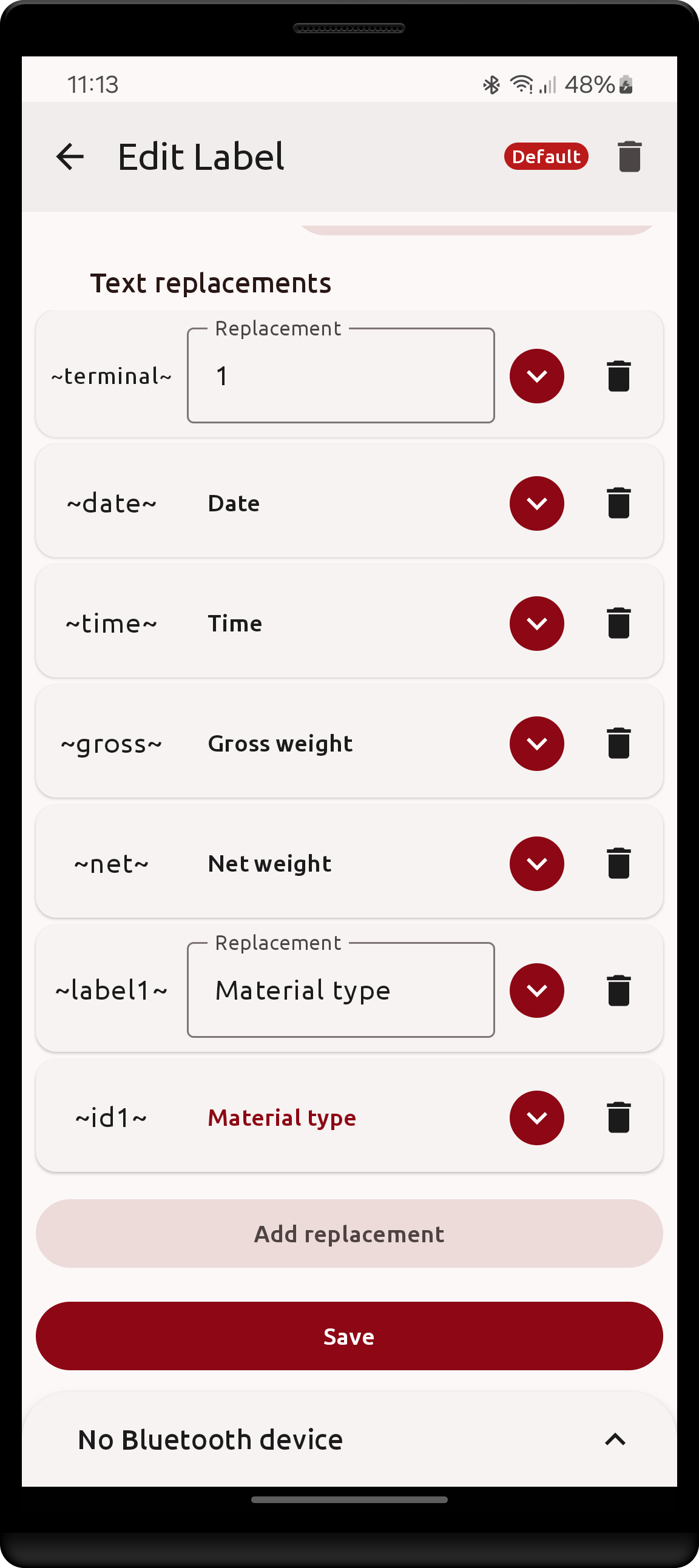
The app detects all text printout instructions in the label and provides the option to replace each by some value, dynamic or static. Labels usually contain text areas that aren't meant to be replaced (title, descriptions, field labels, etc.): these should be removed from replacement by clicking the trash icon button to the right end of the option.
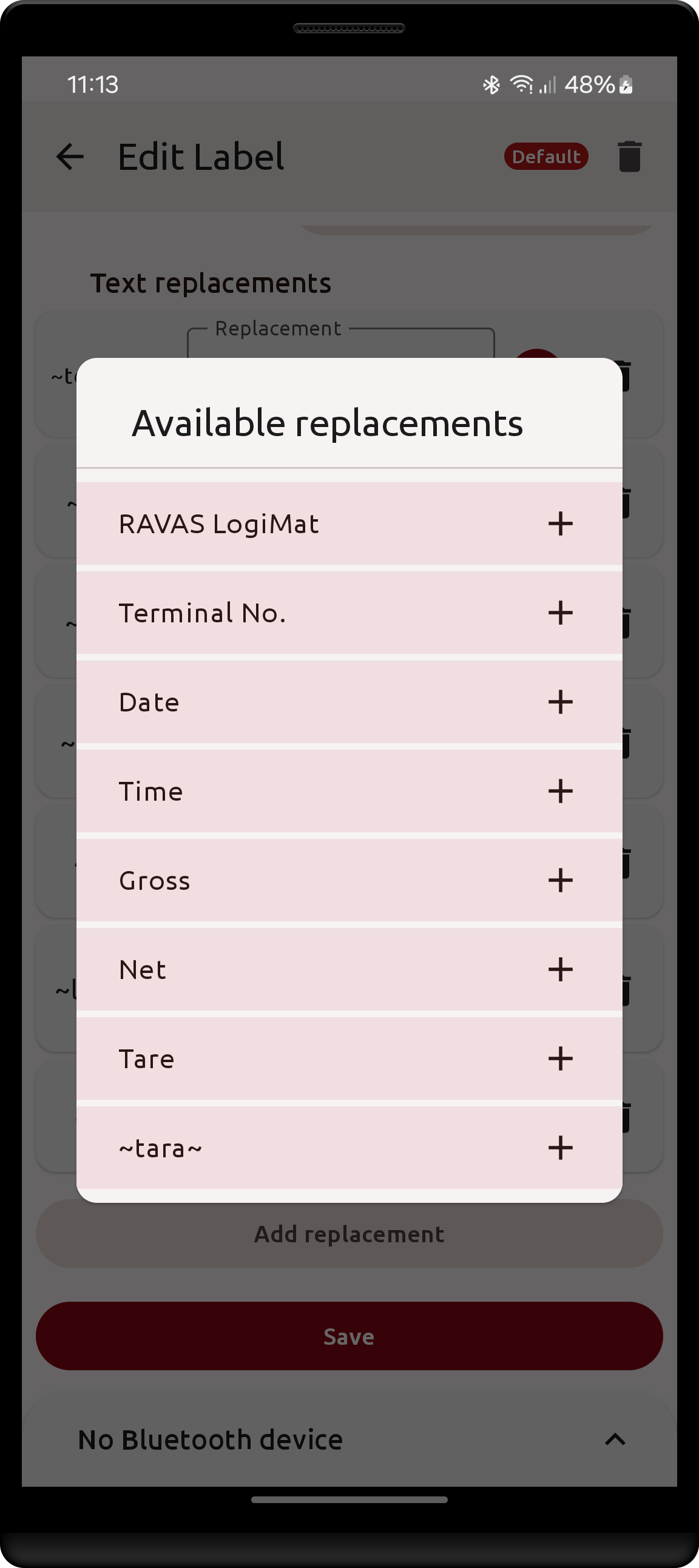
If you want to re-introduce a deleted replacement, scroll down and click the
Add replacementbutton. This button is only available if at least 1 replacement was removed. A dialog will open with the deleted replacements, click on the desired field to re-introduce it.
In the imported .zpl files values meant to be replaced are usually surrounded by some special character, in this case the tilde (~) symbol is used. Select an appropriate replacement for each field by clicking the drop-down menu icon button to the right of the option and selecting the type. By default all replacements are set to Static value which requires a non-empty string to be set for it to count as a valid replacement.
The available property replacements types are:
Individual/Item label - Weight properties
Static value: (default) static replacement string that must be non-emptyNet weight: saved weight's recorded net amountGross weight: saved weight's recorded gross amountWeight tare: the difference between the recorded gross and net amountsWeight number: the app's sequence number for the saved weightDate: date part depending on the format selected in Settings (default- - ) Time: time the saved weight was measured at in the format- Custom field: the value of the specified custom field when the weight is saved
- (Only with Table labels):
Weight index: the number of the weight in the collected batch
When the selected custom field is a dataset field, a second button appears next to it to choose which of the dataset's columns to print.
Label(the default) prints the selected entry itself.
| Set replacement type dialog | All needed replacements set | Add replacement dialog |
|---|---|---|
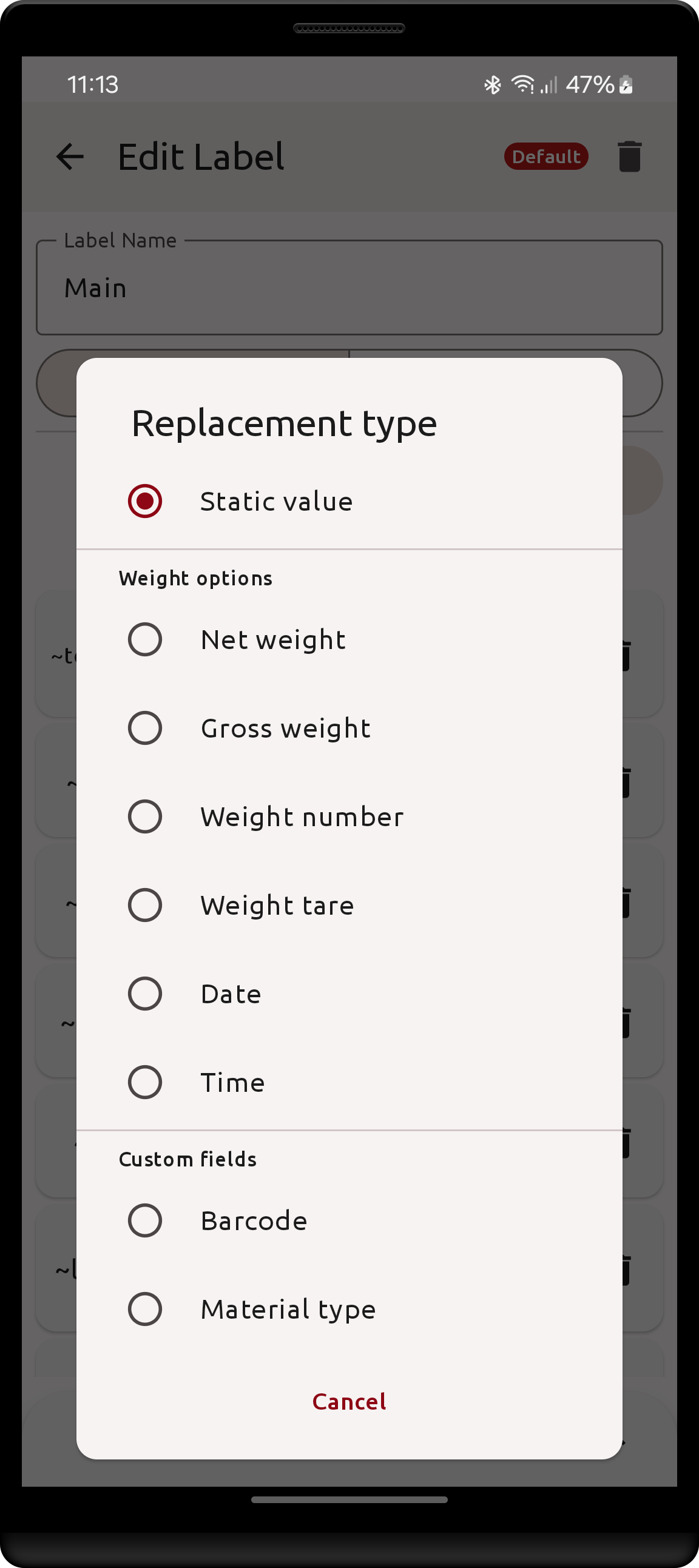 |
 |
 |
Tabular Aggregation label - Header & Footer labels
Static value: (default) same as aboveDate: same as above, date at which the printing operation is startedTime: same as above, time at which the printing operation is startedCount: number of weights in the batchAggregated value:- Choosing this type allows to aggregate a specific weight property, allowing for the following 2 selections:
Weight property: includes all replacement types for individual/item labels (weight properties, except index)Aggregation: depends on the weight property- When the property is scalar (Net/Gross/Tare/Number):
AverageMinimumMaximumTotal: the sum over all weights in the batchFirstLast- When the property is not scalar (Date/Time/any
Custom field) FirstLast
| Table label header example | Table label item example | Aggregation label replacement |
|---|---|---|
 |
 |
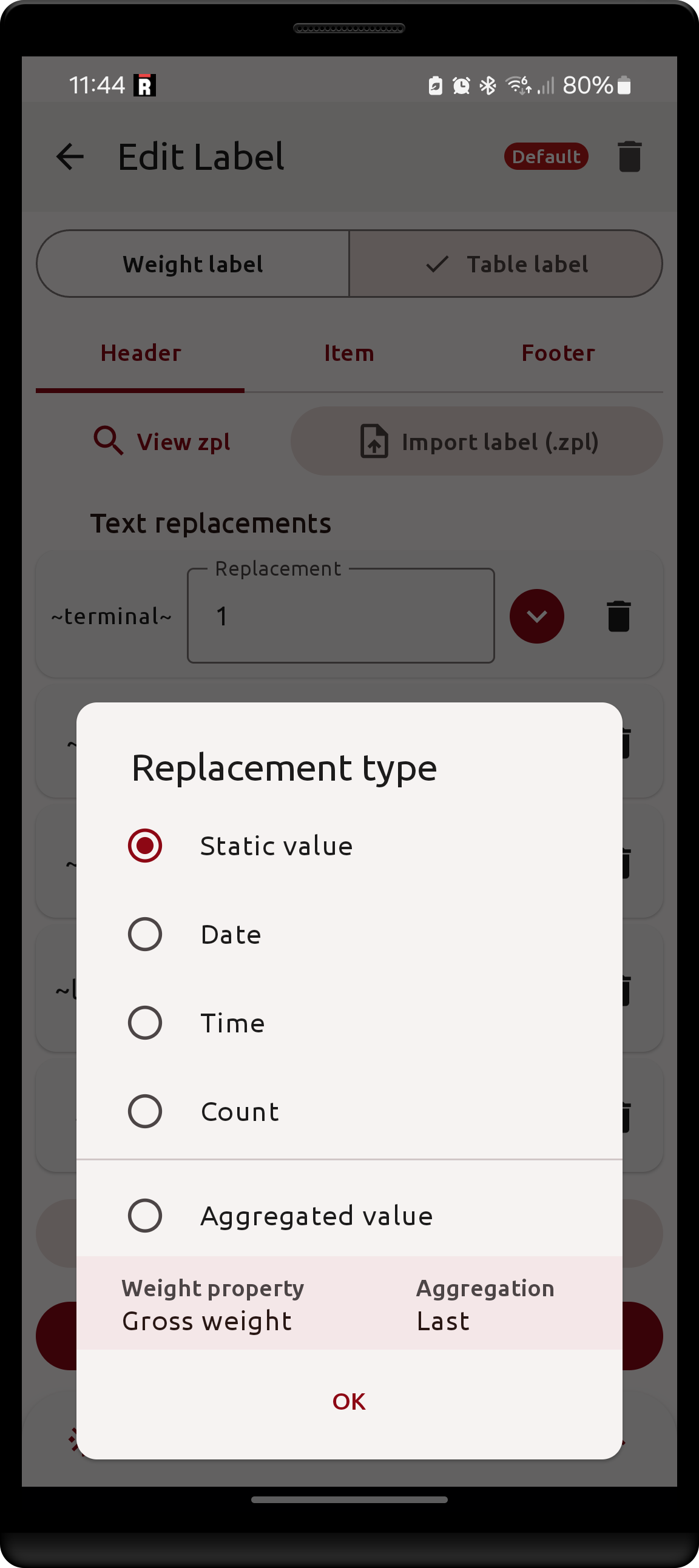 |
Managing labels
Labels may be modified by clicking on the desired label in the Labels screen. The exact same form as for the Creating a label will be shown.
A label may be made default by clicking the bookmark icon button to the right of its name in the Labels screen. Once default, a badge showing "Default" will be shown instead of the button. This can also be performed from the edit screen.
A label can be deleted from the Labels screen by swiping left (right-to-left) on the desired label, or from the edit screen, with the trash icon button in the top-right. Both options will prompt a confirmation dialog.
| Setting a default label | Deleting from the Labels screen | Deleting from the edit screen |
|---|---|---|
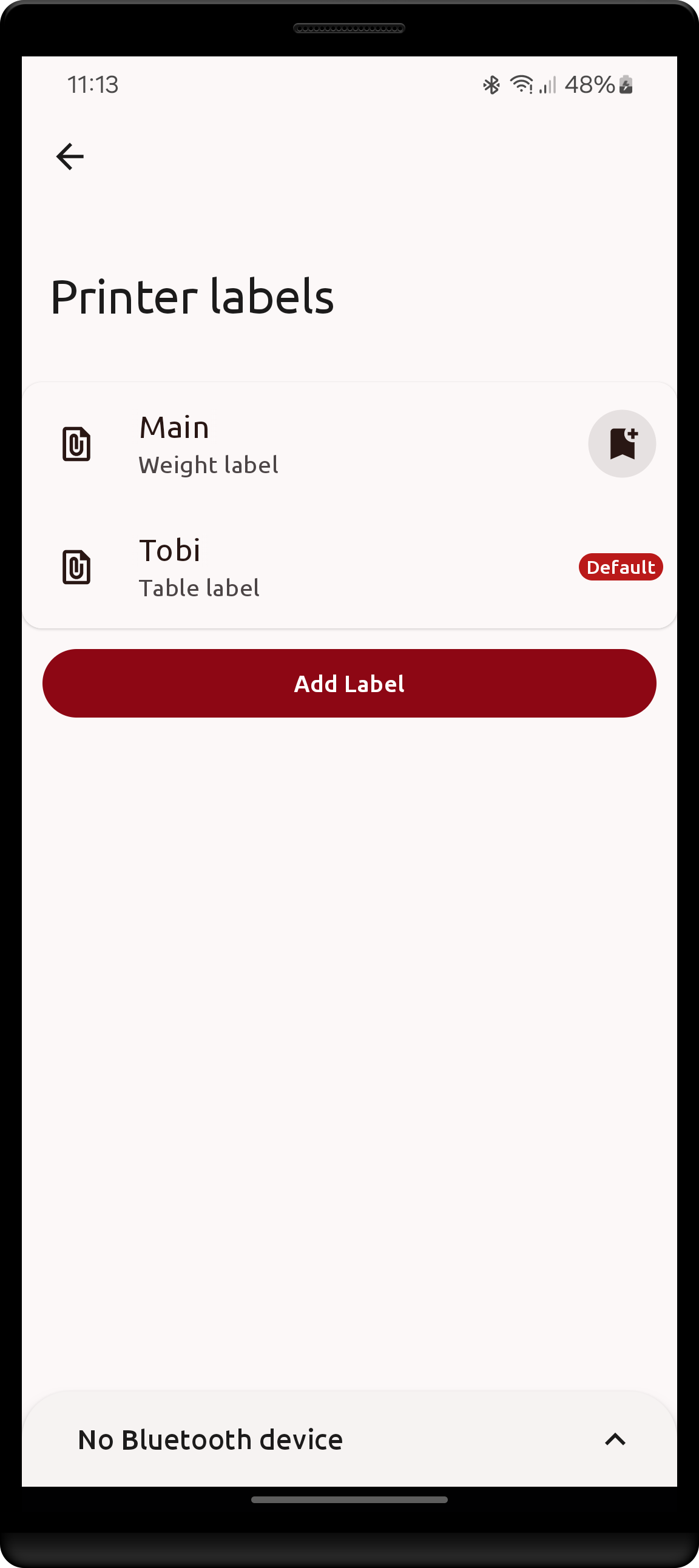 |
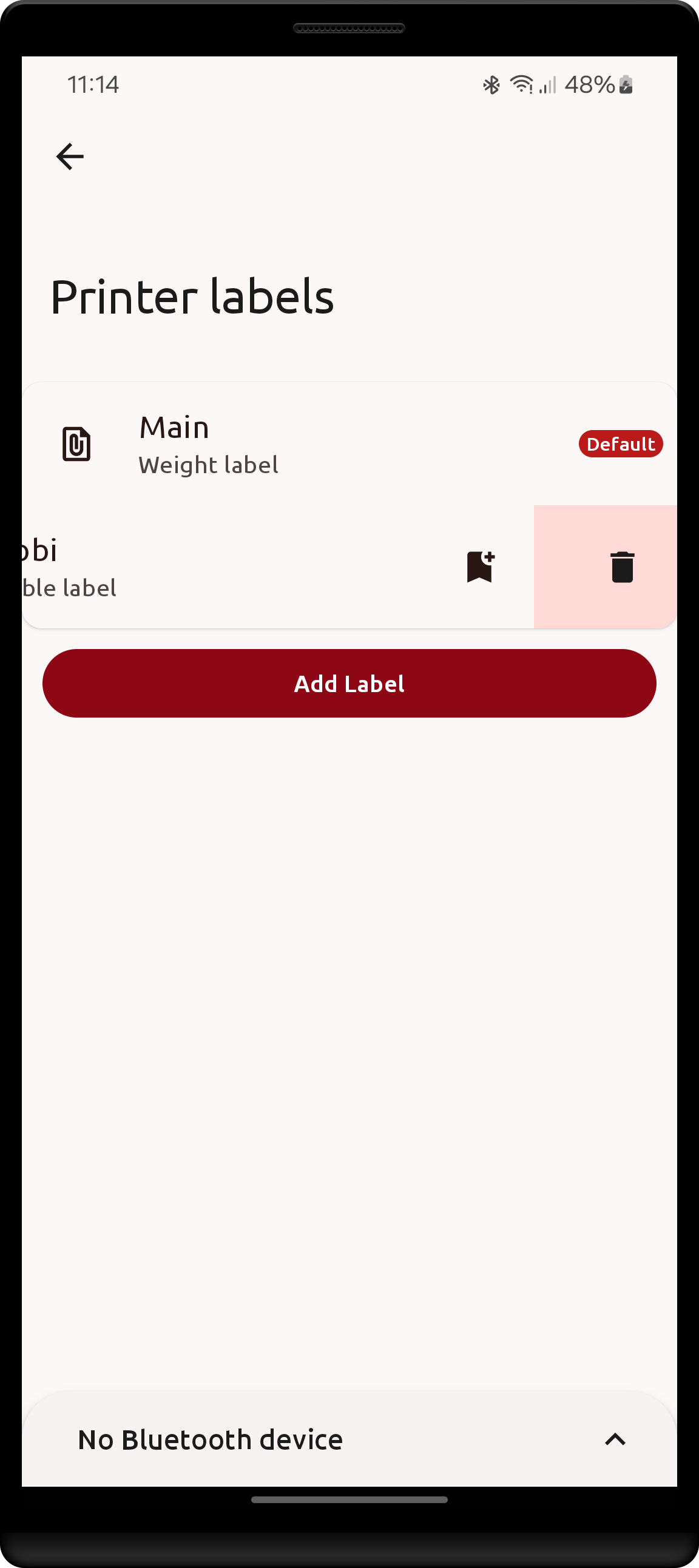 |
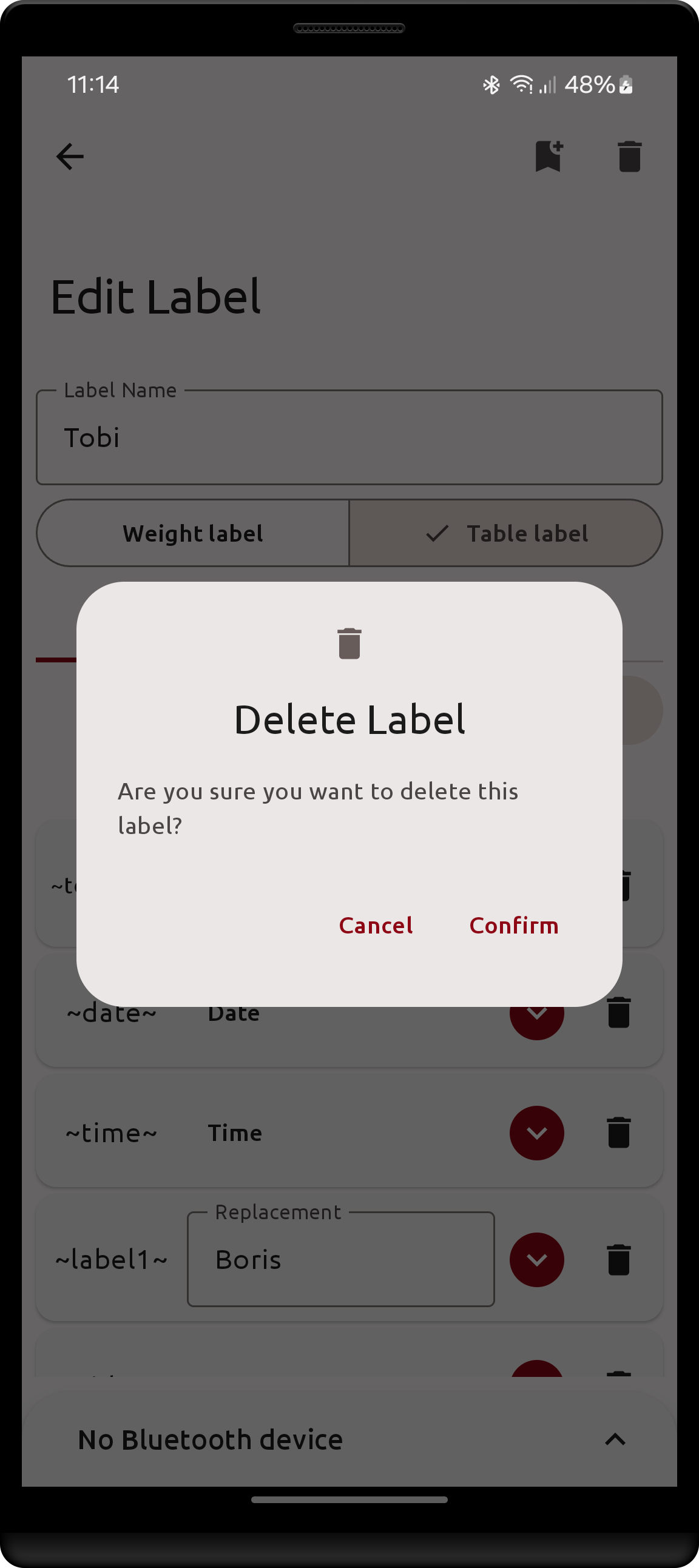 |
Custom fields and labels
- Changing names of custom fields will also update labels that reference them to use the correct name
- When restoring a settings Backup:
- Imported labels will overwrite current labels if they have the same name, otherwise old labels will remain.
- Current custom fields will be deleted and the imported ones will take their place.
- Replacements in old labels that reference fields that were deleted will no longer be able to print a value, unless the new custom fields and the referenced fields have the exact same names.
- Missing custom fields are reported in the Edit label screen with an error text
Unknown field: <field name> - Deleting a custom field that a label references will cause the same as above: the corresponding label replacement will no longer print a value, and the error text is shown in the label's edit screen.
- To solve this either create a custom field with the exact same name the label references or change the replacement type to match an appropriate new/existing custom field.
Protocol bridge server
The bridge server turns the Android device into a gateway between the connected RAVAS scale and the local network: any software that can open a TCP socket can talk to the scale through it, without implementing Bluetooth itself.
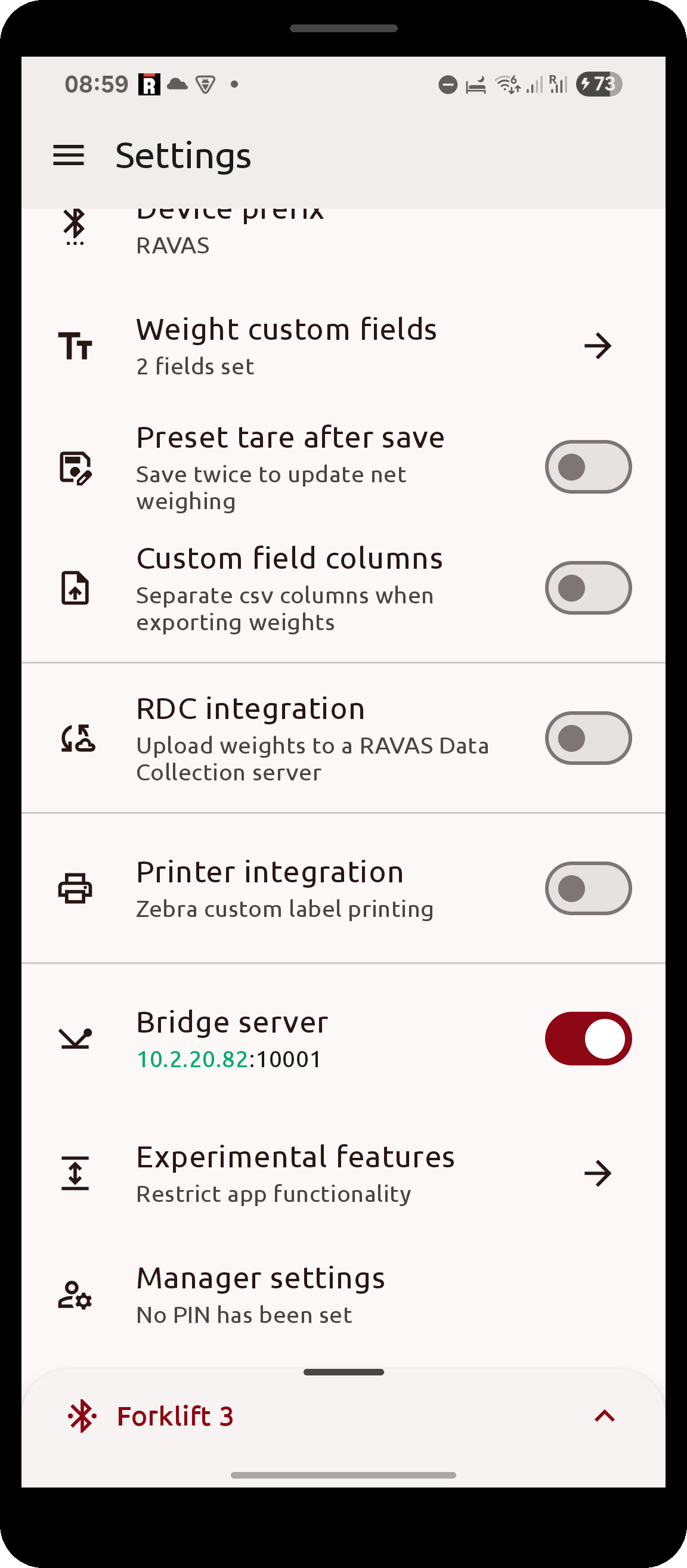
- Enable it with the switch on the
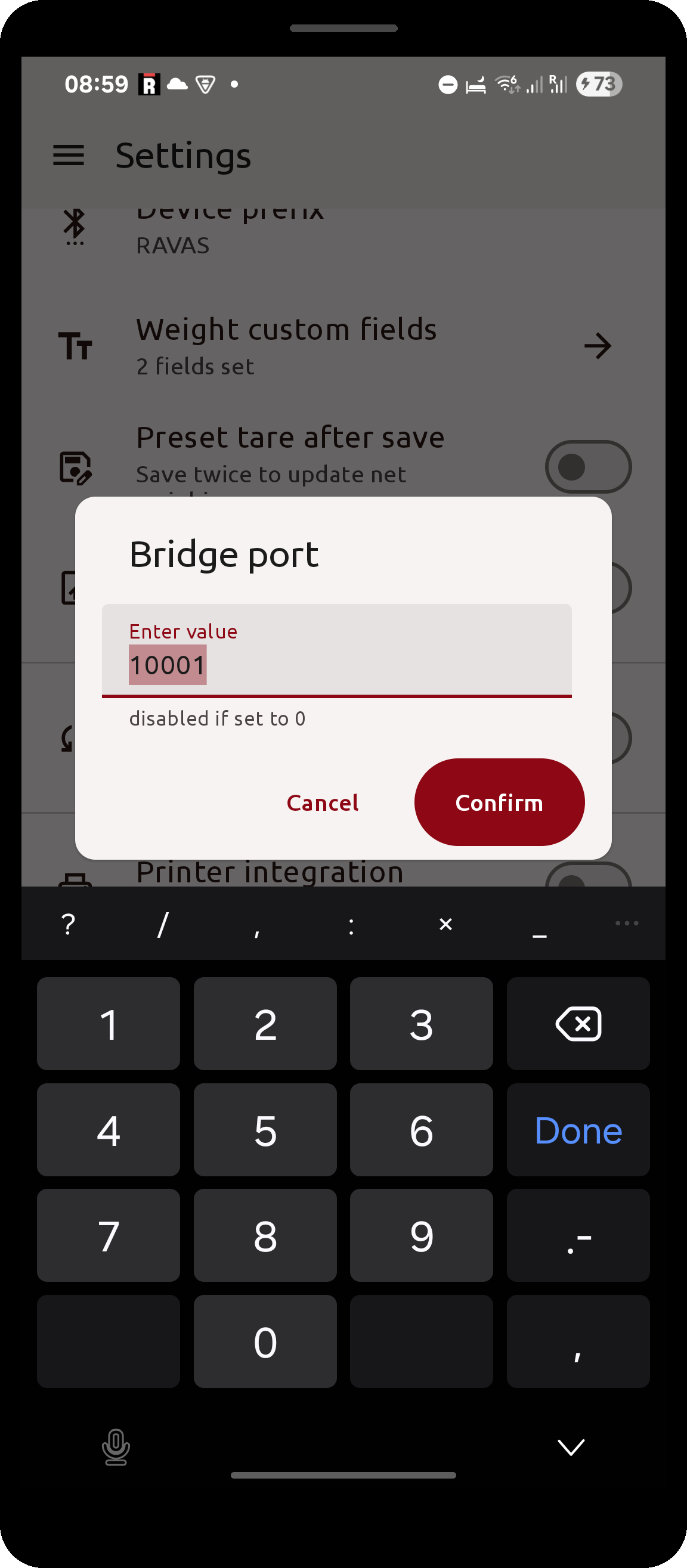
Bridge serversetting in Settings; this sets the port to the default10001. - Click the setting itself to enter a different
Bridge port. Entering0disables the server. - The setting's description shows the Android device's current network address followed by the port. The address is highlighted in green while a scale is connected, meaning the bridge is actually able to serve data.
While a client is connected, everything the scale sends is forwarded to it verbatim, and everything the client sends is forwarded to the scale. The bytes are the scale's own protocol - the RedBox protobuf protocol for RedBox devices, or the plain ASCII protocol for the other indicators. The server accepts one client at a time; a new connection replaces the previous one.
Make sure your Android device and the client are on the same local network, and that the device does not go to sleep while the bridge is expected to be reachable.
| Enabled bridge server | Changing the port |
|---|---|
 |
 |
Settings
This page shows a brief description of all primary application settings. The visibility of certain app settings is determined by the presence of a license.
Some settings are gateways to more complex configurations, those usually have guides in Base features and Licensed features sections.
System settings
| Setting | Description | Type | Possible values | Default | Notes |
|---|---|---|---|---|---|
| Language | App language | selection | Default, English, Nederlands, Deutsch, Polski, Italiano, Română, Français, Español |
Default |
Also compatible with Android 13+ system app language setting |
| Theme | Color theme style of the app | selection | System theme, Dark theme, Light theme |
System theme |
|
| Material You | Set color scheme to be system-dependent | toggle | On, Off |
Off |
Only available for Android 12+ devices |
| Backups | Export/import/restore system settings as backup files / via network. | special | Any saved backups | no backups | Related Section |
| License | Set a license code, view/delete current app license | special | Any license code | no license | Deleting the license causes some settings to be reset. See related Section |
| Your device identifier | Unique identifier (UUID) specific to the android device | read-only text | any 64bit number encoded as hex-string | device specific UUID | Is a combination of a hardware key, app's signing key, and android user ID. May change after a factory reset. |
Weighing settings
| Setting | Description | Type | Possible values | Default | Notes |
|---|---|---|---|---|---|
| Weight only display | Whether Weight screen controls are hidden by default when entering Weight screen | toggle | On, Off |
Off |
see related section |
| Weight totalization | Whether Weight totalization is enabled | toggle | On, Off |
Off |
see related section |
| Weight decimal separator | Character used when displaying a weight to separate the decimals | text | Any text string | . |
Will only consider the first character as separator, the rest are ignored |
| Date format | Format used to display date in Saved Weights screen | selection | date-month-year, year-month-date, month-date-year |
date-month-year |
Also affects the date format of weights uploaded to RDC and printing label dates, when applicable |
| Device prefix | When scanning for RAVAS BLE devices: filter only devices that start with this value | text | Any text string | RAVAS |
is case sensitive |
| Weight custom fields | Fields whose values are filled in the Weight screen and stored with each weight | special | Custom fields | no fields | Text fields are available without a license. See related Section |
| Preset tare after save | Determine a tare by saving the loaded carrier, then the empty one | toggle | On, Off |
Off |
See related section |
| Custom field columns | Write each custom field into its own column when exporting weights to .csv | toggle | On, Off |
Off |
See related section |
| Excel compatible export | Write the weights .csv export in a format Microsoft Excel always opens correctly | toggle | On, Off |
Off |
Tab-separated UTF-16 instead of semicolon-separated UTF-8. See related section |
Barcode weightandBarcode typeare also part of the Weighing section, but require an active license - see QR settings.
QR settings (license required)
| Setting | Description | Type | Possible values | Default | Notes |
|---|---|---|---|---|---|
| Barcode weight | Whether Weight should be shown as QR by default when entering Weight screen | toggle | On, Off |
Off |
|
| Barcode type | Type of code image to be generated when viewing weight as QR | selection | QR_CODE_RAVAS, QR_CODE, ITF, EAN8, EAN13, UPCA, UPCE, CODABAR, CODE39, CODE93, CODE128 |
QR_CODE |
QR_CODE_RAVAS is a QR code branded with the RAVAS logo |
RDC settings (license required)
| Setting | Description | Type | Possible values | Default | Notes |
|---|---|---|---|---|---|
| RDC integration | Toggles whether the app should use RDC features | toggle | On, Off |
Off |
Causes the other RDC settings to be visible when enabled |
| RDC User ID | Operator name to include in weight when uploading to RDC | text | Any text string | empty string | |
| RDC Server Address | Network location of the RDC server where weights are uploaded | url | Any valid url string | emtpy string | Do not include the RDC weight path. When uploading weights, the path /rest/scale/weight is appended to the set url |
Bridge server settings (license required)
| Setting | Description | Type | Possible values | Default | Notes |
|---|---|---|---|---|---|
| Bridge server | Forward the connected scale's protocol to a TCP client | toggle | On, Off |
Off |
Switching it on sets the port to 10001. See related Section |
| Bridge port | TCP port the bridge server listens on | numeric text | Any positive number | 0 |
0 disables the server |
Print settings (license required)
| Setting | Description | Type | Possible values | Default | Notes |
|---|---|---|---|---|---|
| Printer integration | Toggles whether the app should use Zebra Printing features | toggle | On, Off |
Off |
Causes the other Print settings to be visible when enabled |
| Printing mode | Enable starting print process when saving weights | selection | Manual, When a weight is saved, When clearing batched weights |
Manual |
Changes when the app attempts to start the printing operation. See related Section |
| Default printer | Choose default printer in the print process | special | Any found or added printer | no printer set | The setting Ask before printer is modifiable only when a printer is set. See related section |
| Labels | Manage custom (.zpl) labels and set default label | special | Custom labels | no labels | A (hidden) basic built-in label is always present. See related Section |
| Ask before printing | Whether a confirmation dialog should be shown before printing commences on weight save | toggle | On, Off |
On |
If no default printer is set this setting will be forced On |
Experimental settings
| Setting | Description | Type | Possible values | Default | Notes |
|---|---|---|---|---|---|
| Auto-connect to device | Scale the app connects to automatically whenever Bluetooth is on | special | Any scanned device | no device selected | See related section |
| Connection controls | Whether the user may connect/disconnect a scale | toggle | On, Off |
On |
Can only be switched off once an auto-connect device has been selected |
| Weight Screen | Whether the Weight screen is reachable at all | toggle | On, Off |
On |
See related section |
| Update RB Display | Push a firmware update to a RAVAS RedBox Display | special | - | - | Only enabled while the Android device is connected to the Display's Wi-Fi access point |
Manager settings
| Setting | Description | Type | Possible values | Default | Notes |
|---|---|---|---|---|---|
| Manager PIN code | PIN required for accessing manager mode | numeric text | Any string composed of only digits | empty | Can only be set while in manager mode. See related section |
Settings screen
| System section | Weighing & QR section | RDC & Printing section |
|---|---|---|
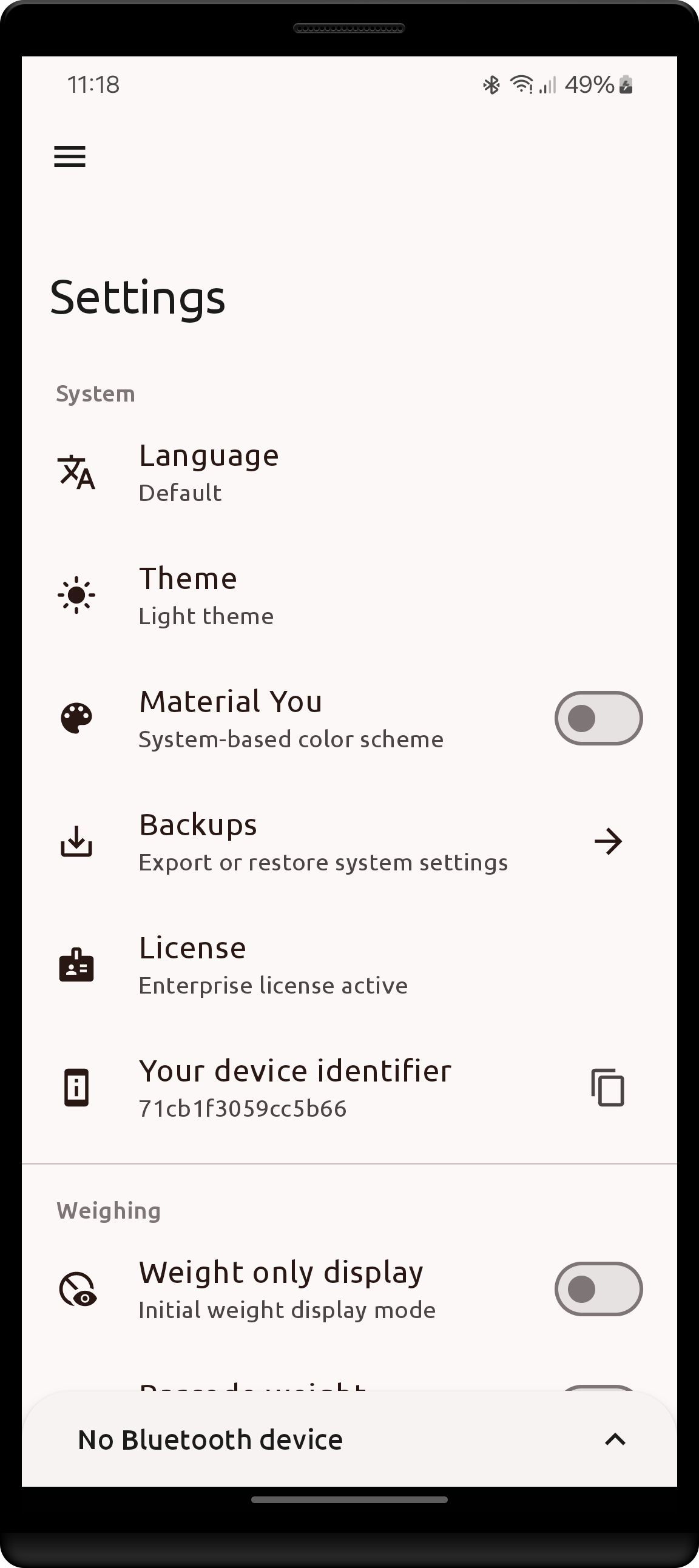 |
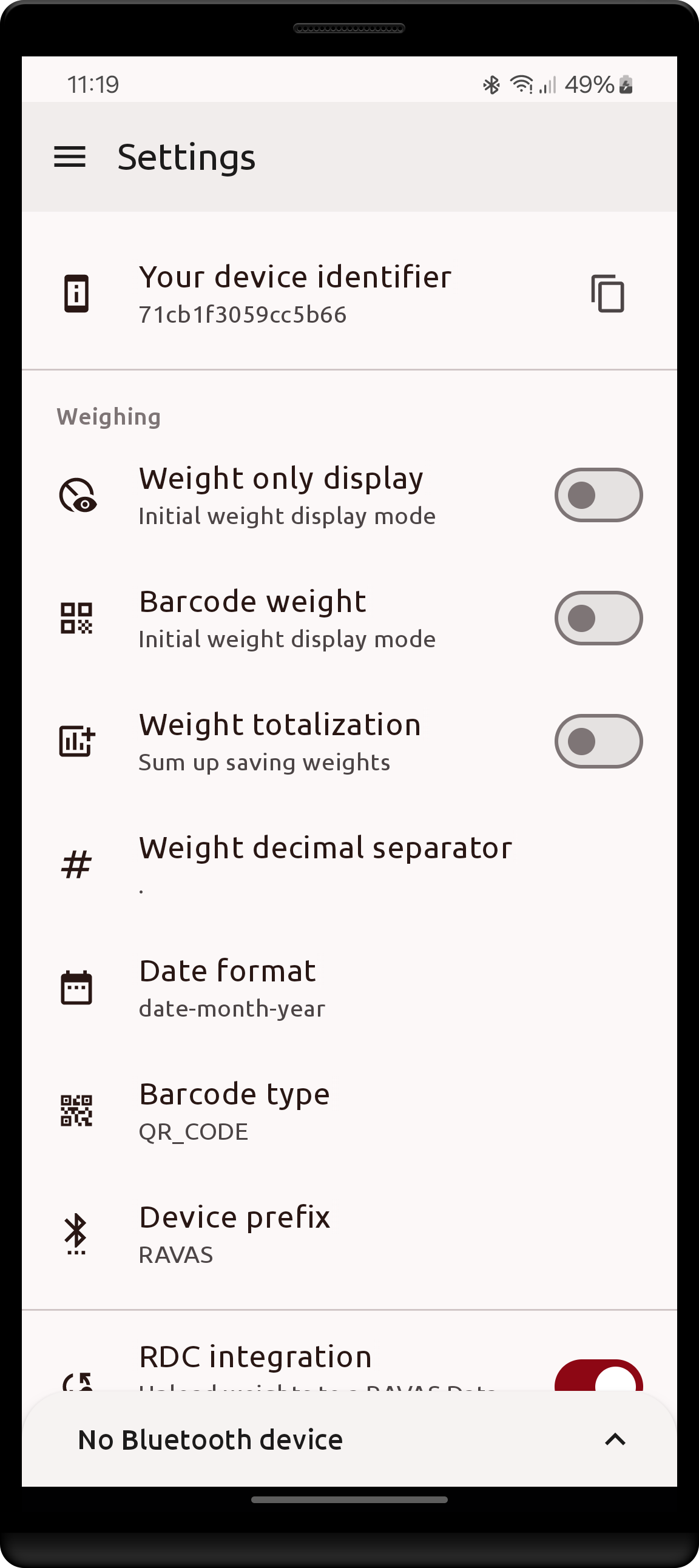 |
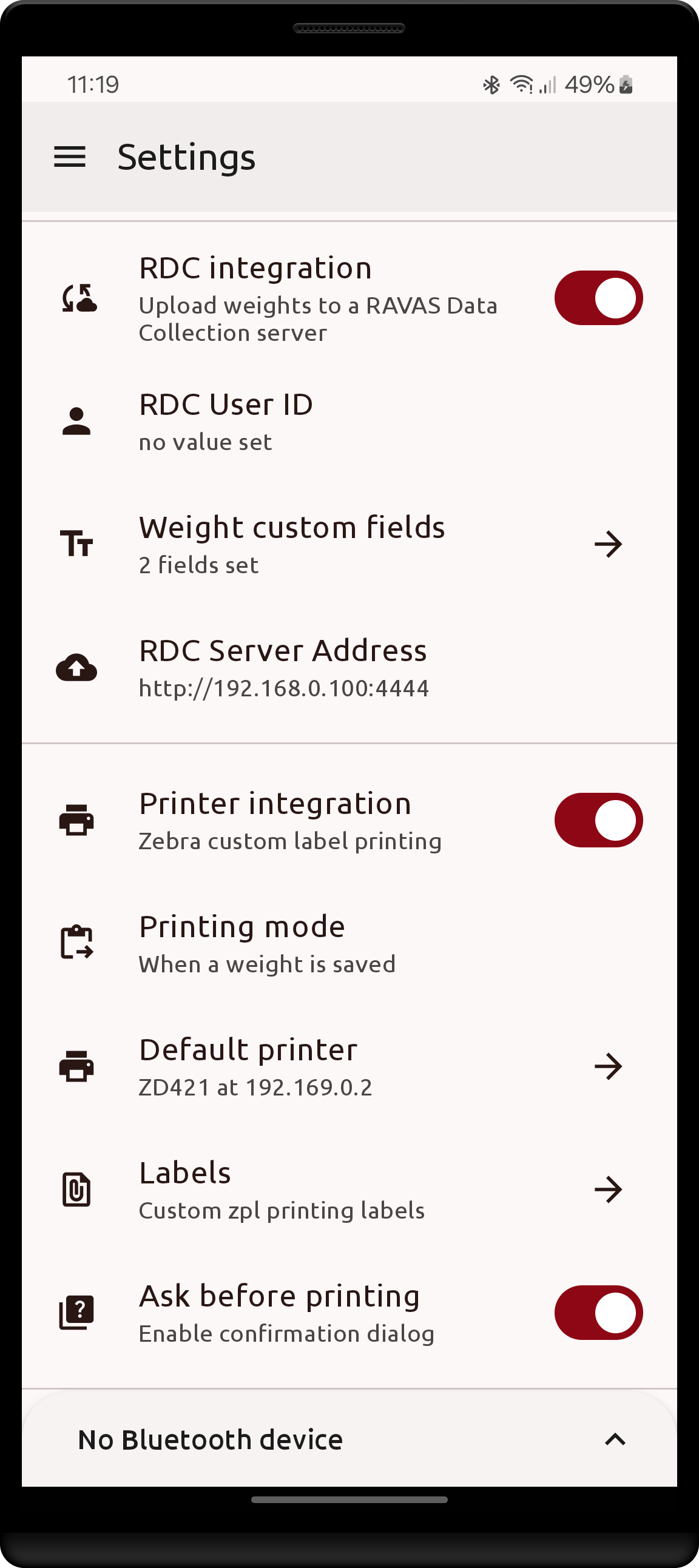 |
| Weighing section |
|---|
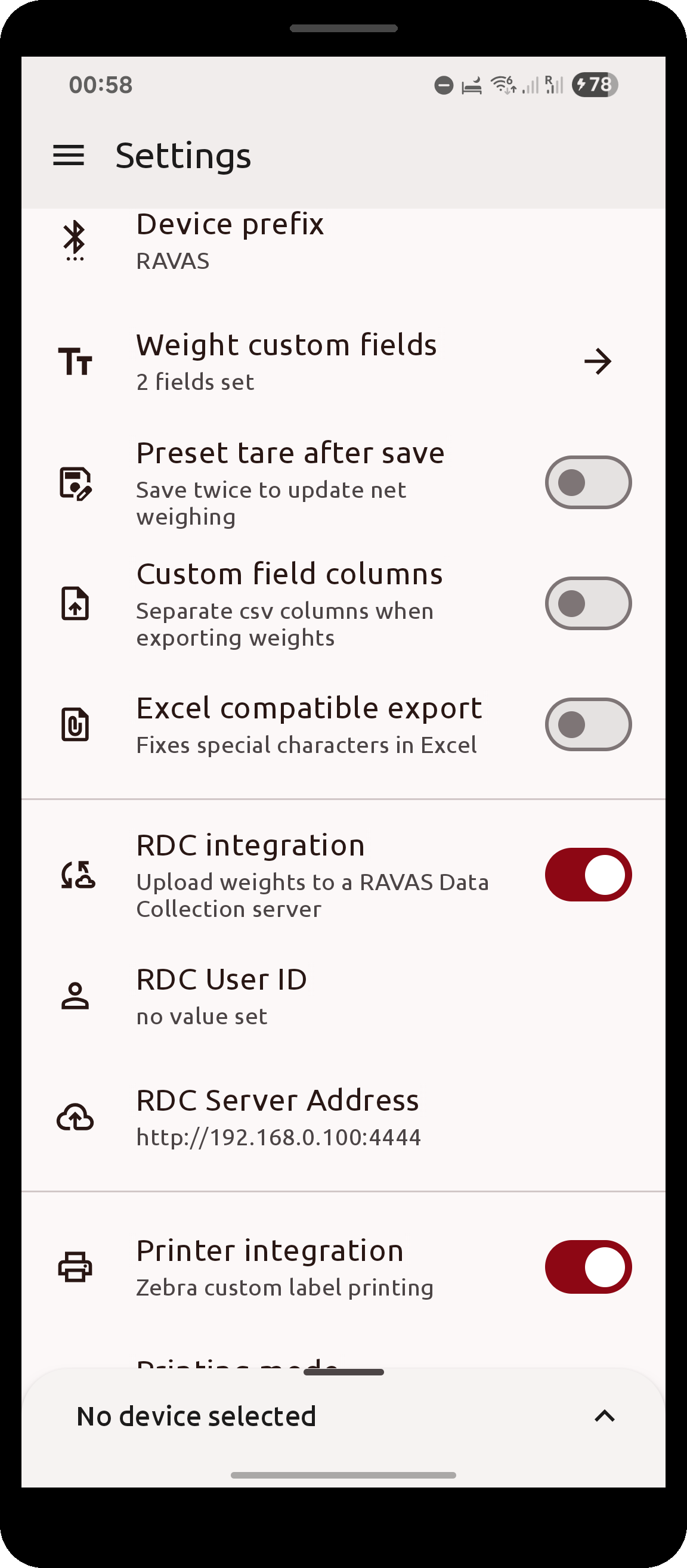 |
Weight custom fields, Preset tare after save, Custom field columns and Excel compatible export are part of this section |